" height="46.544817328444324px" id="n5jdrwcS8" transform="translate(0 12.5)" width="48.48836629691829px"/><path d="M 0 6.07 C 0 2.718 2.703 0 6.036 0 C 9.37 0 12.073 2.718 12.073 6.07 C 12.073 9.423 9.37 12.141 6.036 12.141 C 2.703 12.141 0 9.423 0 6.07 Z" fill="rgb(13, 255, 116)" height="12.140742752570398px" id="mI9nI26QG" transform="translate(26 0)" width="12.072513008007263px"/><path d="M 82.262 27.632 L 74.758 27.632 C 74.407 27.632 74.157 27.287 74.266 26.95 L 81.306 5.162 C 82.296 2.096 85.137 0.02 88.343 0.02 C 91.555 0.02 94.402 2.105 95.386 5.18 L 102.361 26.952 C 102.468 27.289 102.218 27.632 101.867 27.632 L 94.164 27.632 C 93.933 27.632 93.727 27.477 93.665 27.25 L 92.584 23.346 C 92.558 23.25 92.471 23.183 92.371 23.183 L 84.018 23.183 C 83.919 23.183 83.829 23.25 83.803 23.348 L 82.757 27.246 C 82.696 27.473 82.492 27.631 82.258 27.632 Z M 87.626 9.268 L 85.775 16.059 C 85.736 16.202 85.842 16.341 85.988 16.341 L 90.406 16.341 C 90.552 16.341 90.658 16.2 90.619 16.059 L 88.767 9.268 C 88.609 8.684 87.785 8.684 87.626 9.268 Z M 104.149 7.214 L 111.113 7.214 C 111.4 7.214 111.631 7.447 111.631 7.734 L 111.631 8.853 C 111.631 9.058 111.879 9.151 112.019 9.002 C 113.337 7.577 115.067 6.865 117.209 6.865 C 117.769 6.865 118.299 6.908 118.8 6.995 C 119.072 7.042 119.259 7.3 119.223 7.575 L 118.469 13.403 C 118.452 13.542 118.379 13.667 118.268 13.752 C 118.157 13.836 118.016 13.871 117.879 13.85 C 117.287 13.757 116.69 13.71 116.092 13.709 C 114.886 13.709 113.913 13.942 113.17 14.405 C 112.299 14.973 111.863 15.953 111.863 17.343 L 111.863 27.109 C 111.863 27.397 111.631 27.63 111.345 27.63 L 104.151 27.63 C 103.865 27.63 103.634 27.397 103.634 27.109 L 103.634 7.732 C 103.634 7.445 103.865 7.212 104.151 7.212 Z M 120.997 0.02 L 127.807 0.02 C 128.093 0.02 128.325 0.253 128.325 0.541 L 128.325 11.402 C 128.325 11.871 128.895 12.102 129.218 11.761 L 133.364 7.375 C 133.462 7.271 133.598 7.214 133.74 7.214 L 141.356 7.214 C 141.821 7.214 142.05 7.781 141.717 8.108 L 136.077 13.623 C 135.837 13.857 135.784 14.224 135.947 14.517 L 142.779 26.858 C 142.972 27.205 142.722 27.632 142.326 27.632 L 134.907 27.632 C 134.714 27.632 134.538 27.524 134.448 27.352 L 130.308 19.352 C 130.239 19.22 130.063 19.191 129.957 19.295 L 128.481 20.749 C 128.382 20.847 128.325 20.981 128.325 21.121 L 128.325 27.109 C 128.325 27.397 128.093 27.63 127.807 27.63 L 120.997 27.63 C 120.711 27.63 120.479 27.397 120.479 27.109 L 120.479 0.541 C 120.479 0.253 120.711 0.02 120.997 0.02 Z M 7.141 7.547 L 0.516 7.547 C 0.231 7.547 0 7.314 0 7.028 L 0 0.521 C 0 0.235 0.231 0.002 0.516 0.002 L 23.536 0.002 C 23.82 0.002 24.052 0.235 24.052 0.521 L 24.052 7.028 C 24.052 7.314 23.82 7.547 23.536 7.547 L 16.911 7.547 C 16.627 7.547 16.395 7.779 16.395 8.065 L 16.395 27.111 C 16.395 27.397 16.164 27.63 15.879 27.63 L 8.176 27.63 C 7.892 27.63 7.661 27.397 7.661 27.111 L 7.661 8.065 C 7.661 7.779 7.429 7.547 7.145 7.547 Z M 25.773 0 L 32.975 0 C 33.259 0 33.491 0.233 33.491 0.519 L 33.491 7.808 C 33.491 8.251 34.006 8.488 34.344 8.2 C 34.973 7.665 35.592 7.285 36.203 7.063 C 37.089 6.74 38.018 6.579 38.993 6.579 C 41.123 6.579 42.772 7.218 43.939 8.494 C 45.106 9.772 45.689 11.559 45.689 13.854 L 45.689 27.111 C 45.689 27.397 45.458 27.63 45.173 27.63 L 37.972 27.63 C 37.688 27.63 37.456 27.397 37.456 27.111 L 37.456 15.363 C 37.456 14.021 36.918 13.35 35.84 13.35 C 34.94 13.35 34.274 13.66 33.838 14.279 C 33.606 14.613 33.491 15.105 33.491 15.749 L 33.491 27.111 C 33.491 27.397 33.259 27.63 32.975 27.63 L 25.773 27.63 C 25.489 27.63 25.258 27.397 25.258 27.111 L 25.258 0.521 C 25.258 0.235 25.489 0.002 25.773 0.002 Z M 46.779 17.686 C 46.779 14.203 47.709 11.481 49.569 9.521 C 51.429 7.561 54.001 6.579 57.285 6.579 C 60.568 6.579 62.909 7.508 64.693 9.366 C 66.476 11.224 67.367 13.803 67.367 17.106 C 67.367 18.26 66.437 19.195 65.29 19.195 L 54.414 19.195 C 54.105 19.195 53.865 19.467 53.9 19.775 C 54.146 21.984 55.666 22.562 57.157 22.562 C 58.373 22.562 59.224 22.117 59.597 21.229 C 59.68 21.033 59.863 20.898 60.076 20.898 L 66.622 20.898 C 66.953 20.898 67.201 21.209 67.128 21.533 C 66.113 26.013 62.87 28.253 57.402 28.253 C 53.965 28.253 51.334 27.35 49.512 25.543 C 47.691 23.738 46.779 21.119 46.779 17.686 Z M 57.325 12.192 C 55.691 12.192 55.004 12.751 54.71 14.483 C 54.655 14.801 54.899 15.093 55.22 15.093 L 59.303 15.093 C 59.613 15.093 59.853 14.818 59.816 14.509 C 59.601 12.747 58.978 12.192 57.325 12.192 Z" fill="rgb(13, 255, 116)" height="28.25285224256827px" id="aEZuGsjrM" transform="translate(57 22.5)" width="142.84538655258456px"/></g><g d="M 423.372 247.471 C 422 248.468 420.965 249.914 420.025 251.311 C 417.452 255.316 414.813 259.72 411.607 263.52 C 407.918 268.081 403.526 271.292 400.154 276.077 C 397.593 279.361 395.893 282.844 393.934 286.387 C 391.628 290.333 388.525 294.194 386.221 298.07 C 384.138 301.664 381.824 305.222 379.175 308.506 C 376.601 311.835 374.073 314.15 371.414 317.187 C 369.392 319.516 367.349 322.15 365.373 324.555 C 363.152 327.278 361.487 328.955 359.168 331.788 C 357.292 334.08 355.108 337.004 353.625 339.62 C 351.996 342.466 351.422 344.511 349.782 347.364 C 348.236 350.114 345.524 353.627 343.159 355.753 C 341.024 357.717 339.213 358.75 337.03 360.858 C 335.28 362.545 333.691 364.482 332.251 366.443 C 330.264 369.113 328.783 371.79 327.083 374.56 C 325.076 377.769 322.48 381.224 320.012 384.173 C 317.582 387.192 314.734 389.673 312.734 393.085 C 310.475 397.286 312.953 399.522 317.214 399.945 C 323.273 400.378 329.511 400.069 335.602 400.557 C 339.954 401.003 343.895 401.758 348.287 401.582 C 352.157 401.575 355.589 400.635 359.326 400.026 C 362.389 399.61 365.66 399.552 368.724 399.459 C 372.454 399.323 375.491 399.182 379.099 399.034 C 383.378 398.802 385.261 396.52 385.989 392.453 C 386.77 388.011 387.065 383.546 388.55 379.033 C 389.88 374.281 391.935 370.002 393.667 365.461 C 395.118 361.512 396.528 356.811 397.097 352.56 C 397.644 347.571 398.903 342.323 400.731 337.575 C 402.055 334.004 403.33 331.829 404.73 328.147 C 405.553 326.006 406.316 323.747 407.11 321.589 C 408.371 317.902 410.109 314.777 411.637 311.281 C 413.239 307.473 414.621 302.923 415.581 298.838 C 416.346 295.433 417.019 292.2 418.056 288.775 C 419.497 283.614 421.501 278.88 423.35 273.982 C 425.498 268.031 427.301 261.483 429.028 255.552 C 429.648 253.356 430.375 250.853 429.461 248.667 C 428.401 246.204 425.472 245.854 423.41 247.443 L 423.37 247.471 Z M 457.169 220.363 C 458.043 221.733 458.516 223.393 458.909 224.964 C 459.622 227.873 459.954 229.827 460.727 232.89 C 461.387 235.519 462.218 238.344 463.152 240.926 C 464.381 244.434 465.744 246.645 467.056 250.024 C 468.166 252.853 469.136 256.247 469.629 259.098 C 470.09 261.609 470.095 263.84 470.355 266.313 C 470.74 269.945 471.878 274.037 472.981 277.439 C 473.905 280.318 474.905 282.874 475.849 285.785 C 476.796 288.679 477.74 291.809 478.745 294.71 C 480.949 300.568 483.228 306.181 484.605 312.238 C 485.338 315.2 485.746 317.92 486.451 320.846 C 488.151 327.633 490.173 334.468 492.074 341.242 C 493.469 346.382 495.444 351.049 497.299 355.932 C 498.198 358.473 499.052 361.311 499.682 363.97 C 500.621 367.811 500.792 370.813 501.648 374.558 C 502.258 377.27 503.225 380.448 504.353 383.039 C 505.577 385.873 506.801 387.527 508.025 390.081 C 509.135 392.37 510.291 395.672 508.39 397.701 C 506.687 399.409 503.356 399.555 500.931 399.754 C 495.987 400.197 490.898 400.824 485.877 400.331 C 482.309 400.069 479.413 398.978 475.892 398.548 C 469.836 397.817 463.757 398.417 457.69 398.454 C 448.051 398.553 438.323 398.298 428.708 398.409 C 422.151 398.396 415.437 398.459 408.933 398.998 C 401.572 399.469 400.728 397.533 402.264 390.59 C 402.763 387.794 402.919 385.497 403.506 382.667 C 404.75 376.847 406.659 371.075 408.296 365.441 C 410.927 356.327 413.881 347.374 416.515 338.288 C 418.336 332.141 420.275 325.812 421.962 319.662 C 423.412 314.414 424.707 308.957 426.716 303.819 C 428.205 300.022 430.166 297.272 431.509 293.431 C 433.468 288.155 434.498 283.116 435.87 277.85 C 436.51 275.412 437.217 272.911 437.867 270.474 C 439.046 266.195 439.698 262.43 440.844 258.164 C 442.387 252.498 443.86 247.393 445.457 241.699 C 447.036 236.09 448.816 230.479 450.594 225.035 C 451.407 222.151 453.999 215.739 457.149 220.323 L 457.174 220.363 Z M 479.619 250.458 C 479.601 252.185 480.11 253.918 480.589 255.562 C 481.488 258.607 482.047 260.571 483.006 263.802 C 485.665 273.098 489.14 281.937 491.853 291.172 C 493.817 297.624 495.67 303.258 497.443 309.682 C 499.133 316.081 500.374 322.246 502.872 328.396 C 504.277 331.861 505.544 333.662 506.939 337.009 C 508.201 340.026 509.321 343.776 509.853 346.803 C 510.515 350.495 510.304 352.751 511.054 356.589 C 511.492 358.861 512.122 361.188 512.731 363.421 C 514.471 369.584 515.609 375.593 517.8 381.72 C 519.155 385.769 520.983 388.721 522.625 392.514 C 523.363 394.239 524.083 396.112 525.496 397.402 C 527.354 399.217 530.298 399.318 532.711 399.366 C 533.909 399.406 534.954 399.444 536.11 399.494 C 542.595 399.782 549.298 399.62 555.833 399.467 C 559.172 399.399 563.131 399.406 566.465 399.24 C 569.988 399.056 573.453 398.842 577.034 398.91 C 578.57 398.933 580.096 398.991 581.614 399.109 C 585.772 399.26 593.138 401.549 595.767 397.646 C 597.006 395.306 594.956 392.254 593.359 390.396 C 589.481 386.036 585.037 381.297 582.012 376.278 C 580.146 373.276 579.252 370.999 577.414 368.111 C 574.803 363.986 571.516 359.949 568.401 356.262 C 565.379 352.668 562.297 348.44 559.192 344.853 C 556.503 341.867 553.911 338.875 551.376 335.669 C 550.449 334.536 549.512 333.408 548.548 332.332 C 545.556 329.031 542.836 326.966 540.149 323.505 C 538.82 321.858 537.572 320.147 536.41 318.378 C 534.055 314.719 532.771 311.916 530.336 308.443 C 529.072 306.569 527.725 304.64 526.551 302.709 C 524.647 299.598 524 297.541 522.164 294.491 C 520.525 291.744 518.16 288.712 515.929 286.689 C 513.187 284.204 510.404 282.859 507.884 280.076 C 504.431 276.392 501.593 272.163 498.584 268.182 C 496.239 265.004 493.542 261.516 491.633 257.96 C 490.314 255.497 489.493 253.031 488.032 250.594 C 487.045 248.957 485.781 247.322 484.011 246.667 C 481.46 245.741 479.581 247.76 479.619 250.405 L 479.619 250.455 Z M 417.641 113.948 C 417.825 112.397 417.487 110.765 417.278 109.216 C 416.86 106.194 417.029 104.084 416.483 100.853 C 416.057 98.33 415.337 95.663 414.549 93.202 C 413.478 89.858 412.406 87.362 411.245 83.998 C 410.363 81.444 409.49 78.618 408.553 76.045 C 406.898 71.466 404.791 67.893 403.466 63.279 C 402.894 61.425 402.398 59.522 402.021 57.633 C 401.2 52.989 400.92 48.728 399.409 44.16 C 398.271 40.128 396.266 36.589 394.589 32.983 C 393.652 30.923 392.983 28.578 391.761 26.675 C 390.135 24.06 387.586 24.479 385.048 25.564 C 383.529 26.183 382.018 26.863 380.523 27.546 C 375.154 30.062 369.805 32.59 364.799 35.771 C 360.853 38.307 356.962 40.934 353.107 43.603 C 347.489 47.486 342.709 52.45 337.214 56.5 C 333.85 58.995 330.148 61.121 326.834 63.662 C 325.623 64.586 324.213 65.875 323.903 67.19 C 323.409 68.761 324.689 70.701 325.902 71.955 C 326.95 73.085 328.101 74.138 329.181 75.224 C 331.576 77.661 333.729 80.066 336.421 82.507 C 341.959 87.468 347.093 92.58 352.663 97.559 C 357.249 101.739 361.082 106.408 366.05 110.219 C 369.135 112.732 372.034 114.198 375.219 116.432 C 376.529 117.358 377.964 118.499 379.256 119.569 C 382.474 122.229 385.385 124.994 388.44 127.729 C 393.076 131.92 395.536 132.174 400.275 127.928 C 404.765 124.138 409.671 120.771 414.833 117.965 C 416.339 117.089 417.455 115.752 417.631 113.996 L 417.636 113.951 Z M 374.957 140.28 C 374.139 139.046 372.953 138.016 371.767 137.133 C 368.961 135.057 366.776 133.992 363.784 131.778 C 362.059 130.502 360.359 129.091 358.75 127.658 C 355.308 124.669 352.601 121.378 349.365 118.265 C 344.784 113.911 340.017 110.022 335.255 105.933 C 332.855 103.883 330.279 101.654 327.776 99.684 C 324.812 97.35 322.969 96.247 320.113 94.031 C 317.59 92.076 314.956 89.795 312.556 87.637 C 309.073 84.584 306.802 81.96 303.208 79.283 C 299.02 76.455 296.978 79.847 294.78 83.073 C 289.892 90.276 285.498 97.783 281.524 105.507 C 278.824 110.942 274.108 115.132 271.549 120.64 C 270.157 123.654 269.389 126.916 268.623 130.137 C 267.717 134.199 266.533 138.198 265.876 142.273 C 265.526 144.443 265.314 146.632 265.055 148.815 C 264.881 150.767 264.33 152.671 264.929 154.532 C 265.823 156.975 268.827 157.461 271.073 158.035 C 274.438 158.864 276.782 159.836 280.197 160.589 C 286.679 161.941 292.7 162.659 299.217 163.709 C 302.44 164.197 305.908 164.706 309.081 165.288 C 312.795 165.983 315.527 166.663 319.466 167.32 C 327.738 168.612 335.759 169.763 344.124 170.67 C 348.498 171.136 351.981 170.508 356.265 170.544 C 358.133 170.571 360.208 170.66 361.885 169.773 C 363.338 169.04 364.189 167.517 364.761 165.99 C 367.093 159.448 370.805 153.507 374.464 147.672 C 375.874 145.365 376.68 142.751 374.982 140.318 L 374.955 140.275 Z M 452.506 105.303 C 456.19 105.192 459.849 104.422 463.51 104.338 C 465.794 104.273 468.418 104.636 470.262 103.024 C 471.72 101.775 472.347 99.745 472.823 97.924 C 473.828 93.988 474.538 90.422 475.714 86.284 C 476.361 83.897 477.076 81.237 477.575 78.88 C 478.391 75.035 478.542 72.126 479.551 68.109 C 480.982 62.478 482.586 56.913 483.978 51.324 C 485.094 47.204 486.479 42.467 488.383 38.549 C 489.642 35.987 490.929 33.844 491.986 31.087 C 494.142 25.322 495.902 19.306 497.902 13.587 C 498.969 10.345 500.082 5.883 497.287 3.329 C 493.734 -0.045 483.278 1.939 478.217 1.622 C 476.039 1.597 473.858 1.433 471.7 1.224 C 456.938 -0.511 441.846 -0.217 427.042 0.96 C 421.957 1.229 416.737 0.766 411.731 1.549 C 408.905 2.058 407.755 3.727 408.112 6.54 C 408.349 8.56 408.986 10.607 409.459 12.579 C 410.311 15.992 410.645 18.115 411.522 21.59 C 412.212 24.327 413.055 27.299 413.758 30.074 C 414.818 34.099 415.115 36.939 416.014 40.798 C 416.77 44.008 417.78 47.454 418.961 50.571 C 420.411 54.404 421.645 56.316 423.096 60.164 C 424.201 63.083 425.158 66.288 425.949 69.331 C 427.092 73.869 427.641 77.135 428.885 81.567 C 430.59 87.491 432.133 93.396 433.785 99.148 C 434.752 102.424 436.435 105.472 440.109 105.582 C 441.207 105.663 442.332 105.598 443.438 105.542 C 446.422 105.358 449.444 105.426 452.455 105.3 L 452.506 105.3 Z M 516.902 126.598 C 518.498 125.959 519.84 124.767 521.057 123.579 C 523.479 121.176 525.708 118.761 528.317 116.391 C 529.964 114.85 531.772 113.15 533.265 111.526 C 535.526 109.08 536.748 107.023 539.012 104.653 C 541.658 101.853 544.801 99.201 547.647 96.685 C 551.676 93.167 555.899 89.266 560.253 86.173 C 562.552 84.554 564.755 83.315 567.042 81.572 C 569.341 79.847 571.678 77.865 573.869 75.979 C 576.097 74.058 577.535 72.821 579.565 71.071 C 581.232 69.638 583.388 67.754 583.811 65.674 C 584.395 62.74 581.577 60.559 579.764 58.628 C 575.357 54.268 570.882 49.844 565.604 46.57 C 563.738 45.401 561.799 44.356 559.86 43.311 C 557.384 41.976 554.884 40.641 552.572 39.047 C 549.613 37.043 547.042 34.517 544.398 32.117 C 540.326 28.201 535.345 25.69 530.188 23.413 C 528.427 22.615 526.655 21.844 524.869 21.106 C 522.218 20.008 519.082 18.641 516.34 20.094 C 514.147 21.258 512.86 24.247 512.266 26.712 C 511.498 29.787 511.14 32.379 510.367 35.501 C 509.725 38.178 508.78 41.601 508.216 44.268 C 507.347 48.388 507.144 51.775 506.01 55.772 C 505.444 57.895 504.724 60.176 503.95 62.183 C 502.646 65.525 501.299 68.016 500.133 71.401 C 499.231 73.919 498.383 76.672 497.534 79.17 C 496.388 82.512 495.338 85.091 494.273 88.455 C 492.641 93.363 491.546 98.531 490.541 103.475 C 489.987 106.167 488.947 109.161 489.858 111.858 C 490.586 113.875 492.611 114.963 494.454 115.87 C 498.969 118.038 503.349 120.388 507.347 123.294 C 510.1 125.269 513.248 128.17 516.856 126.623 L 516.902 126.606 Z M 543.459 172.007 C 545.068 172.375 546.788 172.166 548.404 171.921 C 550.877 171.541 552.673 171.234 555.274 170.836 C 558.457 170.35 561.847 169.864 565.022 169.501 C 571.073 168.874 576.933 168.401 582.859 167.106 C 585.991 166.429 588.547 165.608 591.733 165.031 C 596.15 164.195 600.675 163.568 605.054 162.785 C 611.78 161.558 618.633 160.898 625.429 160.324 C 630.755 159.768 636.341 158.745 641.465 157.743 C 643.752 157.332 646.617 156.816 648.174 155.134 C 650.085 153.081 649.415 149.943 649.063 147.4 C 648.018 140.354 646.983 133.315 643.528 127.039 C 641.838 123.742 639.964 120.524 638.564 117.091 C 637.371 114.228 636.454 111.239 635.484 108.292 C 634.885 106.471 634.258 104.666 633.528 102.898 C 630.586 95.59 625.409 89.495 621.496 82.733 C 619.101 78.709 617.351 74.219 614.674 70.386 C 612.002 66.742 608.678 66.699 605.042 69.124 C 599.721 72.927 594.581 77.133 589.522 81.431 C 584.999 85.219 580.207 89.012 575.946 93.182 C 574.005 95.076 572.365 97.005 570.419 98.924 C 568.563 100.767 566.453 102.671 564.564 104.532 C 561.406 107.582 559.117 110.823 555.838 113.76 C 552.242 117.195 548.354 119.733 544.353 122.677 C 541.794 124.624 539.178 126.832 536.561 128.741 C 533.696 131.01 528.876 133.093 527.408 136.203 C 526.363 138.462 527.74 140.809 528.654 142.89 C 530.067 146.027 530.341 149.553 531.291 152.852 C 532.477 157.38 535.557 161.029 537.634 165.175 C 538.994 167.847 540.087 171.319 543.406 171.999 L 543.451 172.009 Z M 330.883 335.857 C 332.306 335.028 333.384 333.598 334.364 332.286 C 337.154 328.463 339.705 324.655 342.802 320.87 C 347.131 315.282 352.553 311.343 356.589 305.498 C 359.672 301.499 360.941 297.321 363.633 293.055 C 367.022 287.834 370.976 283.339 374.781 278.468 C 376.778 275.952 378.954 273.197 381.185 270.833 C 384.698 266.864 390.588 263.784 391.492 258.571 C 391.89 255.649 389.613 253.378 387.604 251.58 C 384.174 248.555 380.565 245.601 377.642 242.121 C 375.924 240.154 374.529 237.233 371.669 236.93 C 369.961 236.729 368.219 237.391 366.622 237.97 C 362.827 239.348 359.445 240.199 355.615 241.922 C 353.525 242.848 351.412 243.929 349.513 245.201 C 346.116 247.467 344.746 249.618 341.382 251.879 C 338.637 253.763 334.522 255.589 331.239 256.349 C 328.592 256.987 326.066 257.14 323.46 257.868 C 317.104 259.714 311.302 262.973 305.329 265.695 C 302.758 266.909 299.879 268.244 297.313 269.581 C 293.868 271.346 291.536 273.013 288.424 274.779 C 286.387 275.962 283.828 277.123 282.798 279.337 C 281.748 281.762 283.571 284.339 284.929 286.378 C 286.15 288.159 287.454 289.876 288.741 291.612 C 293.284 297.404 296.497 304.12 300.841 310.016 C 303.782 313.97 307.363 317.372 310.871 320.815 C 314.797 324.668 318.562 328.684 322.586 332.417 C 324.812 334.383 327.627 337.715 330.848 335.874 L 330.889 335.852 Z M 515.627 260.681 C 516.202 262.179 517.116 263.582 517.856 265.005 C 519.364 267.919 520.213 270.754 522.084 273.58 C 524.98 278.204 528.644 281.672 532.185 285.59 C 534.086 287.743 536.483 290.702 538.412 292.783 C 539.953 294.475 541.454 295.817 543.016 297.429 C 546.105 300.632 549.029 304.485 551.724 307.986 C 556.276 314.02 560.955 319.858 565.888 325.637 C 569.903 330.596 573.891 335.552 578.044 340.407 C 581.431 344.296 583.634 343.588 587.452 340.732 C 591.594 337.876 595.87 335.272 599.386 331.696 C 611.055 320.097 620.561 306.596 628.879 292.455 C 629.68 291.06 630.536 289.65 631.206 288.199 C 633.961 282.52 629.466 279.909 624.837 277.829 C 619.856 275.532 614.568 273.356 609.763 270.626 C 606.258 268.553 603.458 266.37 599.743 264.657 C 597.913 263.779 596.011 262.99 594.1 262.361 C 590.602 261.233 587.419 260.772 583.929 259.286 C 579.3 257.52 575.319 254.899 571.129 252.464 C 568.062 250.764 564.493 249.165 561.215 248.132 C 558.973 247.424 556.835 247.004 554.622 246.246 C 551.056 245.052 547.286 243.264 544.076 241.473 C 541.021 239.917 536.808 236.55 533.318 237.313 C 531.354 237.734 530.047 239.499 528.901 241.058 C 525.312 246.218 520.712 250.562 516.458 255.151 C 515.124 256.762 514.799 258.593 515.607 260.636 L 515.625 260.684 Z M 543.406 220.813 C 544.693 221.83 546.259 222.538 547.735 223.243 C 552.018 225.263 556.387 227.335 560.829 229.332 C 565.183 231.307 569.182 232.835 573.594 234.82 C 578.955 237.278 584.161 239.386 589.492 241.776 C 591.796 242.846 594.15 244.045 596.258 245.47 C 598.917 247.271 600.297 248.94 603.05 250.749 C 607.696 253.818 613.349 255.765 618.398 257.717 C 619.821 258.278 621.319 258.888 622.848 259.034 C 626.341 259.45 627.827 256.589 628.902 253.73 C 630.226 250.23 631.445 246.699 632.538 243.12 C 633.89 238.535 635.17 233.926 636.585 229.355 C 637.63 225.819 638.615 222.226 638.97 218.551 C 639.67 211.356 637.564 204.051 638.358 196.808 C 638.627 193.534 639.176 190.28 639.488 187.011 C 640.027 182.073 640.002 175.936 633.51 175.89 C 632.372 175.87 631.229 176.036 630.116 176.228 C 626.071 176.966 622.1 177.804 617.932 178.381 C 612.873 179.162 608.222 179.519 603.171 180.176 C 595.437 181.224 587.875 182.264 580.169 183.357 C 572.33 184.443 564.388 185.455 556.629 186.724 C 552.212 187.598 545.687 187.417 544.003 192.589 C 543.444 194.304 543.376 196.183 543.32 197.986 C 543.262 203.92 542.416 209.682 541.288 215.434 C 540.986 217.549 541.583 219.405 543.366 220.785 L 543.406 220.818 Z M 468.086 126.014 C 455.399 122.982 455.686 123.672 443.168 126.523 C 435.629 128.119 428.147 130.696 421.524 134.581 C 416.991 137.16 412.945 140.23 409.034 143.597 C 405.957 146.234 402.877 148.964 400.182 151.993 C 394.136 158.798 390.643 167.403 388.15 176.197 C 386.262 182.617 387.357 188.479 388.039 194.939 C 388.566 200.749 388.485 206.647 389.638 212.381 C 390.157 215.101 390.918 217.758 391.623 220.438 C 392.424 223.402 393.081 226.426 394.076 229.332 C 395.748 234.581 399.344 238.754 403.348 242.501 C 404.564 243.652 405.883 245.034 407.42 245.672 C 410.489 246.812 412.831 243.566 414.942 241.818 C 417.472 239.67 420.197 237.965 422.418 235.371 C 424.979 232.561 427.137 229.413 429.227 226.305 C 431.343 223.17 434.05 219.707 436.18 216.595 C 439.267 211.85 442.116 207.178 446.021 203.081 C 448.069 200.95 449.922 199.193 451.919 197.077 C 454.553 194.408 456.918 192.877 460.176 195.838 C 461.241 196.762 462.193 197.85 463.133 198.898 C 465.15 201.142 467.177 203.227 469.111 205.635 C 472.498 209.722 475.286 213.905 478.506 218.1 C 480.647 220.873 483.087 223.671 485.751 225.842 C 489.496 228.831 492.843 232.621 495.114 236.93 C 496.617 239.728 497.509 242.911 499.785 245.243 C 502.573 248.034 505.424 246.407 507.738 243.952 C 513.233 238.064 517.622 231.088 520.674 223.638 C 522.124 220.077 523.295 216.393 524.479 212.709 C 525.408 209.8 526.32 206.791 526.911 203.889 C 529.065 193.295 525.69 182.574 522.603 172.503 C 518.79 160.196 513.341 153.046 503.807 144.594 C 499.032 140.343 494.371 135.871 488.708 132.793 C 482.329 129.376 475.195 127.389 468.126 126.027 L 468.081 126.016 Z M 366.337 220.15 C 365.068 221.148 363.525 221.868 362.137 222.691 C 358.992 224.58 356.292 226.582 352.928 228.219 C 348.075 230.76 343.205 232.211 338.166 234.208 C 336.008 235.105 333.782 236.155 331.765 237.331 C 328.899 238.935 326.885 240.965 324.296 242.826 C 320.314 245.586 315.626 247.52 311.211 249.306 C 307.424 250.796 303.538 252.574 299.736 254.181 C 296.716 255.46 294.115 256.337 291.131 257.505 C 288.346 258.661 284.78 259.759 282.813 256.742 C 281.975 255.513 281.413 254.03 280.849 252.642 C 277.953 245.543 275.286 238.28 274.516 230.607 C 274.025 226.691 273.785 222.722 273.108 218.833 C 272.574 215.68 271.615 212.613 270.67 209.553 C 267.105 198.795 269.036 194.667 271.494 184.206 C 272.181 180.184 273.226 178.862 277.512 179.131 C 281.62 179.444 285.495 179.111 289.796 179.638 C 295.016 180.129 299.68 181.526 304.691 182.71 C 307.29 183.259 310.043 183.669 312.689 183.841 C 315.52 184.05 317.915 183.783 320.649 183.657 C 324.339 183.506 328.562 184.093 332.155 184.561 C 338.214 185.327 344.308 186.163 350.392 186.999 C 353.177 187.366 355.172 187.593 357.823 187.948 C 360.742 188.281 364.074 189.346 364.973 192.426 C 365.479 194.027 365.519 195.816 365.627 197.498 C 365.854 203.461 367.027 209.286 368.319 215.061 C 368.677 217.088 368.108 218.791 366.38 220.115 L 366.342 220.145 Z M 0.002 508.803 C -0.209 485.647 13.55 466.114 35.273 458.143 C 49.805 452.711 68.533 451.84 81.968 459.526 C 86.453 462.178 90.892 466.676 89.928 472.065 C 88.48 478.515 82.227 483.247 76.947 488.203 C 72.812 491.892 68.332 495.76 64.879 499.631 C 55.602 510.06 54.547 519.002 68.014 526.24 C 72.585 528.769 77.495 530.617 82.517 532.659 C 92.839 536.863 105.997 542.018 96.103 553.98 C 89.895 561.22 80.172 564.874 70.933 566.698 C 57.579 569.168 43.263 568.466 31.032 562.424 C 11.234 552.874 -0.023 530.282 0.005 508.853 L 0.005 508.803 Z M 92.244 509.947 C 91.033 487.158 104.067 463.14 125.12 453.901 C 139.275 447.851 155.603 447.919 170.113 453.039 C 196.018 462.06 213.154 489.661 209.014 516.885 C 206.34 533.846 196.703 550.112 183.056 560.463 C 170.825 569.808 154.711 572.644 139.826 568.826 C 123.093 564.822 109.127 552.938 100.789 537.941 C 95.974 529.439 92.688 519.554 92.247 509.997 L 92.247 509.947 Z M 176.522 511.627 C 173.82 502.157 164.598 495.831 155.391 492.55 C 149.723 490.55 143.505 489.241 138.068 491.082 C 134.5 492.293 131.984 495.131 130.889 498.69 C 128.197 507.695 132.717 519.025 139.028 525.78 C 143.951 530.988 151.224 533.997 158.401 533.496 C 169.602 532.957 179.982 523.276 176.537 511.672 L 176.524 511.627 Z M 213.529 509.566 C 216.166 481.333 241.416 459.64 268.88 456.087 C 278.454 454.704 289.232 455.303 298.015 458.769 C 304.93 461.493 311.929 466.706 312.007 473.534 C 310.705 488.697 272.292 486.302 264.163 501.868 C 261.328 506.683 261.26 512.891 264.009 517.786 C 271.405 532.388 306.316 534.093 305.417 546.035 C 305.215 550.223 300.441 554.794 296.233 557.103 C 290.244 560.561 282.982 562.097 275.984 562.482 C 244.488 564.167 210.18 544.917 213.527 509.617 L 213.532 509.566 Z M 303.895 509.157 C 304.953 485.29 323.326 463.489 346.174 456.959 C 368.702 450.272 394.707 458.167 411.736 473.502 C 438.723 497.587 434.956 541.566 403.214 559.66 C 378.042 574.292 343.744 568.862 321.994 550.09 C 310.073 539.997 303.037 525.027 303.893 509.207 L 303.893 509.159 Z M 388.306 509.638 C 385.415 496.882 375.357 487.652 362.064 492.719 C 352.555 496.212 345.28 506.716 346.62 516.74 C 348.289 528.974 362.955 534.227 373.889 532.734 C 386.324 531.238 390.895 521.182 388.321 509.691 L 388.309 509.64 Z M 441.431 509.173 C 444.415 505.874 448.565 504.509 453.38 504.214 C 462.939 503.57 475.029 508.841 475.704 519.388 C 476.384 533.798 456.984 537.57 446.46 531.526 C 444.065 530.194 441.977 528.277 440.56 525.95 C 437.437 520.896 437.394 513.734 441.406 509.201 L 441.431 509.171 Z M 503.83 461.225 C 511.258 455.35 519.312 456.123 525.182 463.374 C 532.535 472.462 535.652 486.094 539.535 497.807 C 542.608 507.513 546.73 516.927 552.789 525.144 C 559.455 534.832 570.079 544.699 575.458 554.319 C 580.036 563.287 569.336 567.651 560.394 569.744 C 549.472 572.157 535.715 571.024 524.696 566.944 C 505.575 560.084 492.928 546.857 488.819 526.952 C 485.701 512.615 485.681 496.392 490.445 482.251 C 493.127 474.356 497.438 466.3 503.799 461.246 L 503.825 461.225 Z M 562.663 509.225 C 562.293 483.488 580.973 460.407 606.387 455.7 C 642.029 448.885 681.747 471.702 682.772 510.228 C 683.363 530.475 670.898 549.759 653.591 559.807 C 635.507 570.15 610.605 570.102 592.441 559.807 C 574.204 549.514 562.786 530.259 562.665 509.273 L 562.665 509.225 Z M 644.525 509.689 C 642.382 502.695 637.595 495.349 630.937 492.622 C 623.43 489.406 614.339 492.378 608.27 497.734 C 601.816 503.335 597.948 512.771 602.302 520.629 C 607.57 530.304 621.378 535.822 632.176 533.978 C 644.248 531.85 648.028 520.744 644.543 509.744 L 644.527 509.691 Z M 687.871 510.86 C 689.47 487.137 708.603 468.594 729.472 458.853 C 741.464 453.109 755.573 449.714 768.756 450.895 C 781.36 451.744 793.981 460.875 784.273 472.936 C 771.682 489.305 727.342 501.975 757.754 525.335 C 762.529 529.053 768.653 532.624 774.258 535.766 C 783.037 540.962 801.611 548.887 789.539 559.472 C 780.763 566.357 765.278 568.336 753.473 568.258 C 743.282 568.135 733.058 566.289 723.662 562.295 C 702.376 553.251 686.128 534.956 687.866 510.908 L 687.866 510.857 Z M 785.149 510.228 C 786.705 481.899 808.72 458.34 836.976 454.741 C 848.57 453.215 860.622 454.824 871.063 459.773 C 885.785 466.774 897.074 480.963 900.126 497.027 C 903.374 514.563 897.346 533.624 885.785 547.465 C 879.182 555.327 870.58 561.351 860.905 564.789 C 837.364 573.452 809.709 565.746 795.345 544.851 C 788.221 534.84 784.399 522.546 785.147 510.279 L 785.147 510.228 Z M 863.347 509.629 C 865.022 498.349 858.336 490.046 847.467 487.52 C 836.516 484.76 822.255 488.956 819.623 501.064 C 817.211 511.611 823.043 525.721 832.111 531.499 C 847.304 540.779 861.436 524.107 863.34 509.679 Z" fill="transparent" height="571.0000648531195px" id="Czb0tX5Bi" transform="translate(57 111.5)" width="901.0001317858291px"><path d="M 111.491 28.751 C 110.119 29.748 109.084 31.194 108.144 32.591 C 105.571 36.596 102.932 41 99.726 44.8 C 96.037 49.361 91.645 52.572 88.273 57.357 C 85.712 60.641 84.012 64.124 82.053 67.667 C 79.746 71.613 76.644 75.474 74.34 79.35 C 72.257 82.944 69.943 86.502 67.294 89.786 C 64.72 93.115 62.192 95.43 59.533 98.467 C 57.511 100.796 55.468 103.43 53.491 105.836 C 51.27 108.558 49.606 110.235 47.287 113.068 C 45.411 115.36 43.227 118.284 41.744 120.9 C 40.115 123.746 39.541 125.791 37.901 128.644 C 36.355 131.394 33.643 134.908 31.278 137.033 C 29.143 138.997 27.332 140.03 25.149 142.138 C 23.399 143.825 21.81 145.762 20.369 147.723 C 18.383 150.393 16.902 153.07 15.202 155.84 C 13.195 159.049 10.599 162.504 8.131 165.453 C 5.701 168.472 2.853 170.953 0.853 174.365 C -1.406 178.566 1.072 180.802 5.333 181.225 C 11.392 181.658 17.63 181.349 23.721 181.837 C 28.073 182.283 32.014 183.038 36.405 182.862 C 40.276 182.855 43.708 181.915 47.445 181.306 C 50.507 180.89 53.779 180.832 56.843 180.739 C 60.573 180.603 63.61 180.462 67.218 180.314 C 71.497 180.082 73.38 177.8 74.108 173.733 C 74.889 169.291 75.183 164.826 76.669 160.313 C 77.999 155.561 80.054 151.282 81.786 146.741 C 83.237 142.793 84.647 138.091 85.216 133.84 C 85.762 128.851 87.022 123.603 88.85 118.855 C 90.174 115.284 91.449 113.109 92.849 109.427 C 93.672 107.286 94.435 105.027 95.228 102.869 C 96.49 99.182 98.228 96.057 99.756 92.561 C 101.358 88.753 102.74 84.203 103.7 80.118 C 104.465 76.713 105.138 73.48 106.175 70.055 C 107.616 64.894 109.62 60.16 111.468 55.262 C 113.616 49.311 115.419 42.763 117.147 36.832 C 117.766 34.636 118.494 32.133 117.58 29.947 C 116.52 27.484 113.591 27.134 111.529 28.723 L 111.489 28.751 Z M 145.288 1.643 C 146.162 3.013 146.635 4.673 147.028 6.244 C 147.741 9.153 148.073 11.107 148.846 14.17 C 149.506 16.799 150.337 19.624 151.271 22.206 C 152.5 25.714 153.863 27.925 155.175 31.304 C 156.285 34.133 157.255 37.527 157.748 40.378 C 158.209 42.889 158.214 45.12 158.473 47.593 C 158.859 51.225 159.997 55.317 161.1 58.719 C 162.024 61.598 163.024 64.154 163.968 67.065 C 164.915 69.959 165.859 73.089 166.864 75.99 C 169.068 81.848 171.347 87.462 172.724 93.518 C 173.457 96.48 173.865 99.2 174.57 102.126 C 176.27 108.913 178.292 115.748 180.193 122.522 C 181.588 127.662 183.562 132.329 185.418 137.212 C 186.317 139.753 187.171 142.591 187.801 145.25 C 188.74 149.091 188.911 152.093 189.767 155.838 C 190.377 158.55 191.344 161.728 192.472 164.319 C 193.696 167.153 194.92 168.807 196.143 171.361 C 197.254 173.65 198.41 176.952 196.509 178.981 C 194.806 180.689 191.475 180.835 189.05 181.034 C 184.106 181.477 179.017 182.104 173.996 181.611 C 170.427 181.349 167.531 180.258 164.011 179.828 C 157.955 179.097 151.876 179.697 145.809 179.734 C 136.17 179.833 126.442 179.578 116.827 179.689 C 110.27 179.676 103.556 179.739 97.052 180.278 C 89.691 180.749 88.847 178.813 90.383 171.87 C 90.882 169.074 91.038 166.777 91.625 163.947 C 92.869 158.127 94.778 152.355 96.414 146.721 C 99.046 137.607 102 128.654 104.634 119.568 C 106.455 113.421 108.394 107.092 110.081 100.942 C 111.531 95.694 112.826 90.237 114.835 85.099 C 116.324 81.302 118.285 78.552 119.627 74.711 C 121.587 69.435 122.617 64.396 123.989 59.13 C 124.629 56.692 125.336 54.191 125.986 51.754 C 127.164 47.475 127.817 43.71 128.962 39.444 C 130.506 33.778 131.979 28.673 133.576 22.979 C 135.155 17.37 136.935 11.759 138.713 6.315 C 139.526 3.431 142.118 -2.981 145.268 1.603 L 145.293 1.643 Z M 167.738 31.738 C 167.72 33.465 168.229 35.198 168.707 36.842 C 169.606 39.887 170.165 41.851 171.125 45.082 C 173.784 54.378 177.259 63.217 179.971 72.452 C 181.936 78.904 183.789 84.538 185.562 90.962 C 187.252 97.361 188.493 103.526 190.991 109.676 C 192.396 113.141 193.663 114.942 195.058 118.289 C 196.32 121.306 197.44 125.056 197.972 128.083 C 198.634 131.775 198.422 134.031 199.173 137.869 C 199.611 140.141 200.241 142.468 200.85 144.701 C 202.59 150.864 203.728 156.873 205.919 163 C 207.274 167.049 209.102 170.001 210.744 173.794 C 211.482 175.519 212.202 177.392 213.615 178.682 C 215.473 180.497 218.417 180.598 220.829 180.646 C 222.028 180.686 223.073 180.724 224.229 180.774 C 230.713 181.062 237.417 180.9 243.952 180.747 C 247.291 180.679 251.25 180.686 254.584 180.52 C 258.107 180.336 261.572 180.122 265.153 180.19 C 266.689 180.213 268.215 180.271 269.733 180.389 C 273.891 180.54 281.257 182.829 283.886 178.926 C 285.125 176.586 283.075 173.534 281.478 171.676 C 277.6 167.316 273.156 162.577 270.131 157.558 C 268.265 154.556 267.371 152.279 265.533 149.391 C 262.921 145.266 259.635 141.229 256.52 137.542 C 253.498 133.948 250.416 129.72 247.311 126.134 C 244.622 123.147 242.03 120.155 239.495 116.949 C 238.568 115.816 237.631 114.688 236.667 113.612 C 233.675 110.311 230.955 108.246 228.268 104.785 C 226.939 103.138 225.691 101.427 224.529 99.658 C 222.174 95.999 220.89 93.196 218.455 89.723 C 217.191 87.849 215.843 85.92 214.67 83.989 C 212.766 80.879 212.119 78.821 210.283 75.771 C 208.644 73.024 206.279 69.992 204.048 67.969 C 201.306 65.484 198.523 64.139 196.002 61.356 C 192.55 57.672 189.712 53.443 186.703 49.462 C 184.358 46.284 181.661 42.796 179.752 39.24 C 178.433 36.777 177.612 34.311 176.151 31.874 C 175.164 30.237 173.9 28.602 172.13 27.948 C 169.579 27.021 167.7 29.04 167.738 31.685 L 167.738 31.735 Z" fill="rgb(37, 150, 83)" height="182.88838971188528px" id="kNhuZRaSx" transform="translate(311.881 218.72)" width="284.26587476161535px"/><path d="M 417.641 113.948 C 417.825 112.397 417.487 110.765 417.278 109.216 C 416.86 106.194 417.029 104.084 416.483 100.853 C 416.057 98.33 415.337 95.663 414.549 93.202 C 413.478 89.858 412.406 87.362 411.245 83.998 C 410.363 81.444 409.49 78.618 408.553 76.045 C 406.898 71.466 404.791 67.893 403.466 63.279 C 402.894 61.425 402.398 59.522 402.021 57.633 C 401.2 52.989 400.92 48.728 399.409 44.16 C 398.271 40.128 396.266 36.589 394.589 32.983 C 393.652 30.923 392.983 28.578 391.761 26.675 C 390.135 24.06 387.586 24.479 385.048 25.564 C 383.529 26.183 382.018 26.863 380.523 27.546 C 375.154 30.062 369.805 32.59 364.799 35.771 C 360.853 38.307 356.962 40.934 353.107 43.603 C 347.489 47.486 342.709 52.45 337.214 56.5 C 333.85 58.995 330.148 61.121 326.834 63.662 C 325.623 64.586 324.213 65.875 323.903 67.19 C 323.409 68.761 324.689 70.701 325.902 71.955 C 326.95 73.085 328.101 74.138 329.181 75.224 C 331.576 77.661 333.729 80.066 336.421 82.507 C 341.959 87.468 347.093 92.58 352.663 97.559 C 357.249 101.739 361.082 106.408 366.05 110.219 C 369.135 112.732 372.034 114.198 375.219 116.432 C 376.529 117.358 377.964 118.499 379.256 119.569 C 382.474 122.229 385.385 124.994 388.44 127.729 C 393.076 131.92 395.536 132.174 400.275 127.928 C 404.765 124.138 409.671 120.771 414.833 117.965 C 416.339 117.089 417.455 115.752 417.631 113.996 L 417.636 113.951 Z M 374.957 140.28 C 374.139 139.046 372.953 138.016 371.767 137.133 C 368.961 135.057 366.776 133.992 363.784 131.778 C 362.059 130.502 360.359 129.091 358.75 127.658 C 355.308 124.669 352.601 121.378 349.365 118.265 C 344.784 113.911 340.017 110.022 335.255 105.933 C 332.855 103.883 330.279 101.654 327.776 99.684 C 324.812 97.35 322.969 96.247 320.113 94.031 C 317.59 92.076 314.956 89.795 312.556 87.637 C 309.073 84.584 306.802 81.96 303.208 79.283 C 299.02 76.455 296.978 79.847 294.78 83.073 C 289.892 90.276 285.498 97.783 281.524 105.507 C 278.824 110.942 274.108 115.132 271.549 120.64 C 270.157 123.654 269.389 126.916 268.623 130.137 C 267.717 134.199 266.533 138.198 265.876 142.273 C 265.526 144.443 265.314 146.632 265.055 148.815 C 264.881 150.767 264.33 152.671 264.929 154.532 C 265.823 156.975 268.827 157.461 271.073 158.035 C 274.438 158.864 276.782 159.836 280.197 160.589 C 286.679 161.941 292.7 162.659 299.217 163.709 C 302.44 164.197 305.908 164.706 309.081 165.288 C 312.795 165.983 315.527 166.663 319.466 167.32 C 327.738 168.612 335.759 169.763 344.124 170.67 C 348.498 171.136 351.981 170.508 356.265 170.544 C 358.133 170.571 360.208 170.66 361.885 169.773 C 363.338 169.04 364.189 167.517 364.761 165.99 C 367.093 159.448 370.805 153.507 374.464 147.672 C 375.874 145.365 376.68 142.751 374.982 140.318 L 374.955 140.275 Z M 452.506 105.303 C 456.19 105.192 459.849 104.422 463.51 104.338 C 465.794 104.273 468.418 104.636 470.262 103.024 C 471.72 101.775 472.347 99.745 472.823 97.924 C 473.828 93.988 474.538 90.422 475.714 86.284 C 476.361 83.897 477.076 81.237 477.575 78.88 C 478.391 75.035 478.542 72.126 479.551 68.109 C 480.982 62.478 482.586 56.913 483.978 51.324 C 485.094 47.204 486.479 42.467 488.383 38.549 C 489.642 35.987 490.929 33.844 491.986 31.087 C 494.142 25.322 495.902 19.306 497.902 13.587 C 498.969 10.345 500.082 5.883 497.287 3.329 C 493.734 -0.045 483.278 1.939 478.217 1.622 C 476.039 1.597 473.858 1.433 471.7 1.224 C 456.938 -0.511 441.846 -0.217 427.042 0.96 C 421.957 1.229 416.737 0.766 411.731 1.549 C 408.905 2.058 407.755 3.727 408.112 6.54 C 408.349 8.56 408.986 10.607 409.459 12.579 C 410.311 15.992 410.645 18.115 411.522 21.59 C 412.212 24.327 413.055 27.299 413.758 30.074 C 414.818 34.099 415.115 36.939 416.014 40.798 C 416.77 44.008 417.78 47.454 418.961 50.571 C 420.411 54.404 421.645 56.316 423.096 60.164 C 424.201 63.083 425.158 66.288 425.949 69.331 C 427.092 73.869 427.641 77.135 428.885 81.567 C 430.59 87.491 432.133 93.396 433.785 99.148 C 434.752 102.424 436.435 105.472 440.109 105.582 C 441.207 105.663 442.332 105.598 443.438 105.542 C 446.422 105.358 449.444 105.426 452.455 105.3 L 452.506 105.3 Z M 516.902 126.598 C 518.498 125.959 519.84 124.767 521.057 123.579 C 523.479 121.176 525.708 118.761 528.317 116.391 C 529.964 114.85 531.772 113.15 533.265 111.526 C 535.526 109.08 536.748 107.023 539.012 104.653 C 541.658 101.853 544.801 99.201 547.647 96.685 C 551.676 93.167 555.899 89.266 560.253 86.173 C 562.552 84.554 564.755 83.315 567.042 81.572 C 569.341 79.847 571.678 77.865 573.869 75.979 C 576.097 74.058 577.535 72.821 579.565 71.071 C 581.232 69.638 583.388 67.754 583.811 65.674 C 584.395 62.74 581.577 60.559 579.764 58.628 C 575.357 54.268 570.882 49.844 565.604 46.57 C 563.738 45.401 561.799 44.356 559.86 43.311 C 557.384 41.976 554.884 40.641 552.572 39.047 C 549.613 37.043 547.042 34.517 544.398 32.117 C 540.326 28.201 535.345 25.69 530.188 23.413 C 528.427 22.615 526.655 21.844 524.869 21.106 C 522.218 20.008 519.082 18.641 516.34 20.094 C 514.147 21.258 512.86 24.247 512.266 26.712 C 511.498 29.787 511.14 32.379 510.367 35.501 C 509.725 38.178 508.78 41.601 508.216 44.268 C 507.347 48.388 507.144 51.775 506.01 55.772 C 505.444 57.895 504.724 60.176 503.95 62.183 C 502.646 65.525 501.299 68.016 500.133 71.401 C 499.231 73.919 498.383 76.672 497.534 79.17 C 496.388 82.512 495.338 85.091 494.273 88.455 C 492.641 93.363 491.546 98.531 490.541 103.475 C 489.987 106.167 488.947 109.161 489.858 111.858 C 490.586 113.875 492.611 114.963 494.454 115.87 C 498.969 118.038 503.349 120.388 507.347 123.294 C 510.1 125.269 513.248 128.17 516.856 126.623 L 516.902 126.606 Z M 543.459 172.007 C 545.068 172.375 546.788 172.166 548.404 171.921 C 550.877 171.541 552.673 171.234 555.274 170.836 C 558.457 170.35 561.847 169.864 565.022 169.501 C 571.073 168.874 576.933 168.401 582.859 167.106 C 585.991 166.429 588.547 165.608 591.733 165.031 C 596.15 164.195 600.675 163.568 605.054 162.785 C 611.78 161.558 618.633 160.898 625.429 160.324 C 630.755 159.768 636.341 158.745 641.465 157.743 C 643.752 157.332 646.617 156.816 648.174 155.134 C 650.085 153.081 649.415 149.943 649.063 147.4 C 648.018 140.354 646.983 133.315 643.528 127.039 C 641.838 123.742 639.964 120.524 638.564 117.091 C 637.371 114.228 636.454 111.239 635.484 108.292 C 634.885 106.471 634.258 104.666 633.528 102.898 C 630.586 95.59 625.409 89.495 621.496 82.733 C 619.101 78.709 617.351 74.219 614.674 70.386 C 612.002 66.742 608.678 66.699 605.042 69.124 C 599.721 72.927 594.581 77.133 589.522 81.431 C 584.999 85.219 580.207 89.012 575.946 93.182 C 574.005 95.076 572.365 97.005 570.419 98.924 C 568.563 100.767 566.453 102.671 564.564 104.532 C 561.406 107.582 559.117 110.823 555.838 113.76 C 552.242 117.195 548.354 119.733 544.353 122.677 C 541.794 124.624 539.178 126.832 536.561 128.741 C 533.696 131.01 528.876 133.093 527.408 136.203 C 526.363 138.462 527.74 140.809 528.654 142.89 C 530.067 146.027 530.341 149.553 531.291 152.852 C 532.477 157.38 535.557 161.029 537.634 165.175 C 538.994 167.847 540.087 171.319 543.406 171.999 L 543.451 172.009 Z M 330.883 335.857 C 332.306 335.028 333.384 333.598 334.364 332.286 C 337.154 328.463 339.705 324.655 342.802 320.87 C 347.131 315.282 352.553 311.343 356.589 305.498 C 359.672 301.499 360.941 297.321 363.633 293.055 C 367.022 287.834 370.976 283.339 374.781 278.468 C 376.778 275.952 378.954 273.197 381.185 270.833 C 384.698 266.864 390.588 263.784 391.492 258.571 C 391.89 255.649 389.613 253.378 387.604 251.58 C 384.174 248.555 380.565 245.601 377.642 242.121 C 375.924 240.154 374.529 237.233 371.669 236.93 C 369.961 236.729 368.219 237.391 366.622 237.97 C 362.827 239.348 359.445 240.199 355.615 241.922 C 353.525 242.848 351.412 243.929 349.513 245.201 C 346.116 247.467 344.746 249.618 341.382 251.879 C 338.637 253.763 334.522 255.589 331.239 256.349 C 328.592 256.987 326.066 257.14 323.46 257.868 C 317.104 259.714 311.302 262.973 305.329 265.695 C 302.758 266.909 299.879 268.244 297.313 269.581 C 293.868 271.346 291.536 273.013 288.424 274.779 C 286.387 275.962 283.828 277.123 282.798 279.337 C 281.748 281.762 283.571 284.339 284.929 286.378 C 286.15 288.159 287.454 289.876 288.741 291.612 C 293.284 297.404 296.497 304.12 300.841 310.016 C 303.782 313.97 307.363 317.372 310.871 320.815 C 314.797 324.668 318.562 328.684 322.586 332.417 C 324.812 334.383 327.627 337.715 330.848 335.874 L 330.889 335.852 Z M 515.627 260.681 C 516.202 262.179 517.116 263.582 517.856 265.005 C 519.364 267.919 520.213 270.754 522.084 273.58 C 524.98 278.204 528.644 281.672 532.185 285.59 C 534.086 287.743 536.483 290.702 538.412 292.783 C 539.953 294.475 541.454 295.817 543.016 297.429 C 546.105 300.632 549.029 304.485 551.724 307.986 C 556.276 314.02 560.955 319.858 565.888 325.637 C 569.903 330.596 573.891 335.552 578.044 340.407 C 581.431 344.296 583.634 343.588 587.452 340.732 C 591.594 337.876 595.87 335.272 599.386 331.696 C 611.055 320.097 620.561 306.596 628.879 292.455 C 629.68 291.06 630.536 289.65 631.206 288.199 C 633.961 282.52 629.466 279.909 624.837 277.829 C 619.856 275.532 614.568 273.356 609.763 270.626 C 606.258 268.553 603.458 266.37 599.743 264.657 C 597.913 263.779 596.011 262.99 594.1 262.361 C 590.602 261.233 587.419 260.772 583.929 259.286 C 579.3 257.52 575.319 254.899 571.129 252.464 C 568.062 250.764 564.493 249.165 561.215 248.132 C 558.973 247.424 556.835 247.004 554.622 246.246 C 551.056 245.052 547.286 243.264 544.076 241.473 C 541.021 239.917 536.808 236.55 533.318 237.313 C 531.354 237.734 530.047 239.499 528.901 241.058 C 525.312 246.218 520.712 250.562 516.458 255.151 C 515.124 256.762 514.799 258.593 515.607 260.636 L 515.625 260.684 Z M 543.406 220.813 C 544.693 221.83 546.259 222.538 547.735 223.243 C 552.018 225.263 556.387 227.335 560.829 229.332 C 565.183 231.307 569.182 232.835 573.594 234.82 C 578.955 237.278 584.161 239.386 589.492 241.776 C 591.796 242.846 594.15 244.045 596.258 245.47 C 598.917 247.271 600.297 248.94 603.05 250.749 C 607.696 253.818 613.349 255.765 618.398 257.717 C 619.821 258.278 621.319 258.888 622.848 259.034 C 626.341 259.45 627.827 256.589 628.902 253.73 C 630.226 250.23 631.445 246.699 632.538 243.12 C 633.89 238.535 635.17 233.926 636.585 229.355 C 637.63 225.819 638.615 222.226 638.97 218.551 C 639.67 211.356 637.564 204.051 638.358 196.808 C 638.627 193.534 639.176 190.28 639.488 187.011 C 640.027 182.073 640.002 175.936 633.51 175.89 C 632.372 175.87 631.229 176.036 630.116 176.228 C 626.071 176.966 622.1 177.804 617.932 178.381 C 612.873 179.162 608.222 179.519 603.171 180.176 C 595.437 181.224 587.875 182.264 580.169 183.357 C 572.33 184.443 564.388 185.455 556.629 186.724 C 552.212 187.598 545.687 187.417 544.003 192.589 C 543.444 194.304 543.376 196.183 543.32 197.986 C 543.262 203.92 542.416 209.682 541.288 215.434 C 540.986 217.549 541.583 219.405 543.366 220.785 L 543.406 220.818 Z M 468.086 126.014 C 455.399 122.982 455.686 123.672 443.168 126.523 C 435.629 128.119 428.147 130.696 421.524 134.581 C 416.991 137.16 412.945 140.23 409.034 143.597 C 405.957 146.234 402.877 148.964 400.182 151.993 C 394.136 158.798 390.643 167.403 388.15 176.197 C 386.262 182.617 387.357 188.479 388.039 194.939 C 388.566 200.749 388.485 206.647 389.638 212.381 C 390.157 215.101 390.918 217.758 391.623 220.438 C 392.424 223.402 393.081 226.426 394.076 229.332 C 395.748 234.581 399.344 238.754 403.348 242.501 C 404.564 243.652 405.883 245.034 407.42 245.672 C 410.489 246.812 412.831 243.566 414.942 241.818 C 417.472 239.67 420.197 237.965 422.418 235.371 C 424.979 232.561 427.137 229.413 429.227 226.305 C 431.343 223.17 434.05 219.707 436.18 216.595 C 439.267 211.85 442.116 207.178 446.021 203.081 C 448.069 200.95 449.922 199.193 451.919 197.077 C 454.553 194.408 456.918 192.877 460.176 195.838 C 461.241 196.762 462.193 197.85 463.133 198.898 C 465.15 201.142 467.177 203.227 469.111 205.635 C 472.498 209.722 475.286 213.905 478.506 218.1 C 480.647 220.873 483.087 223.671 485.751 225.842 C 489.496 228.831 492.843 232.621 495.114 236.93 C 496.617 239.728 497.509 242.911 499.785 245.243 C 502.573 248.034 505.424 246.407 507.738 243.952 C 513.233 238.064 517.622 231.088 520.674 223.638 C 522.124 220.077 523.295 216.393 524.479 212.709 C 525.408 209.8 526.32 206.791 526.911 203.889 C 529.065 193.295 525.69 182.574 522.603 172.503 C 518.79 160.196 513.341 153.046 503.807 144.594 C 499.032 140.343 494.371 135.871 488.708 132.793 C 482.329 129.376 475.195 127.389 468.126 126.027 L 468.081 126.016 Z M 366.337 220.15 C 365.068 221.148 363.525 221.868 362.137 222.691 C 358.992 224.58 356.292 226.582 352.928 228.219 C 348.075 230.76 343.205 232.211 338.166 234.208 C 336.008 235.105 333.782 236.155 331.765 237.331 C 328.899 238.935 326.885 240.965 324.296 242.826 C 320.314 245.586 315.626 247.52 311.211 249.306 C 307.424 250.796 303.538 252.574 299.736 254.181 C 296.716 255.46 294.115 256.337 291.131 257.505 C 288.346 258.661 284.78 259.759 282.813 256.742 C 281.975 255.513 281.413 254.03 280.849 252.642 C 277.953 245.543 275.286 238.28 274.516 230.607 C 274.025 226.691 273.785 222.722 273.108 218.833 C 272.574 215.68 271.615 212.613 270.67 209.553 C 267.105 198.795 269.036 194.667 271.494 184.206 C 272.181 180.184 273.226 178.862 277.512 179.131 C 281.62 179.444 285.495 179.111 289.796 179.638 C 295.016 180.129 299.68 181.526 304.691 182.71 C 307.29 183.259 310.043 183.669 312.689 183.841 C 315.52 184.05 317.915 183.783 320.649 183.657 C 324.339 183.506 328.562 184.093 332.155 184.561 C 338.214 185.327 344.308 186.163 350.392 186.999 C 353.177 187.366 355.172 187.593 357.823 187.948 C 360.742 188.281 364.074 189.346 364.973 192.426 C 365.479 194.027 365.519 195.816 365.627 197.498 C 365.854 203.461 367.027 209.286 368.319 215.061 C 368.677 217.088 368.108 218.791 366.38 220.115 L 366.342 220.145 Z M 0.002 508.803 C -0.209 485.647 13.55 466.114 35.273 458.143 C 49.805 452.711 68.533 451.84 81.968 459.526 C 86.453 462.178 90.892 466.676 89.928 472.065 C 88.48 478.515 82.227 483.247 76.947 488.203 C 72.812 491.892 68.332 495.76 64.879 499.631 C 55.602 510.06 54.547 519.002 68.014 526.24 C 72.585 528.769 77.495 530.617 82.517 532.659 C 92.839 536.863 105.997 542.018 96.103 553.98 C 89.895 561.22 80.172 564.874 70.933 566.698 C 57.579 569.168 43.263 568.466 31.032 562.424 C 11.234 552.874 -0.023 530.282 0.005 508.853 L 0.005 508.803 Z" fill="rgb(234, 226, 68)" height="568.0327142601262px" id="fMIeWjfaS" transform="translate(0 0)" width="649.4691478248525px"/><path d="M 0.078 60.67 C -1.134 37.882 11.901 13.864 32.953 4.624 C 47.108 -1.425 63.436 -1.357 77.946 3.763 C 103.851 12.784 120.987 40.385 116.847 67.609 C 114.173 84.57 104.536 100.836 90.89 111.186 C 78.659 120.532 62.545 123.368 47.659 119.55 C 30.926 115.546 16.96 103.661 8.622 88.665 C 3.807 80.163 0.521 70.278 0.08 60.721 L 0.08 60.67 Z M 84.355 62.35 C 81.653 52.881 72.431 46.555 63.225 43.274 C 57.556 41.274 51.339 39.964 45.902 41.805 C 42.333 43.017 39.818 45.855 38.722 49.413 C 36.03 58.419 40.551 69.749 46.861 76.503 C 51.784 81.711 59.057 84.721 66.234 84.22 C 77.435 83.681 87.815 74 84.37 62.396 L 84.357 62.35 Z M 121.363 60.29 C 123.999 32.057 149.249 10.364 176.713 6.81 C 186.287 5.428 197.065 6.027 205.849 9.492 C 212.764 12.217 219.762 17.43 219.84 24.257 C 218.538 39.421 180.125 37.026 171.996 52.592 C 169.161 57.407 169.093 63.614 171.843 68.51 C 179.239 83.112 214.149 84.817 213.25 96.759 C 213.048 100.947 208.274 105.518 204.066 107.827 C 198.078 111.285 190.815 112.821 183.817 113.206 C 152.322 114.891 118.013 95.641 121.36 60.341 L 121.365 60.29 Z" fill="rgb(234, 226, 68)" height="121.1962979510586px" id="CNjhaqG1K" transform="translate(92.167 449.276)" width="219.83996680442496px"/><path d="M 0.073 54.592 C 1.13 30.725 19.503 8.924 42.351 2.394 C 64.879 -4.293 90.885 3.603 107.913 18.937 C 134.901 43.023 131.133 87.001 99.391 105.095 C 74.219 119.727 39.921 114.297 18.171 95.525 C 6.25 85.432 -0.786 70.463 0.07 54.642 L 0.07 54.594 Z M 84.483 55.073 C 81.592 42.317 71.535 33.088 58.241 38.155 C 48.732 41.648 41.457 52.152 42.797 62.175 C 44.466 74.409 59.132 79.662 70.066 78.169 C 82.501 76.673 87.072 66.617 84.498 55.126 L 84.486 55.075 Z" fill="rgb(234, 226, 68)" height="113.45887210616354px" id="nqZ3OGh0c" transform="translate(303.823 454.565)" width="125.91631471579569px"/><path d="M 3.132 5.011 C 6.116 1.712 10.266 0.347 15.081 0.053 C 24.64 -0.592 36.73 4.679 37.405 15.226 C 38.085 29.636 18.685 33.409 8.161 27.364 C 5.766 26.032 3.678 24.116 2.261 21.789 C -0.862 16.734 -0.905 9.572 3.107 5.039 L 3.132 5.009 Z" fill="rgb(37, 150, 83)" height="30.131969071504106px" id="r1d9PfZcm" transform="translate(438.299 504.162)" width="37.42237113036122px"/><path d="M 17.184 10.564 C 24.613 4.689 32.666 5.462 38.536 12.712 C 45.89 21.801 49.007 35.433 52.89 47.146 C 55.962 56.852 60.085 66.265 66.144 74.483 C 72.809 84.171 83.434 94.038 88.813 103.658 C 93.391 112.626 82.691 116.99 73.749 119.083 C 62.827 121.495 49.07 120.362 38.05 116.282 C 18.93 109.422 6.283 96.196 2.173 76.291 C -0.944 61.954 -0.964 45.73 3.8 31.59 C 6.482 23.695 10.793 15.639 17.154 10.584 L 17.179 10.564 Z M 76.017 58.564 C 75.647 32.826 94.327 9.746 119.741 5.039 C 155.384 -1.776 195.101 21.04 196.126 59.566 C 196.718 79.814 184.253 99.097 166.945 109.145 C 148.862 119.488 123.959 119.44 105.795 109.145 C 87.558 98.853 76.141 79.597 76.02 58.612 L 76.02 58.564 Z M 157.88 59.027 C 155.737 52.034 150.95 44.688 144.291 41.96 C 136.785 38.745 127.694 41.716 121.625 47.073 C 115.171 52.674 111.303 62.11 115.657 69.967 C 120.925 79.643 134.732 85.16 145.53 83.317 C 157.603 81.189 161.383 70.083 157.897 59.083 L 157.882 59.03 Z M 201.226 60.198 C 202.825 36.475 221.958 17.933 242.827 8.192 C 254.818 2.447 268.928 -0.947 282.111 0.234 C 294.715 1.082 307.336 10.214 297.628 22.274 C 285.037 38.644 240.696 51.314 271.109 74.674 C 275.883 78.391 282.008 81.962 287.613 85.105 C 296.392 90.3 314.966 98.226 302.894 108.81 C 294.118 115.696 278.633 117.675 266.828 117.597 C 256.637 117.474 246.413 115.628 237.017 111.634 C 215.731 102.59 199.483 84.294 201.221 60.246 L 201.221 60.196 Z" fill="rgb(234, 226, 68)" height="120.33868789999457px" id="AJKsOad2h" transform="translate(486.645 450.661)" width="306.8524705568142px"/><path d="M 0.095 56.041 C 1.651 27.712 23.666 4.153 51.922 0.554 C 63.516 -0.972 75.568 0.637 86.009 5.586 C 100.731 12.587 112.02 26.775 115.072 42.84 C 118.32 60.375 112.292 79.437 100.731 93.278 C 94.128 101.14 85.526 107.164 75.851 110.602 C 52.31 119.265 24.655 111.559 10.291 90.664 C 3.167 80.653 -0.655 68.359 0.092 56.092 L 0.092 56.041 Z M 78.293 55.442 C 79.968 44.162 73.282 35.859 62.413 33.333 C 51.462 30.573 37.201 34.769 34.569 46.877 C 32.157 57.424 37.989 71.534 47.057 77.311 C 62.25 86.592 76.382 69.92 78.286 55.492 Z" fill="rgb(234, 226, 68)" height="114.10167355044122px" id="kEzhClApI" transform="translate(785.054 454.187)" width="115.94611567254792px"/></g></svg>)
Task 1
Research and analyse 2 websites and the same 2 sites as phone apps from a variety of genres. Note how to navigate the sites, analyse layouts, colour and typography.
Waze
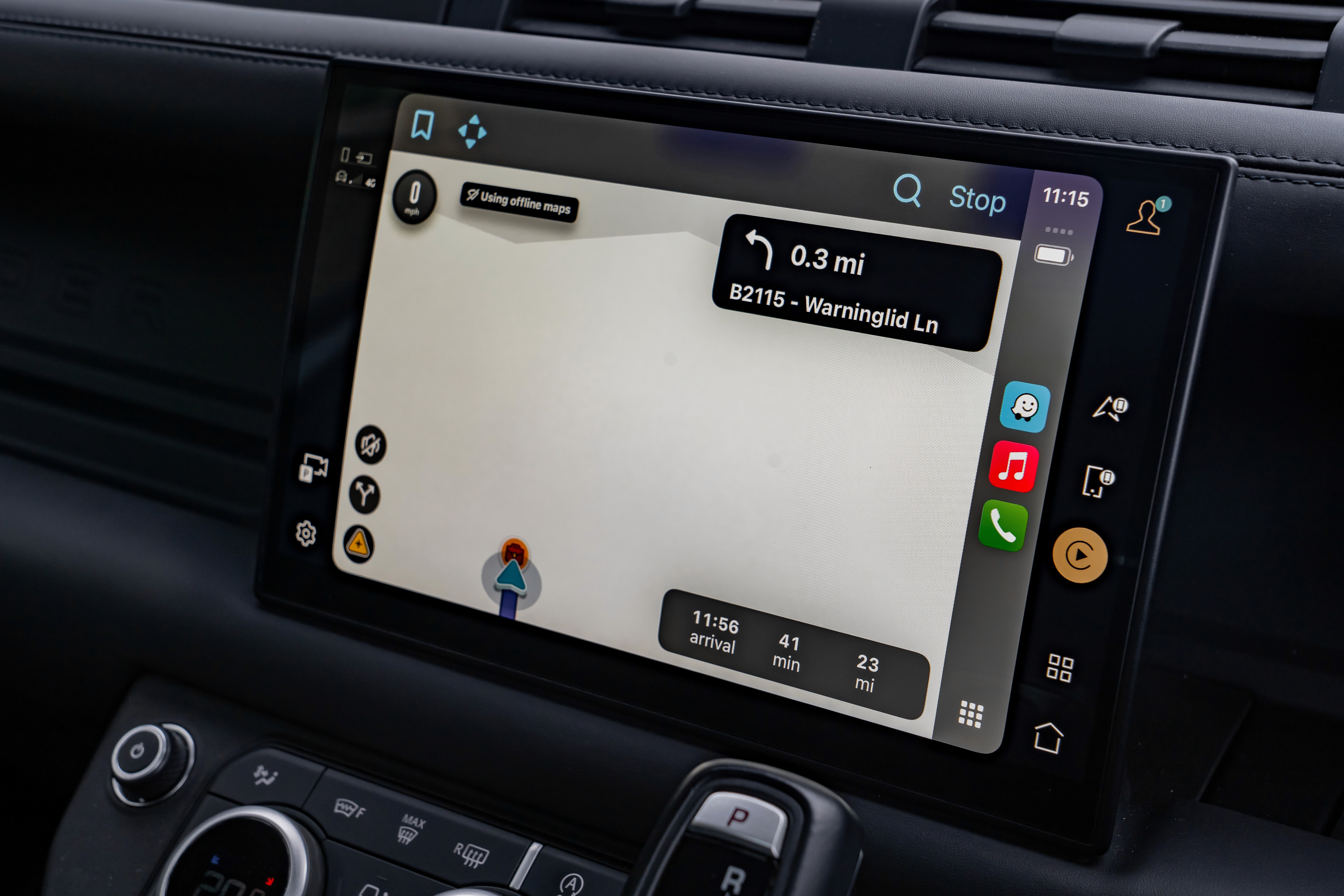
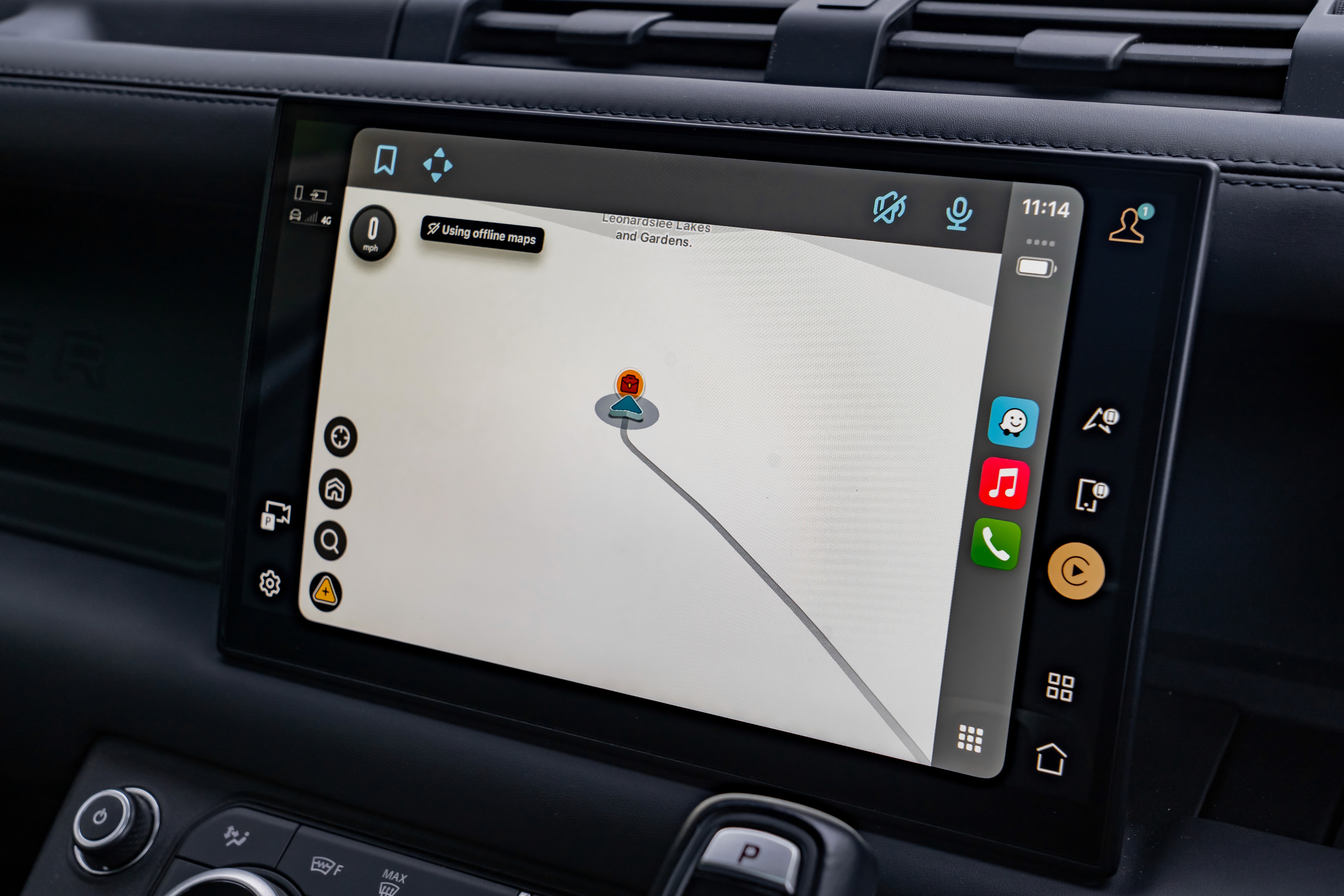
Waze is an online driver assistance app, very similar to that of Google Maps. In fact, it utilises Google Maps. Waze is different however because it acts like a constantly evolving online forum of traffic updates.
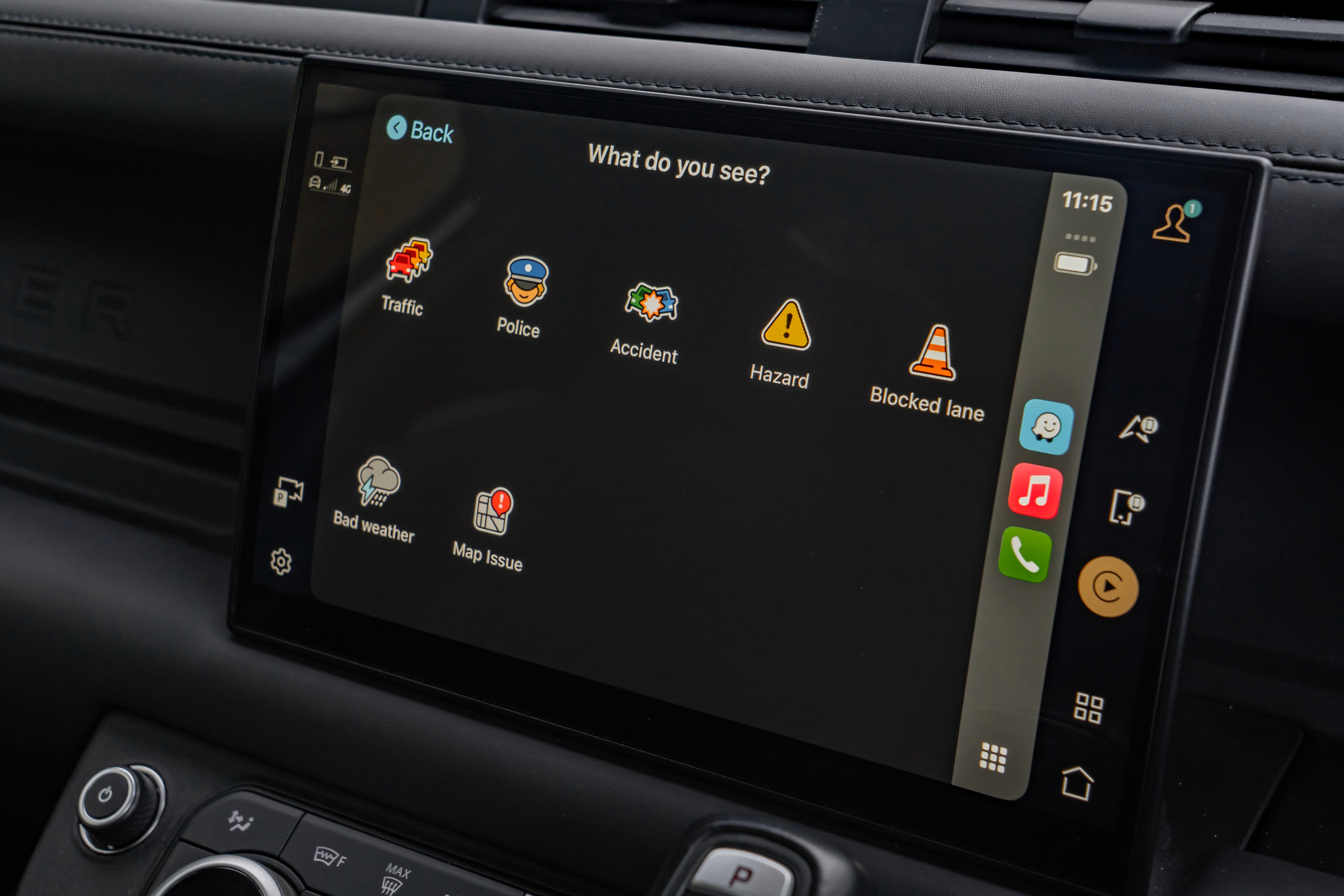
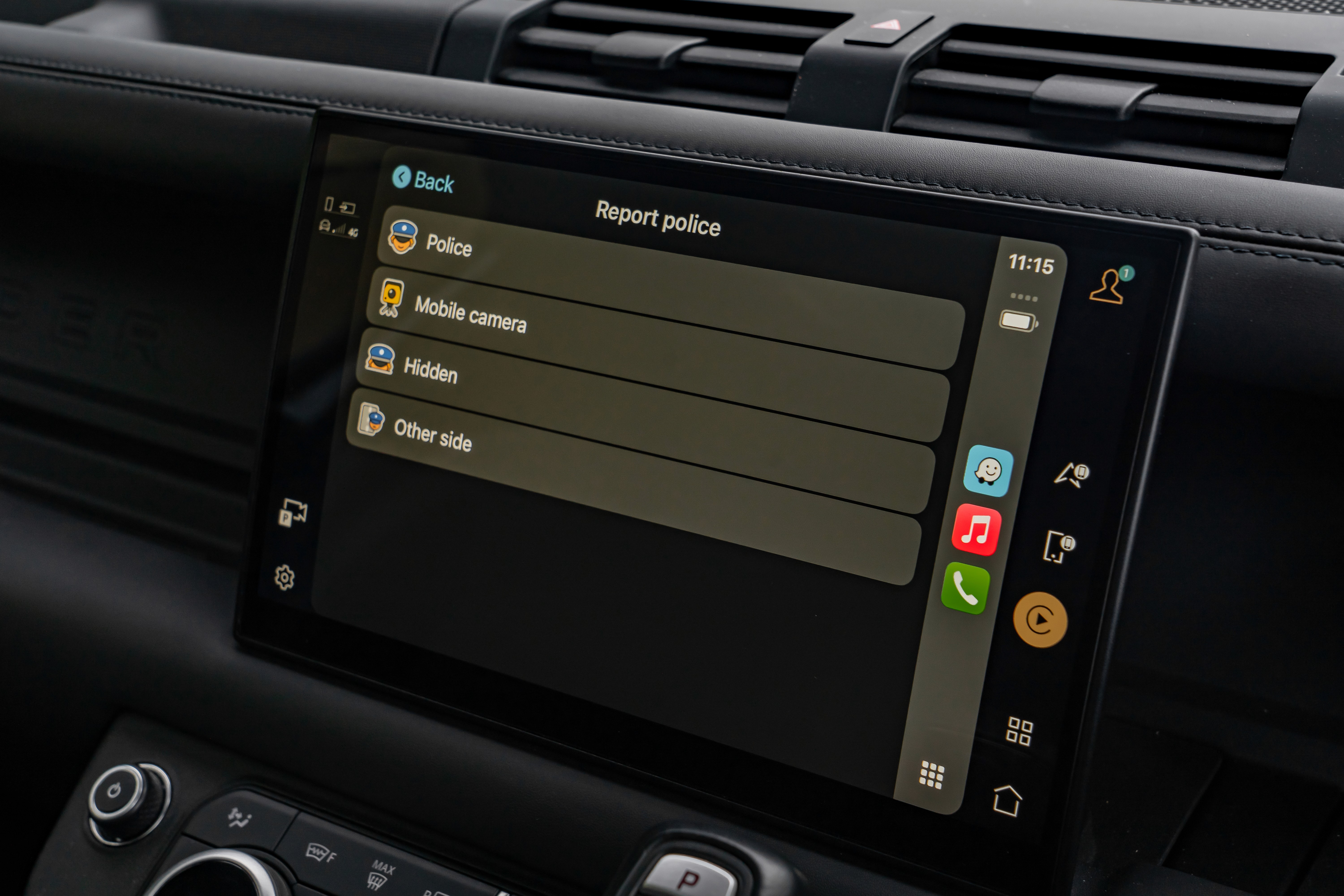
The map updates in real time as drivers and Waze partners report information through the app. Traffic, police, speed cameras, the lot.
These live updates allows Waze to always give you the most accurate journey and arrival time whilst having the ability to reroute you mid-journey to save you time.
After further research, I have found that Waze was acquired by Google for a whopping $1.3 billion in 2013 so it makes sense that it uses Google Maps. This does however cause some issues with Waze's UX/UI consistency.
To begin with, i'll talk about Waze's core pages that don't venture out of the typical usage of the app. This means the actual map itself, the about page, and Waze for partners page. This analysis DOESN'T include the "support", "terms", "notices", and "how suggestions work" pages which i actually 50% of the sites navigation.
Waze
Website
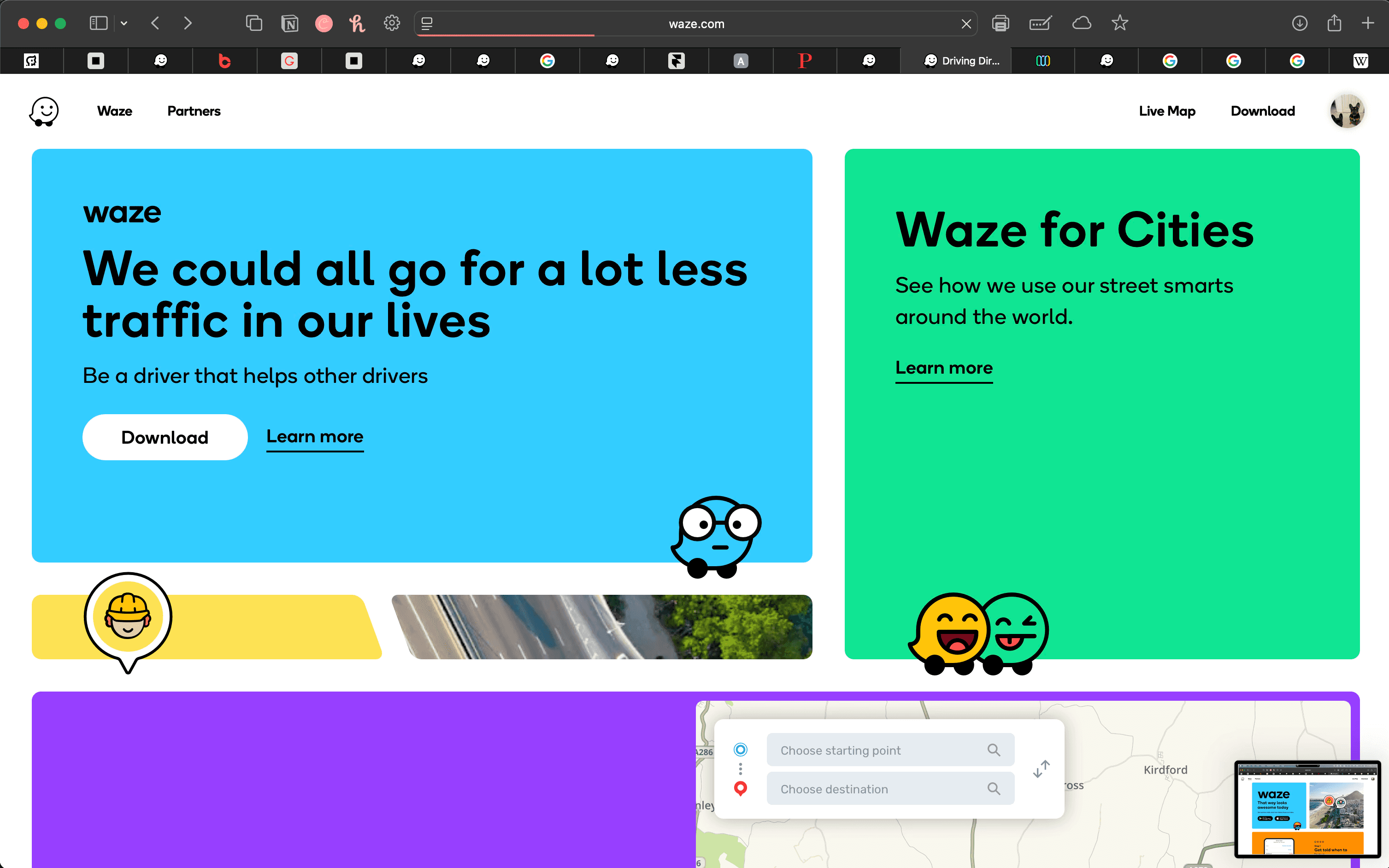
The website is initially quite simple, just like the app. The nav bar is almost invisible due it being kept quietly at the bottom right of the page.
At first, I found this a little strange but it makes perfect sense. Keeping the nav out the way keeps the main purpose of the site the focal point of the page. You're most likely using Waze to get directions - not to learn about their annual sustainability reports. Click the image to take a look.
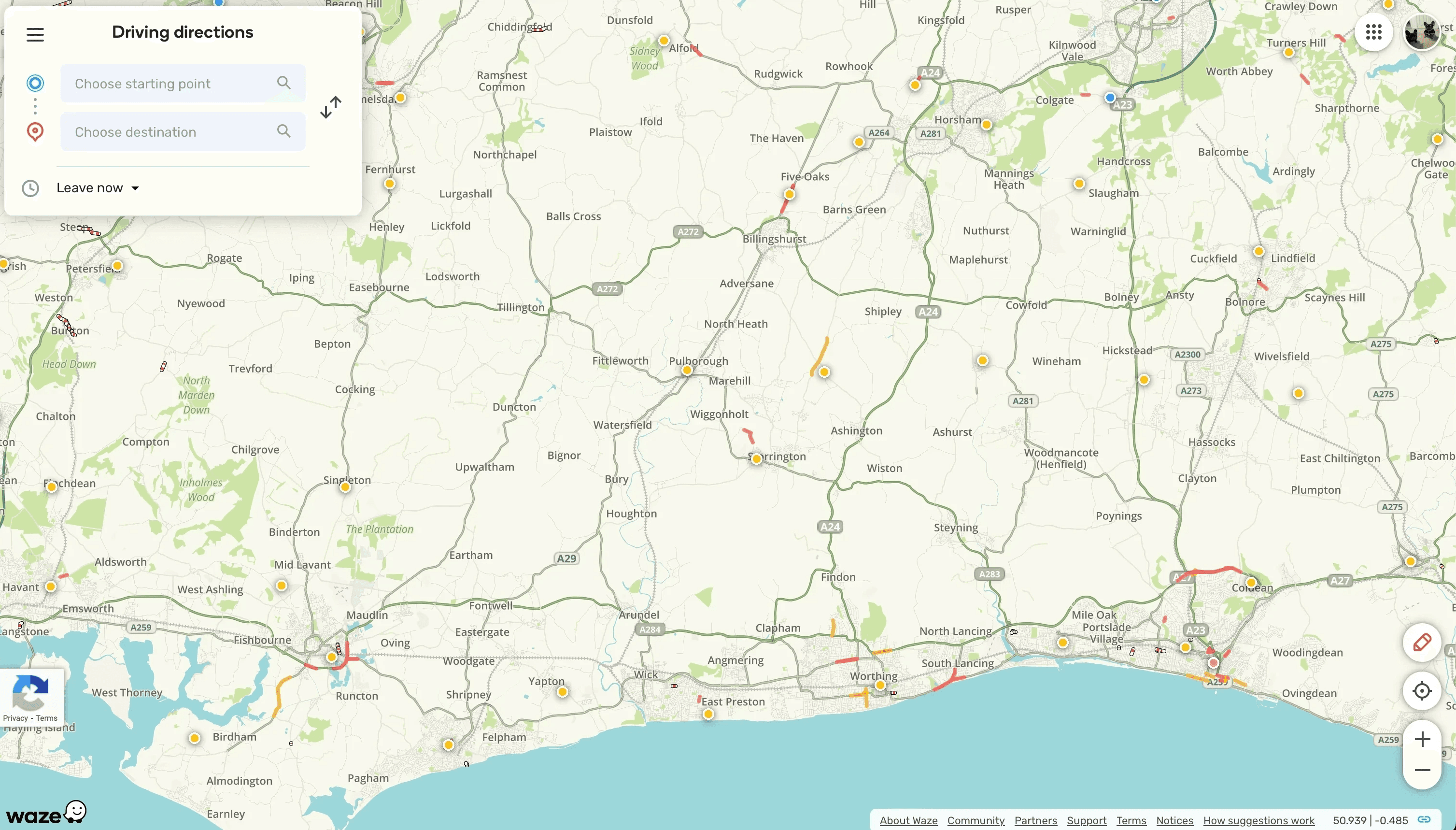
Website
Colour
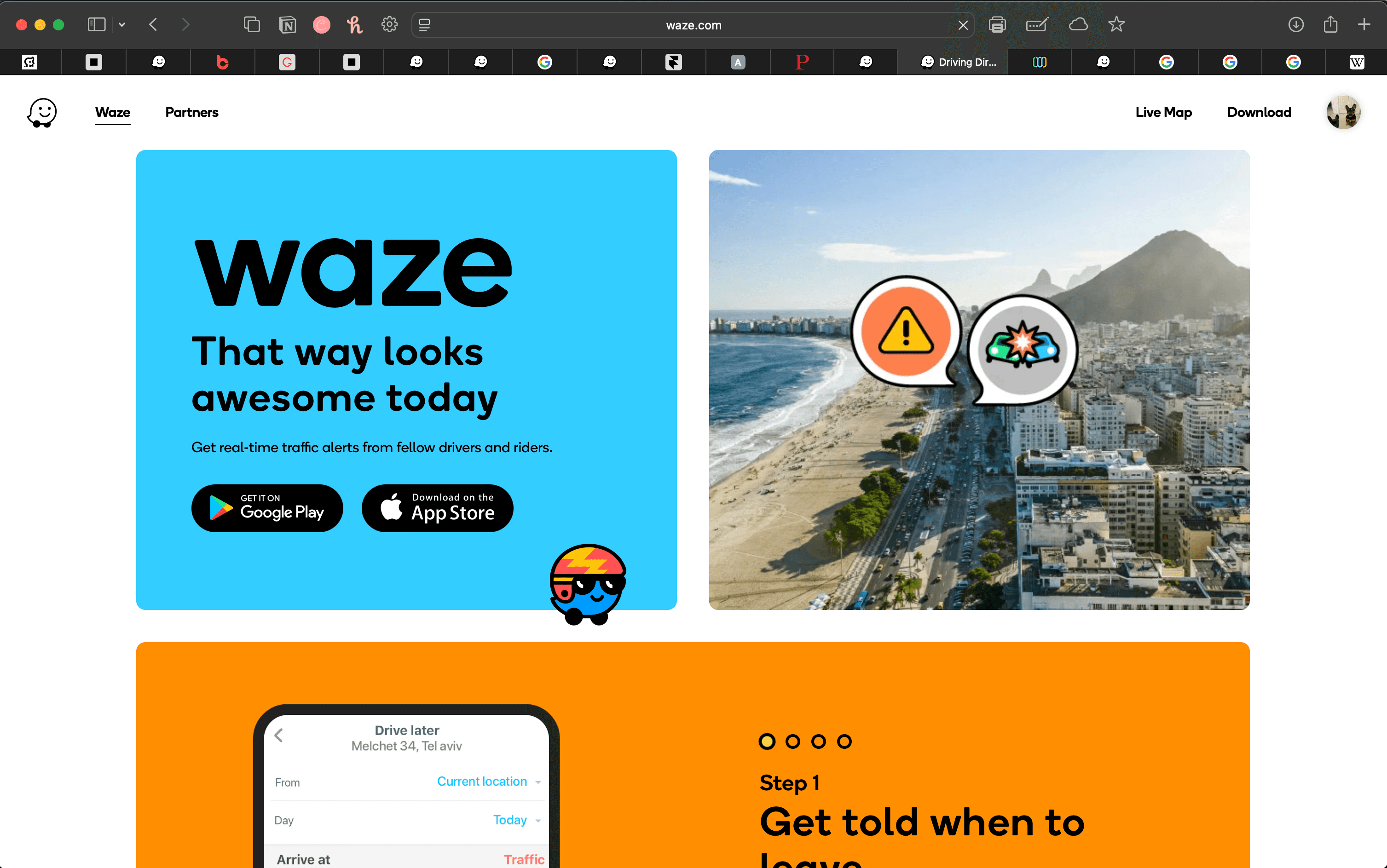
You’re greeted with a friendly interface made up of white, blue, and grey tones. This base palette is extended further through the map itself, which includes greens, creams, and other soft colours. It feels standard for a navigation tool - but importantly, it’s also warm and welcoming.
The colour palette of both the user interface and the map work in harmony to create a cohesive visual experience. That same consistency carries through as you navigate, giving a strong sense of continuity across a variety of Waze's touch-points but not all of them. For the most part, nothing feels out of place.
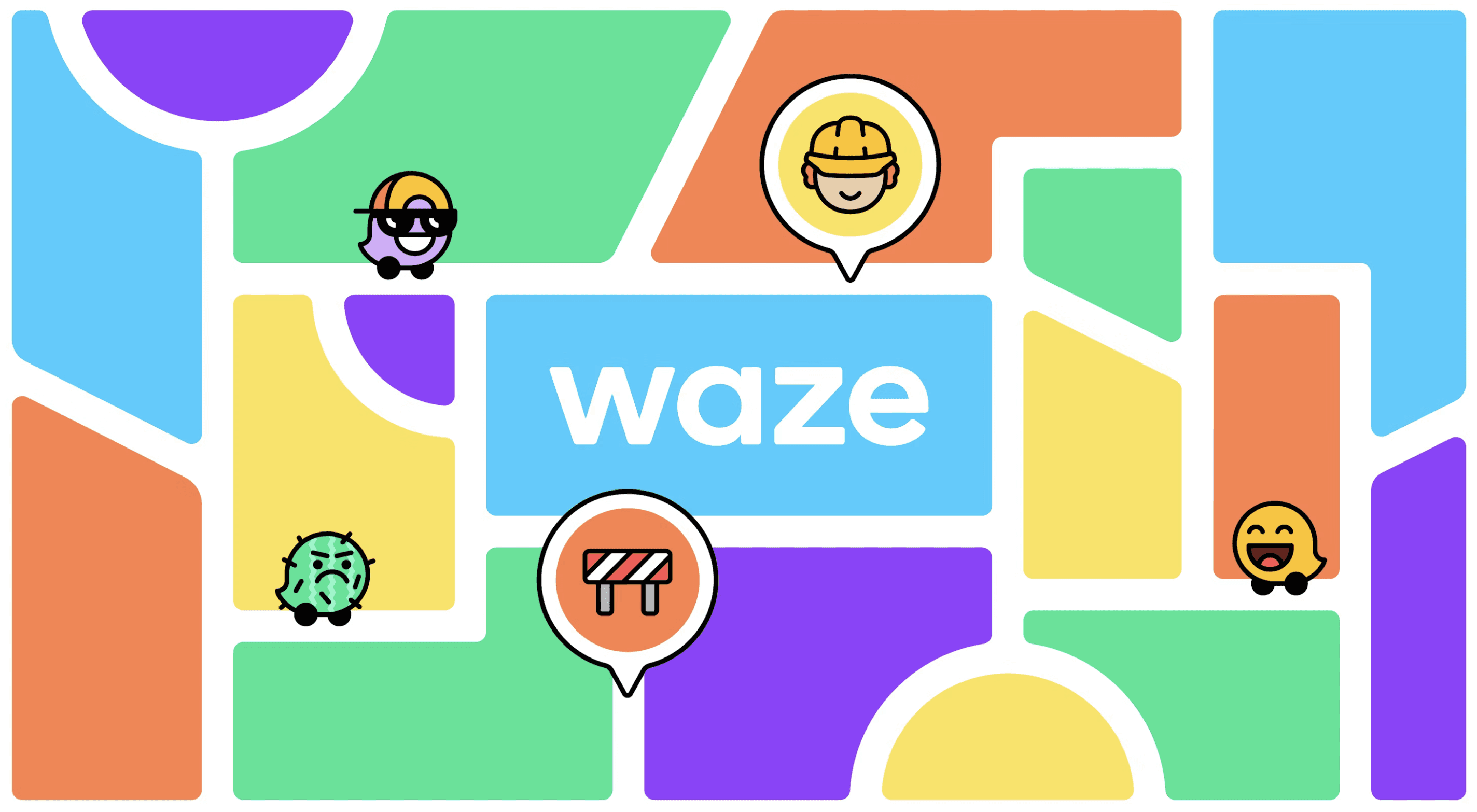
Website
Layout
The overall layout of Waze is simple and approachable. There’s a clear hierarchy in how information is presented, which avoids clutter and helps with usability - especially important in a navigation app. The minimal design leaves room to breathe, and while the layout feels playful, it’s never childish or chaotic. It walks the line between being helpful and being friendly, and it does this really well.
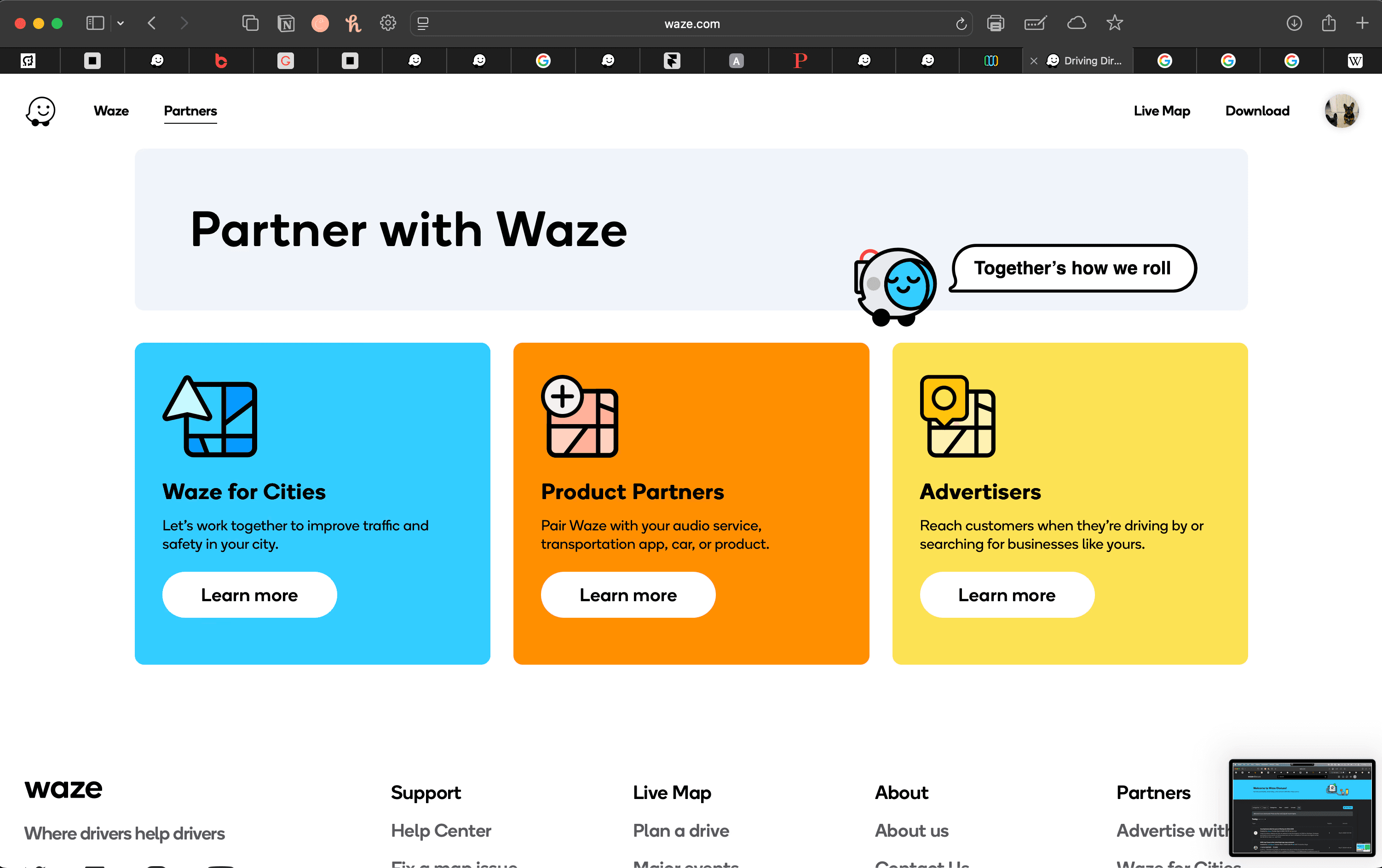
Website
Typography
The typeface used by Waze, as mentioned in Pentagram's project page, is Boing - Medium and Regular in particular. The type specimen below is sourced from Pentagram's site.
According to Pentagram, Waze has roots in crowdsourcing and has a history of being "vibrant and dynamic". The purpose of the new identity is to leverage this heritage in such a way that gives Waze a visual language that creates aesthetic unison whilst cementing its "joyful sense of individual expression".
Boing was developed by the A2 Type foundry who also made tweaks for Waze's new logotype. This typeface "combines personality with utility and has rounded corners for a friendly look" according to Pentagram.
I would say that's the perfect way to put it. Imagine the corners weren't rounded for a moment. You'd have a very robust, militant font that feels indestructible. Round them corners and suddenly you've softened things up. It's like meeting your partners dad for the first time. You expect him to be hard as nails, but actually he's a pretty chill bloke - true story.
At first, I thought this typeface was Poppins which is famous for it's friendliness and that was my first impression but I think it's incredibly overused, so it's safe to say Boing is an excellent choice and works very well in this application.
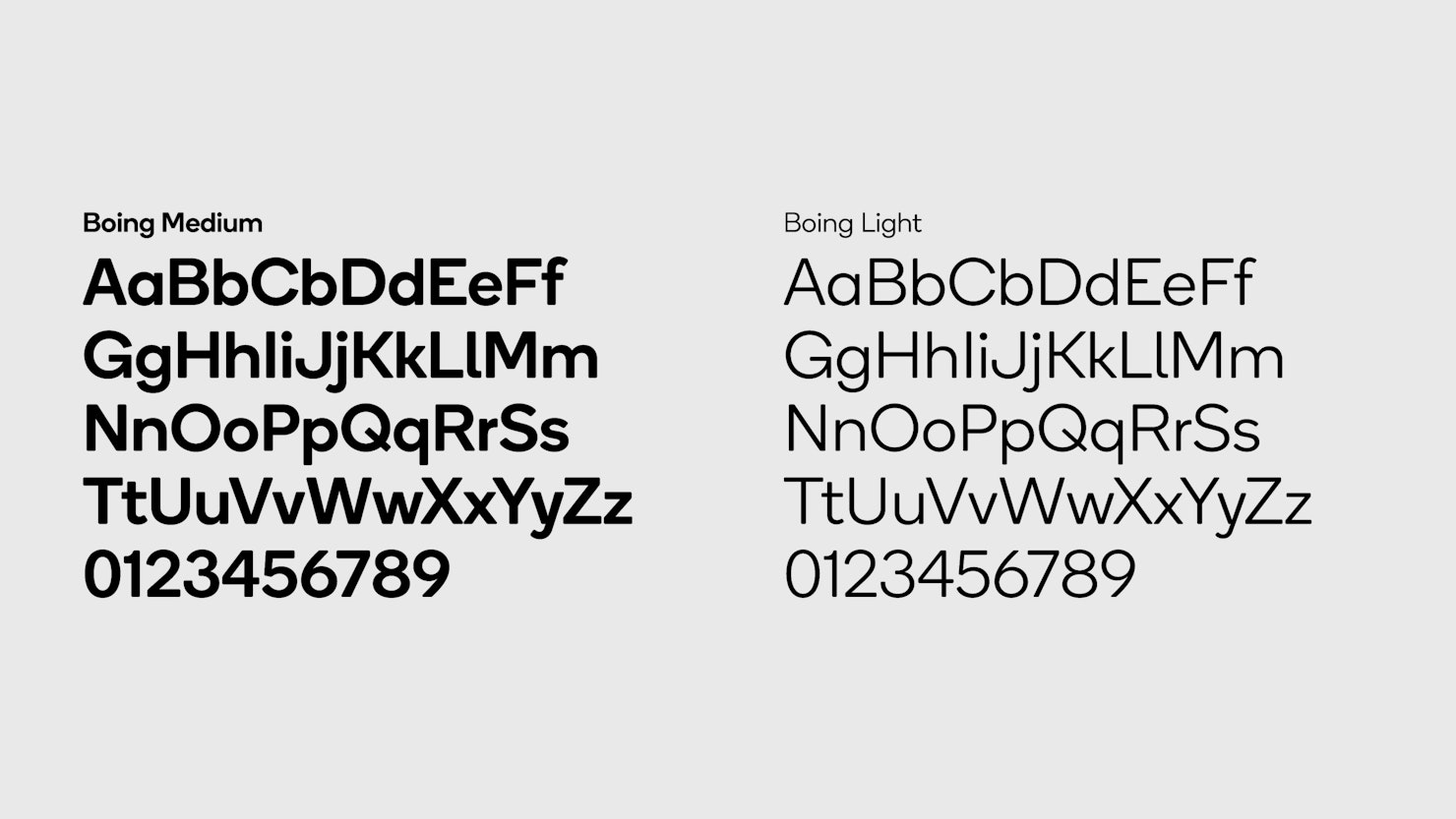

Pages
Partners
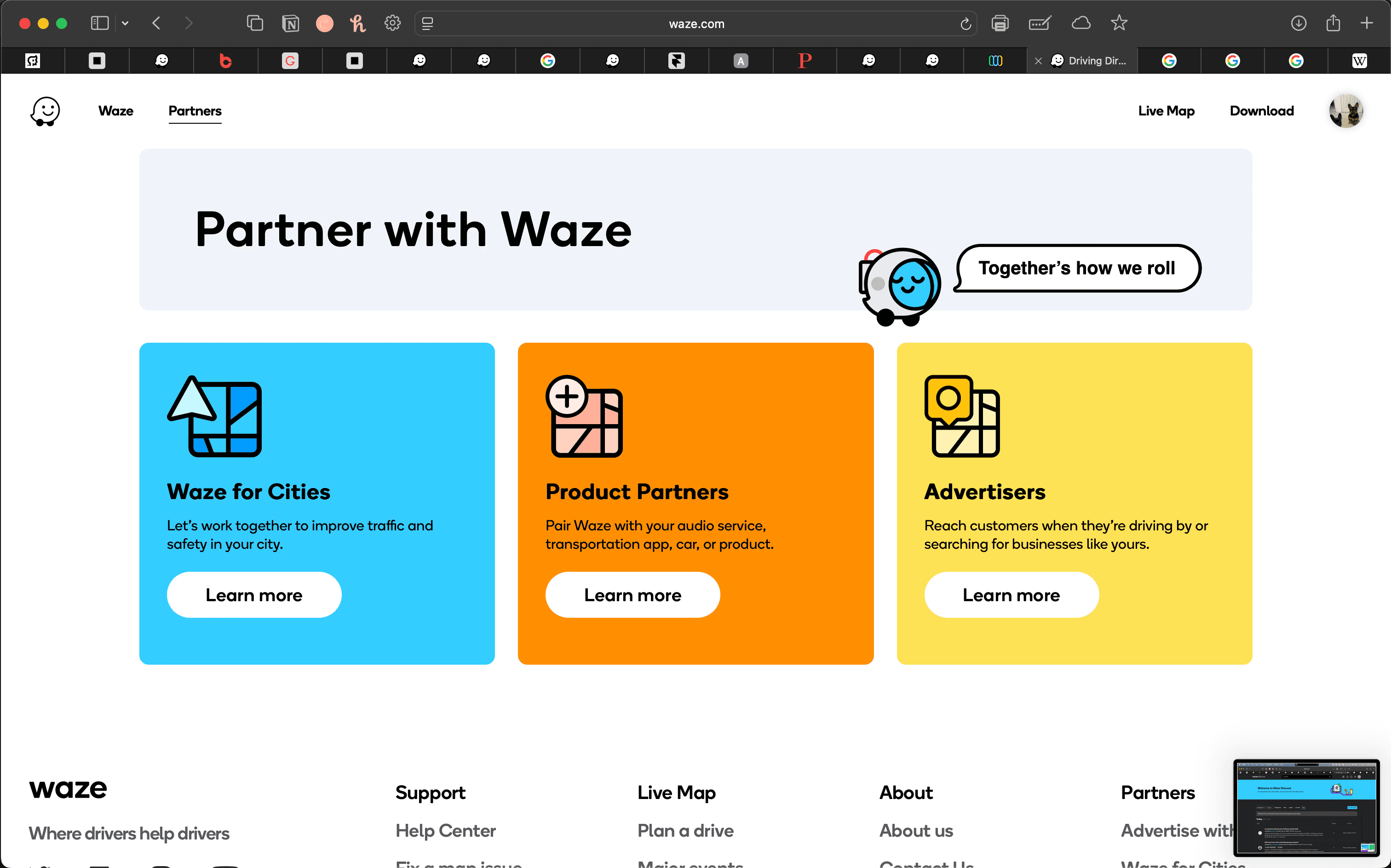
The "Partners" page follows suit with the design guide provided by Pentagram and it looks great. It's very simple too which I think is vital for this page.
3 types of business-to-business clients: Cities, Products, Advertisers.
That's all there is. If you're one of them, you know where to go. Perfect! Diving into each sub-page is styled with the same guidelines creating a sense of harmony and consistency throughout the interface.
Pages
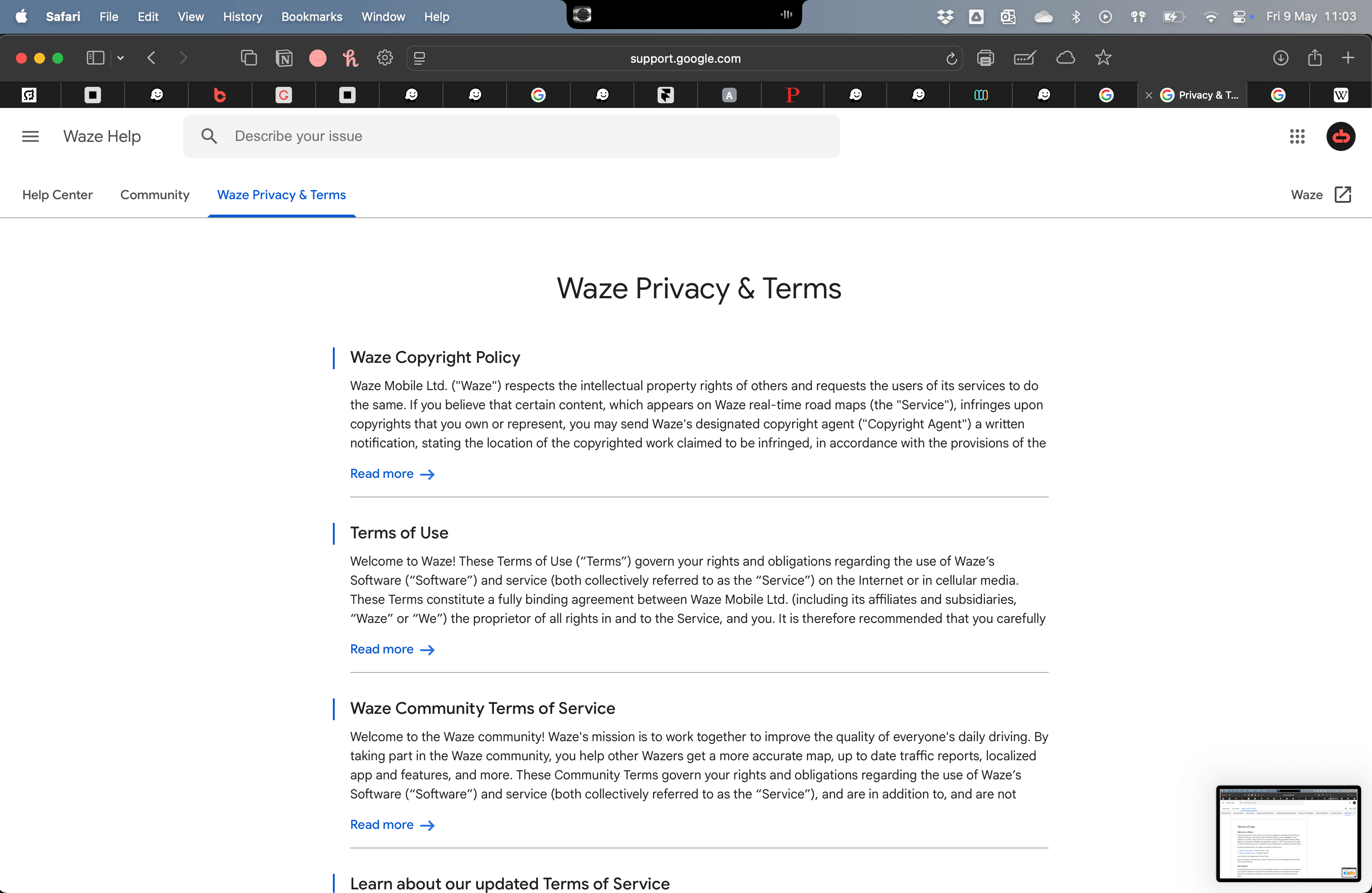
"Google" Pages
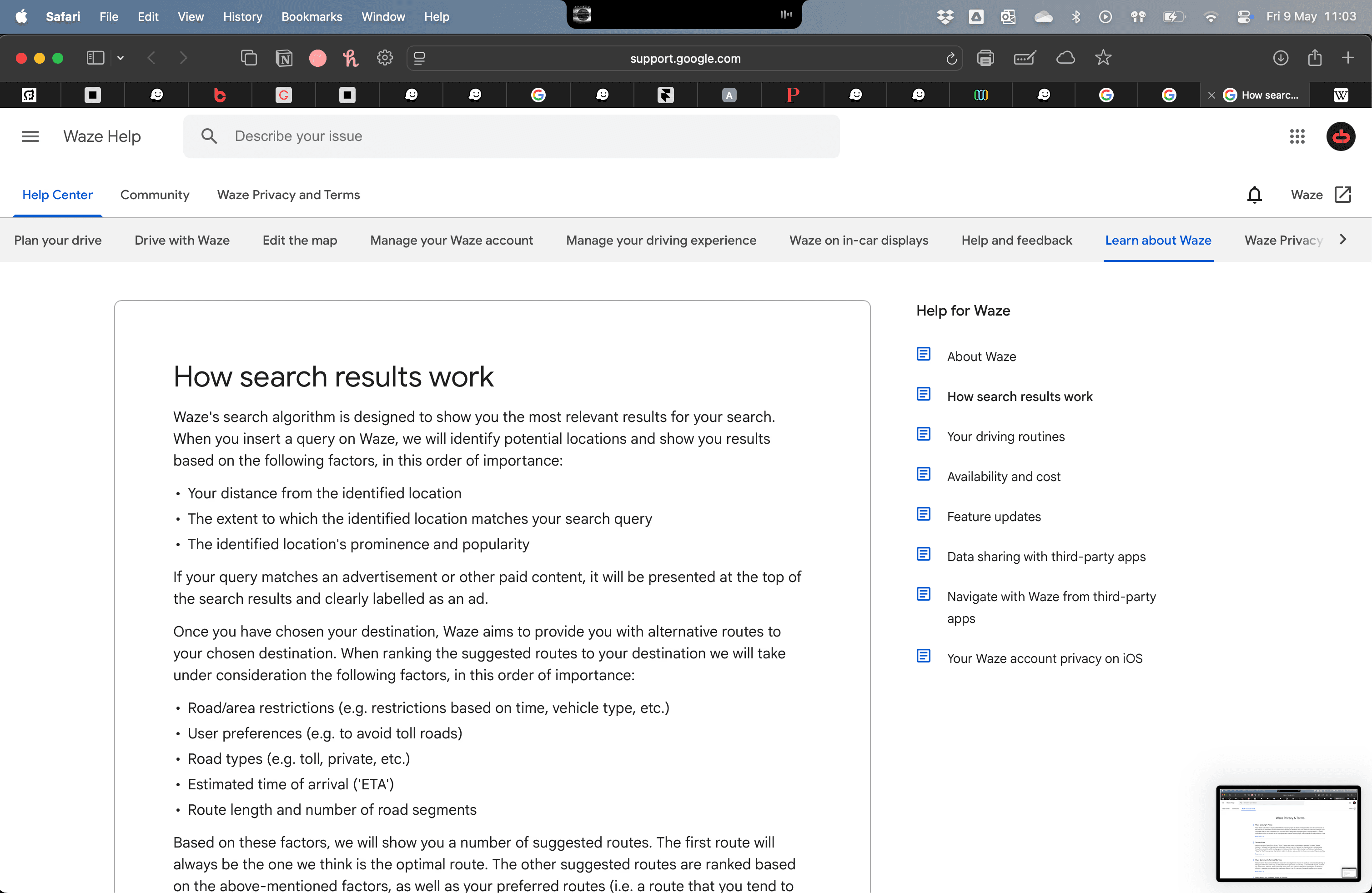
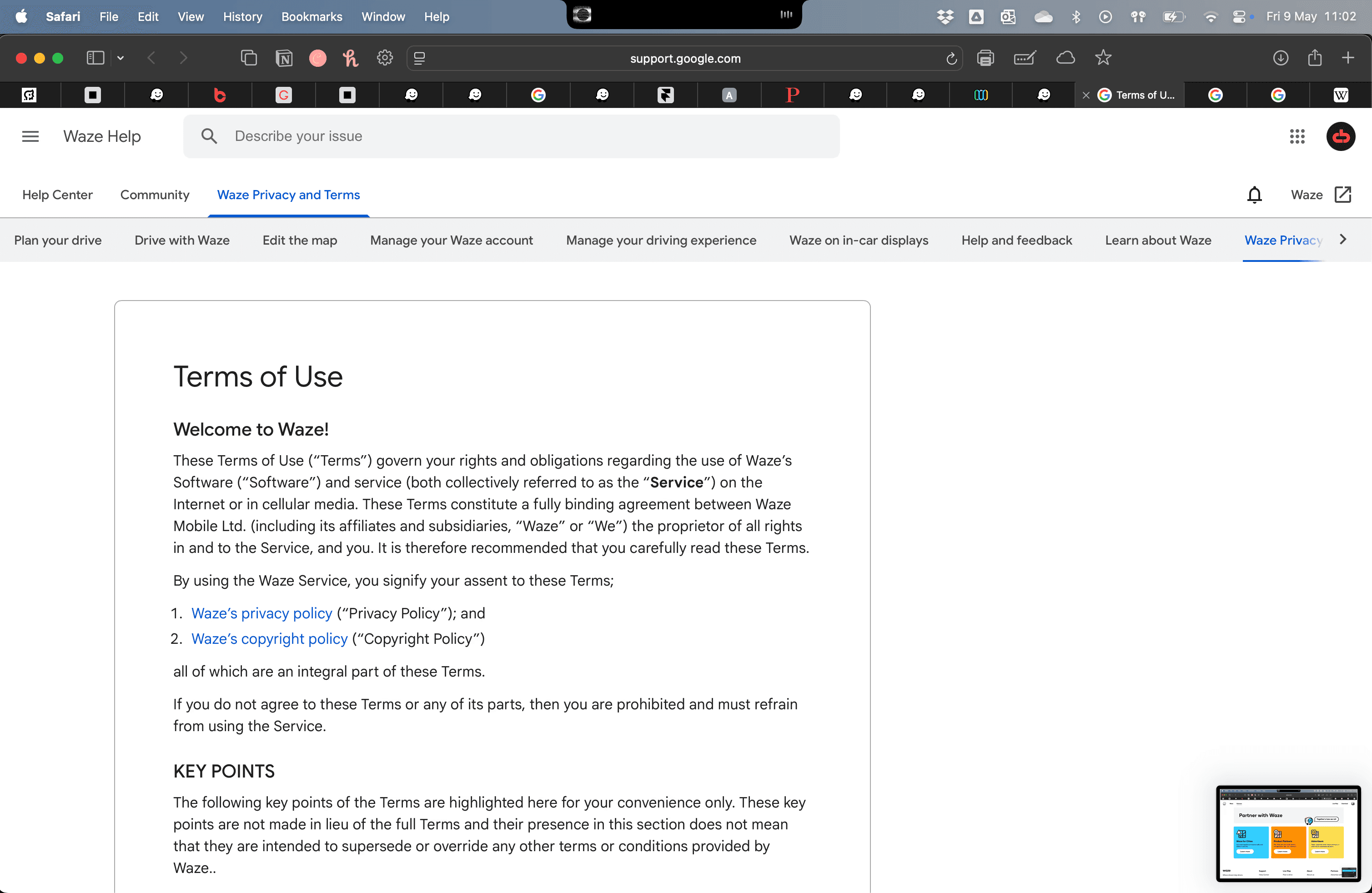
Waze
App
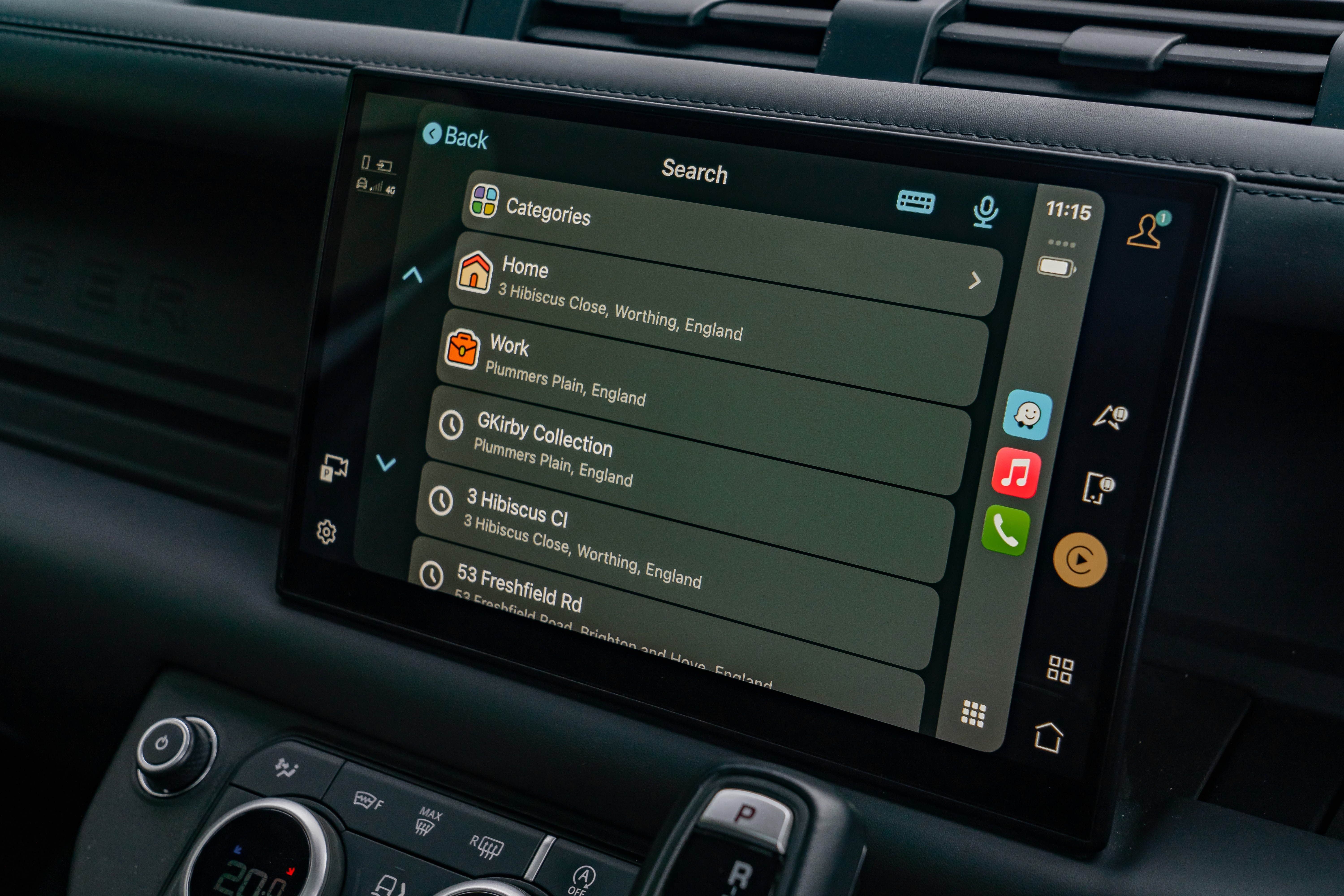
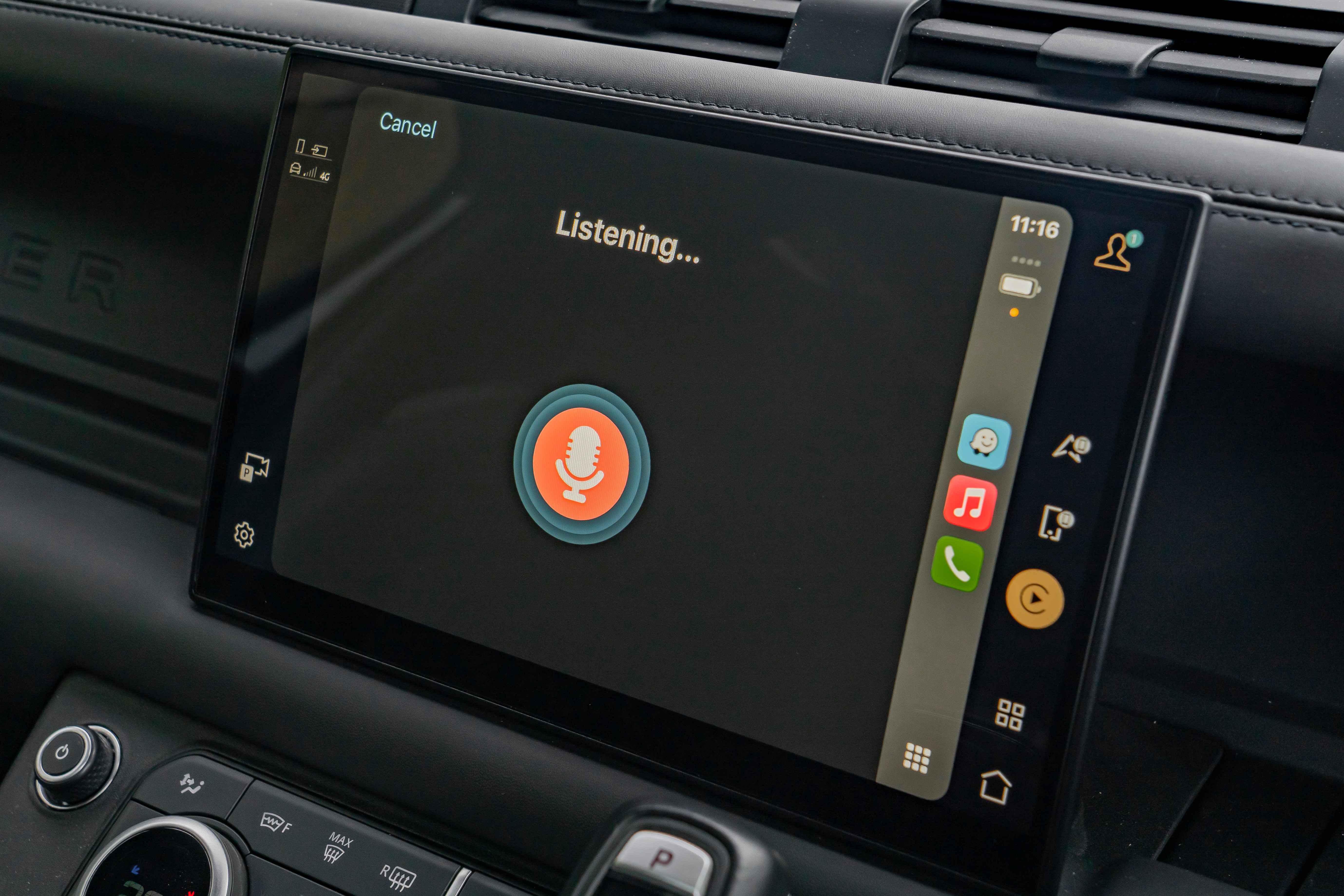
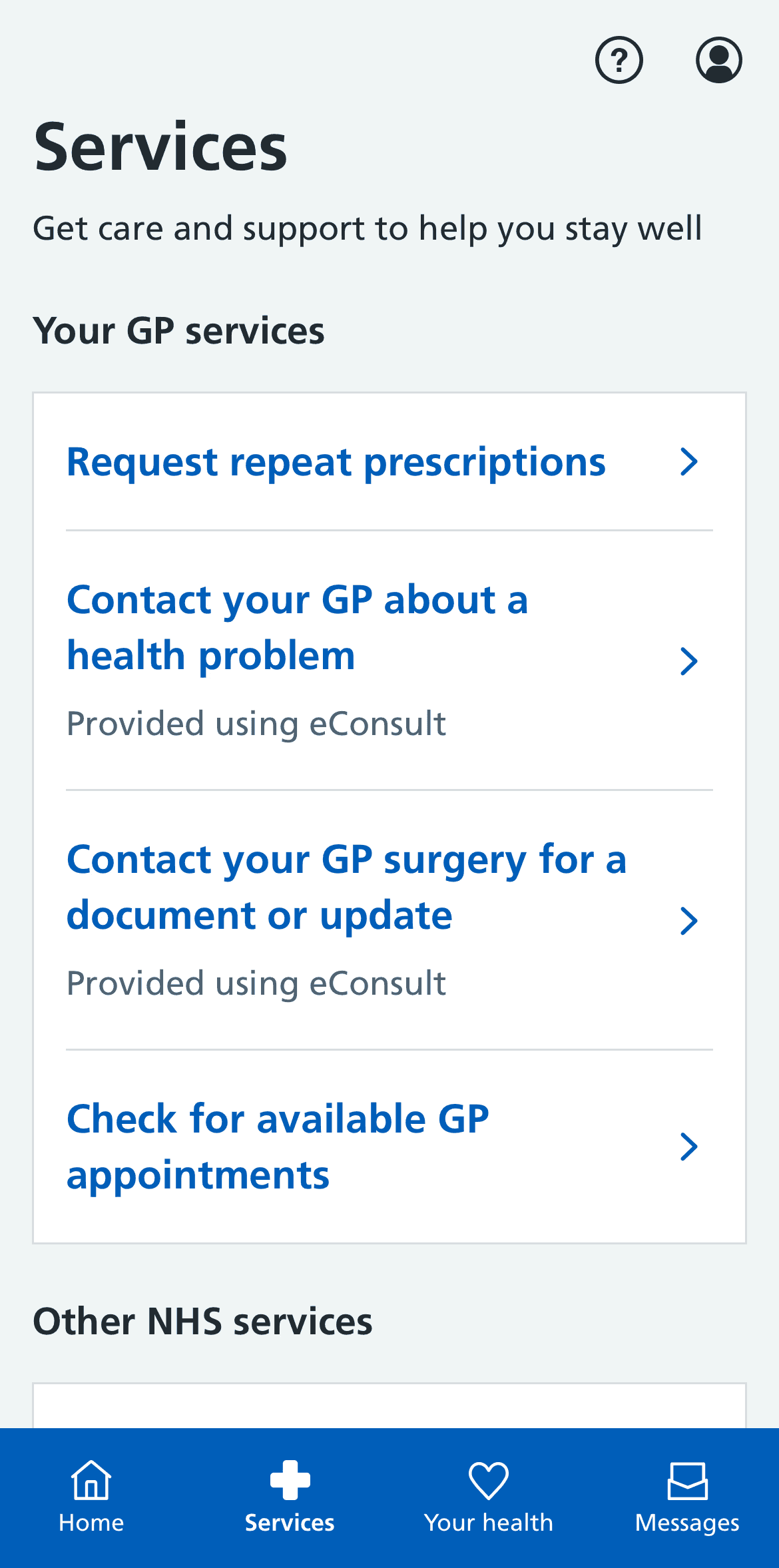
We all know the NHS. Some may remember the old NHS website which wasn't particularly great. Thankfully this was changed in 2018.
Using the Wayback Machine website, I'm able to embed the old site below for you to see. The biggest issues were hierarchy and readability but also branding.
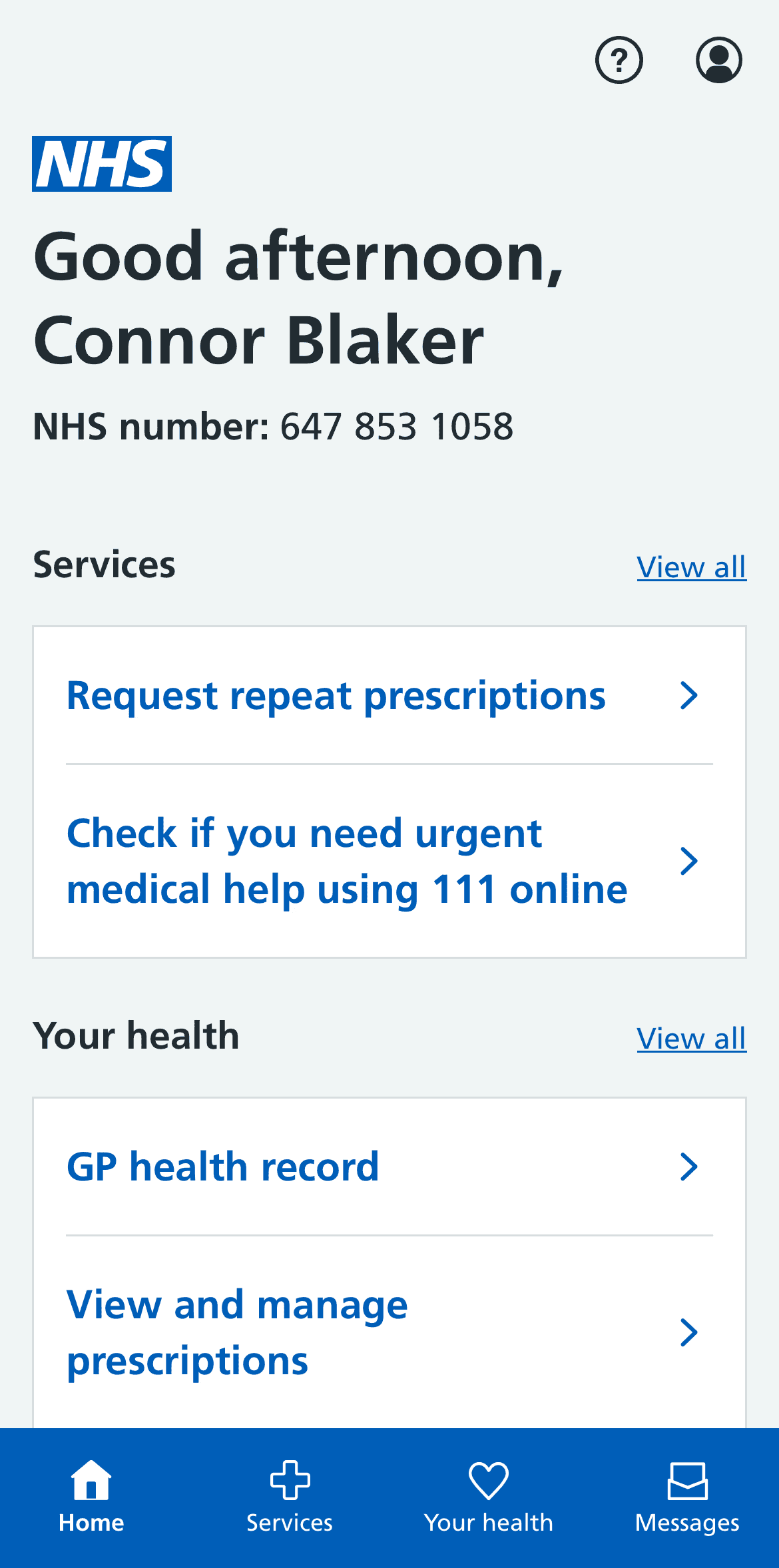
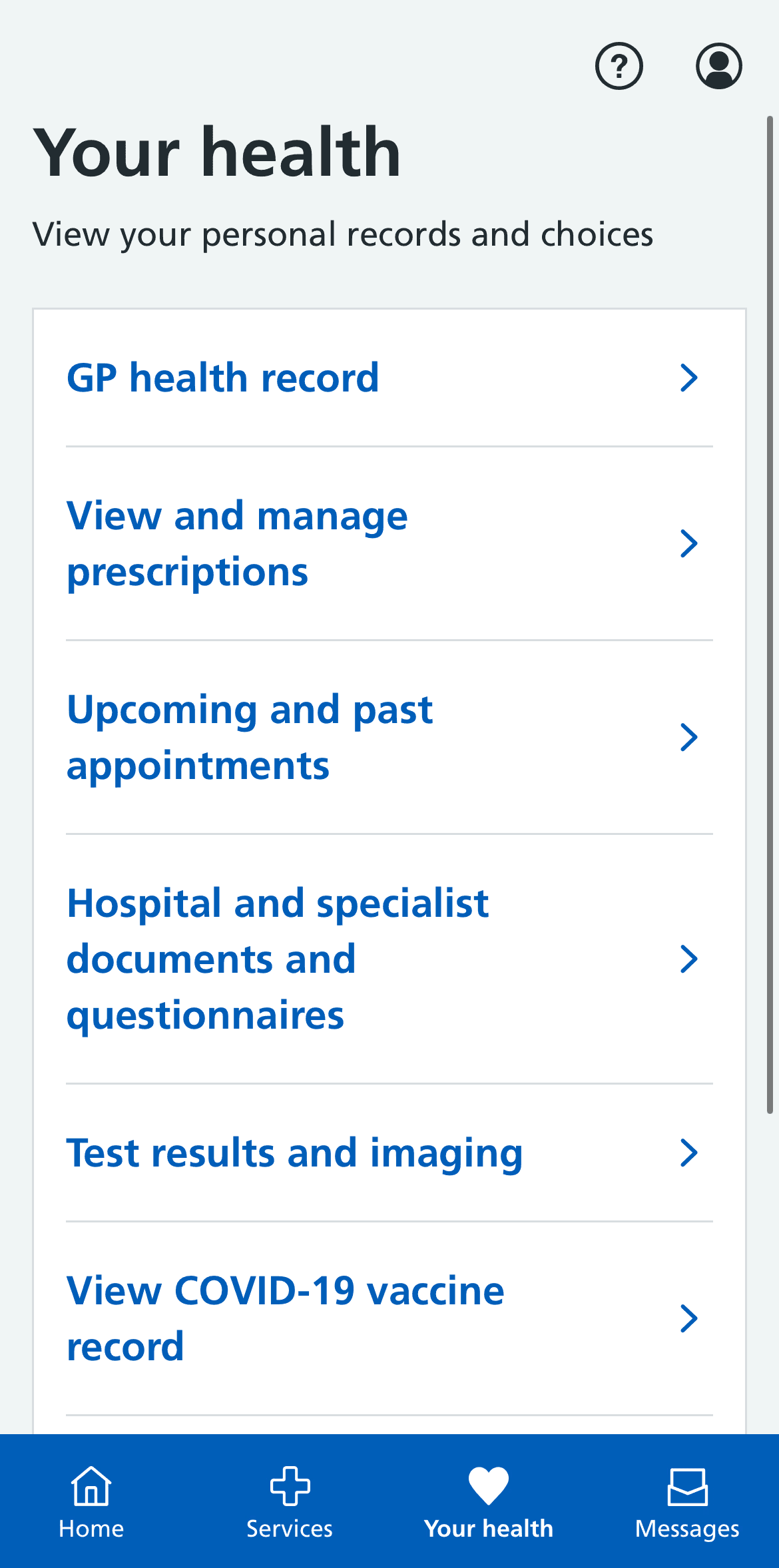
With so much vital information for such a range of people, it's integral that people know how to find what they need amongst a sea of information. The new website set out to fix this. The accompanying app launched shortly after in January 2019 and proved to be revolutionary for the NHS but more importantly, the user.
Try scrolling through the embedded site below.
Website
Typography
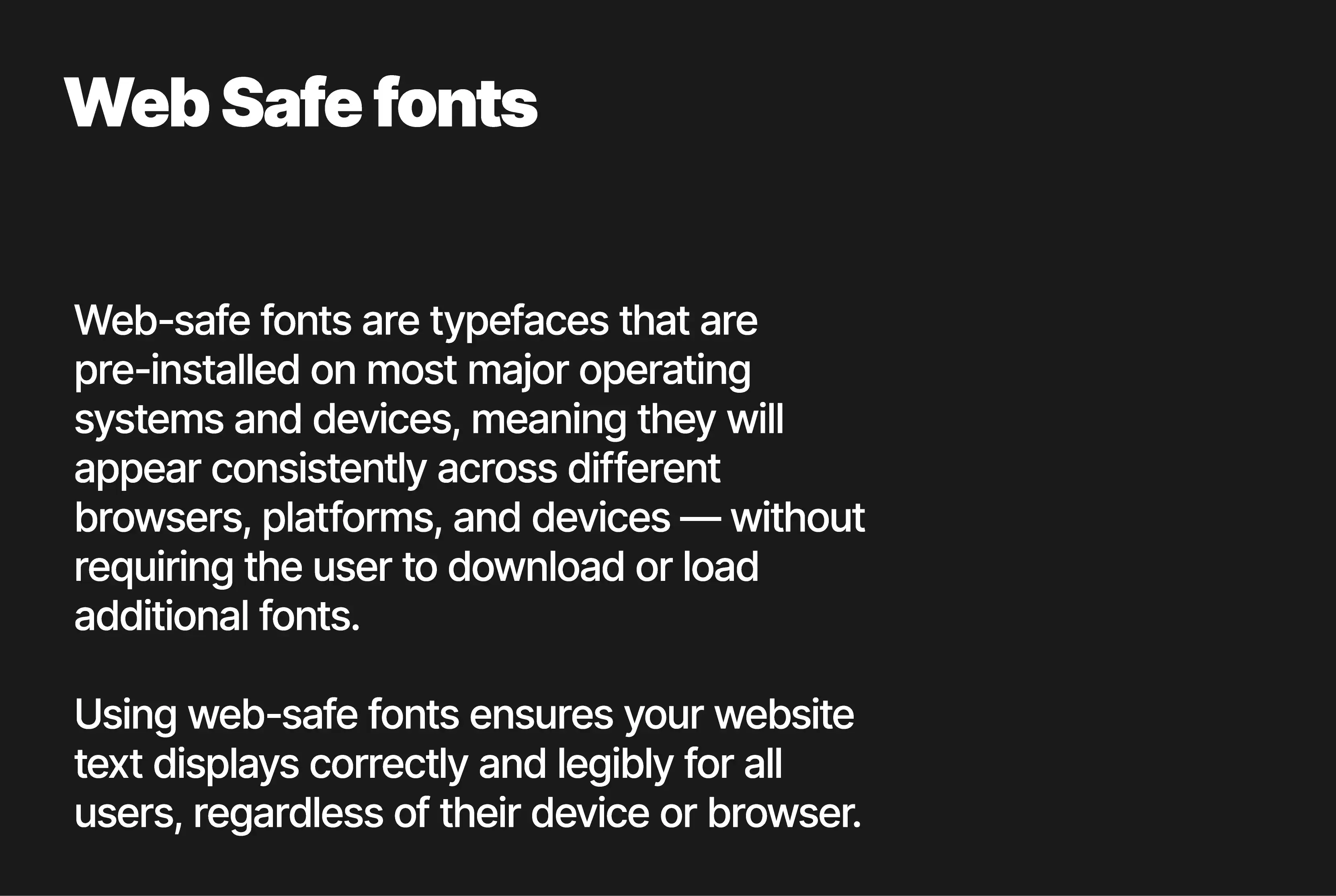
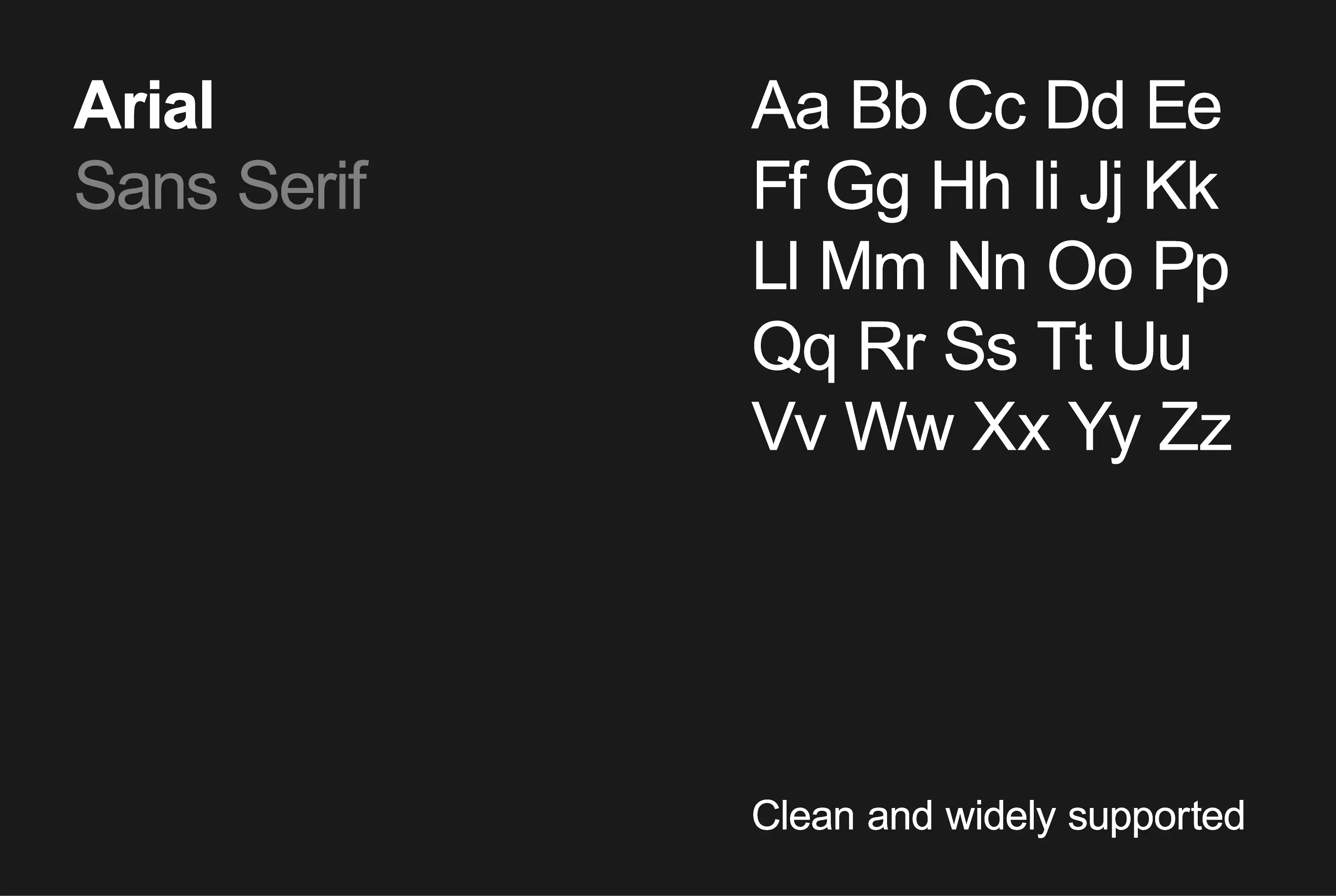
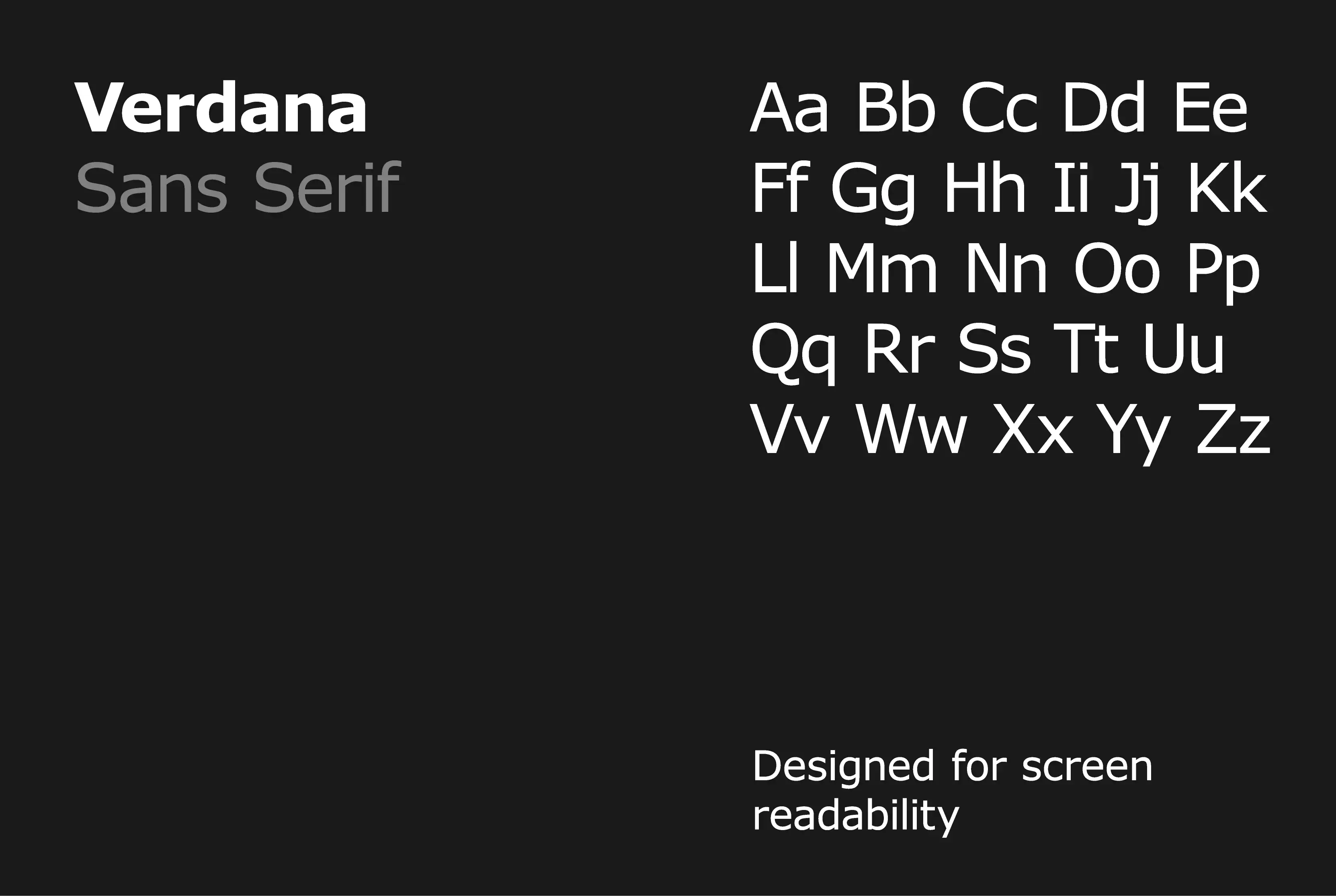
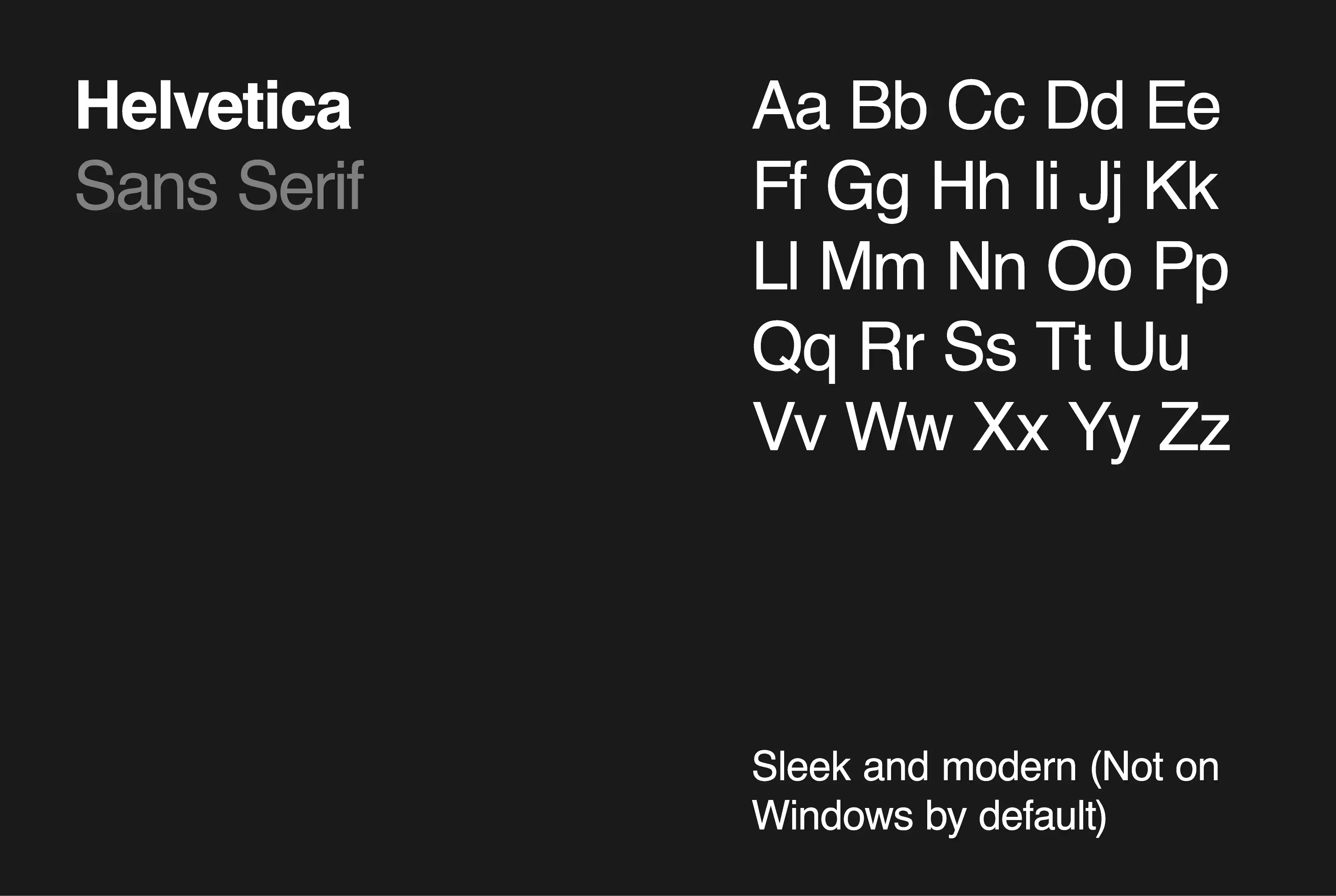
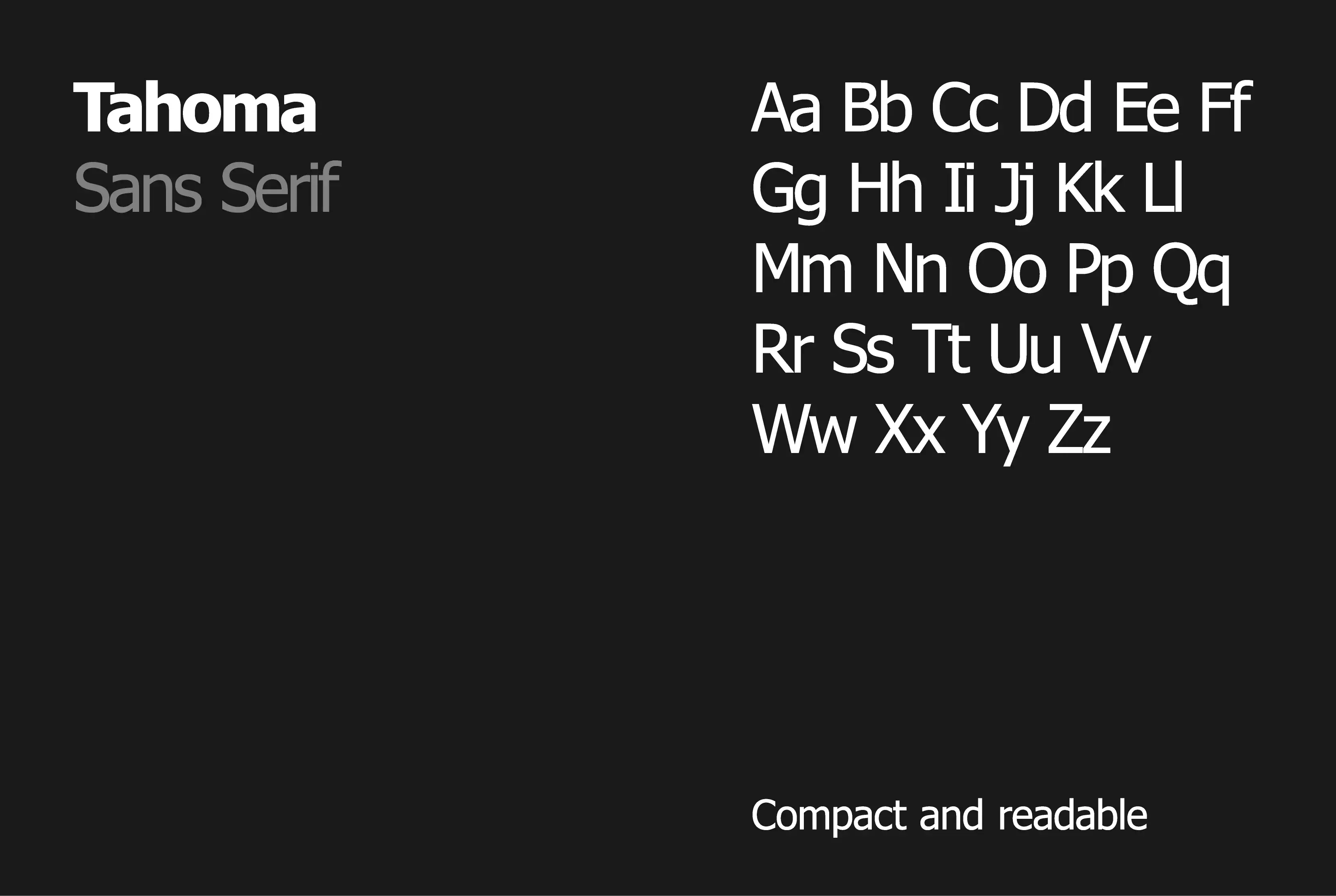
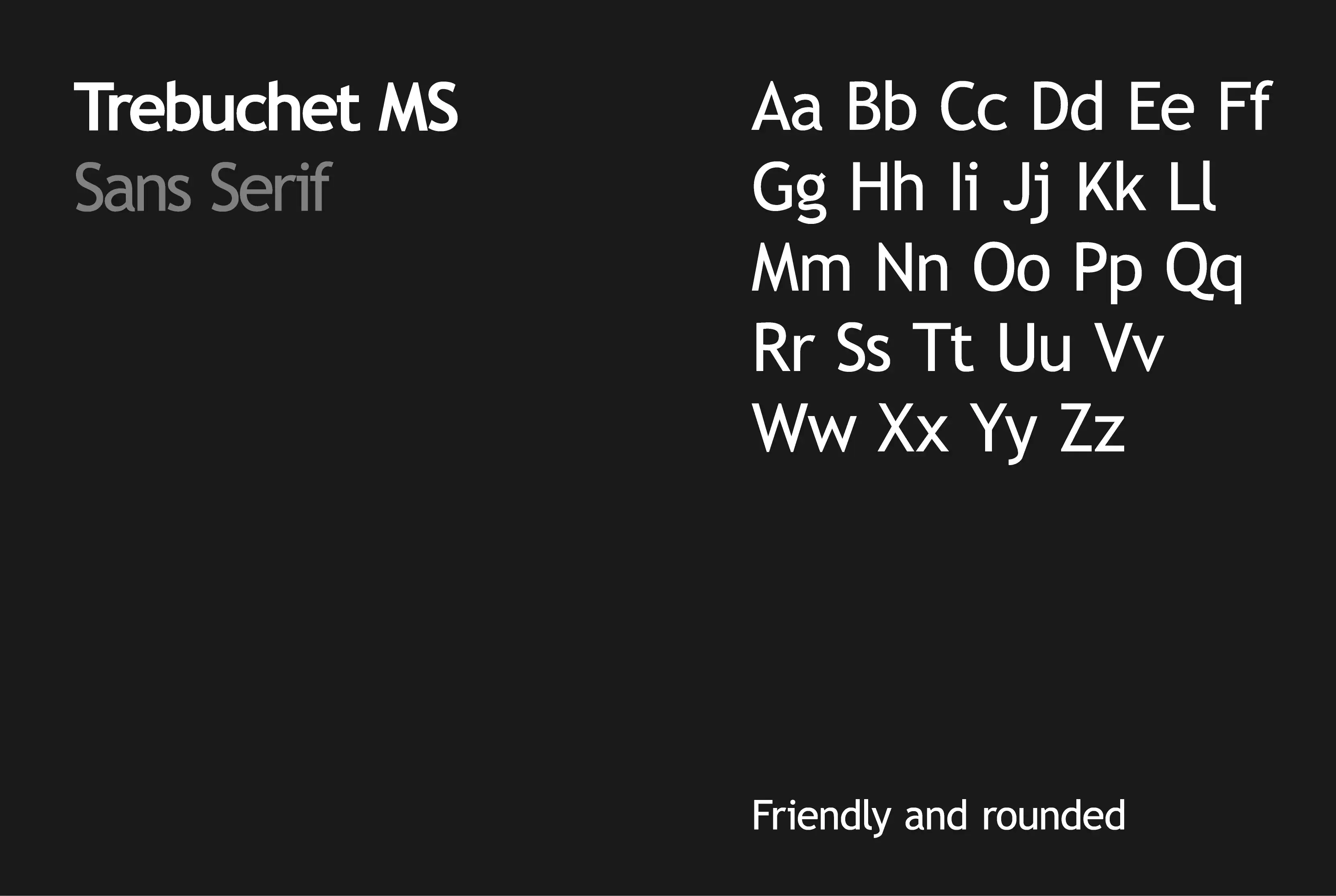
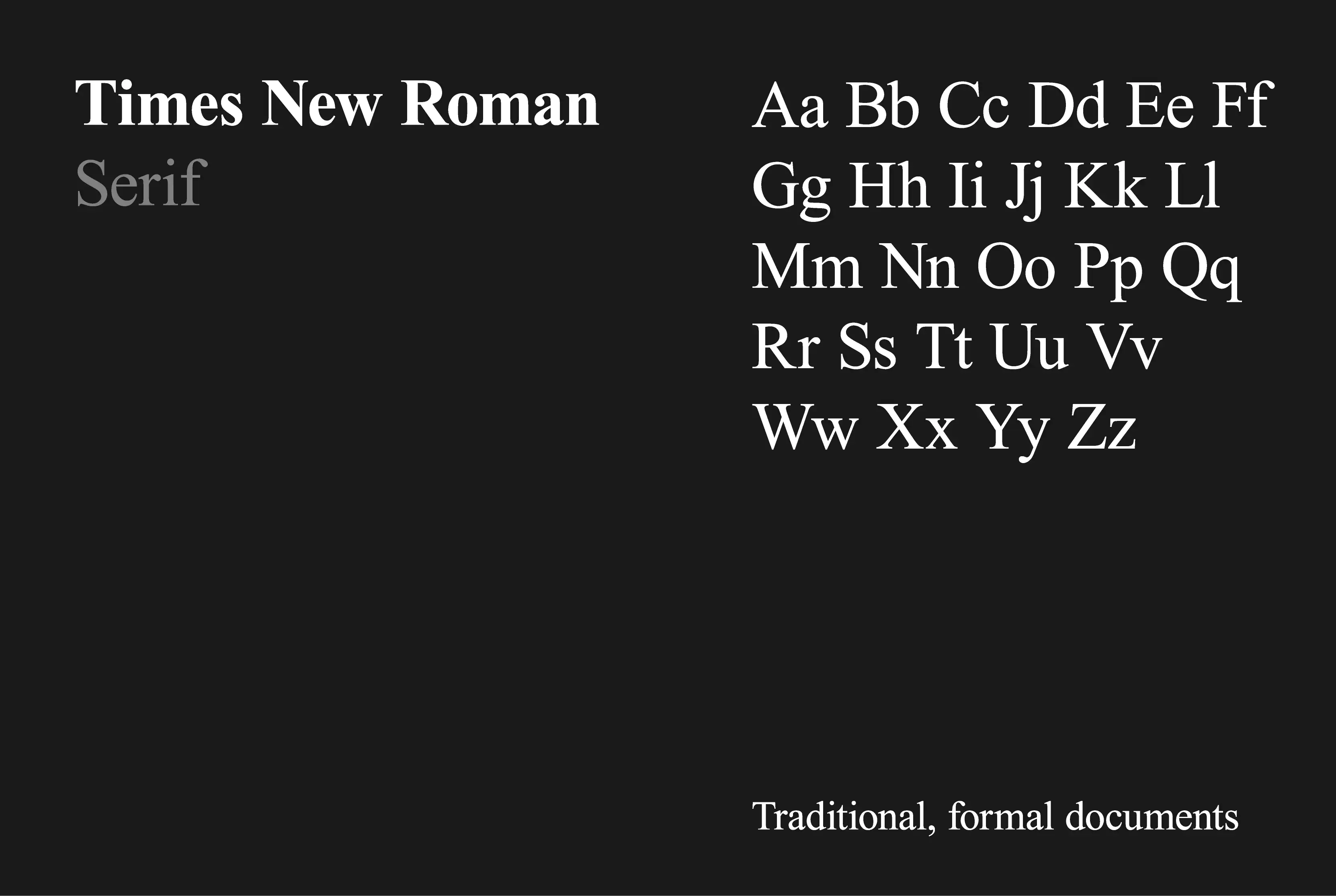
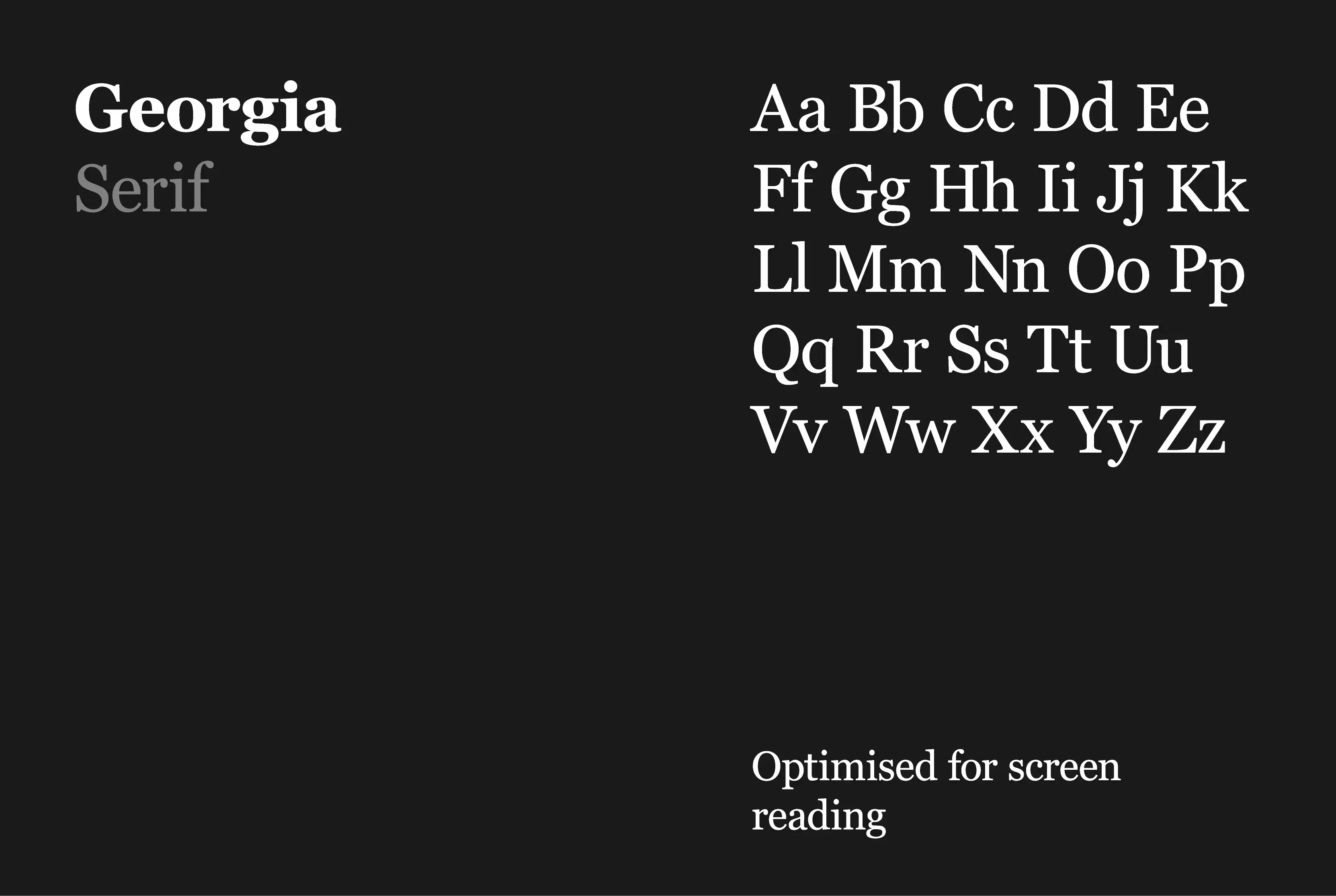
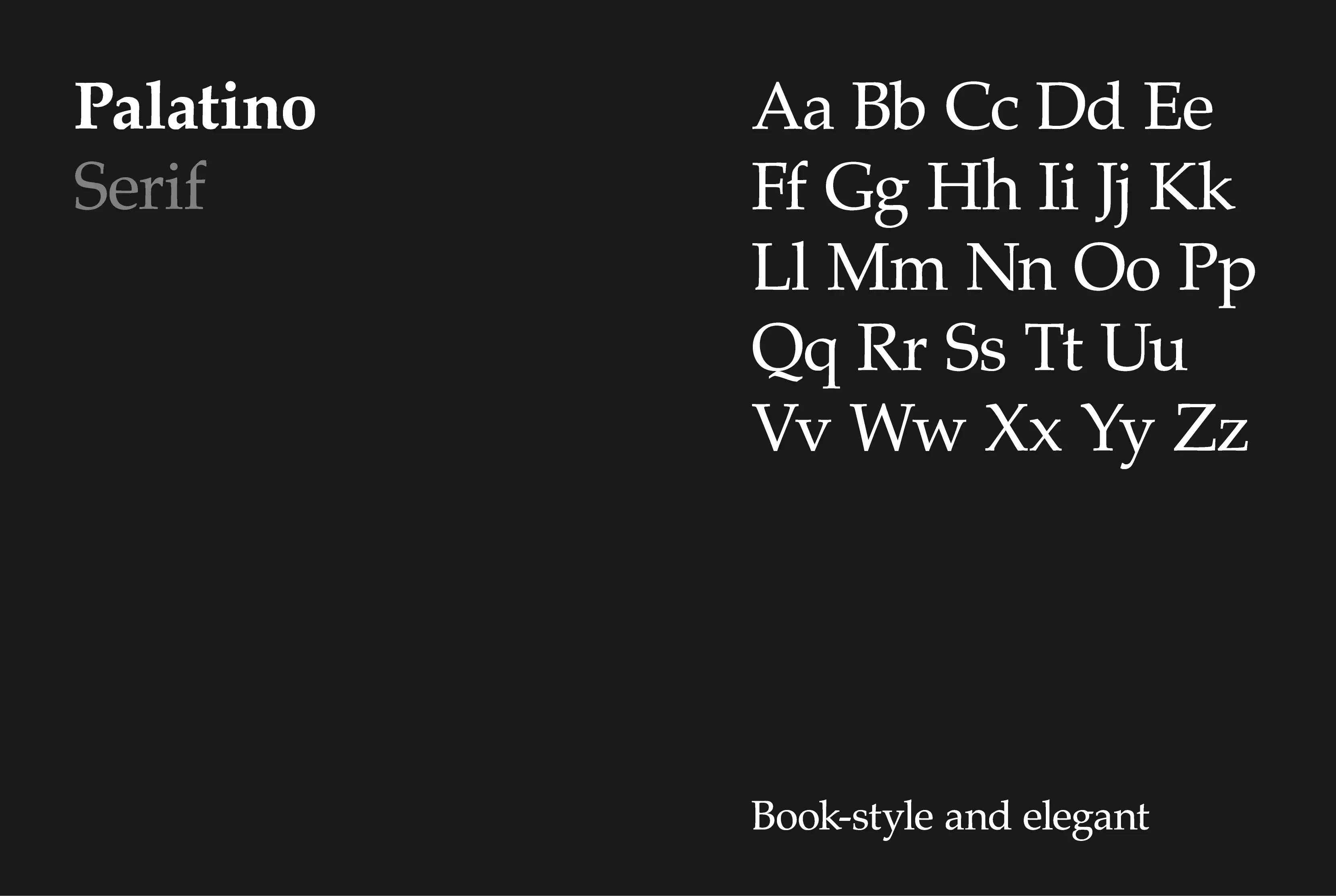
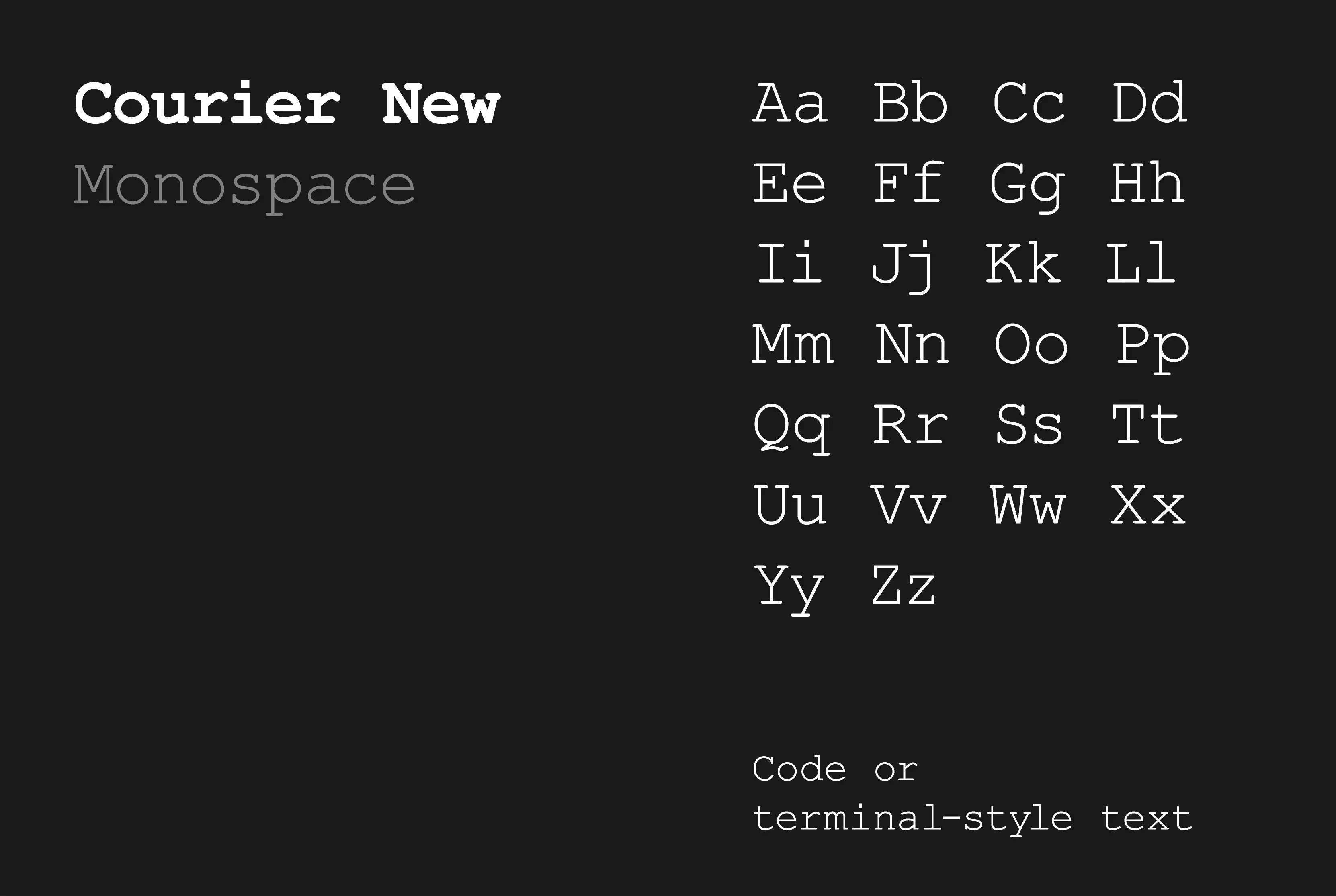
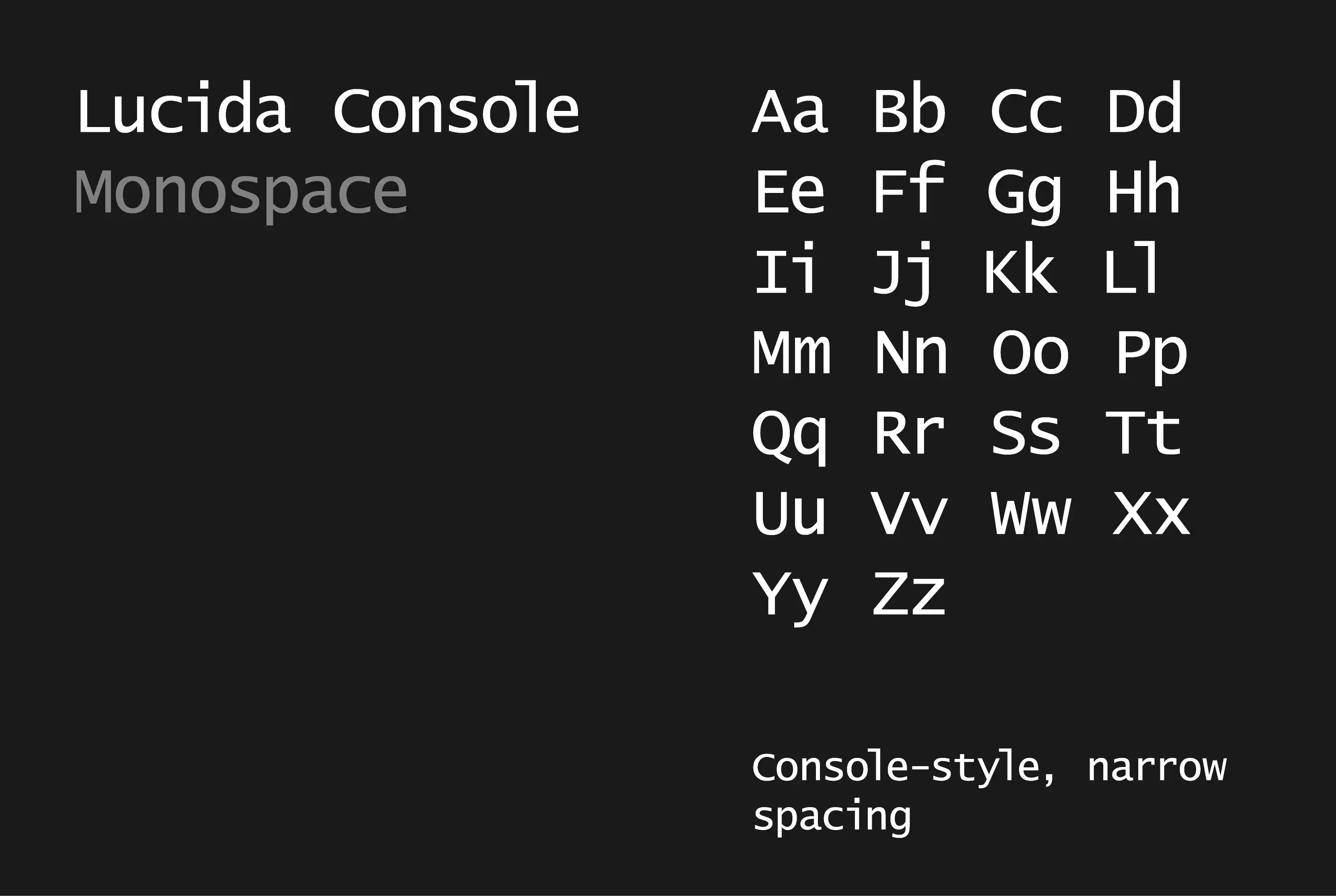
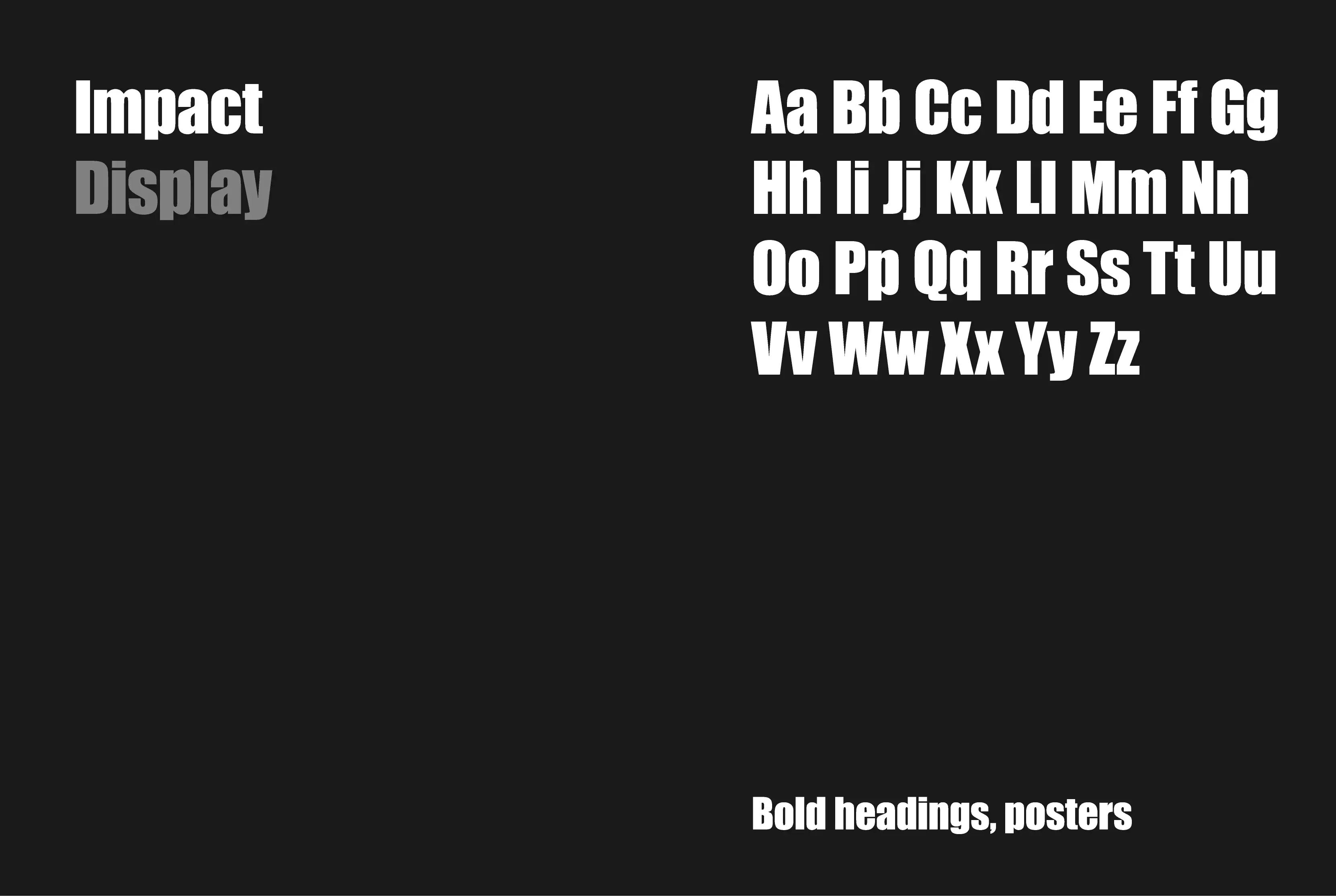
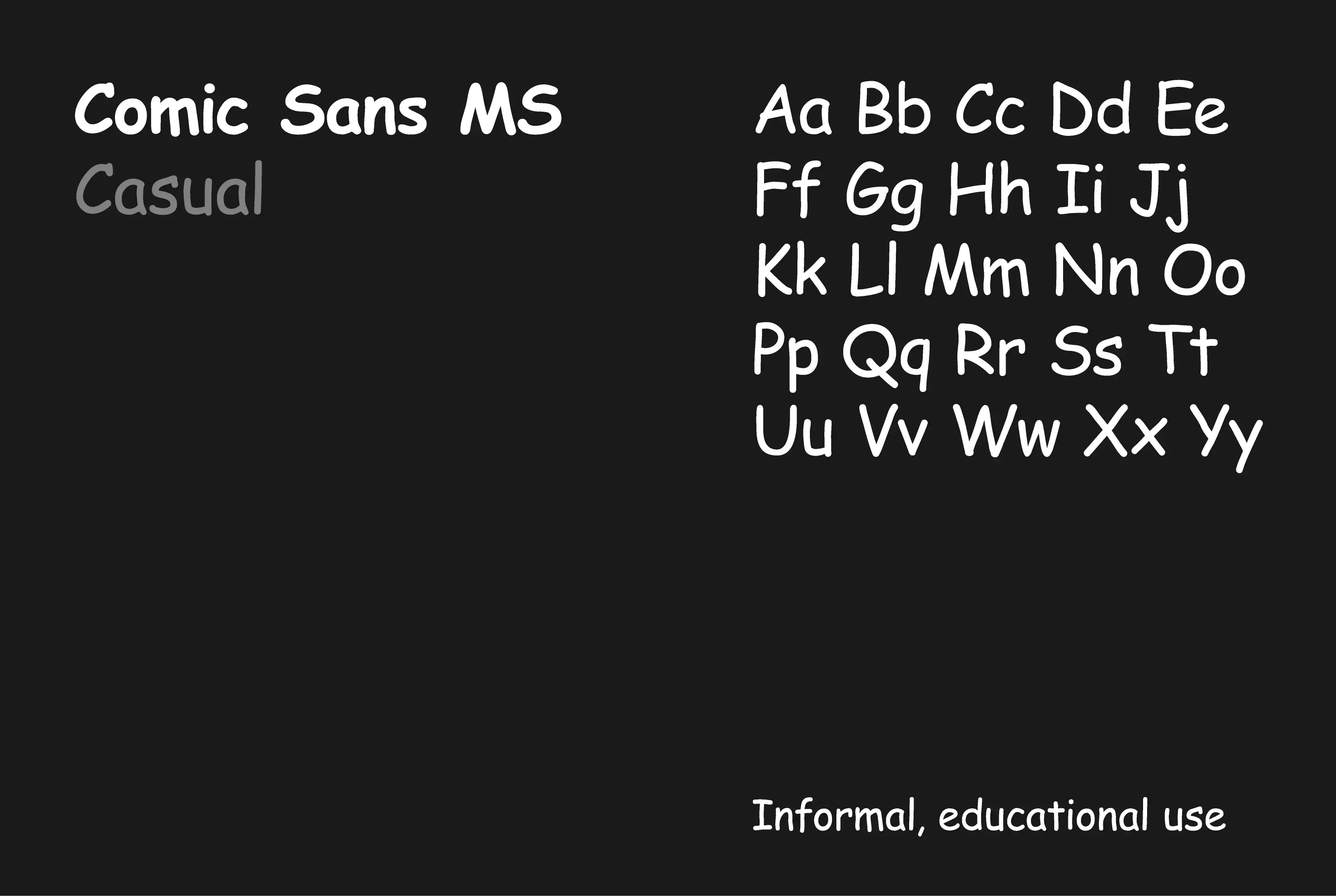
Website
Layout
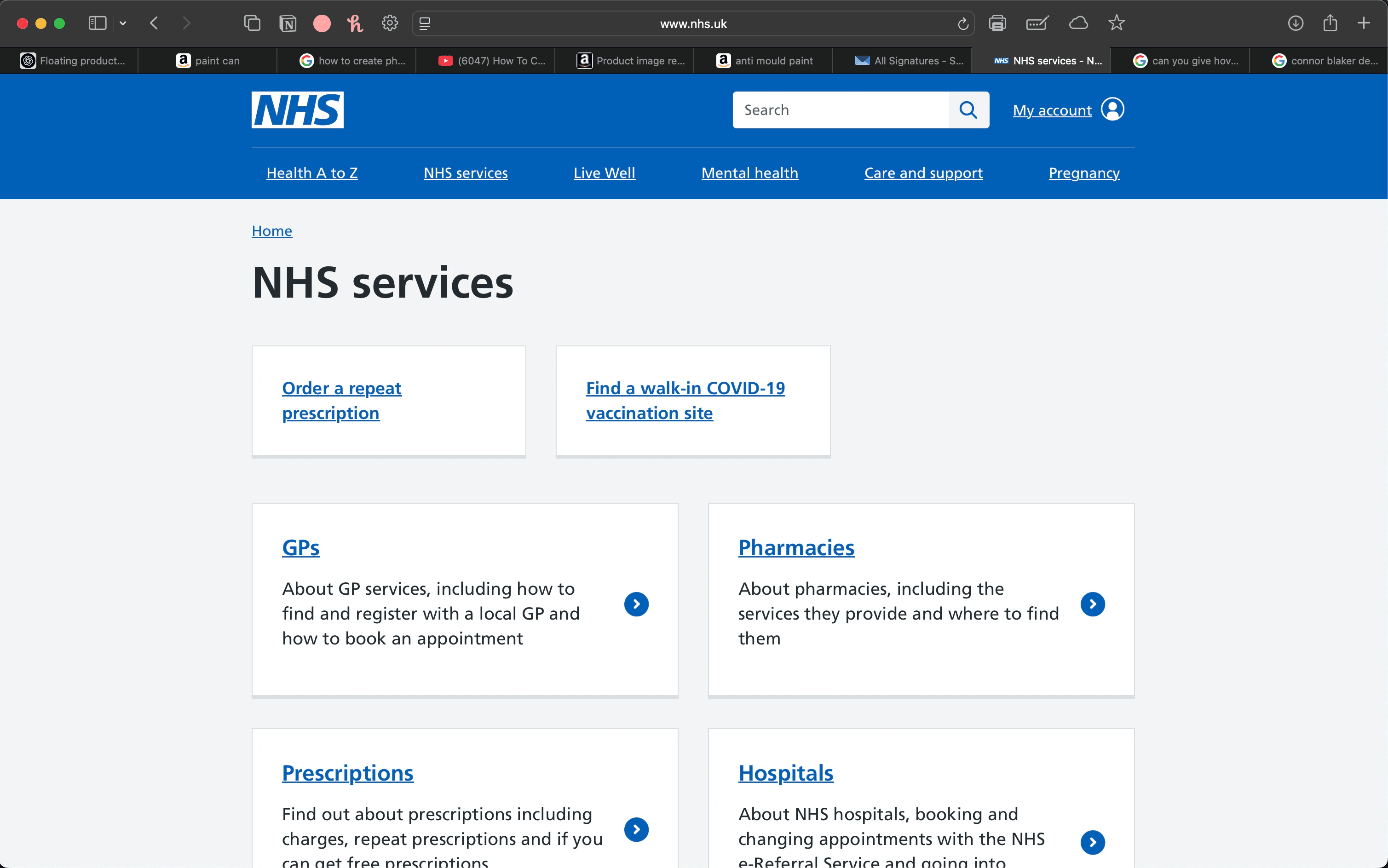
The NHS have elected a simple, almost primitive layout on every page.
Clear navigation, clear headings, simple text layouts including 1 and 2 column layouts with occasional call-to-actions (CTAs).
The layout is incredibly user friendly from the get go. As I'm writing, I have also noticed that every text link is underlined with it's hover effect being the removal of the underline.
The purpose of this (I would assume) is to make anyone aware that they are clickable links. Sometimes links are just a different colour with no underline. This may be confusing as the universal way of identifying a link on computers and other devices is through a simple underline. A simple yet very effective decision
Everything is put into neat boxes to help organise page information making it more accessible for the user. Clearly separating one item from another helps to reduce confusion when navigating the site so it's a very handy layout design.
Website
Colour
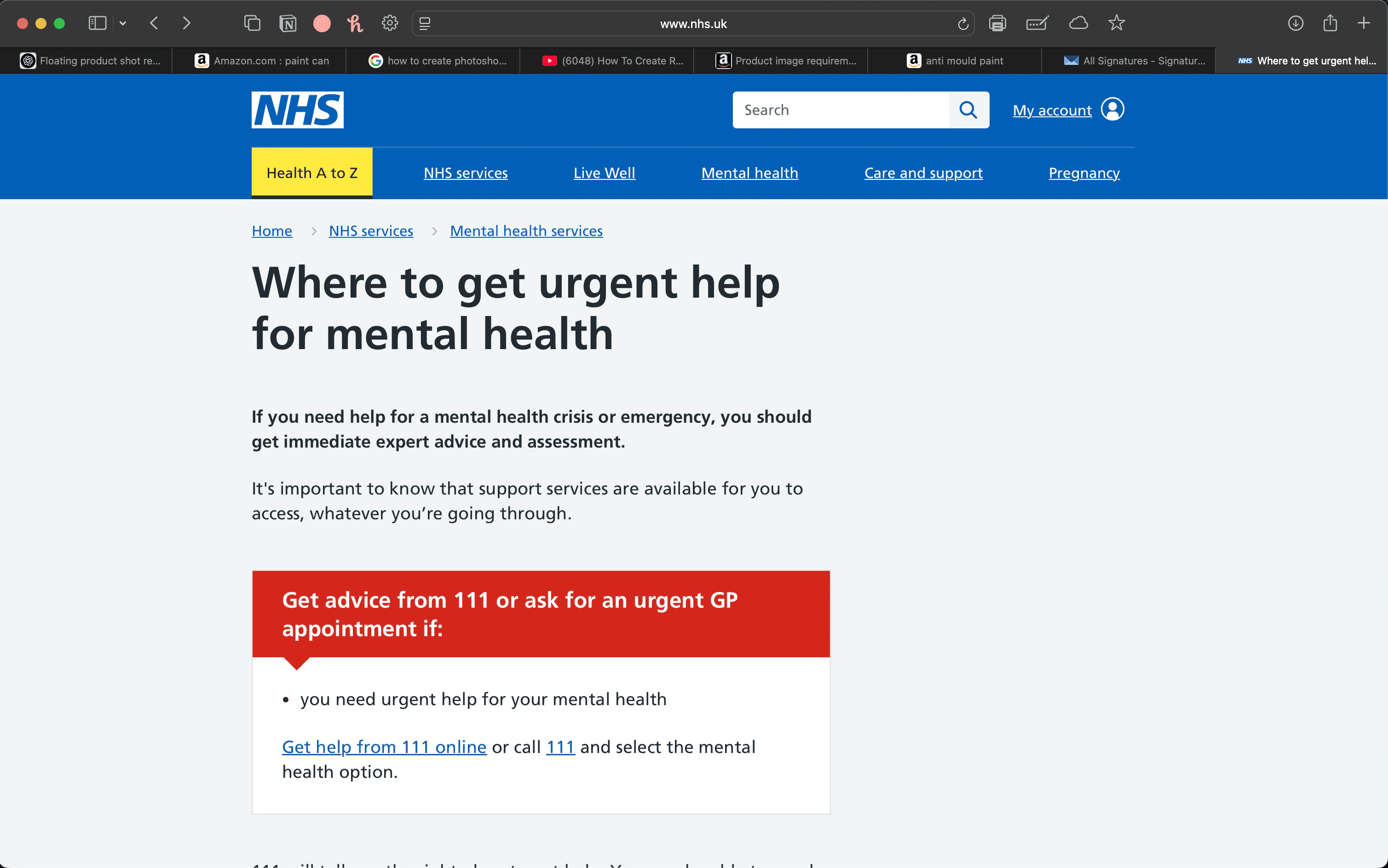
From what I have seen, there are 2 main colours and various others on the site. Blue and white do most of the work with support from a range of greys, red, yellow, and green.
Blue is used for the navbar, headers, and other prominent content that isn't of great length. For example headings, subheadings, and buttons.
White is just a background/card colour. It acts as the canvas for everything else.
Green is used for arrows and bullet points to help direct you to the right place, but not always.
Dark grey is also used for headings and subheadings as a hover colour as well as primary on some pages.
Yellow is used as a "pressed" colour for the navbar items. It's also used for information boxes on some pages to help important info stand out.
Red is also used for information boxes where a greater sense of urgency is needed. For example, when alerting someone of the numbers to call in an emergency. It's accompanied with a dark navy/grey background rather than white to create a strong contrast which really helps the information jump out to the user - just what you want in an emergency. Nicely done.
These colours all work together harmoniously however the consistency of where and when colours such as green are yellow are used is a little off which doesn't appear well from a design point of view. In terms of functionality, it doesn't seem to hinder the use of the site making it a passable complaint rather than a major design flaw.
NHS
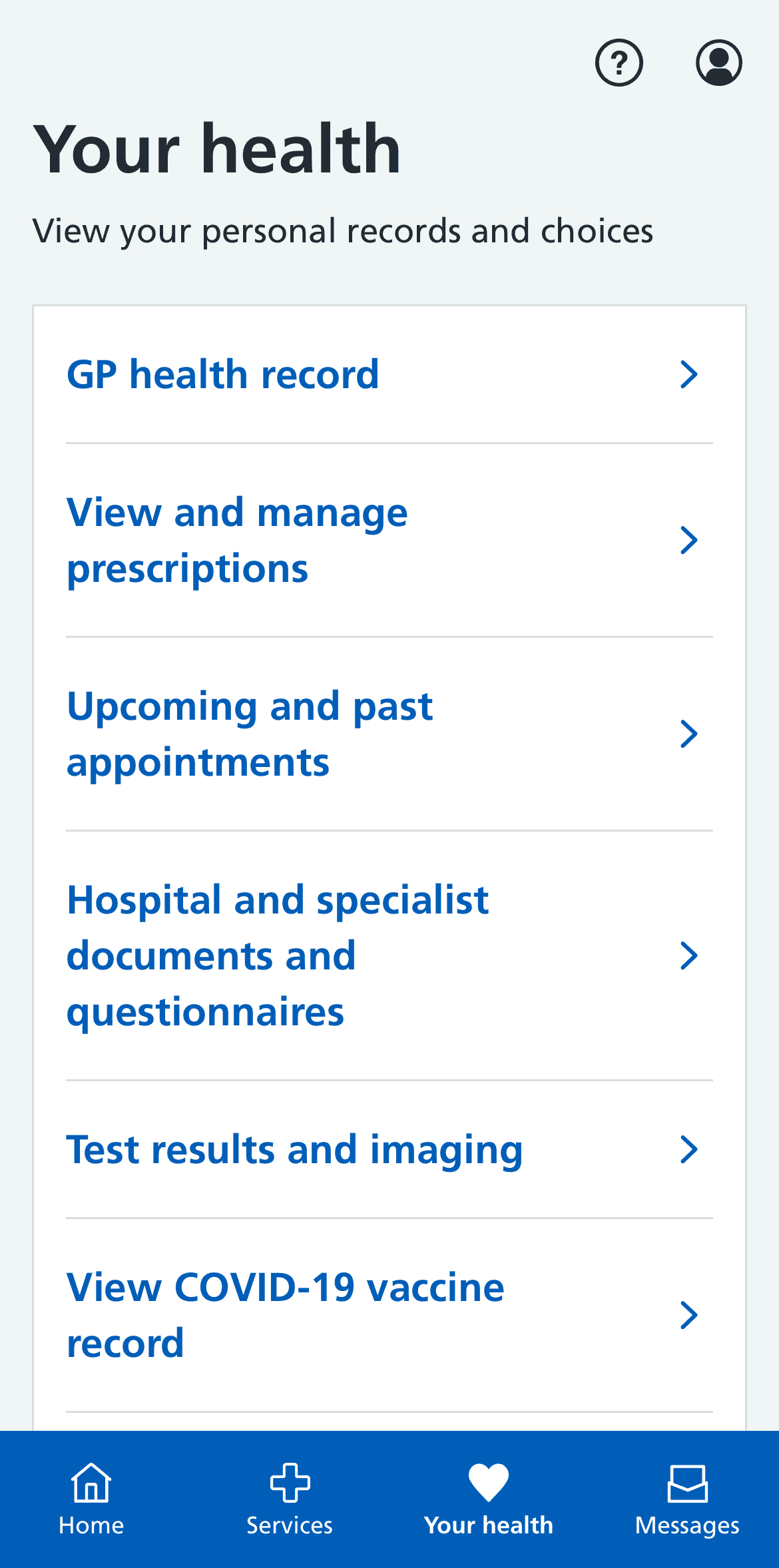
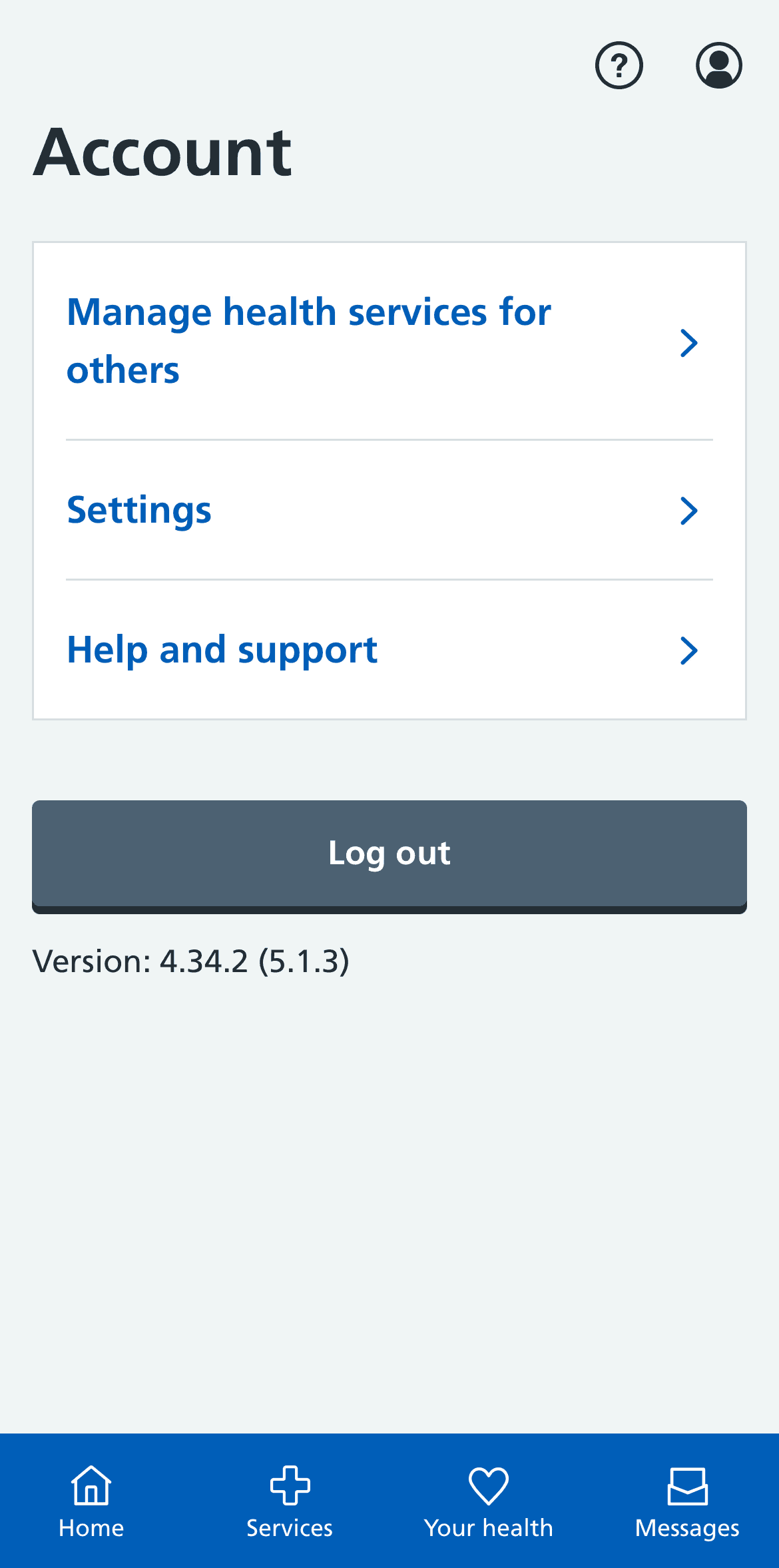
App

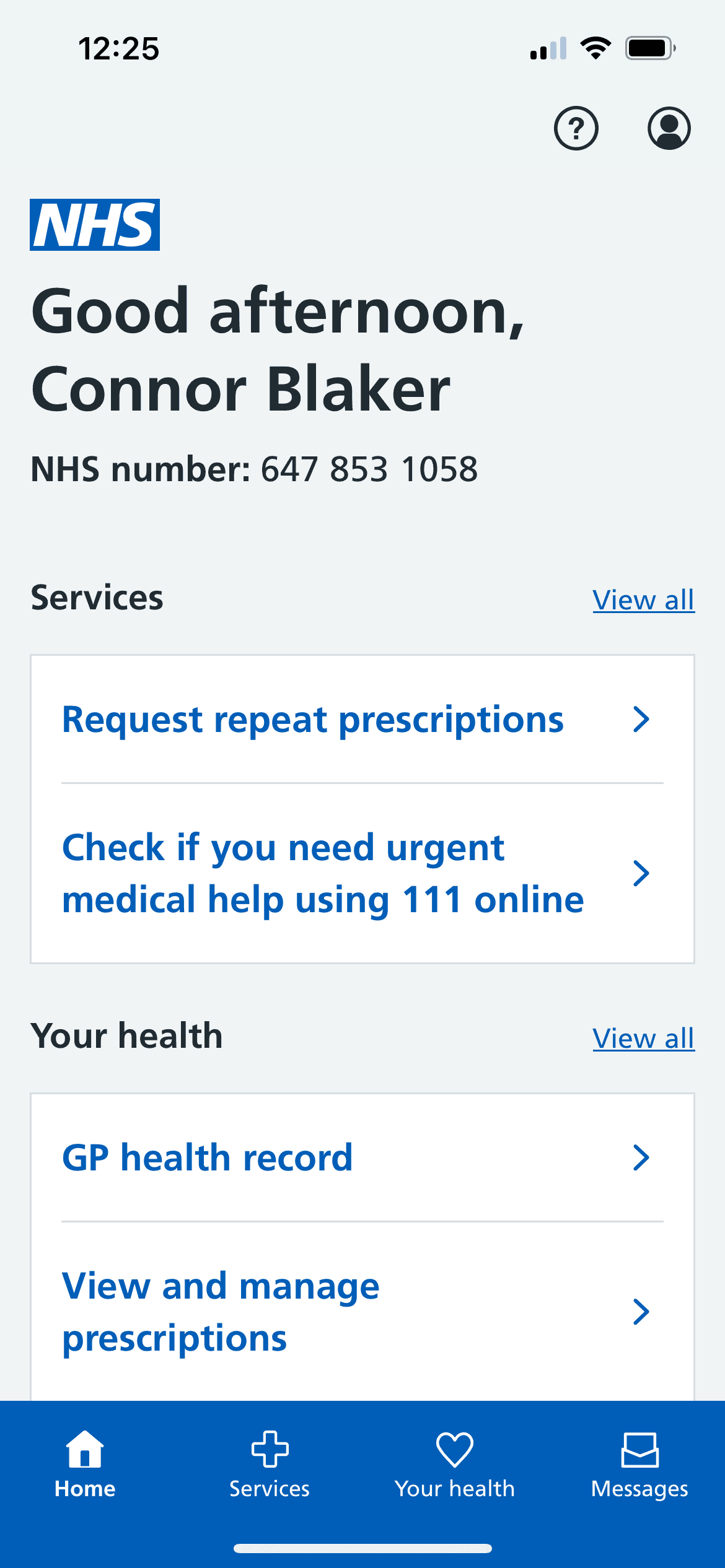
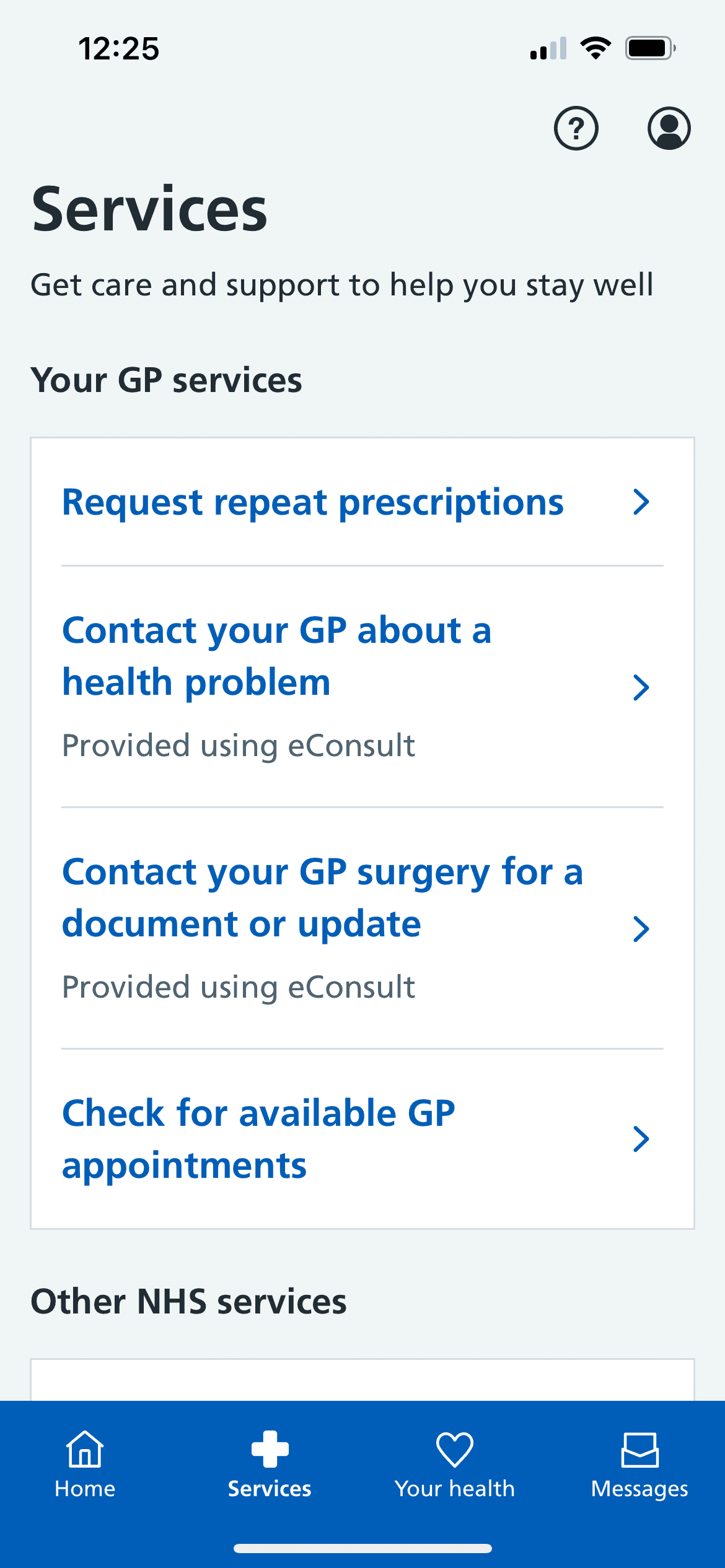
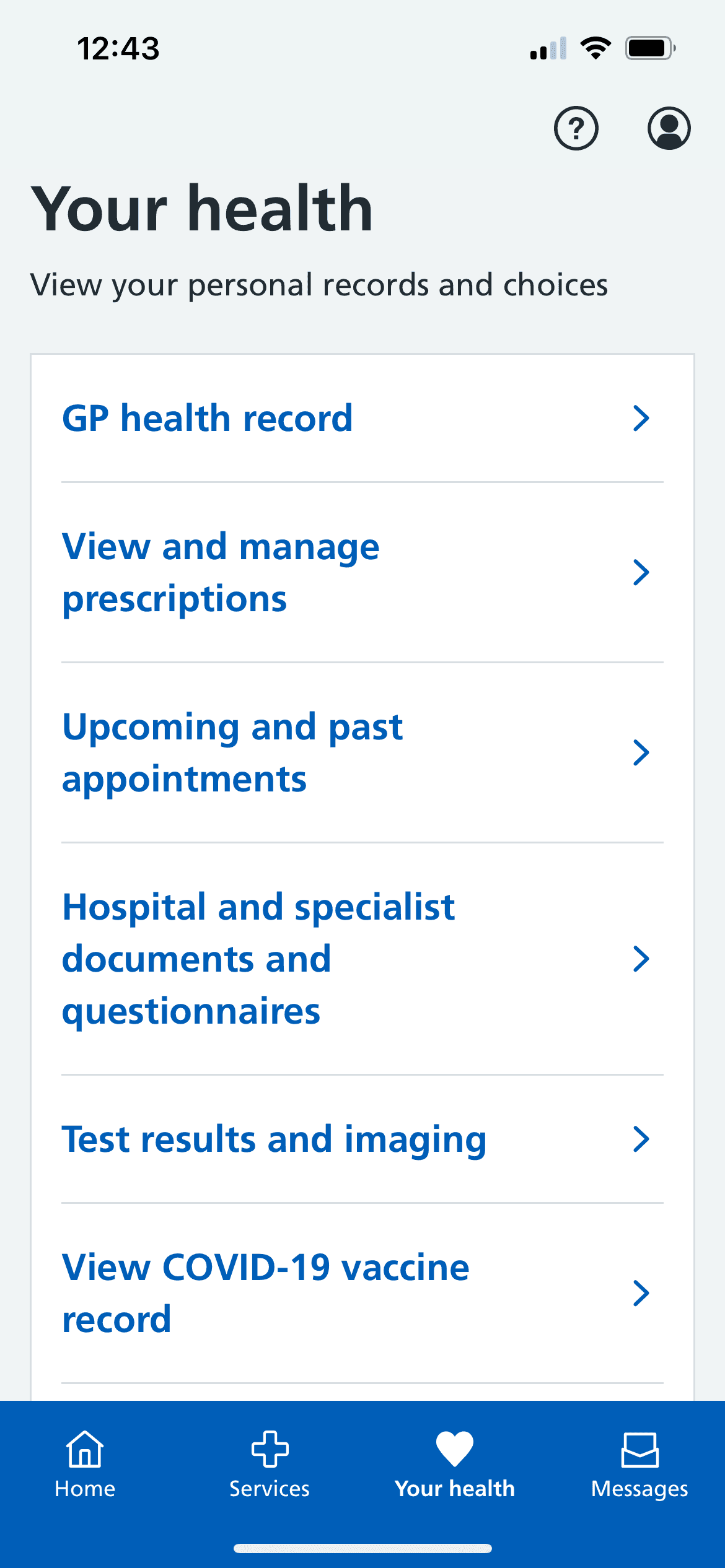

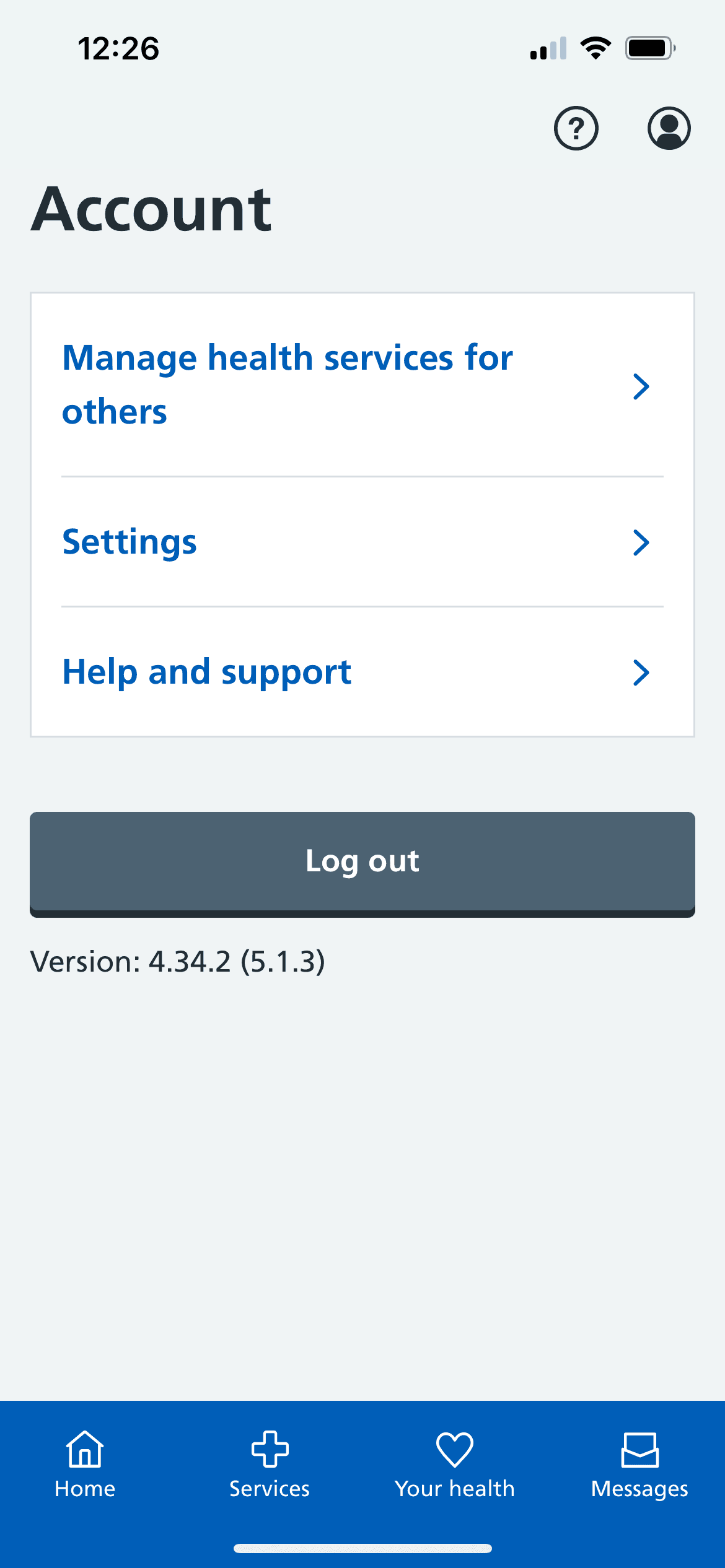
Tasks 2, 3, 4, and 5
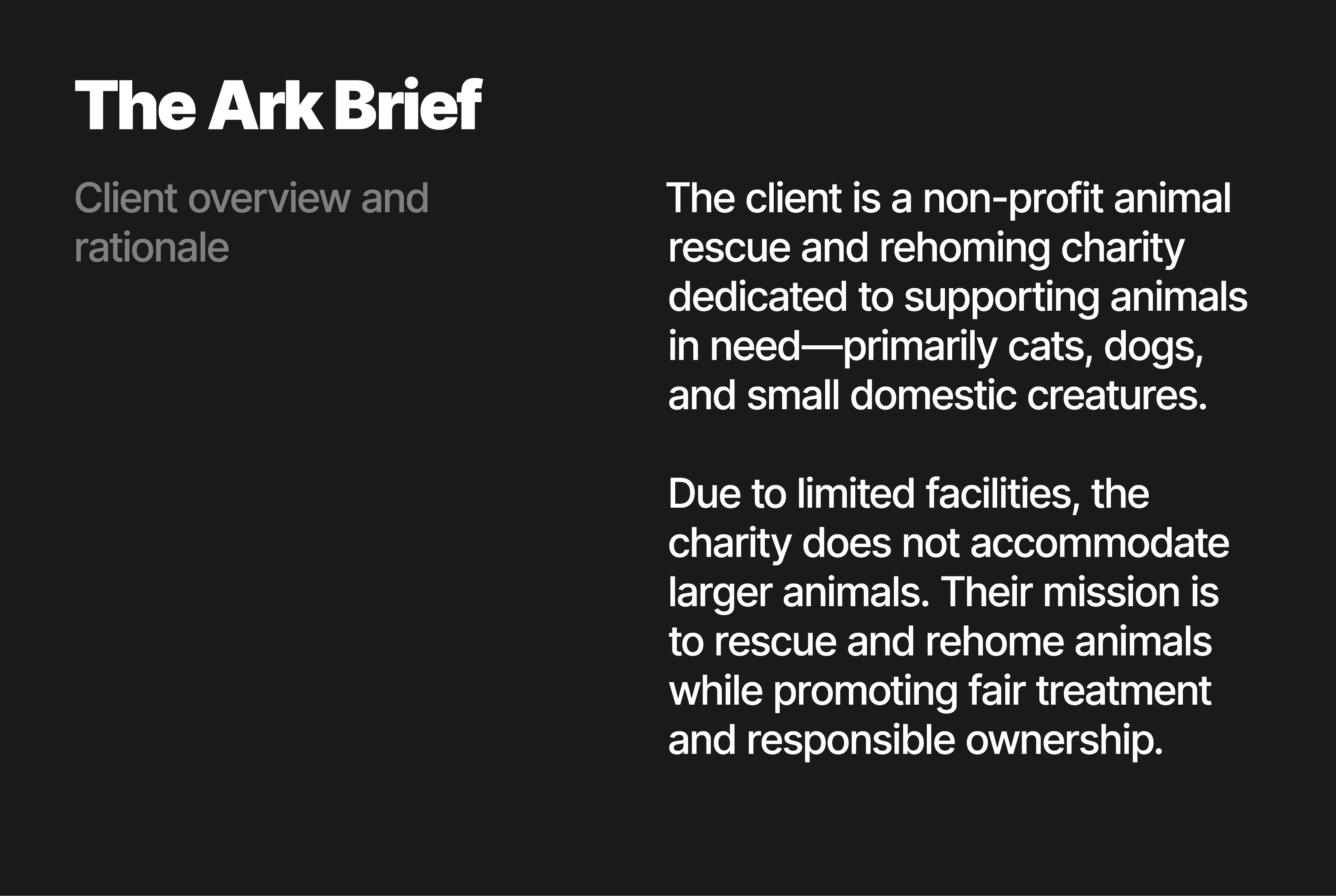
Select your charity - I have chosen the animal rescue and rehoming charity, "The Ark". Then, question your client (the tutor) to become familiar with the client requirements and form your own brief. With this in mind, create a sensible timescale for the project.
The Ark
Q&A
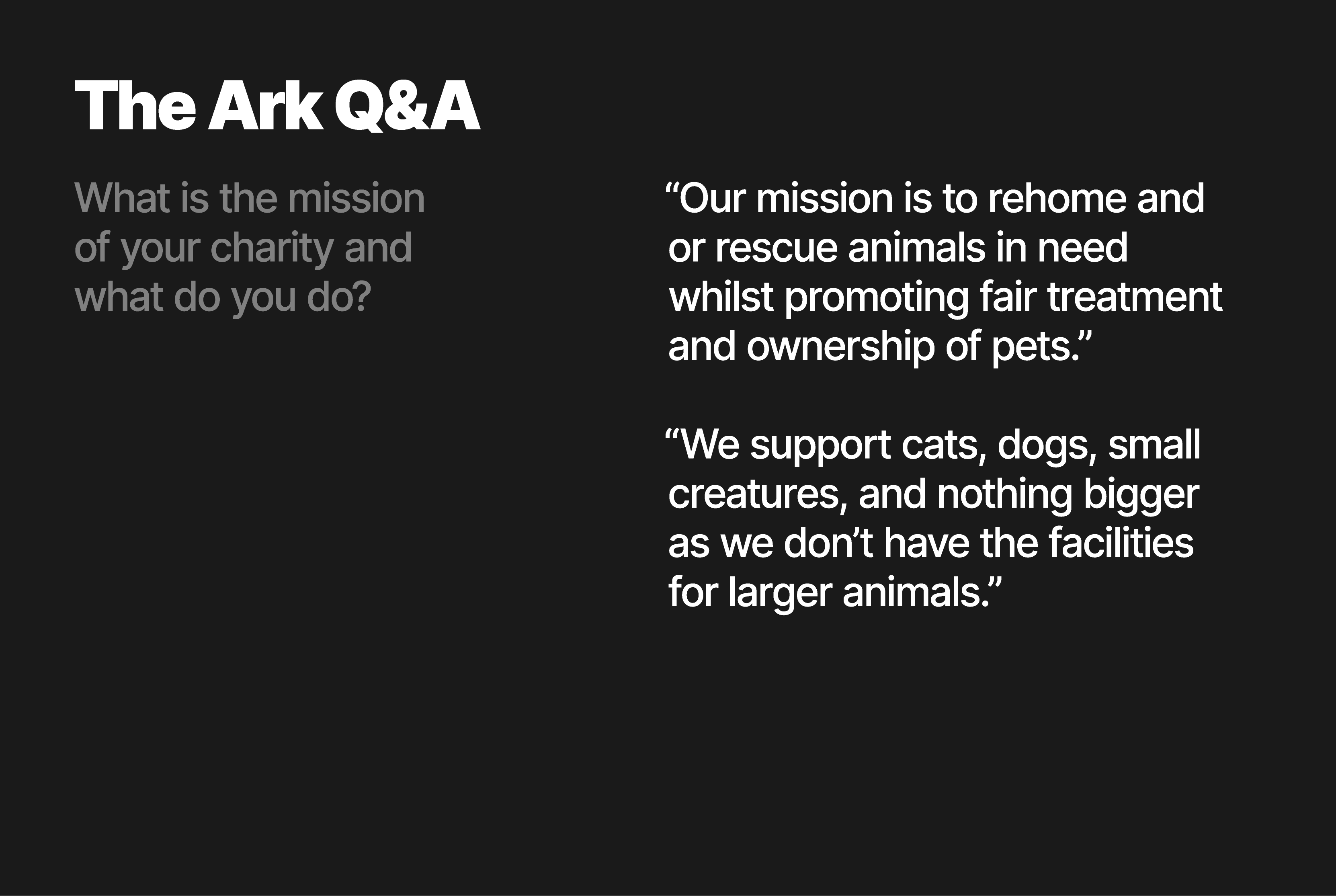

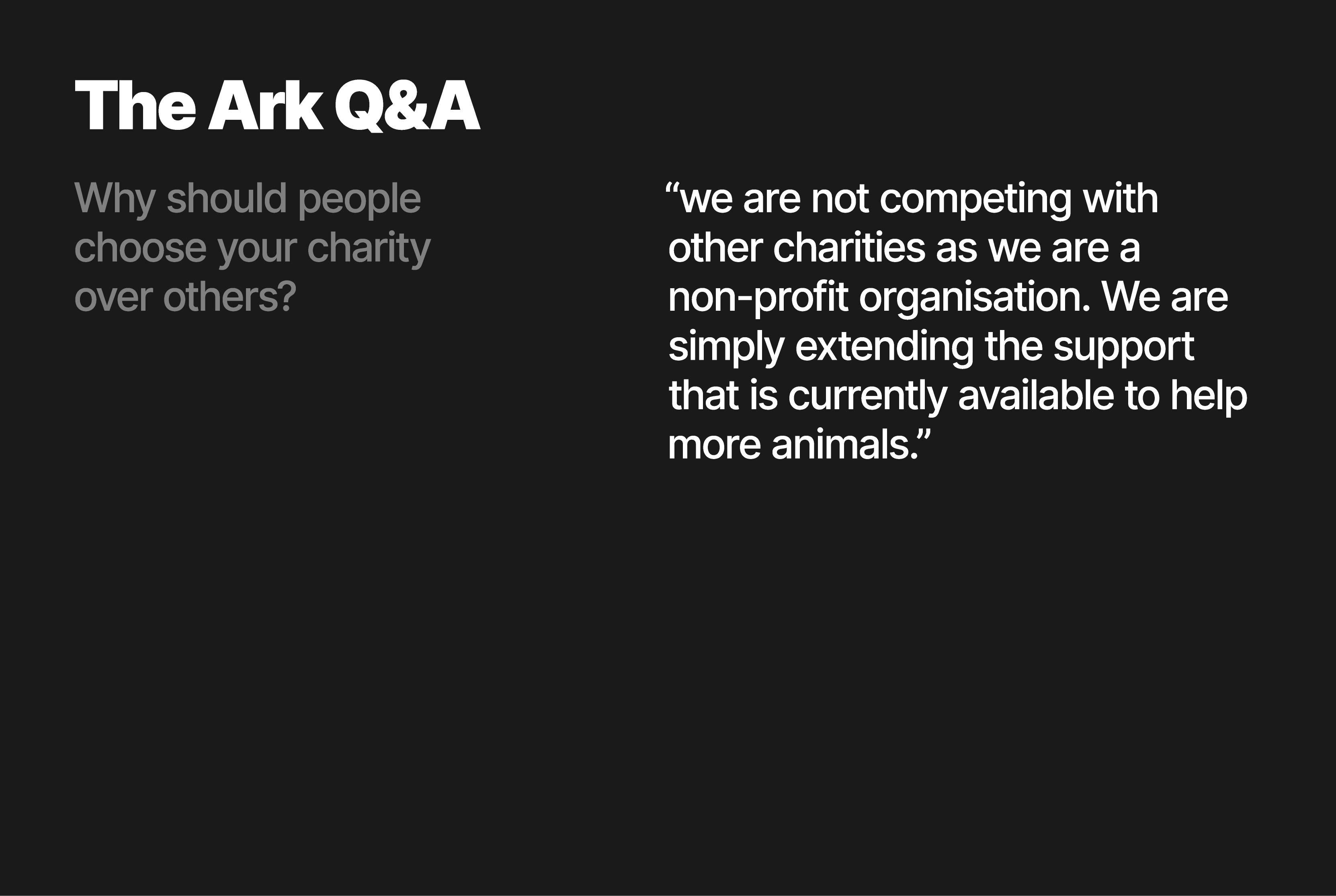
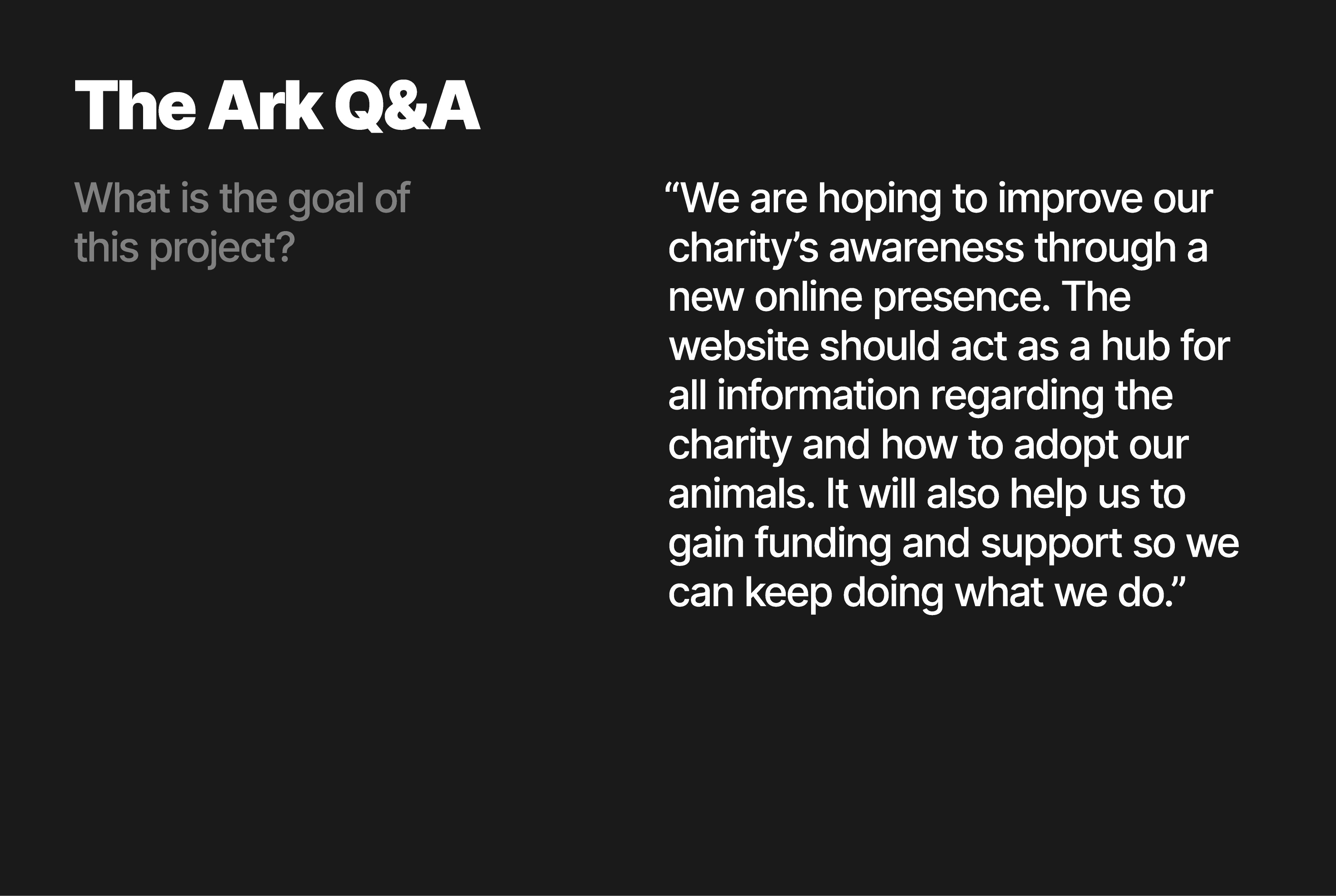
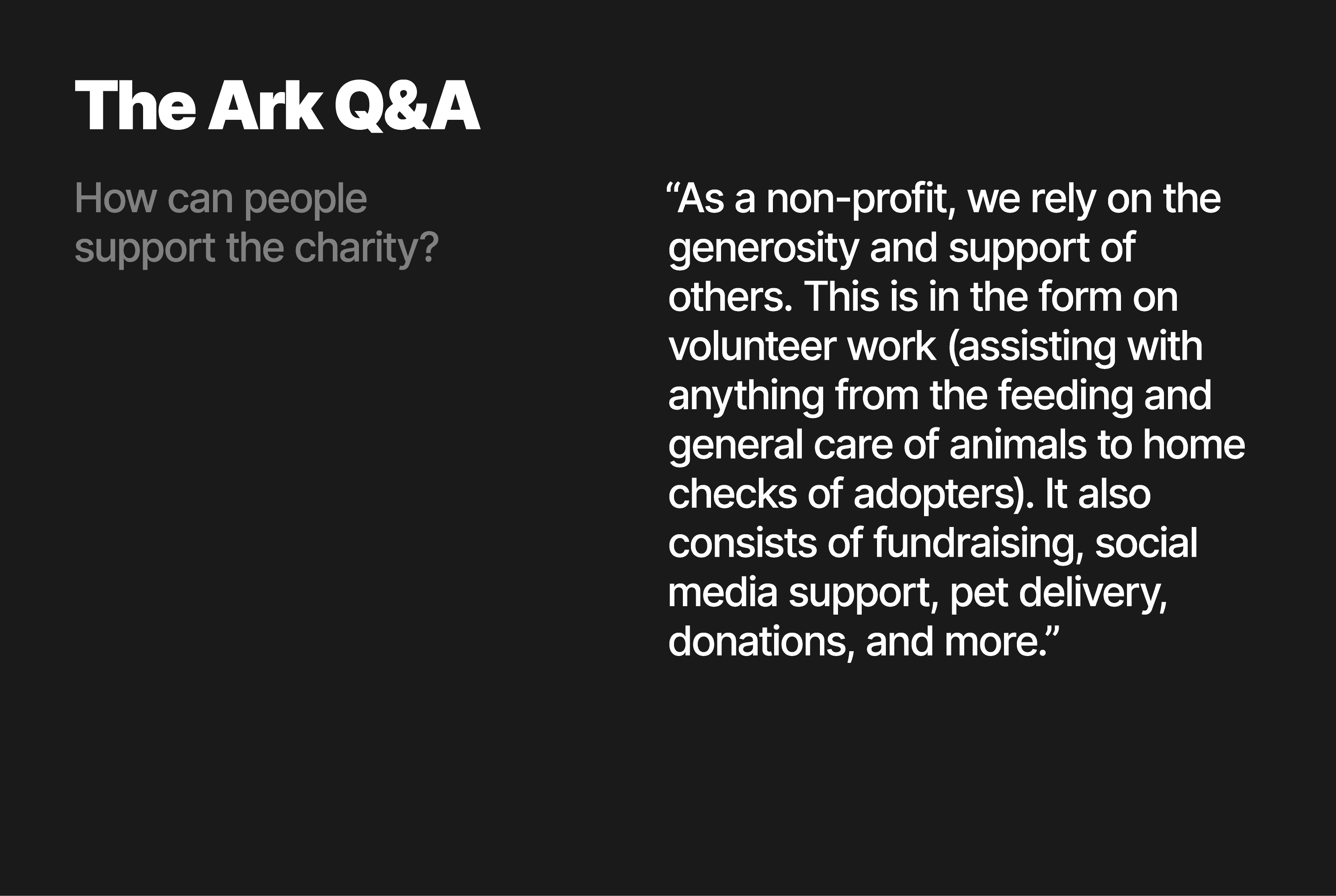
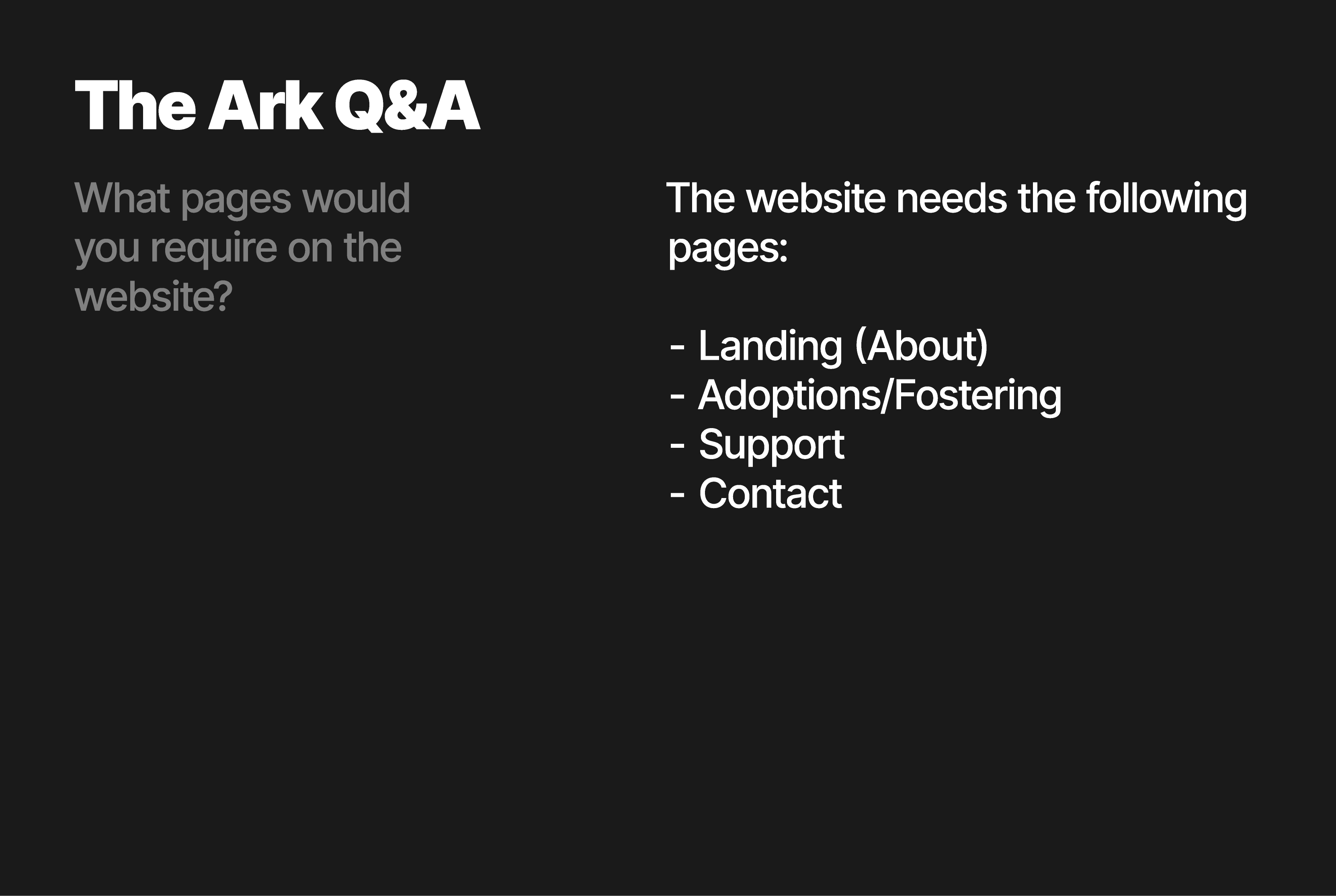
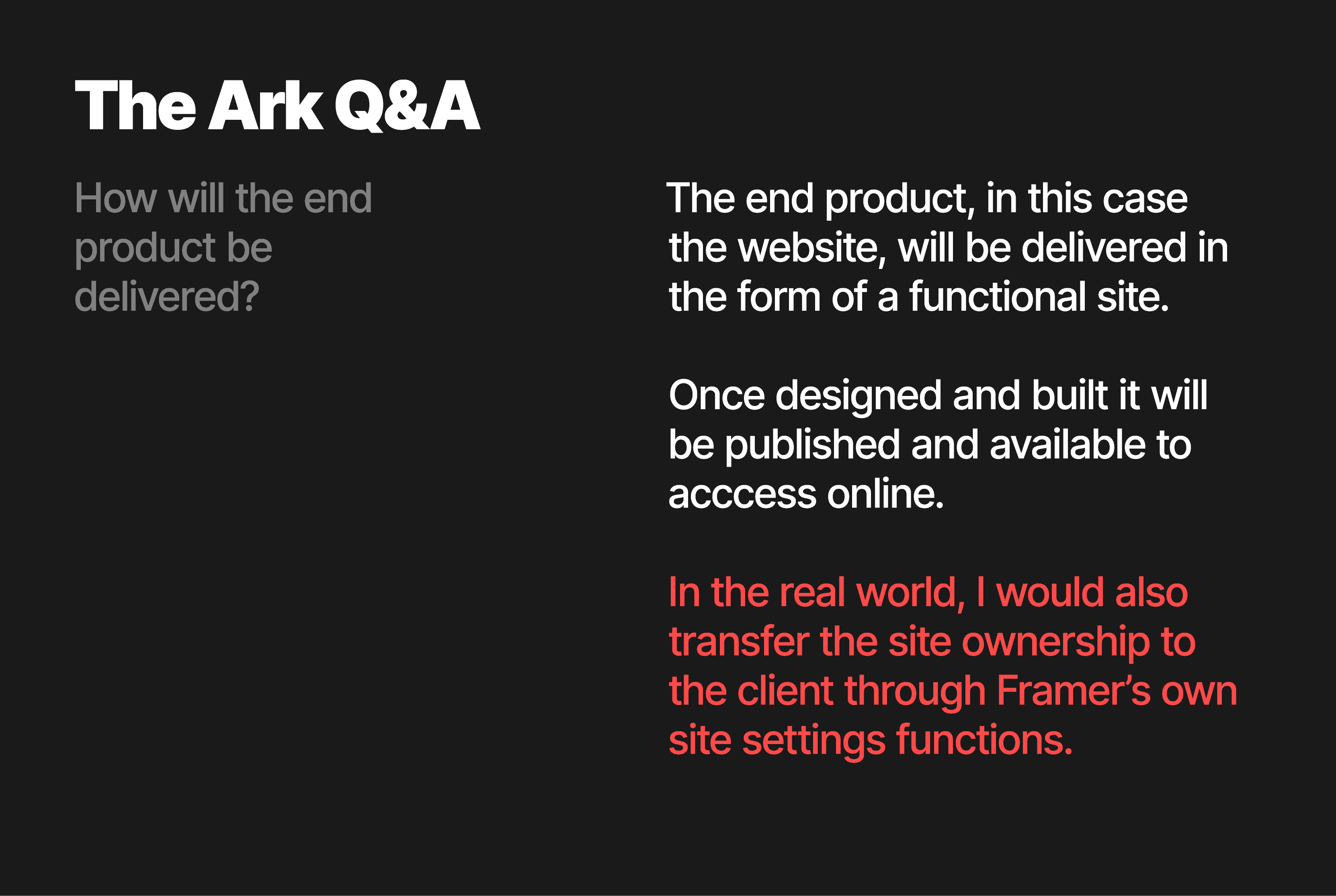
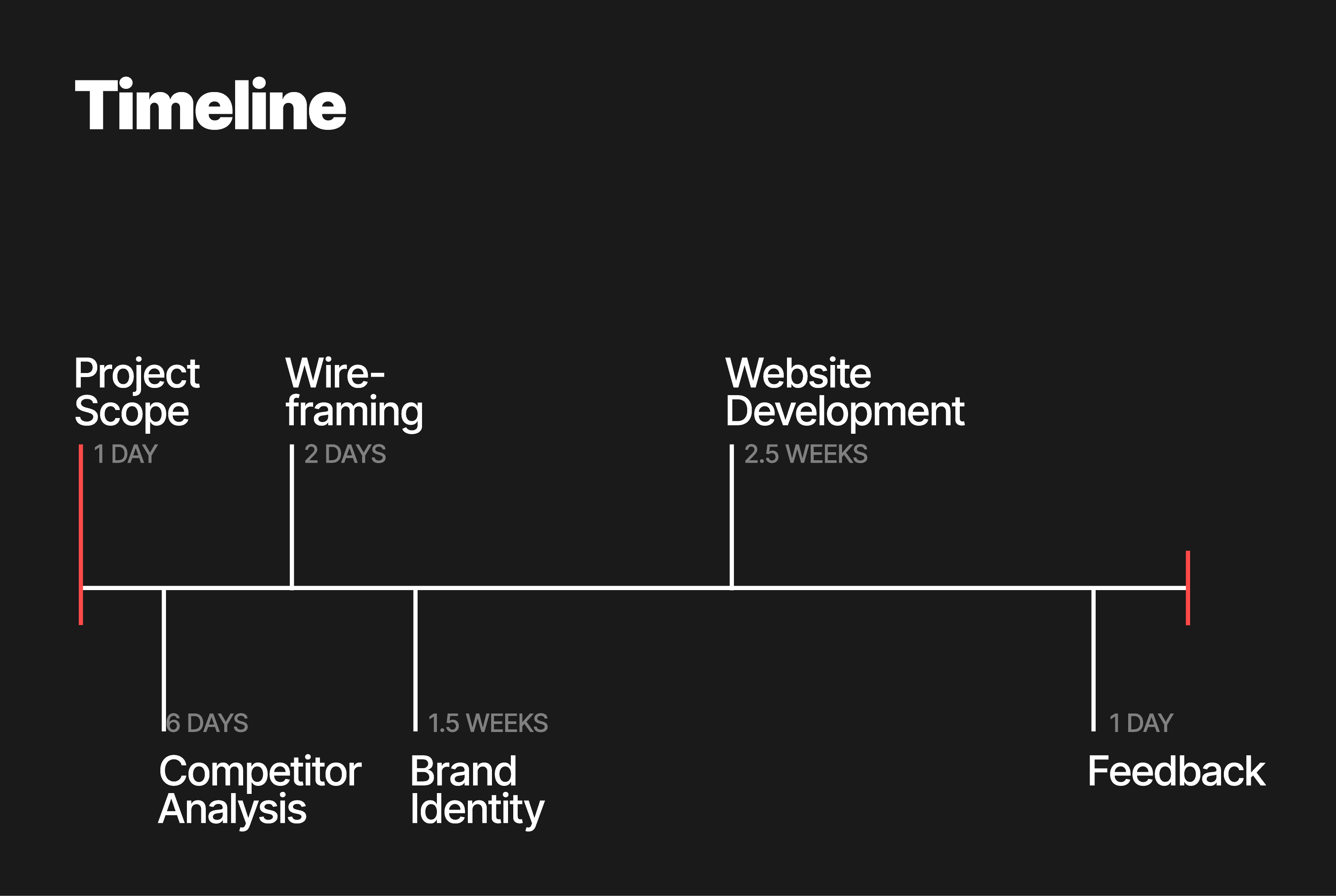
The Ark
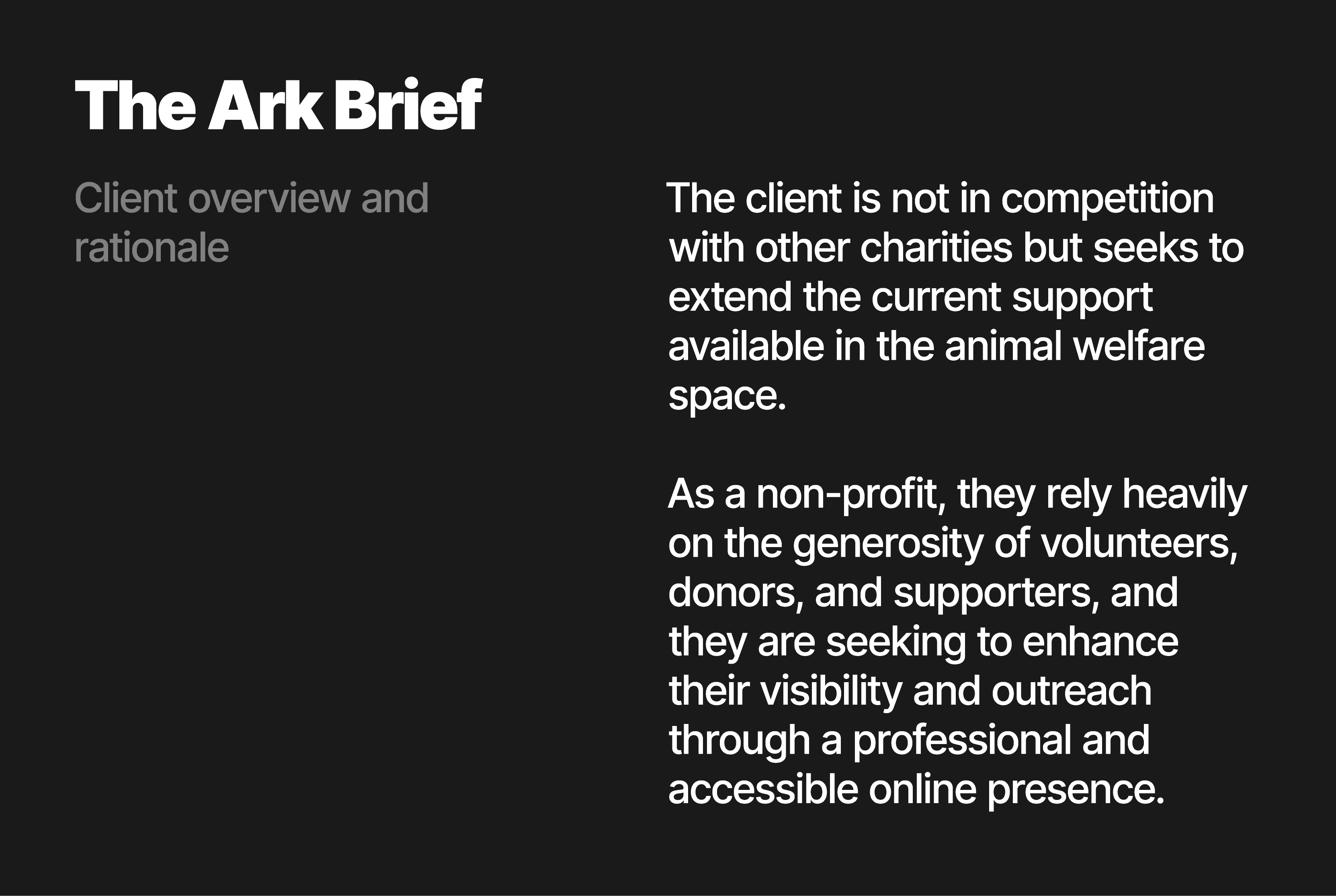
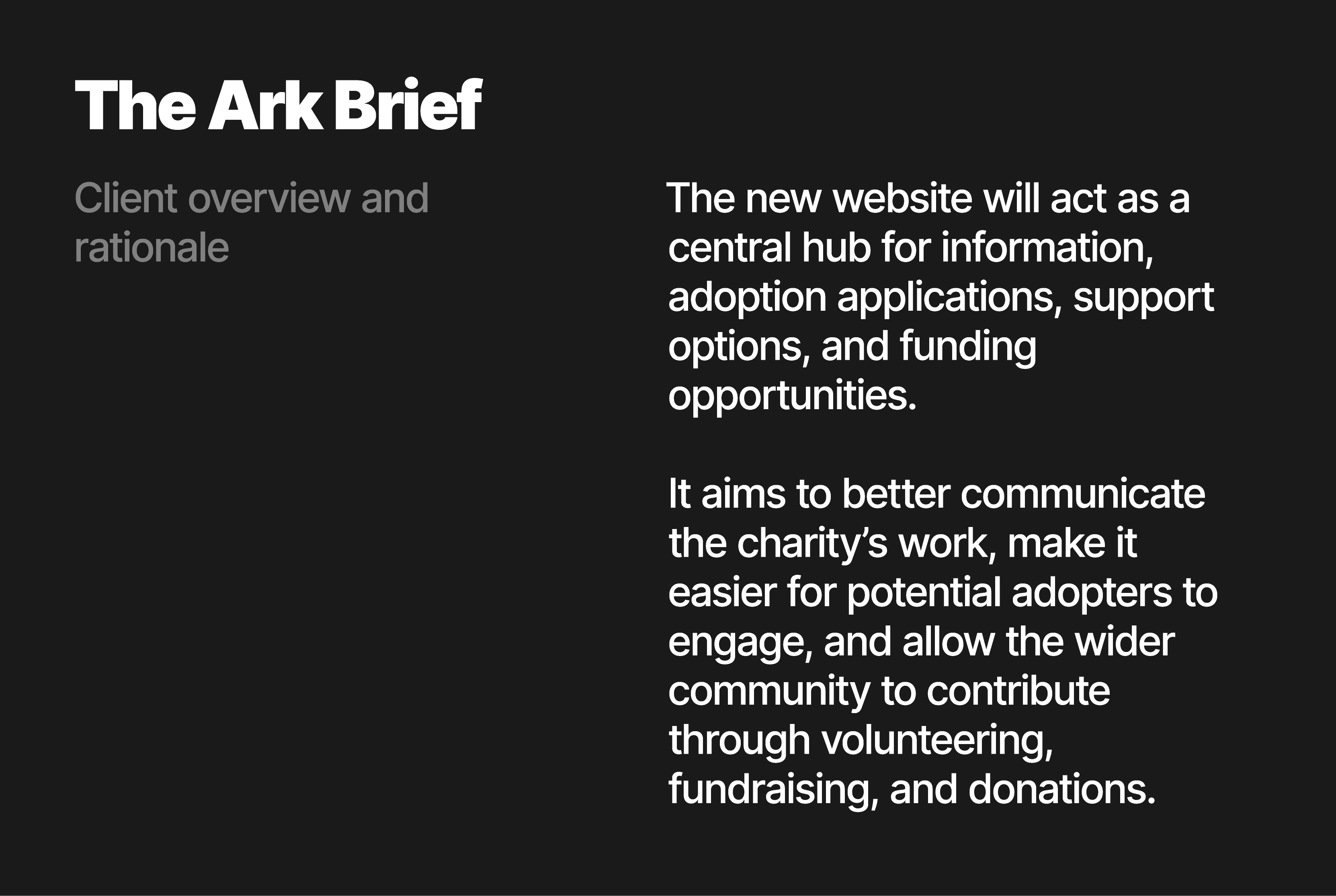
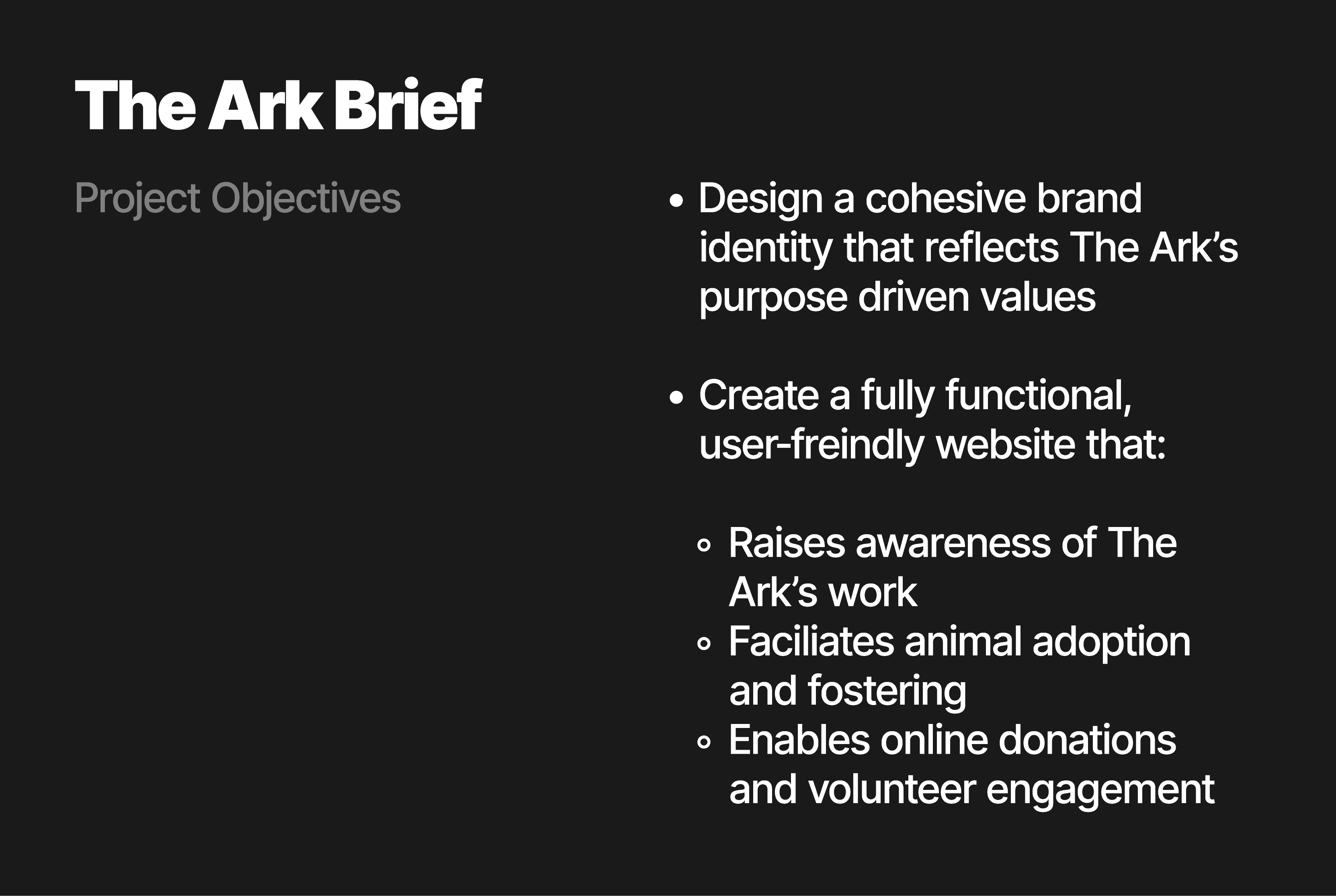
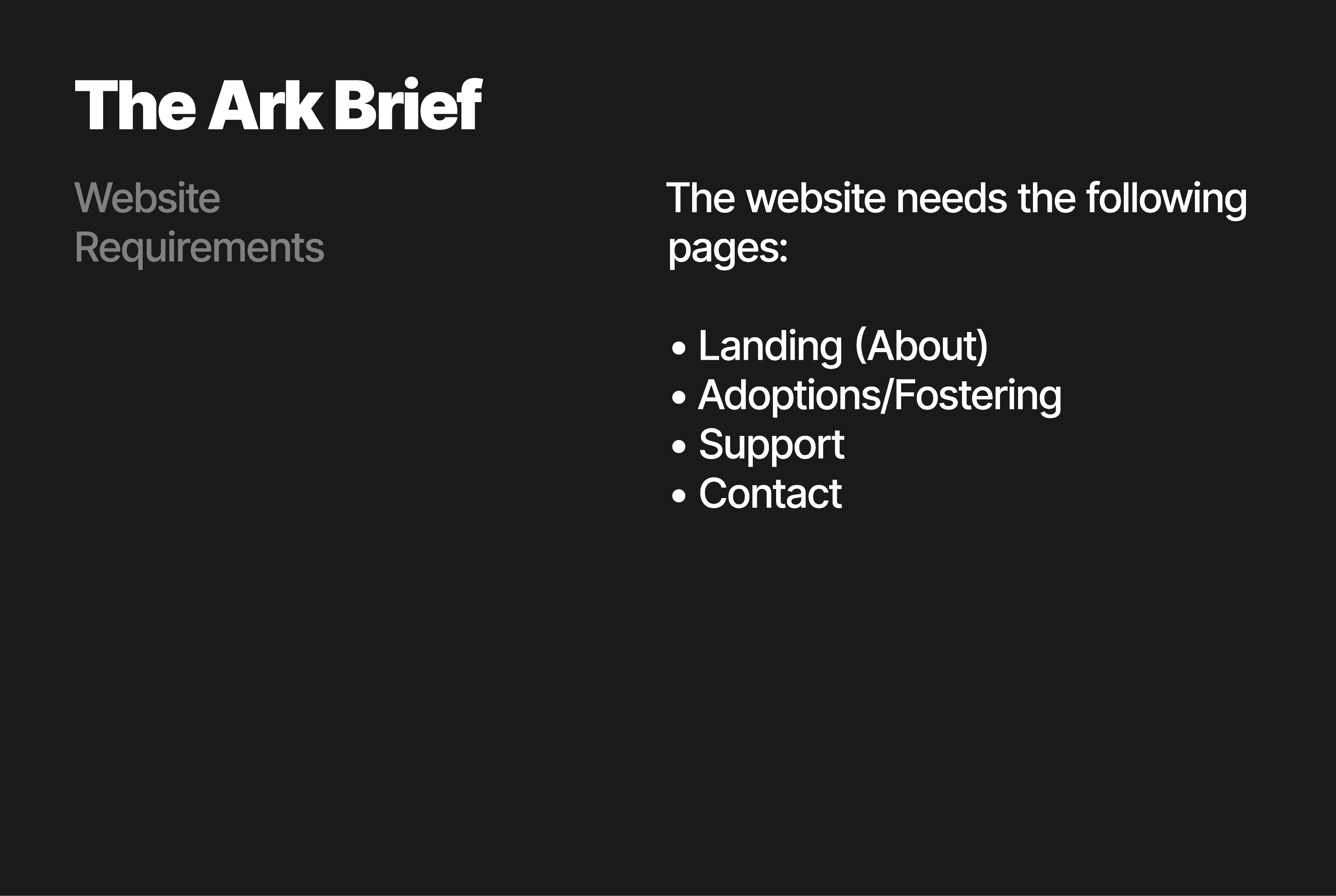
Project brief
Task 6
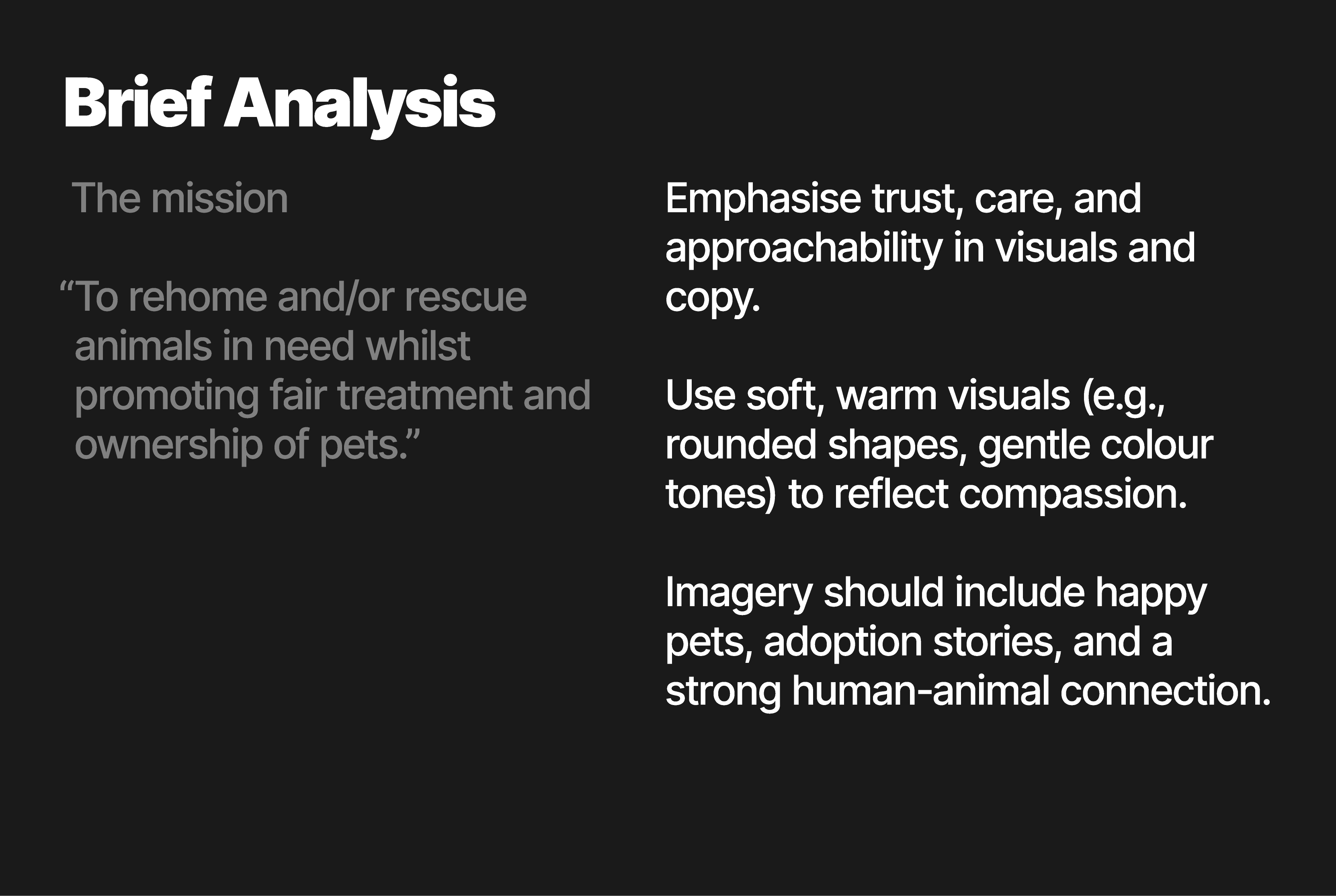
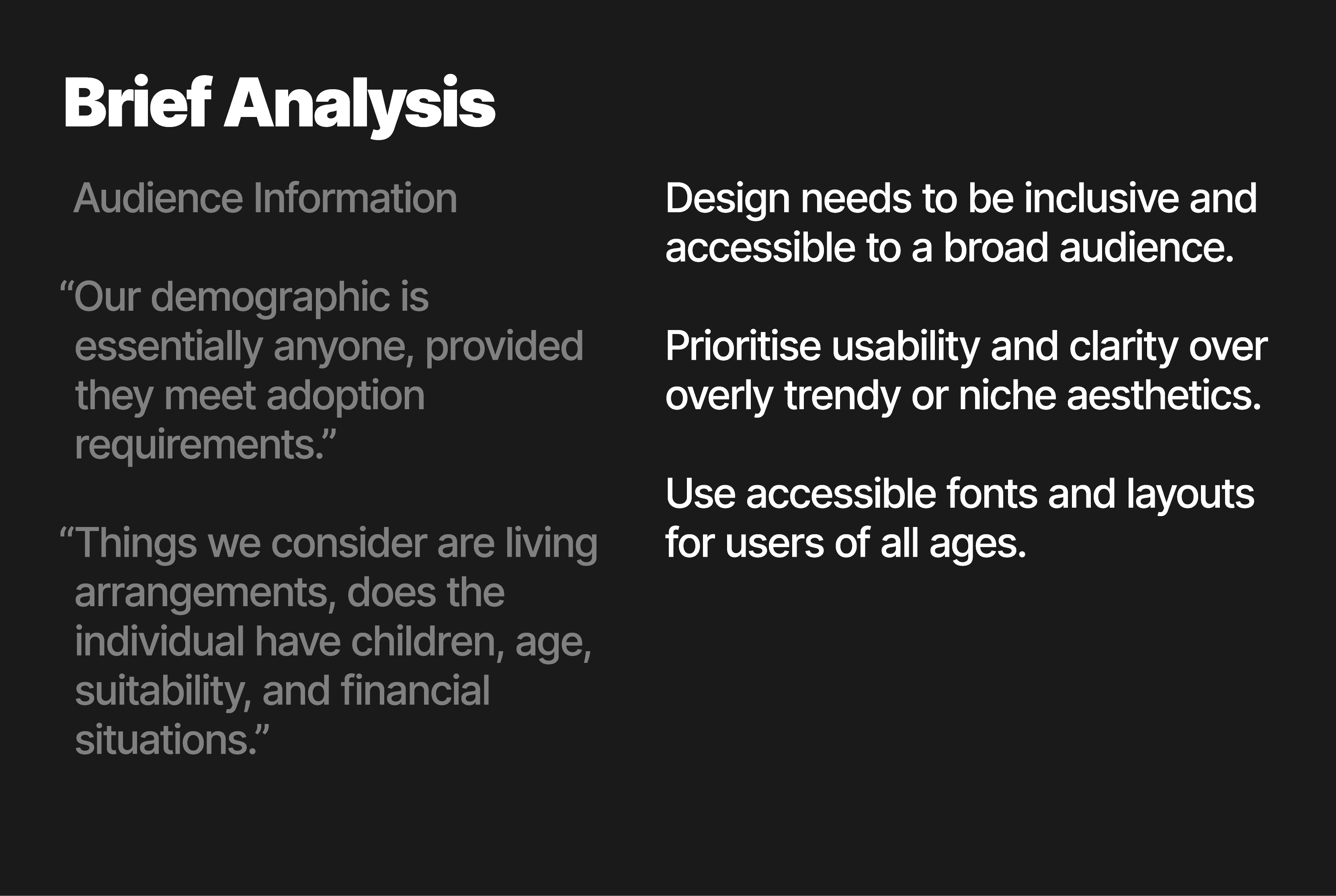
Analyse your brief, and make sure that you understand your client’s requirements. Create a mind map and with this information in mind start “wireframing” on paper. There will be a separate tutorial on this subject. At this point you will be creating block layouts without using logo,type, colour or images.
The Ark Brief
Analysis
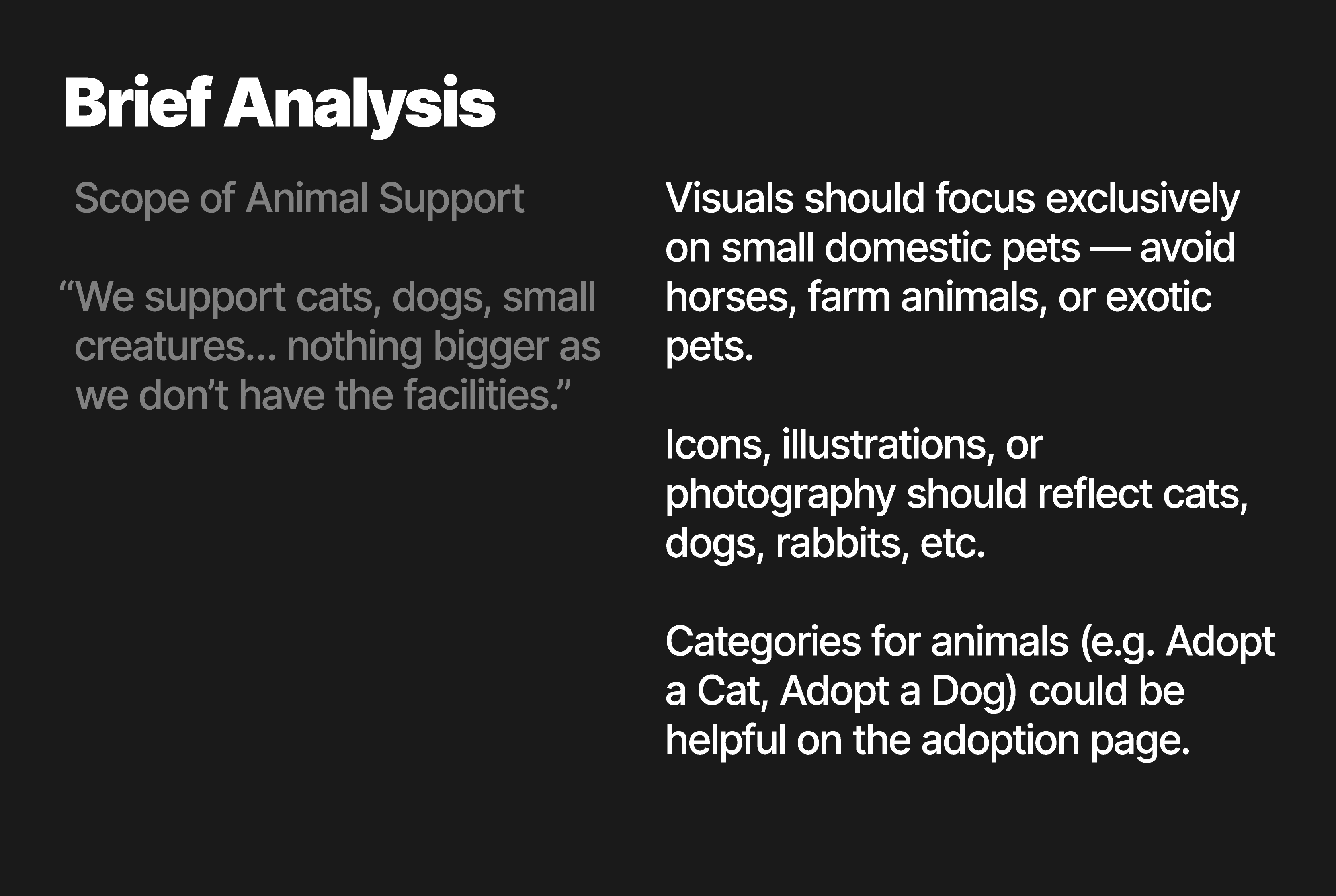
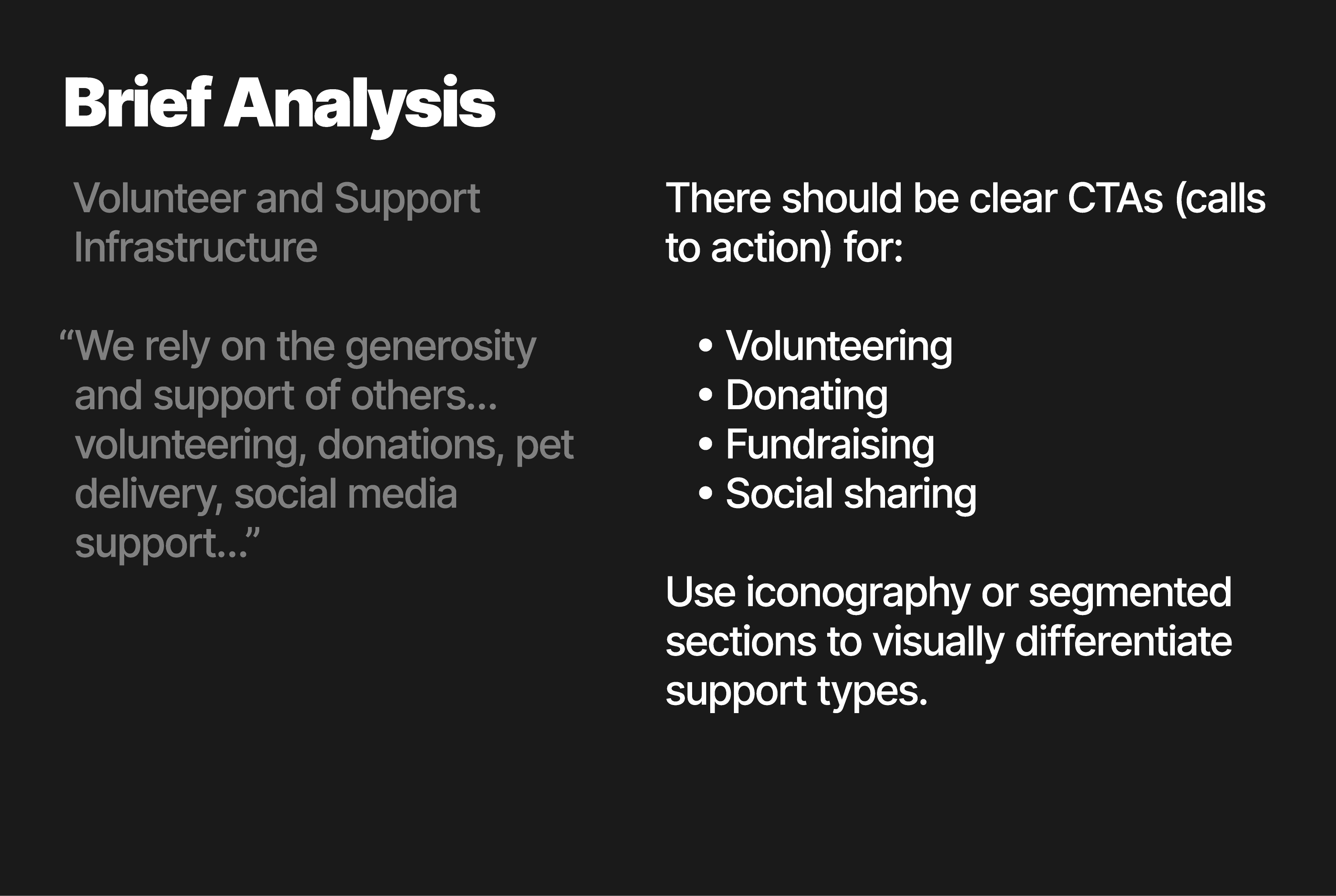
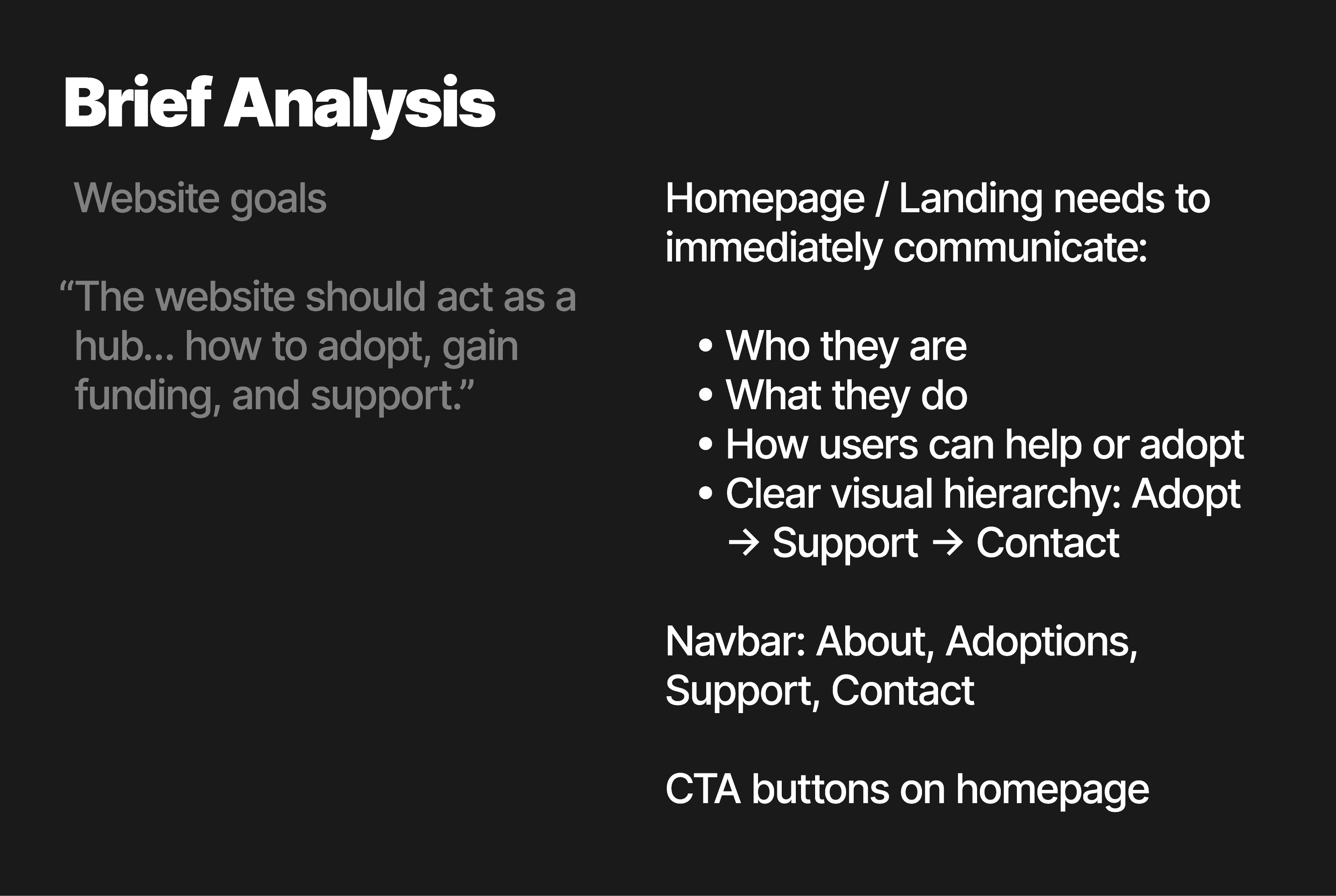
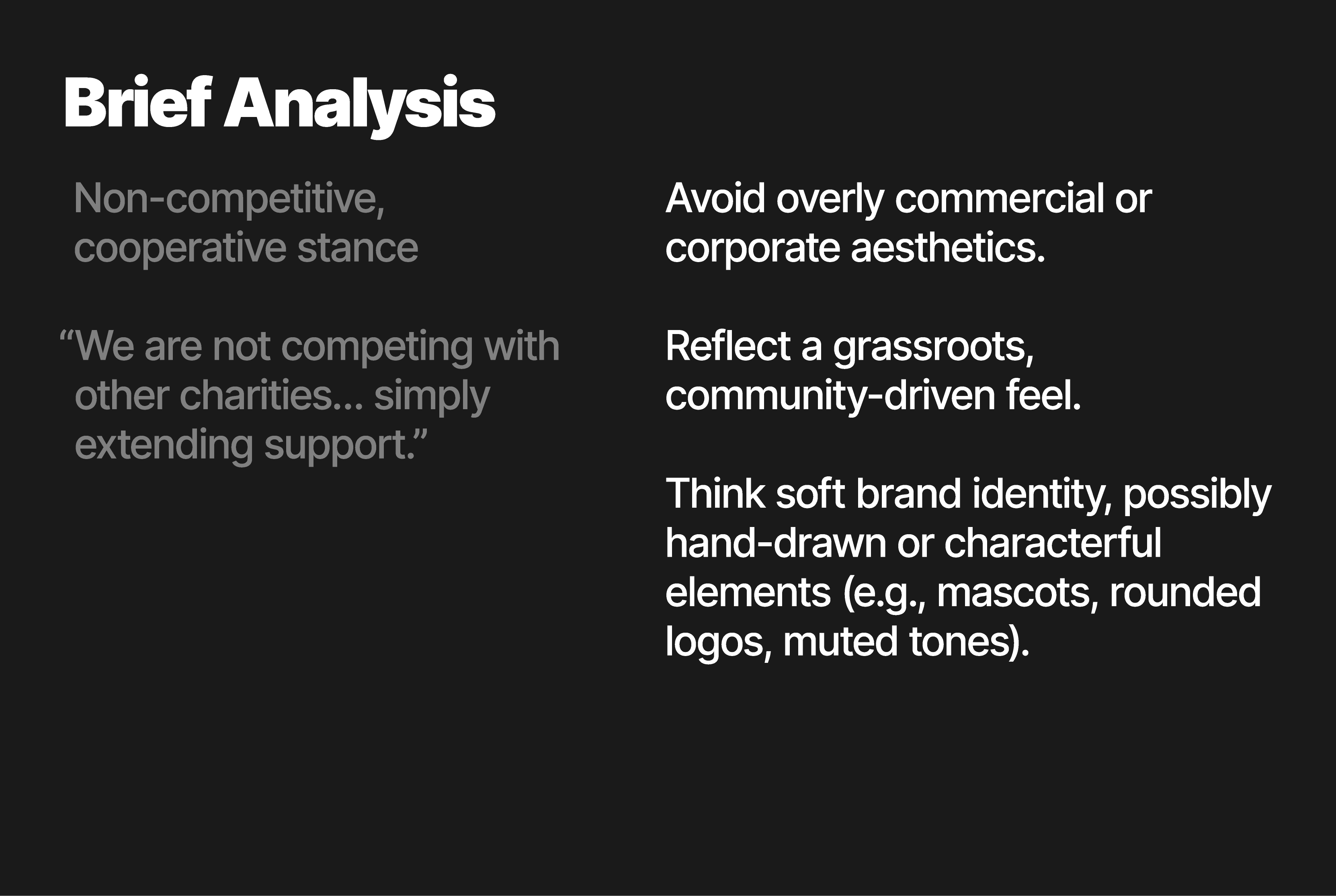
The Ark Brief
Mind Map
After analysing the brief, I created a mind map to draft concepts, ideas, and anything else that resonates with The Ark's mission and project goals. The mind map also helps to explore ways this can be visually communicated. For example, rounded shapes and wholesome visuals create a sense of friendliness and reinforce a feeling of community. This amplifies the charity's values and communicates their brand identity without needing to say a single word.
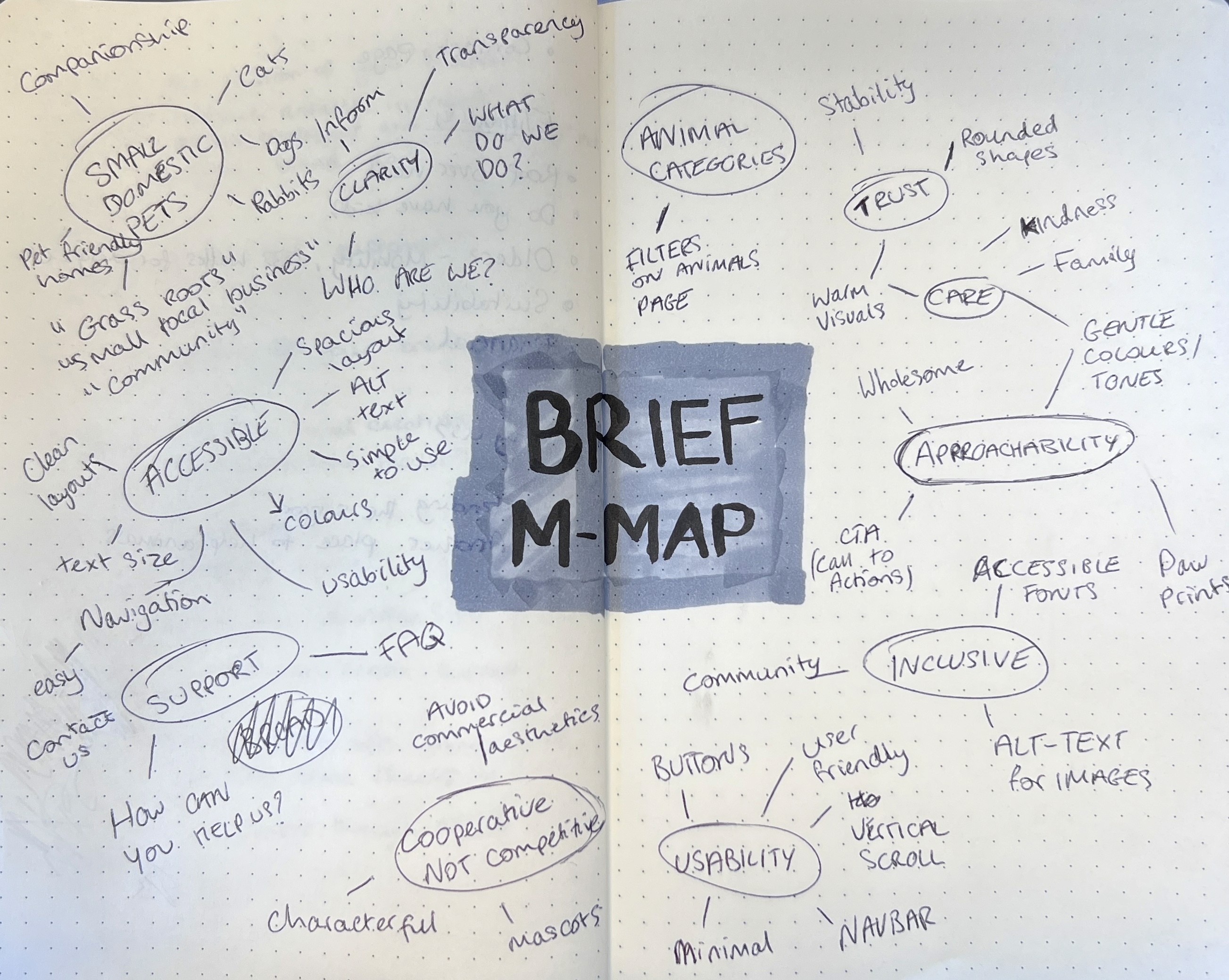
The Ark Brief
Wireframing
With my brief, brief analysis, and mind map all finished - it's time to move onto the wireframing. The site is going to consist of four main pages.
About, Adoptions, Support, Contact.
Let's break down the wireframe of each page and the plan for said page one by one.
Wireframing
About (Landing Page)
The about page, also the landing page, will act as the first point of contact for the user. It will begin by explaining who The Ark is, and what they do. As you scroll down the page, there will be brief mentions of the next 3 pages which will have button links into each. For example, there'll be a section that mentions how The Ark helps animals which will provide a button to navigate to the adoptions page and so on.
Below you can scroll through the wireframe for a visual aid.
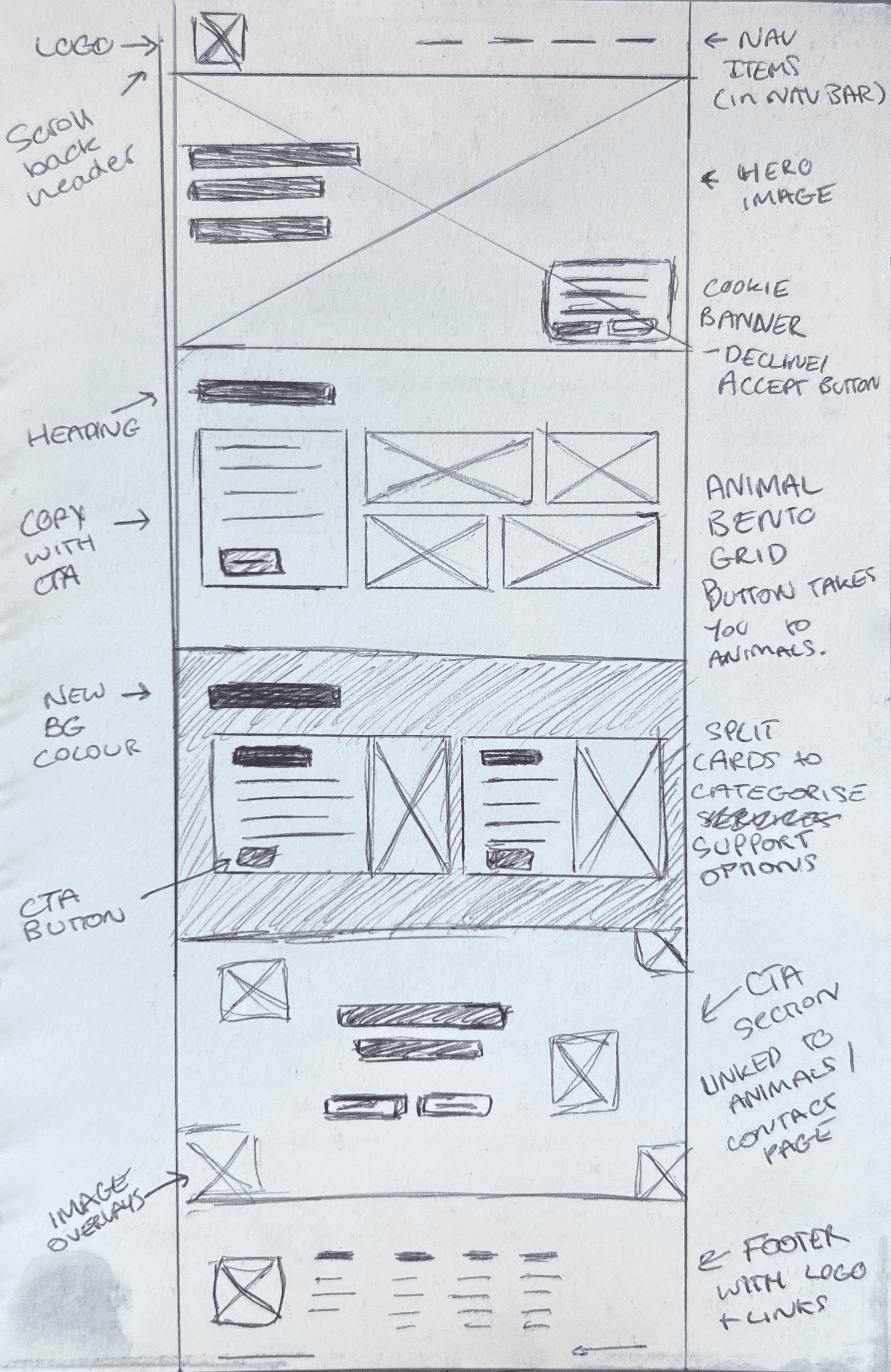
Wireframing
Adoptions + Fostering
This page goes through the process of both adopting and also explains why fostering may be a suitable alternative. I plan to visually break down this process using bento grids and card style content structures. The hero section will have two anchor links to adoptions and fostering which will scroll the user down to the respective sections.
Have a look below.
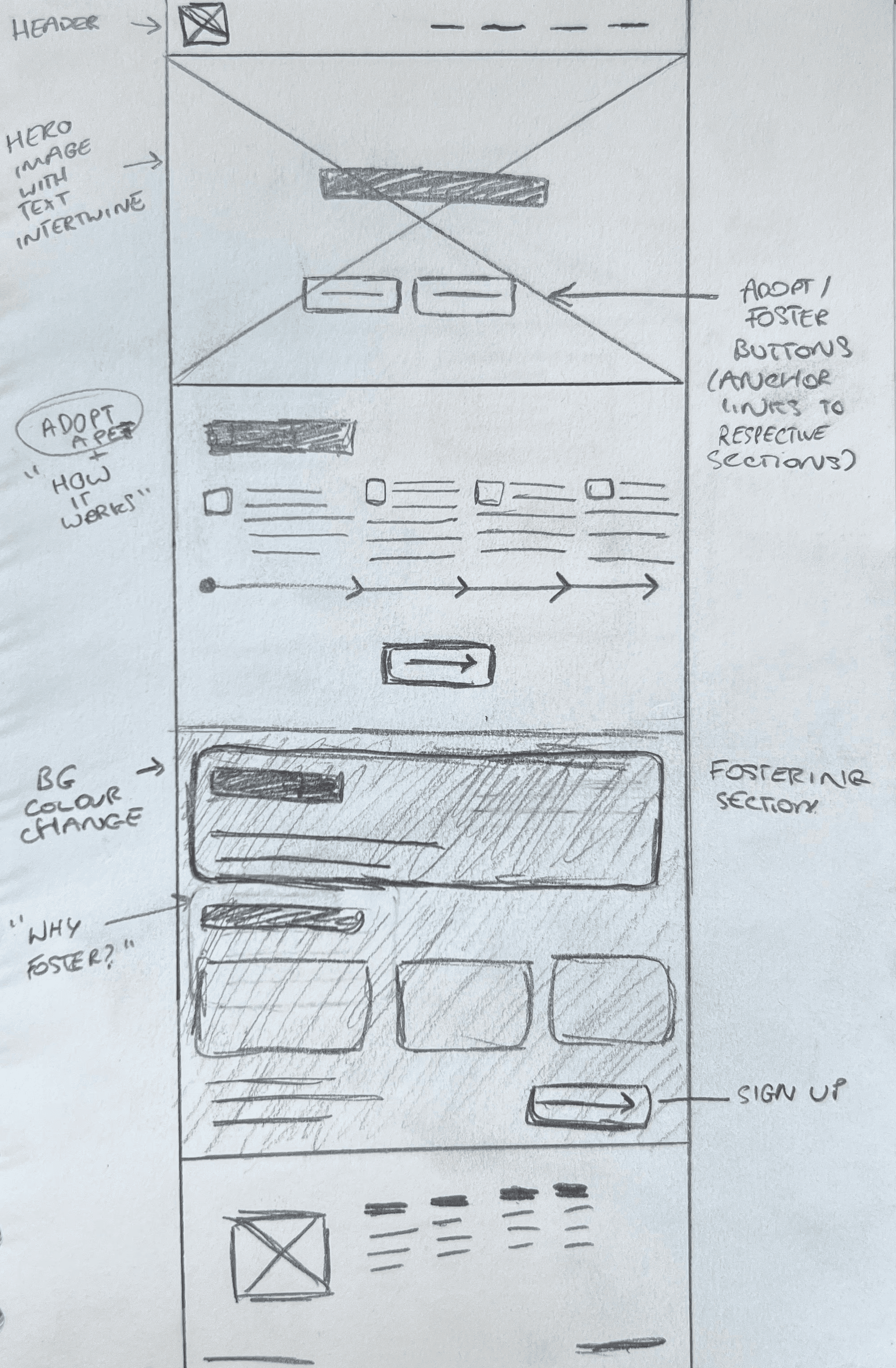
Wireframing
Support
This page is about the ways in which the user can support the charity. I'll have another anchor link in the hero section that takes you to a bento grid of four main avenues of support for the charity. This will be 100VH (100% of the viewport height) meaning it's size will adapt to that of the screen its being viewed on. Below there will be more ways to help and a donate now button. This section is followed by a "contact us" CTA section and the footer.
Have a look below.
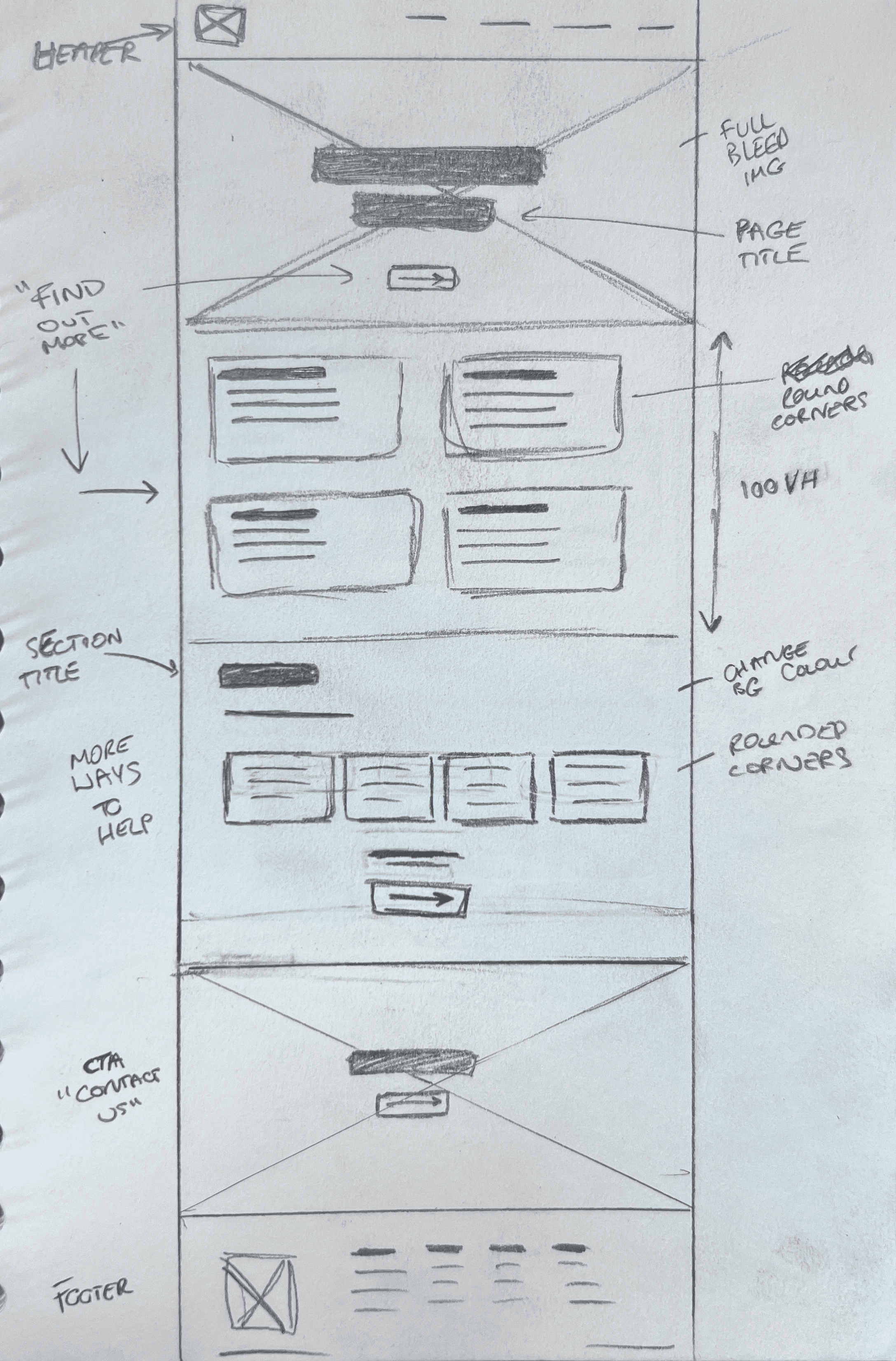
Wireframing
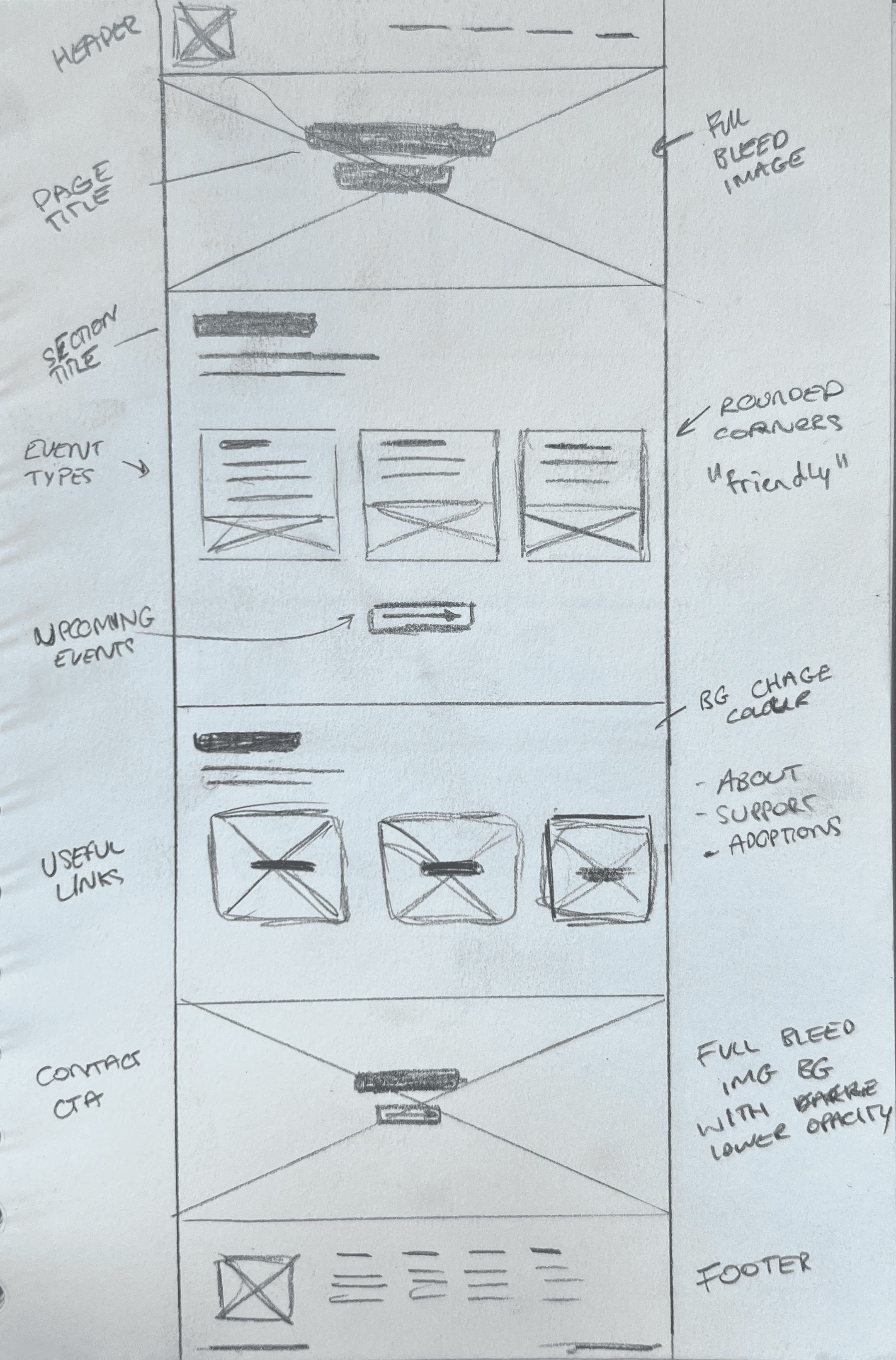
Events and Education
Similar to the other pages, I have a hero image with the page title. Below is a section with event types. These are laid out in a card style with rounded corners for a sense of friendliness - this is used across the site. Due to the lack of content, I have added the "useful links" section to fil out the page and help aid the sites navigation followed by a contact us CTA section.
Take a look below.
Wireframing
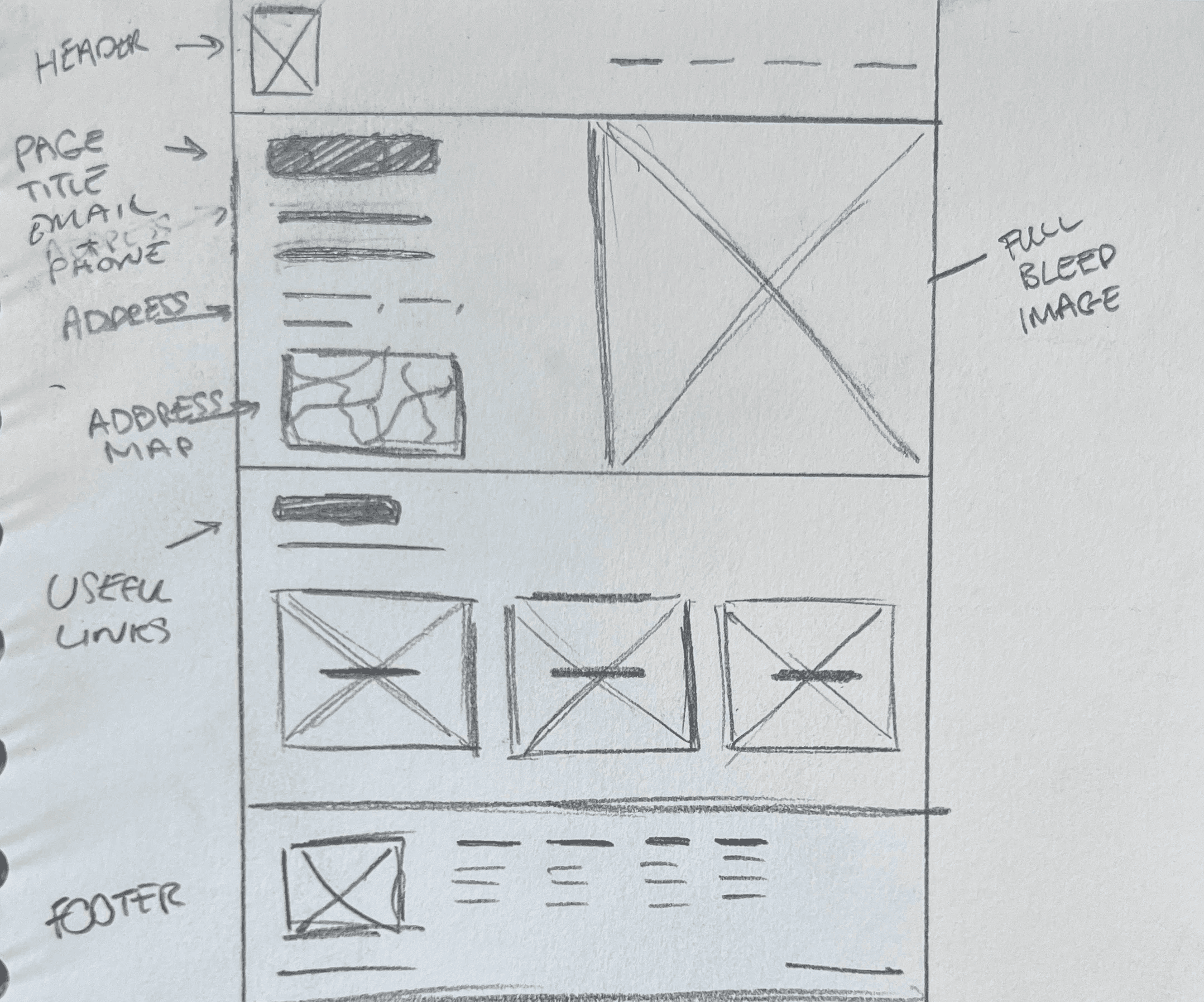
Contact
The final page - Contact. I wanted to follow the theme of hero sections and full bleed images but that lacked the sense of urgency typically associated with a contact page. To get the best of both worlds, I've laid out the page to have a full bleed image covering the right half of the section. This section will be 100VH followed by a useful links section and then the footer.
Have a look below.
Task 7
Present your hand drawn “wireframing” to your CLIENT. Discuss the outcome and include comments and revisions. This is called TESTING and there will be a session on this subject. Select the preferred layout.
Wireframe
Feedback
Before I begin with the feedback itself, it's worthing noting that due to ongoing client work outside of the course, I'm on a bit of a time crunch. For this reason, I do not have much time to explore iterations of the proposed wireframe. However, I do plan to work through the wireframe throughout the design phase and make changes/improvements where necessary.
The feedback I received on the proposed wireframe was very positive. The landing page was said to have a good layout with an effective flow of content as it helps guide the user to each page of the site in a cohesive order. The design provides a sense friendliness that will create harmony between the site and brand identity and help promote the charity's core values. This layout also benefits from it's flexibility. It can be used across various breakpoints such as desktop, tablet, and mobile.
Task 8
Produce a research/mood board that reflects your clients requirements - create a logo device and a font for the name. Choose images, typography, colour, etcetera.
The Ark
Visual Identity
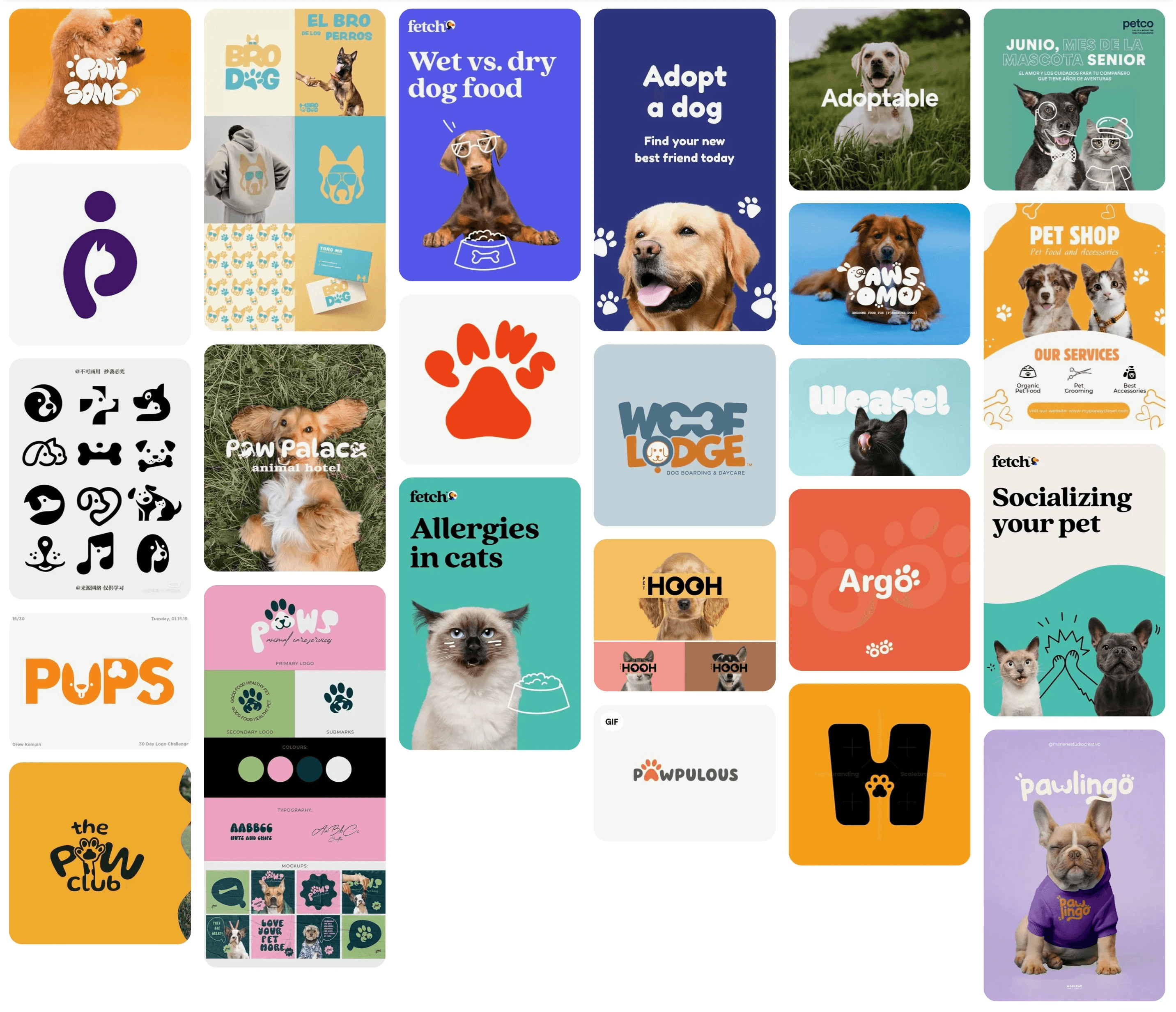
The client had clear goals - promoting the well-being and support of animals to a wide target audience. With this, naturally you wish to convey a sense of approachability, trust, and friendliness whilst maintaining high standards of accessibility.
My mood-board consists of images that align with these values. To elaborate, they are primarily clear images with block colour backgrounds accompanied by bold text. This is incredibly accessible as they are legible designs but they also feel friendly thanks to the happy dogs and cats in the pictures. Rounded text also takes away the punch of traditional bold type enhancing the friendly, approachable feel of the designs. These are design elements I wish to include in the design of The Ark's visual identity.
Colour-wise, it's all bright and saturated with a mix of pastels here and there. The vibrant colours are little more in your face, but the pastel colours are a lot more soothing and less "aggressive" in a sense. Calming is a good way to describe them.
The logo devices and iconography shown in the mood board all have a theme of including pet-like imagery either in the negative space to be subtle, or just simple illustrations to be a little more obvious.
I like the illustrative aesthetic for it's friendliness and added personality but I don't want to take it too far as it could blur the line between friendly/ professional and childish.
The "Argo" logo in the centre right is a perfect balance between friendly, playful, and professional.
Visual Identity
Logo Concepts
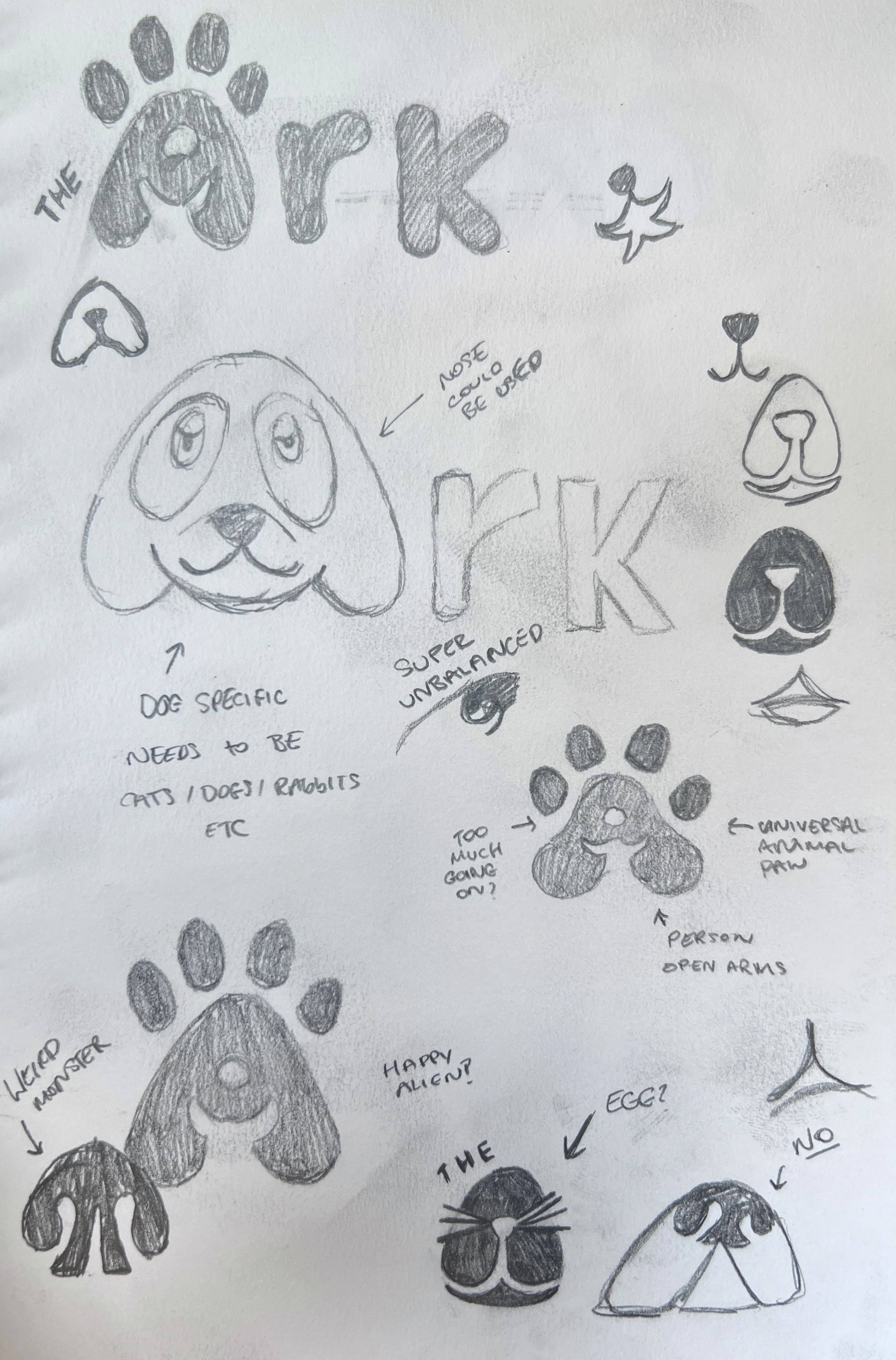
As always, I began sketching.
A method I'm fond of now thanks to a designer named Allan Peters (you should see his work, it's genius) is looking for overlapping geometry in relative concepts/images.
For example, let's take the letter A and a paw. You could use the body of the A and add little toes around the top half to create a paw whilst still reading as the letter A. Perfect for "The Ark".
This feels a little easy though, so I sketched a few concepts to see which worked best.
Visual Identity
Logo Concepts
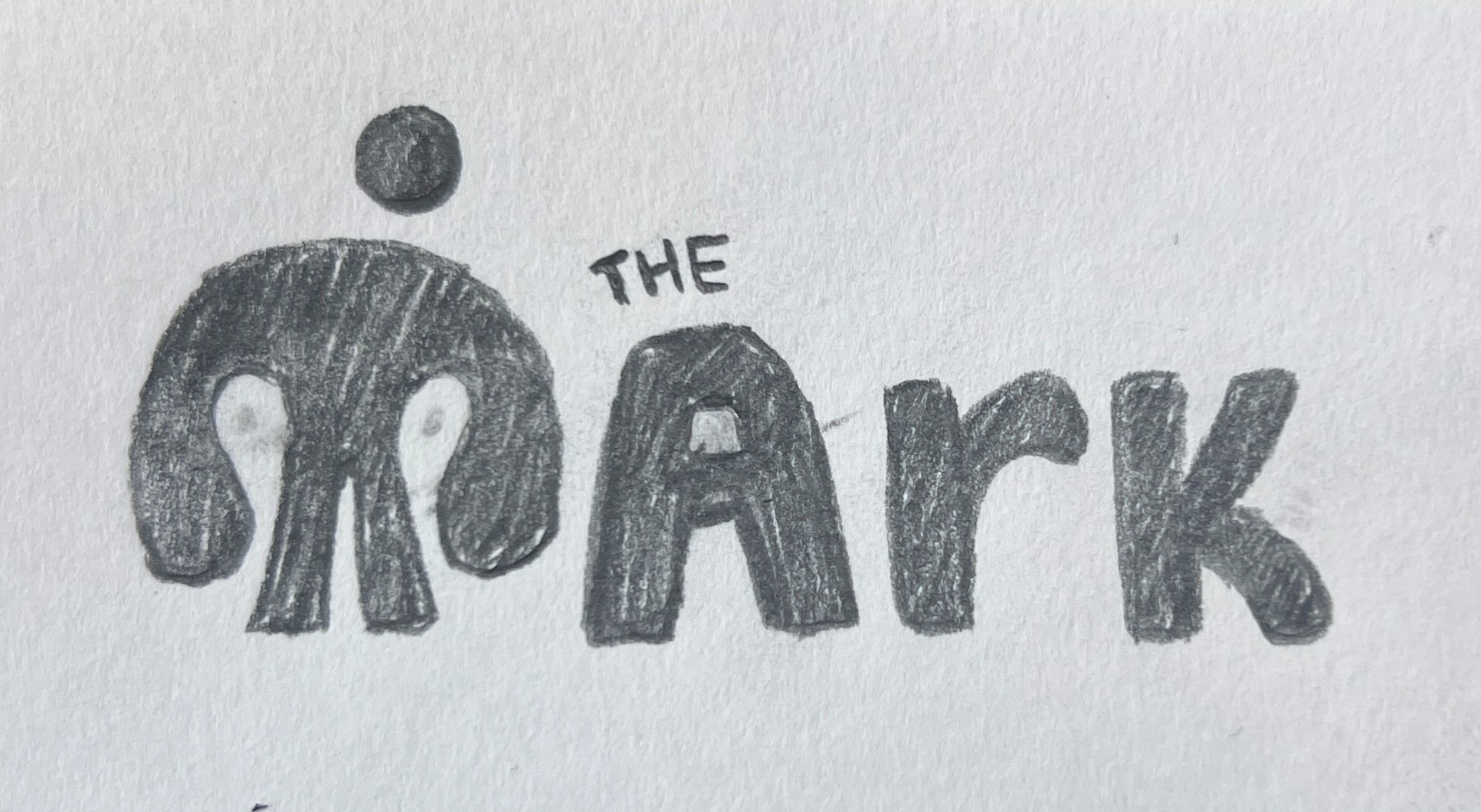
I tried to get all the cliches out the way to start. Paw prints, animal faces, etcetera. I came across the idea of a paw that resembled an "A" whilst also having a small person with their arms open in the centre. This was a bit complex and actually just looked a bit like Mike Wazowski's cousin.
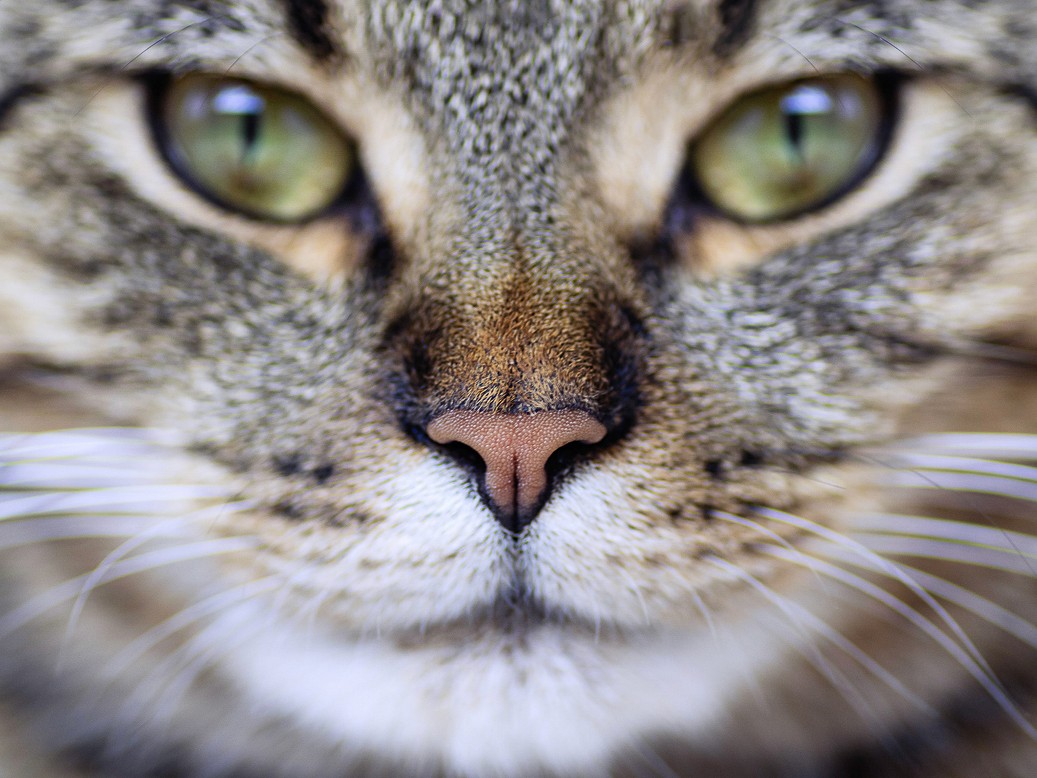
I thought this was too far out there. So, back to the drawing board. What unifies most small animals? Any features? Whiskers, fur, noses. Bingo - the nose! I was looking at the many pictures of our dogs I have on my phone, as well as those of my sisters dog and others.
I noticed the shape of each pets nose was almost identical. Take a look at these noses of a guinea pig, cat, and some dogs.




Visual Identity
Logo Concepts
See it? They all have the same (or very similar) shape. When I originally drew this, it looked like an alien again. But I leant into this idea as it was different from anything else I had seen or sketched so far. It just so happens too that when you add a little circle, it looks like a person!
This concept encompasses the variety of animals that The Ark supports and also represents their mission to connect these animals with new owners. It's rounded geometry gives it a friendly feel and it's bold, circular form conveys trust through its powerful presence.
The head is placed at an angle as this has a calming effect for the device. What I mean is that the device looks like a little light a scary monster, but with the head off to a slant, it feels much more empathetic. It's like the person is now looking over towards something in curiosity. It creates a sense of humanity which really enhances the value of approachability within The Ark's visual identity.
Let's bring it to life!
Visual Identity
Logo Concepts
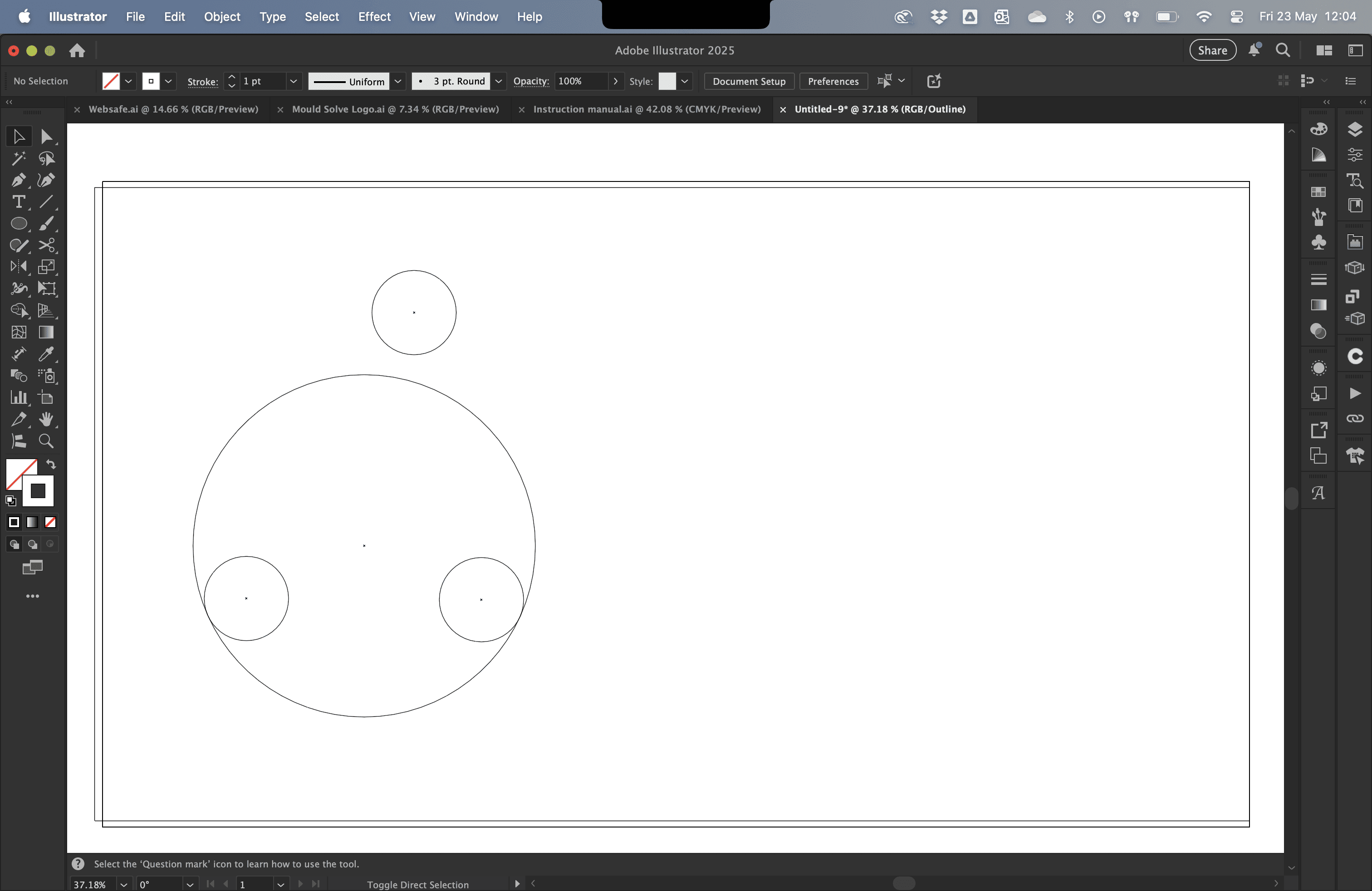
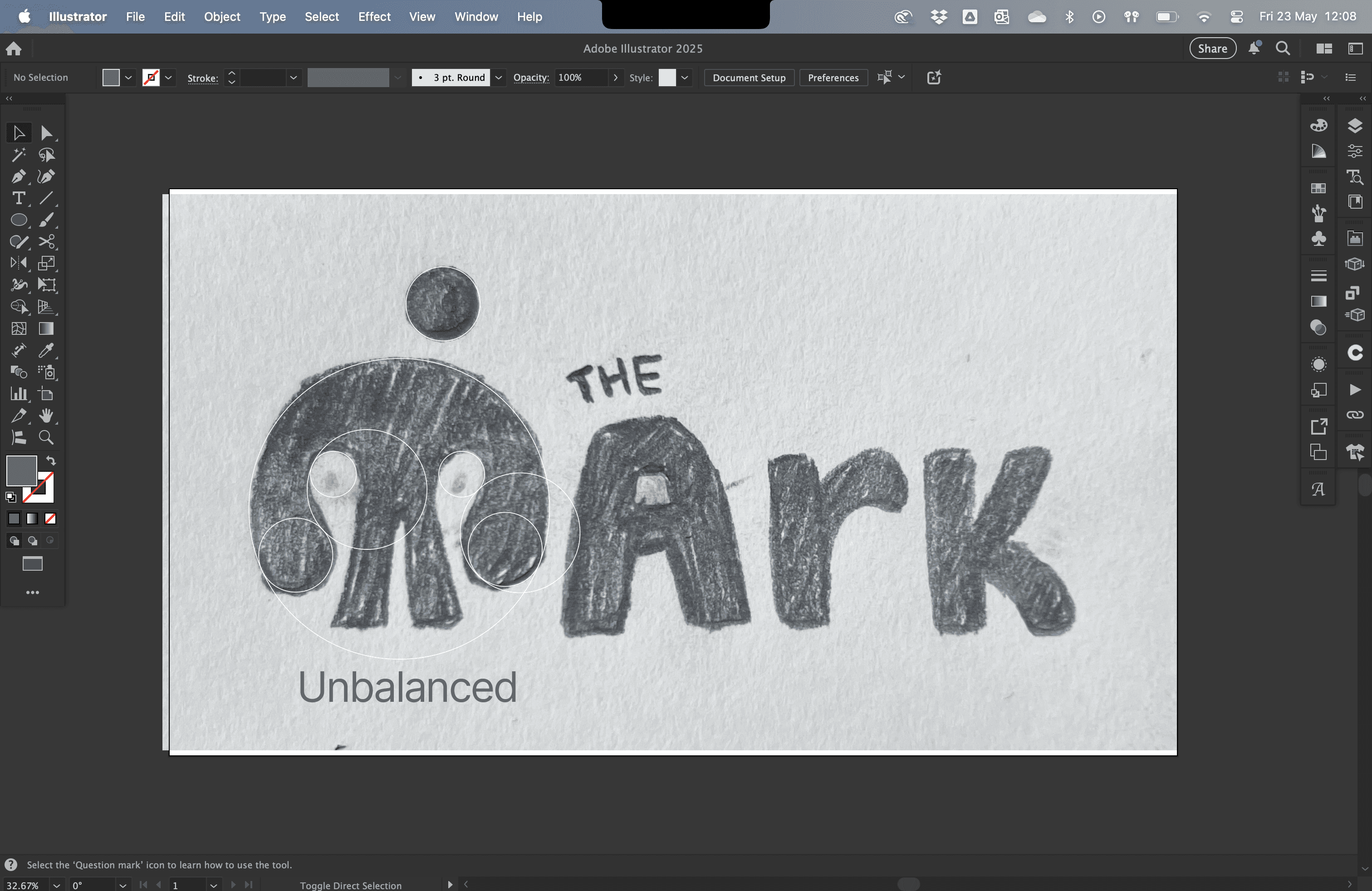
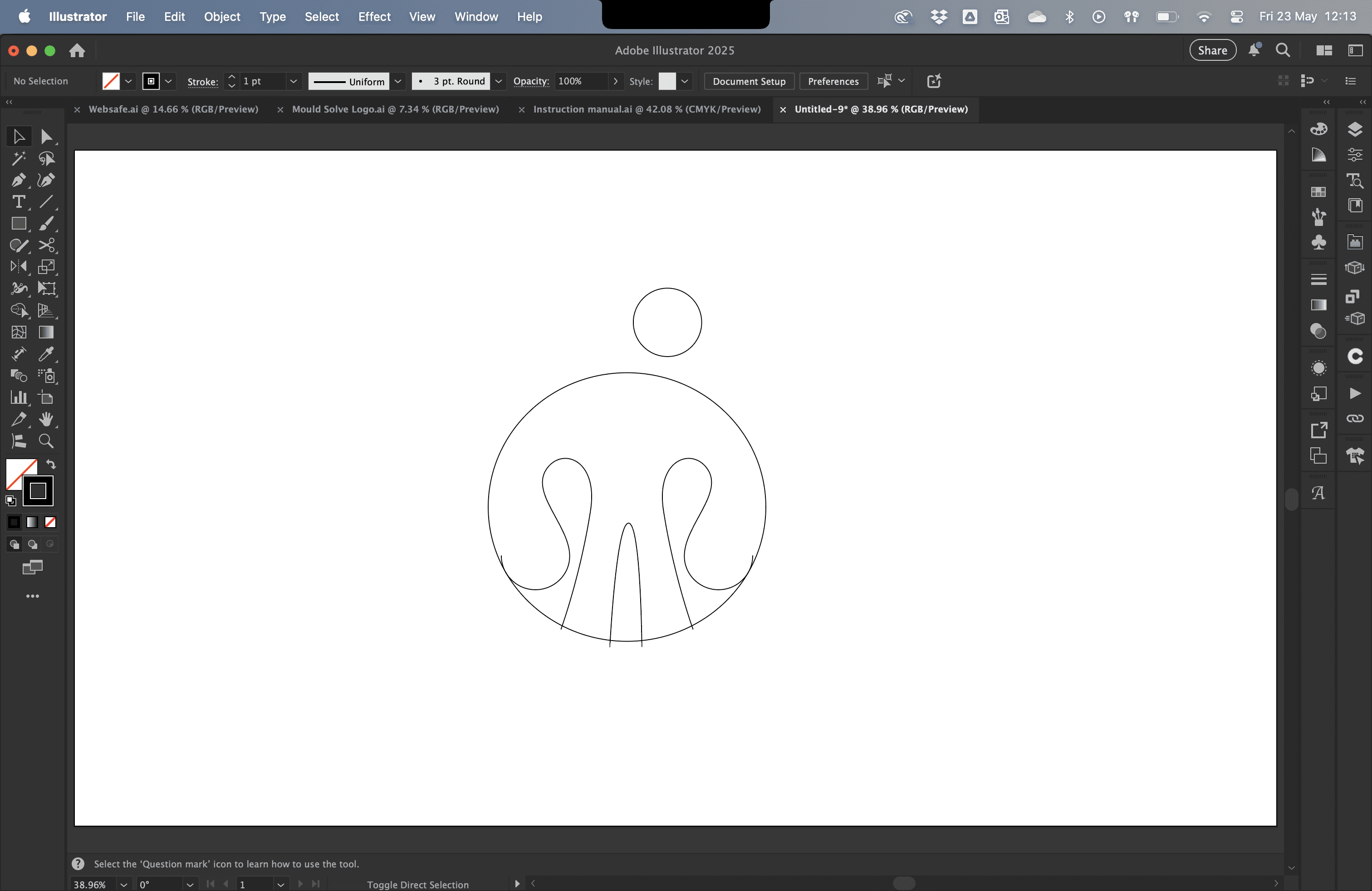
I always start with basic shapes. I don't really like going willy-nilly with the pen tool because it often just feels crooked and unbalanced so I used a variety of circles to form the shape I was looking for.
I found that using the golden ratio to size my circles was a useful guide to begin with as this helped balance the shapes in size, however this only really suited the "hads" and "armpits" of the device.
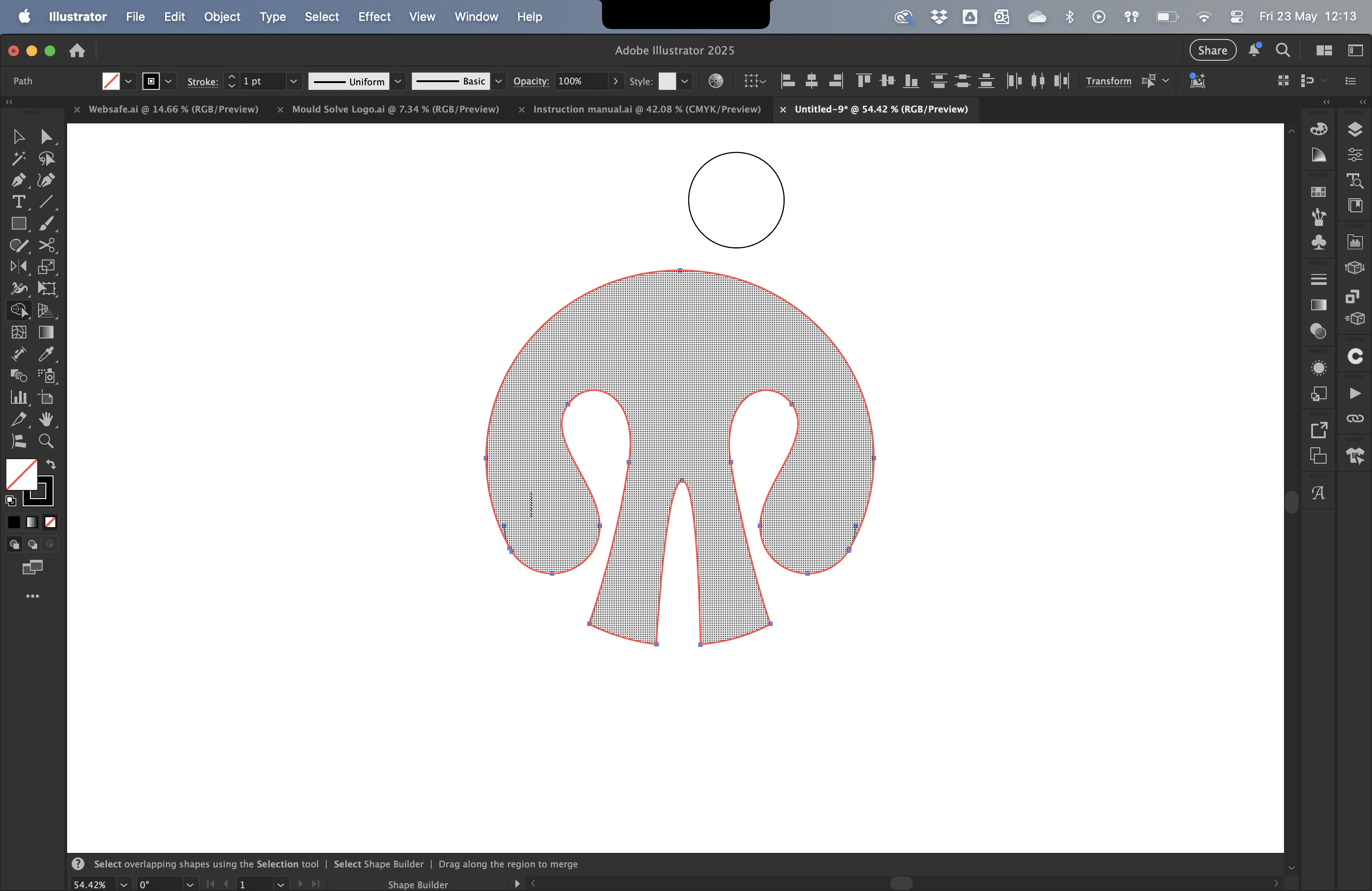
I stuck with using circles and overlapped them until it was time to use the shape builder tool to cut out the desired shape.
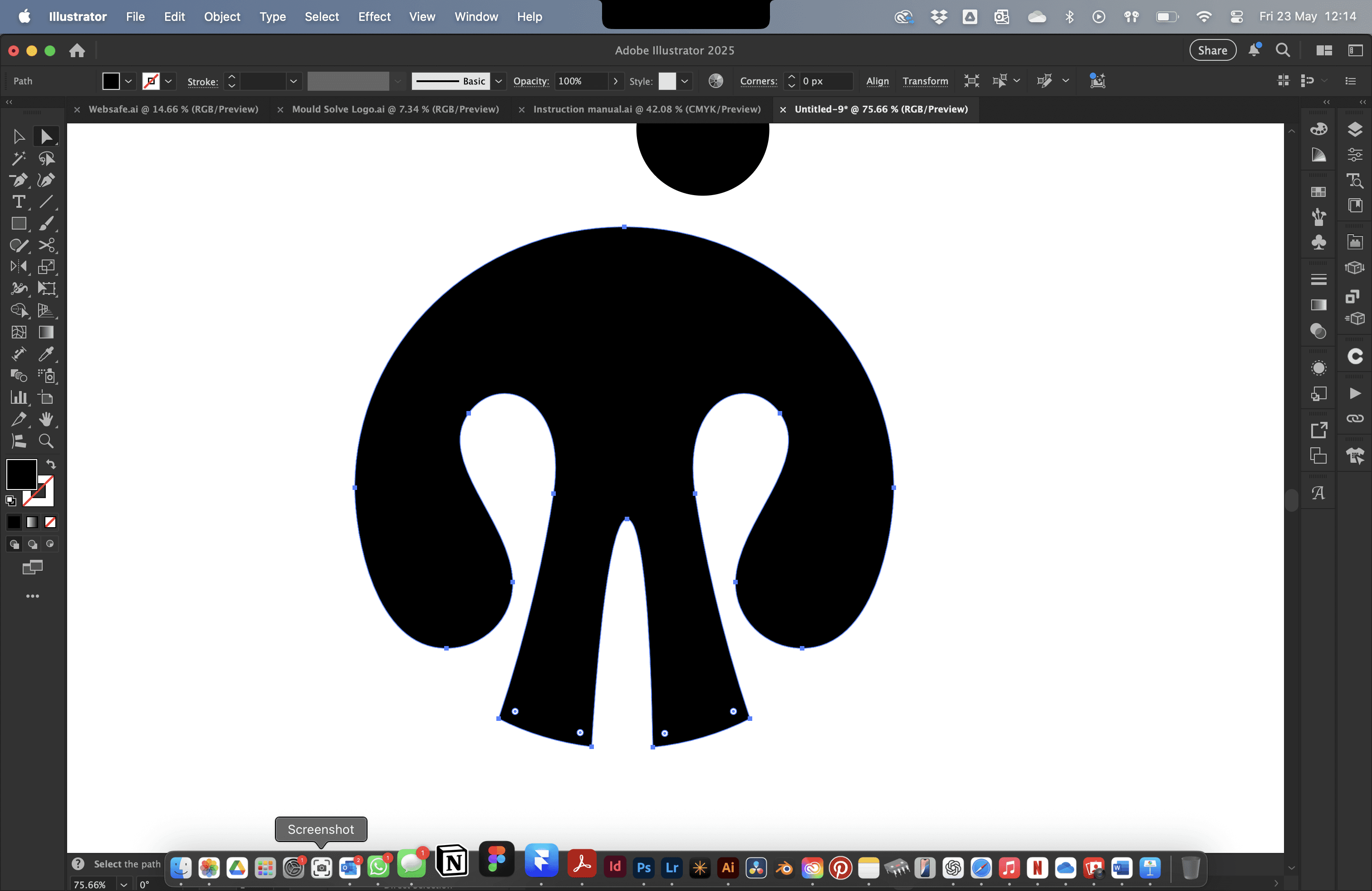
I realised it looked a little bit like a skull which if you ask me doesn't say "We're friendly people who look after animals". It screams pirates if you ask me. To fix this, I lowered the centre point at which the two legs began and rounded the corners on both feet. This now means the device has no sharp corners, just continuous curves and smooth lines - nice and soft!
I then paired the device with some the charity name ("Ark") set in Aktiv Grotesk Black. I chose this font and weight for a variety of reasons.
Firstly, the device itself is bold and heavy so the type had to match that to ensure a visual harmony between the two. The reason for Akitv Grotesk in partcular instead of something like Poppins is because it has a sense of authority. Authority = trust. Authority = "We know what we're doing". Whilst this was good, it felt a little sharp. Solution? Round the corners. Any 90º corners were taken rounded to a 3px radius with tighter corners only being rounded to a 1px radius to ensure the legibility of the type wasn't compromised.
The one exception was the apex of the "A". I made this completely round rather than keeping two rounded corners. This feels much more welcoming and ties nicely with the logo device.
Final step? Balance things out. I used the spacing and dimensions of the wordmark to ensure the logo device was sized proportionally and spaced correctly in relation to the wordmark creating a well balanced and on-brand logo.
Visual Identity
Logo Animation
For no reason other than because I wanted to, I animated the logo. Just click play to see the magic.
It highlights the changes made to the type and the introduction of the logotype.
Nothing crazy, but it was fun. Not entirely useful for the website however. It's important to note that at this point, I haven't chosen my colours, that's the next step.
Visual Identity
Adding Colour
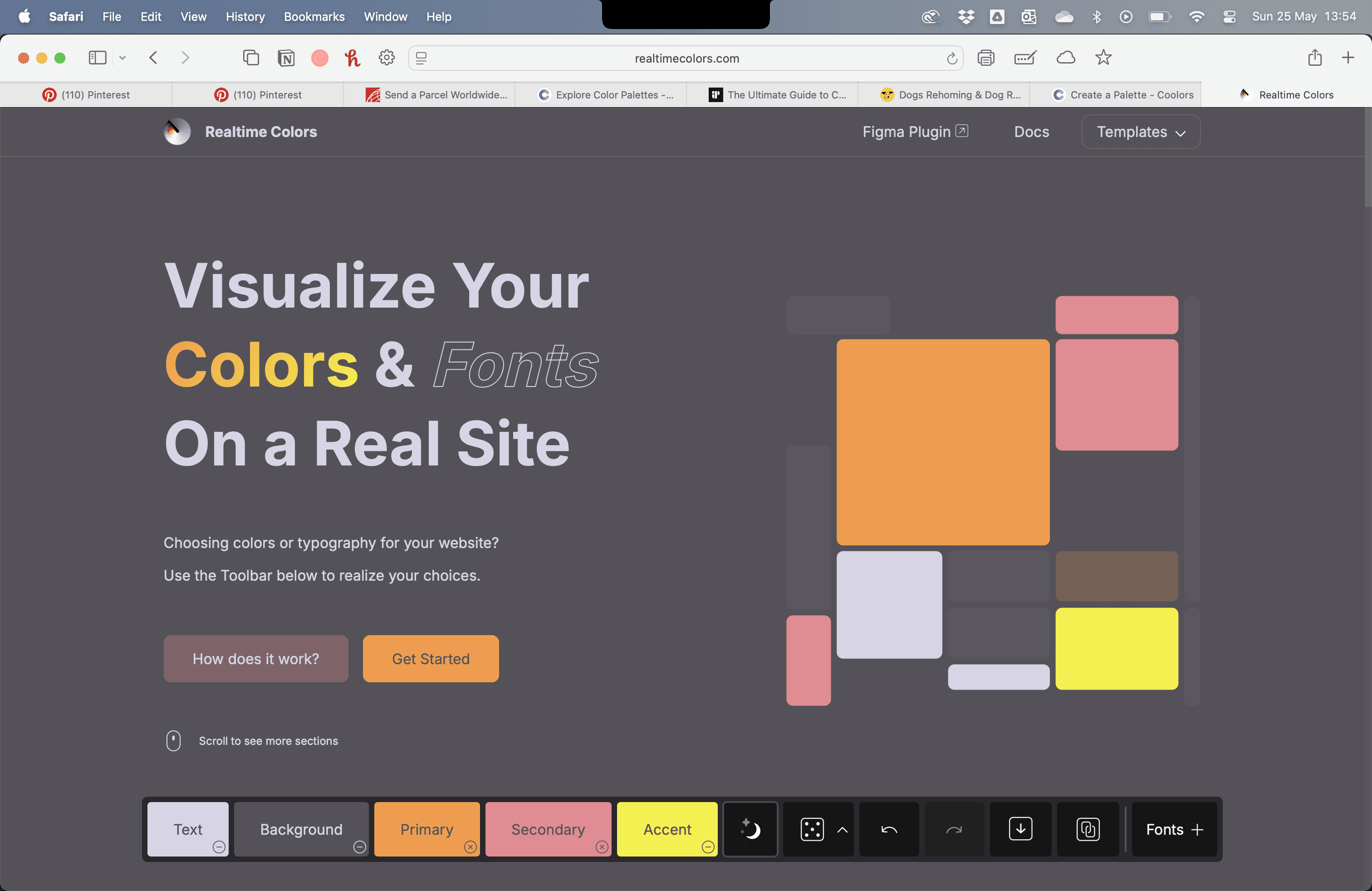
With the key values of the brand in mind, I started with a coral orange as it evokes a feeling of friendliness and welcoming. I then chose colours around the palette that felt cohesive. I tested the palette on a website that allows you to preview colour palettes but it didn't quite feel right, and this was in dark mode. It felt a little too much like a tech start up than an animal rescue and rehoming charity. After flipping to light mode it was just apalling.
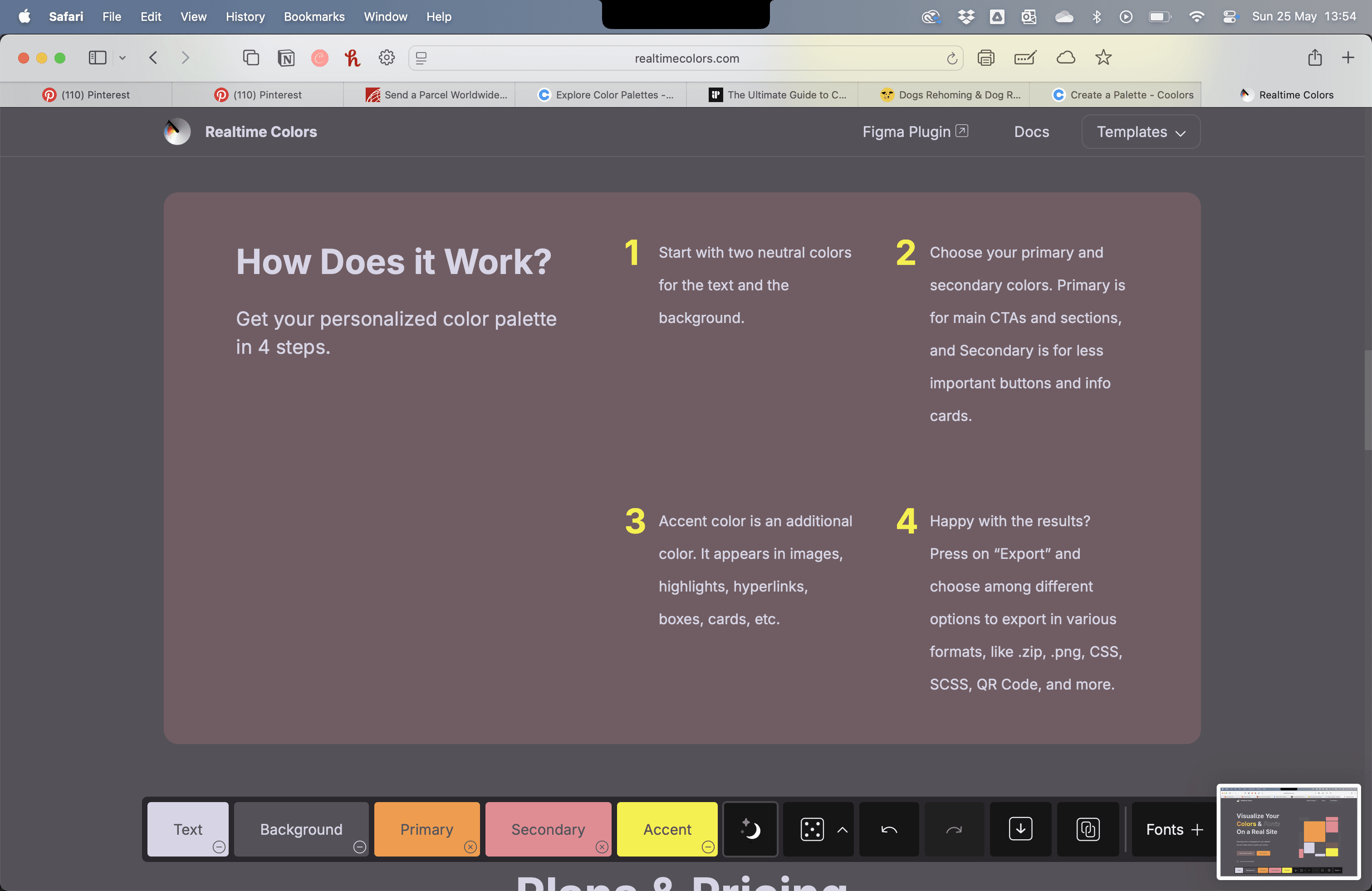
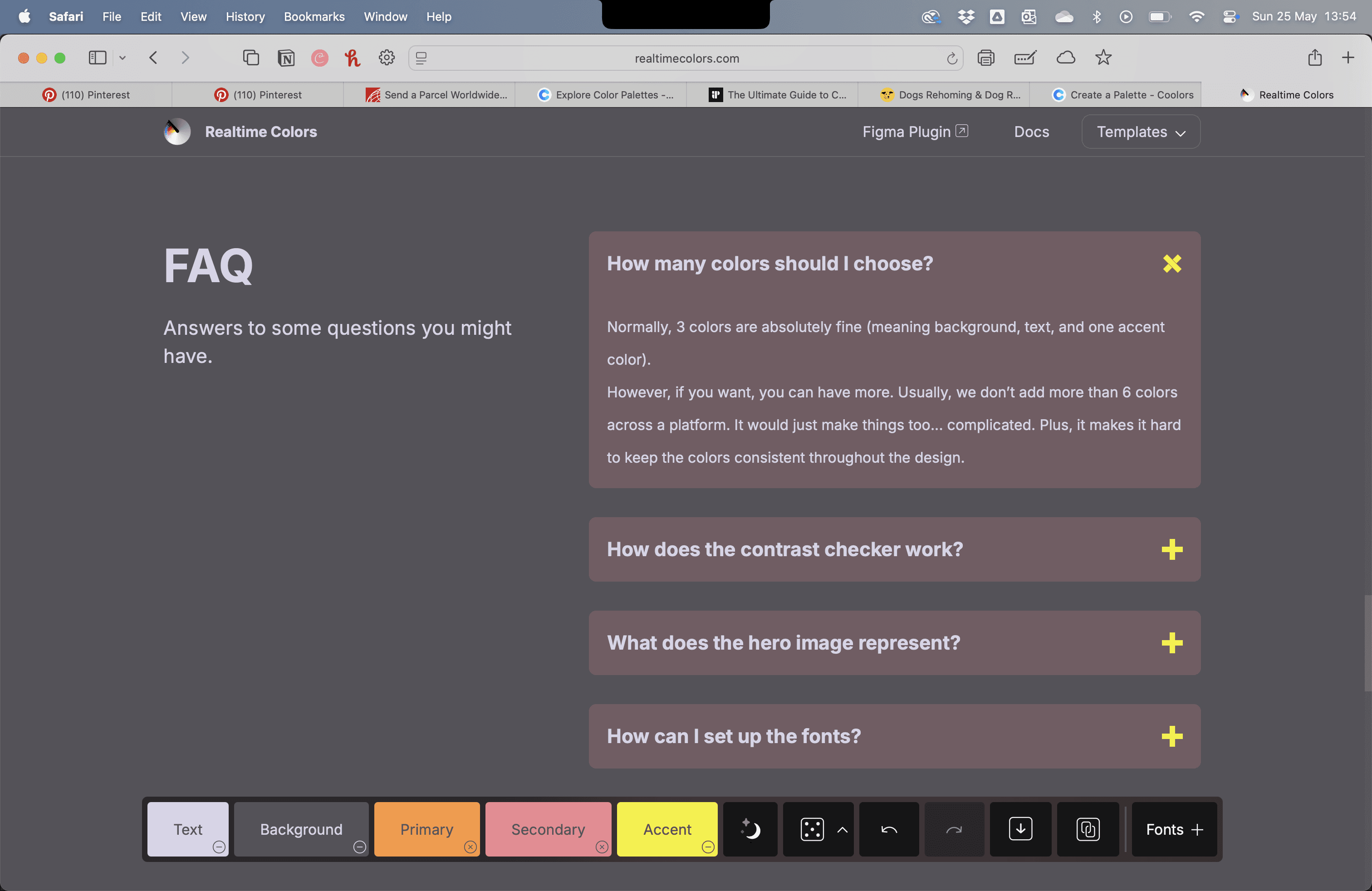
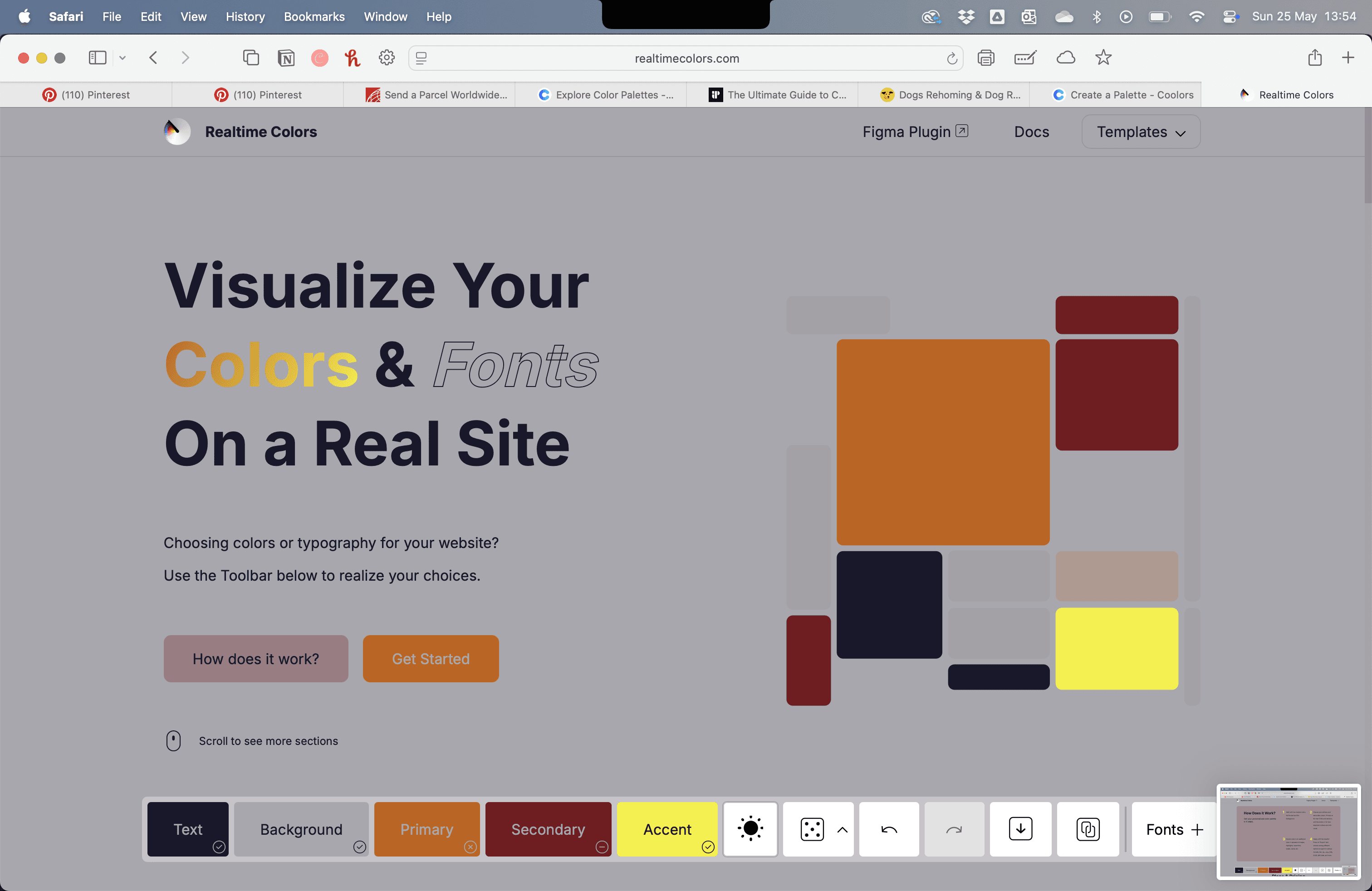
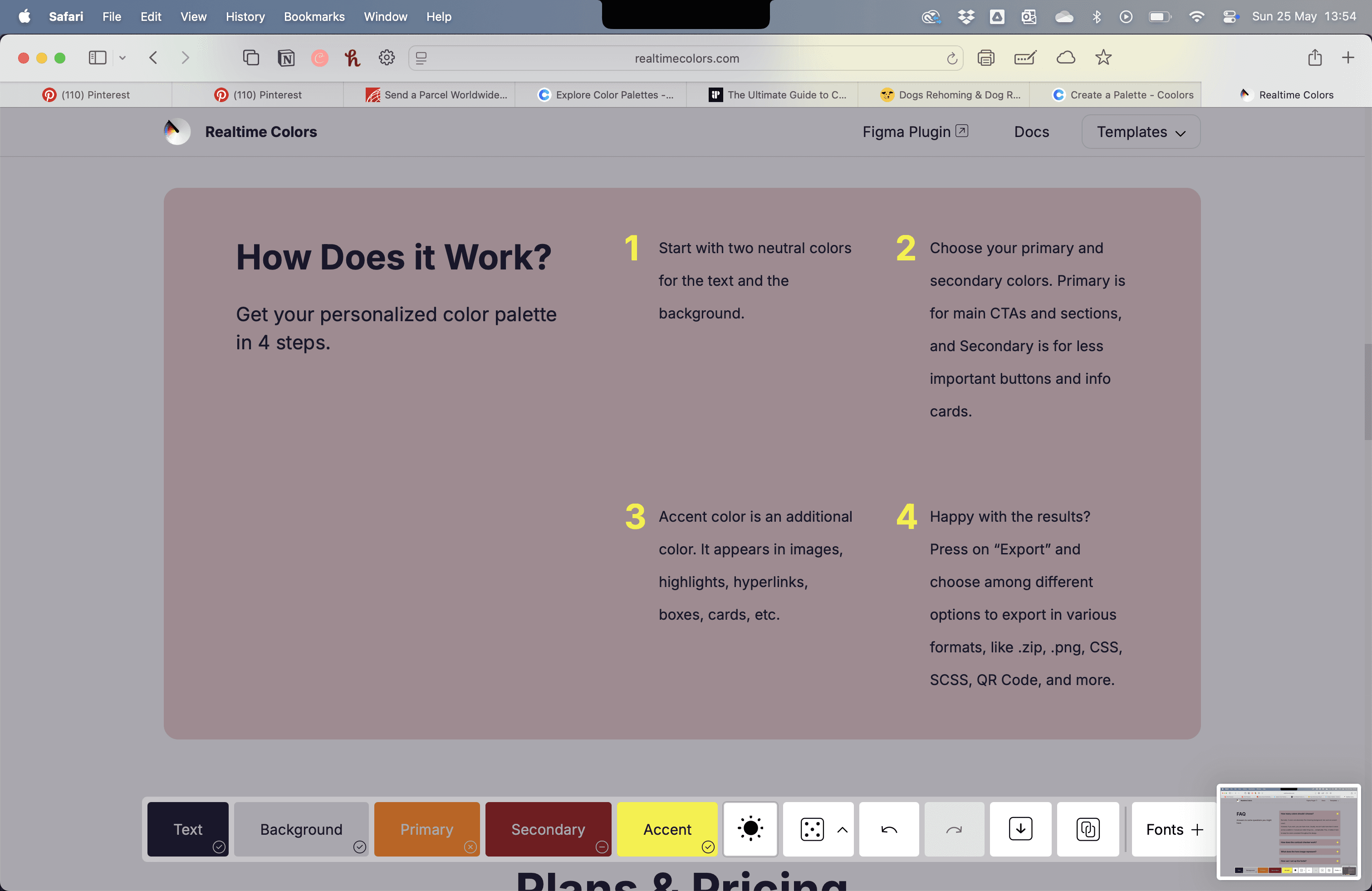
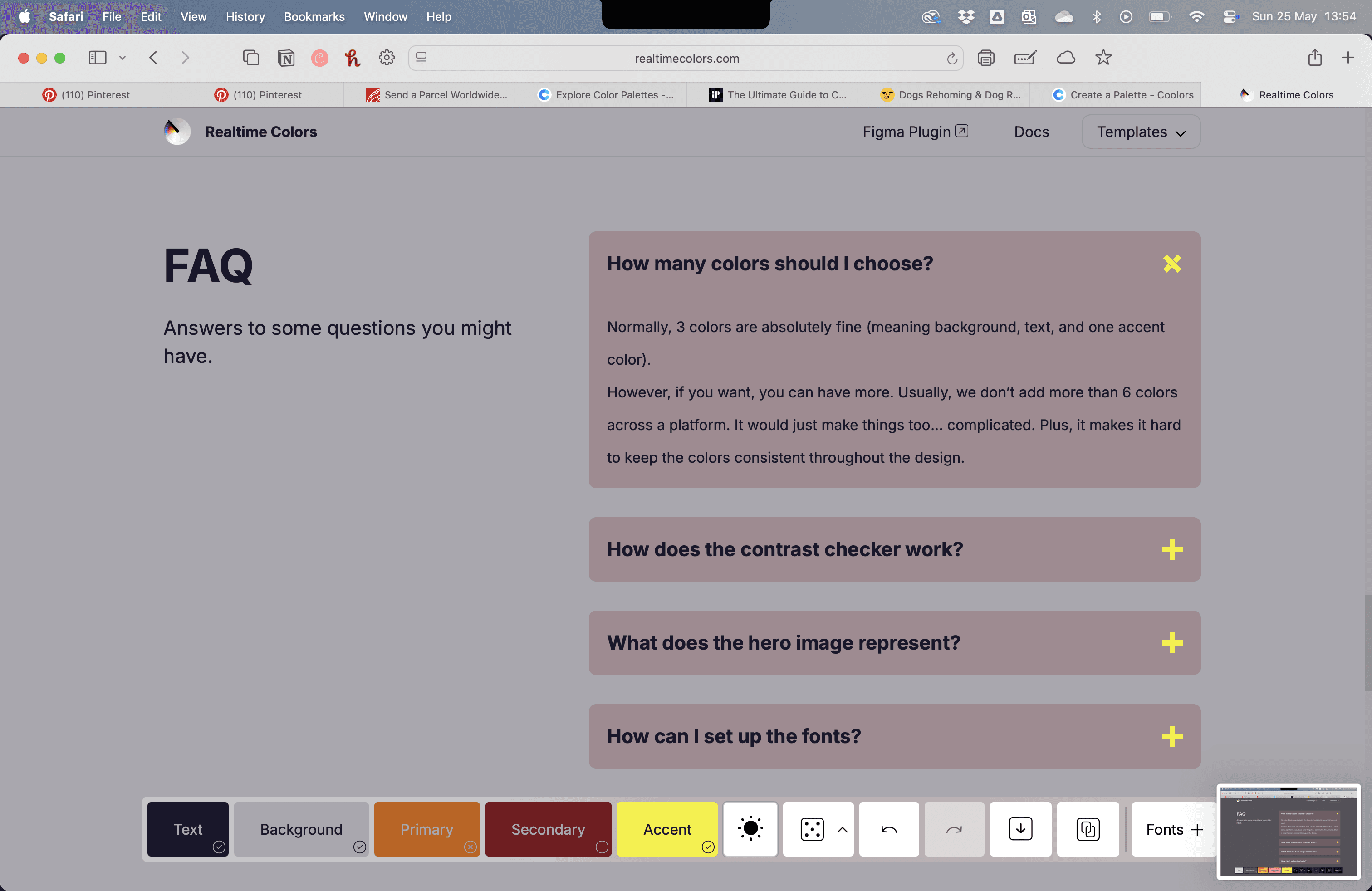
Visual Identity
Adding Colour
Sometimes I do struggle with colour as it's not something I do very often - at most I pick one or two colours for a logo design but with clients, they always have their branding sorted out so it's not something I delve into with detail.
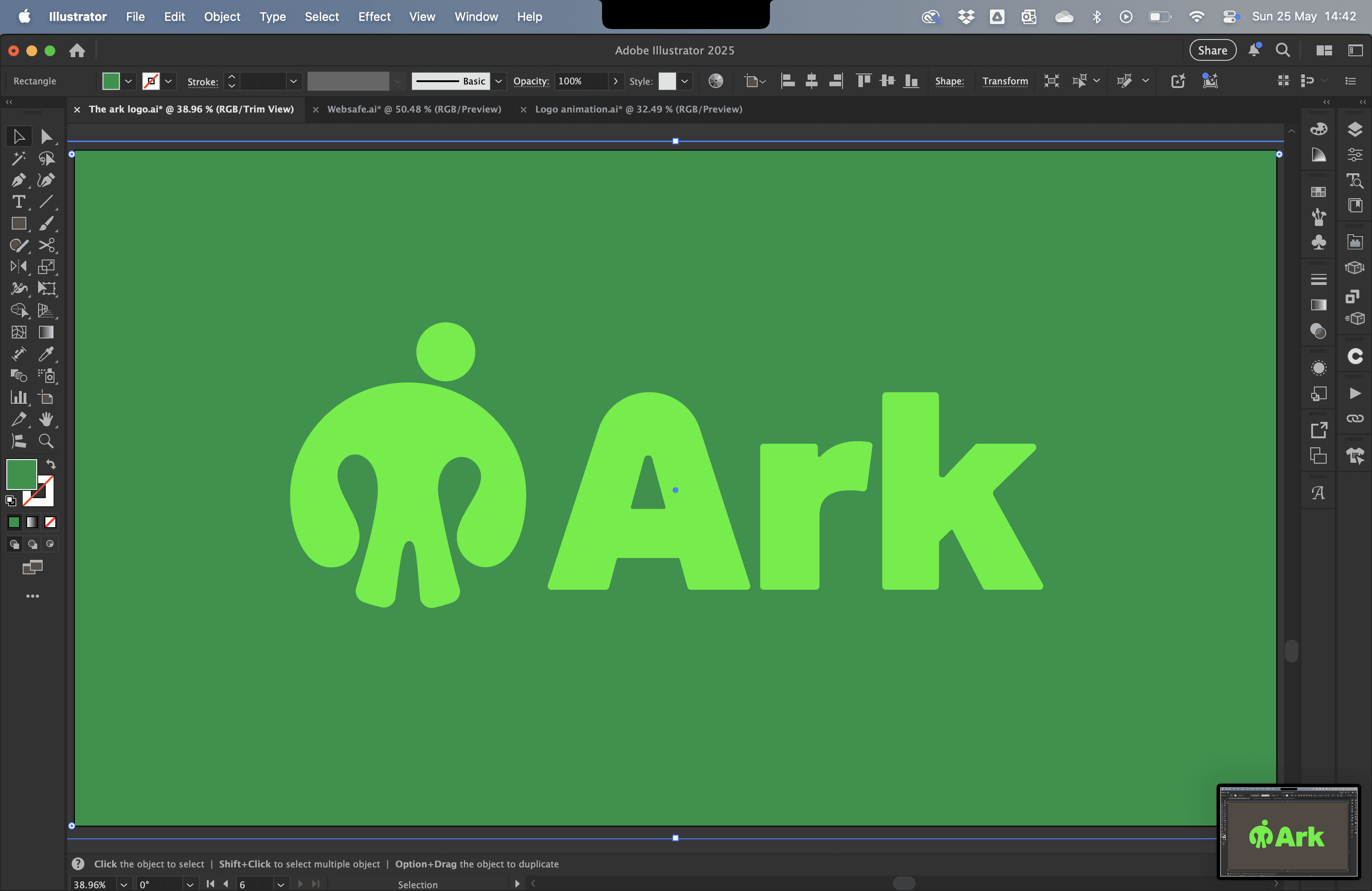
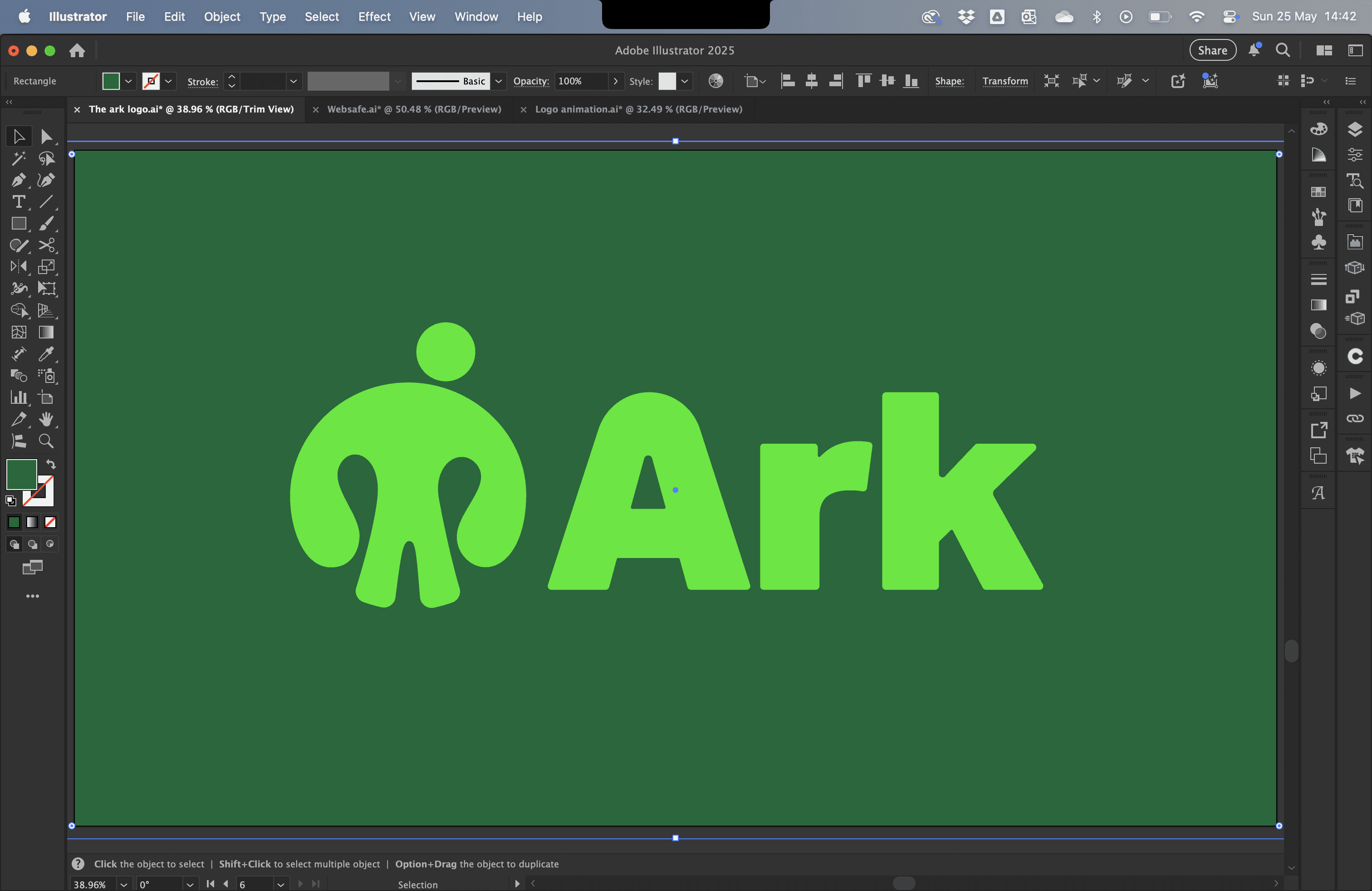
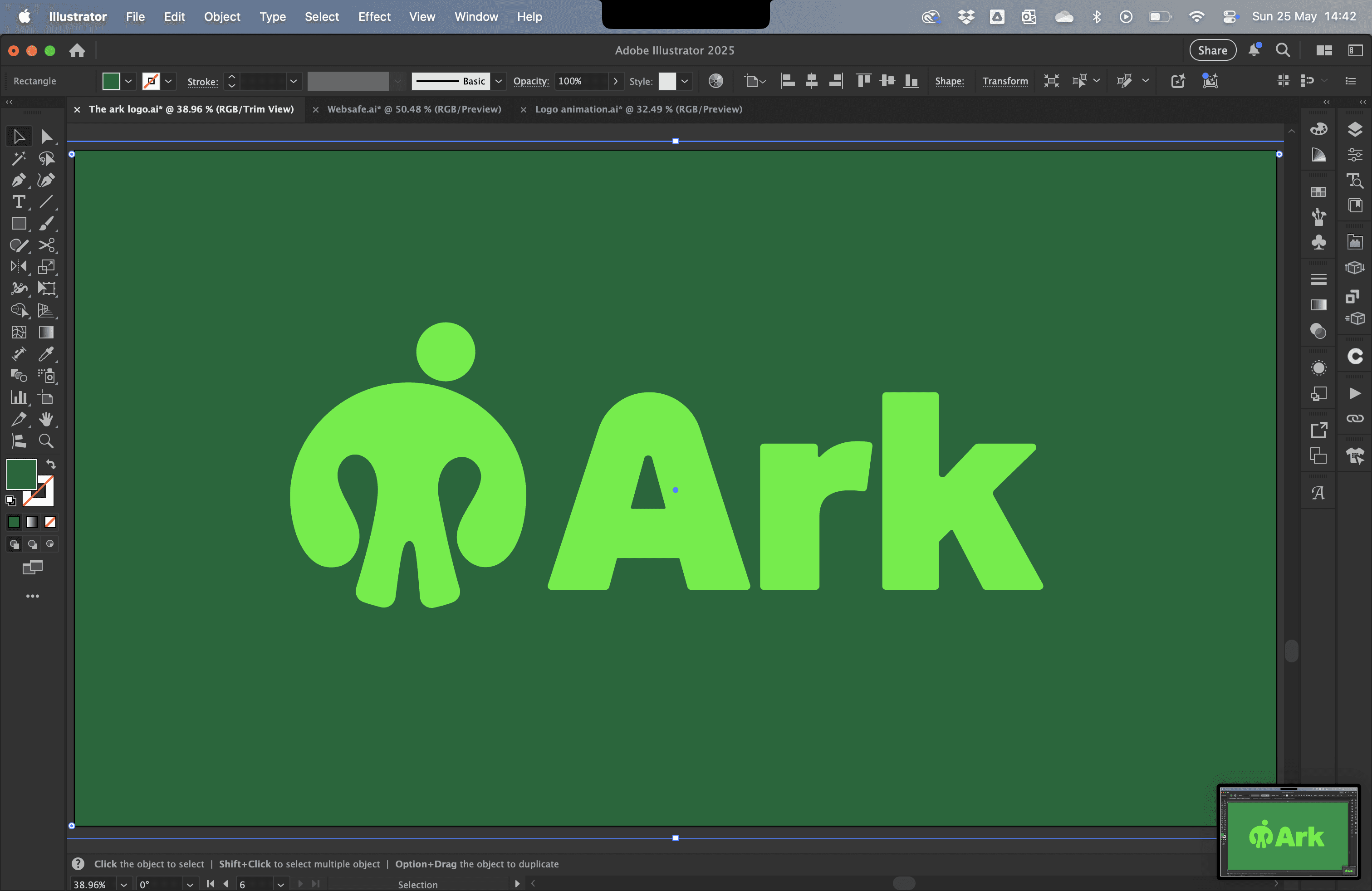
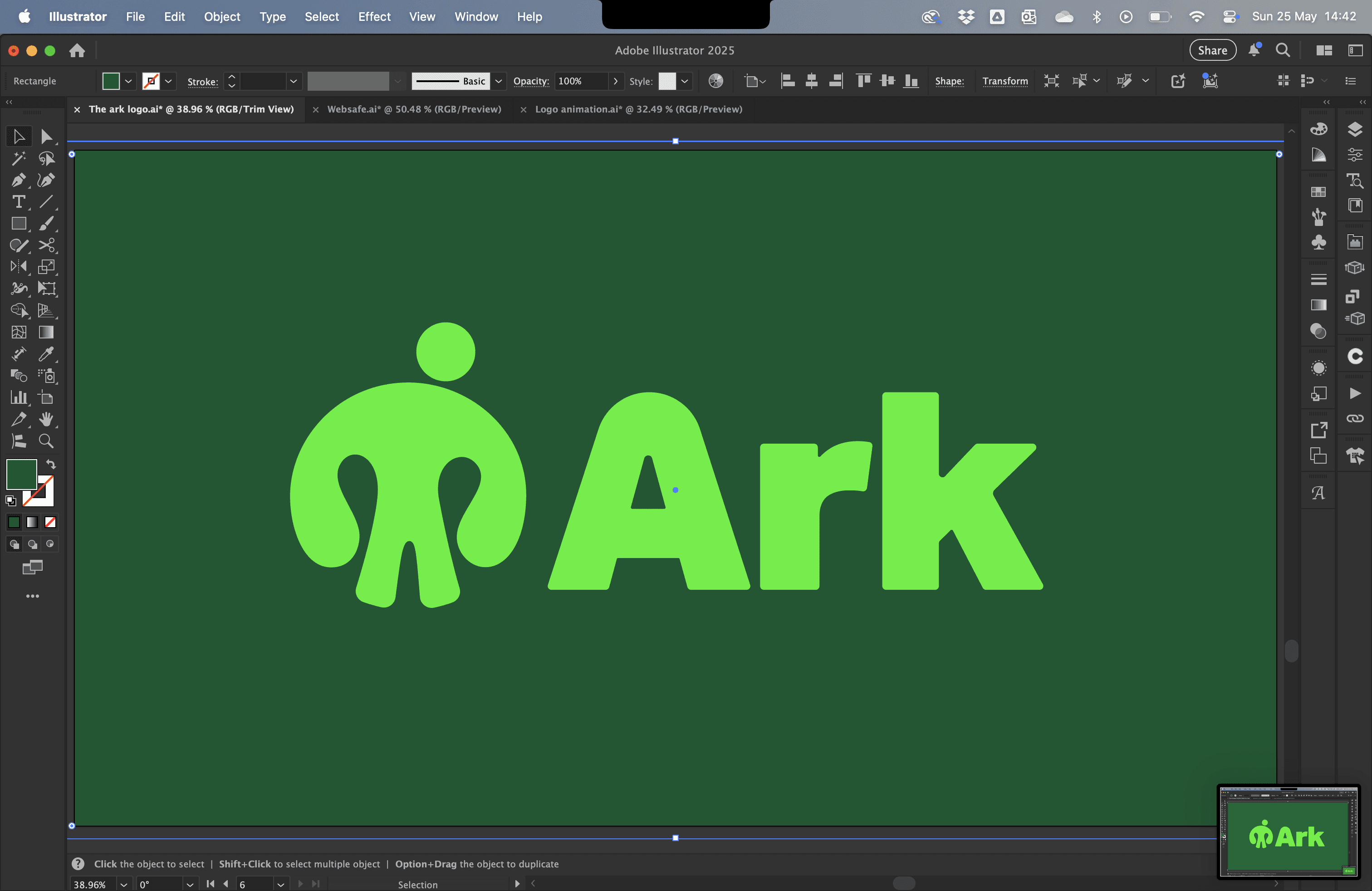
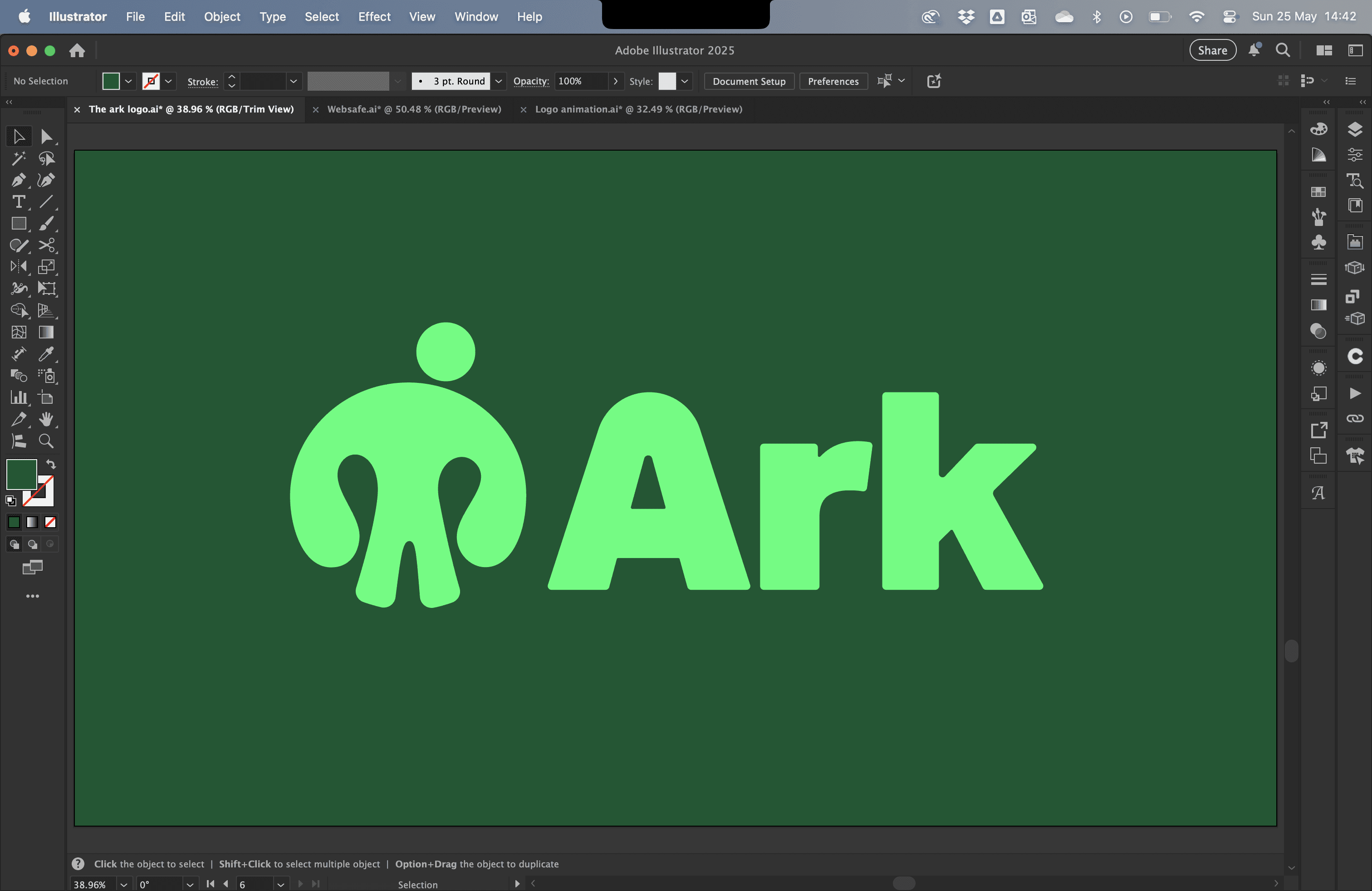
I went back to the basics for this project and just took a look at the colour picker in illustrator. I chose an earthy green colour which felt appropriate due to it's psychological link to health, nature, and wildlife. I then chose a lighter green but the contrast felt a little off. I then made the background a little darker and so on. Take a look below.
The palette works well with the light green accent colour and I have used this across the site for the logo and action buttons. I've also utilised a darker shade of the dark green, white, and a creamy white for alternate section backgrounds and headings. There's enough contrast without feeling too sharp - a similar concept to the logo in the sense that it's round with no sharp edges making the entire visual identity very cohesive.
It sounds somewhat chaotic, but it makes sense when you see the final site.
Visual Identity
Adding Colour
Here's a quick visual of the actual colour palette used on the site. Pretty nice eh?
Visual Identity
Typography
With a total of 665 installed typefaces to choose from across my system and creative cloud, I was bound to find something - It would be a monumental disaster if not.
Now, I love typography (*Reader sighs* - "Here we go again"). Typically, I always have a typeface in mind for the current project without much struggle. We're going for friendly, approachable, trustworthy.
Helvetica is too generic, very corporate - I'd argue not many people trust big businesses and Helvetica doesn't shout friendly.
Inter? My personal favourite - Helvetica's slightly happier cousin with rounded tittles - Yes, the dot of an "i" or "j" is called a tittle (or a "superscript dot" which isn't nearly as entertaining). Still a little too serious though.
Futura? Excellent choice - except for one thing. Why on EARTH is the ascender of an "h" taller than an uppercase letter?!
Such a beautiful font - ruined. To be fair though, even if this wasn't the case, letters such as Z, K, X, N, M, and others have sharp pointy corners - the antithesis of what I'm going for.
Next on the list is Poppins. This typeface can feel a bit childish, but I think its quite malleable. I've never described a typeface like that, but that's the best way I can put it. Poppins, depending on what visuals it's accompanied by, can say "New, hip and cool corporate", "Childish", or "Friendly, happy, but serious". You see my point? It's versatile. In fact, I think Poppins is the best alternative to Futura as it doesn't have the stupid ascenders but still feels geometric and soft.
The table below breaks down the text size and leading values used across the site - these are accurate to the current breakpoint you are viewing my workbook on so what you're seeing now is exactly what you'd see if you loaded up the site on the same device with the same browser window.
Heading 1
Heading 2
Heading 3
Paragraph 1
Paragraph 2
Nav Link
Footer Link
Task 9
Move on to screen and design the proposed layouts which should be a minimum of 4 DUMMY pages minimum for a website or a Phone App.
The Ark Site
Site Build
I haven't documented the process of building the site as I was informed this wouldn't be necessary. I would have done so anyways had I more time available but just getting it finished was my top priority.
I'm pleased to say it's up and running, and I'm incredibly pleased with the outcome!
It's actually very true to the wireframe, minus a few tweaks made to improve responsiveness across breakpoints.
I stuck with the card-style layouts and the alternating background colours. I've also kept in line with each pages hero section.
The home page is just how I imagined it to be – an about page with short sections that draw you into to each of the other pages followed by a CTA and a footer.
Framer is an incredible tool as it's just another piece of design software, almost the same as Figma in fact, but you have a button that says "Publish" and boom, you have a website. It's essentially a UI that has the perfect mix of options and buttons that allow you to visually write code without evening thinking about code at all.
Put simply, I'd be fuming if I did a degree in coding.
Anyways, let's go over the key moments of designing and building the website.
First, I built the header. I built it once and created a "Component". In Framer, this just now means it's a pre-built asset ready to insert wherever you need it. No wasted time building the same thing twice.
Then, I did the same for the footer. Think of it as buttering the bread of your sandwich before putting in the ham and cheese. The header and footer are your bread with it's links being the butter, and so on.
These components can then be inserted on each page ready to be built out into a full site.
It's worth noting that the links in the footer and header have a distinct design choice, the hover state is a simple underline with the transition being instant, no animation. I was planning on having a fancy hover effect but that would mean a slower site speed and reduced accessibility as it's widely known an underline on hover means it's a link. Accessibility was key throughout the development of the site.
In the header, the current page is highlighted green to show you're on that page in case you forget. This does not apply to the footer however as it's not the primary navigation and isn't worth the added strain on the site speed.
Site speed is important as it ultimately determines if someone will even use your site in the first place.
Moving on. As spoken about in the previous section, I added all of my text styles across three breakpoints to ensure the content was displayed correctly and easy to read across all devices.
Had I more time, I would have also included a dark mode version of each style to make it truly flexible across every instance.
I've maintained a strong level of contrast for all buttons and text to ensure everything is legible and clear to see. For example all CTA buttons are either Highlight Green on Dark Green, or Dark Green on White.
The actual layout is also fully responsive. Everything remains proportional across all screen sizes and adjusts to fit in a efficient layout for the current viewport.
Viewport means the available space that the site is viewed on and is separate from screen size. For example if you shrunk your browser tab, the viewport get smaller.
With these considerations in mind at all times, I powered through and in just three days I had gone from having blank pages to a completed site – well ahead of the predicted schedule which I was very pleased with.
The last thing to do was to edit the site settings. This meant a custom free domain (meaning it has ".framer.website" instead of .co.uk or .com)
I chose "thearkcharity.framer.website" and "theark.framer.website" was taken.
Then, it was time to add meta descriptions, page titles, social preview images, a favicon, IOS app icon, and image alt text. Let's break down these terms.
Descriptions are just descriptions for that page. This is the intro text you see under the page title when you're scrolling through google search results.
The page title is just that - the title of the page. This is the main thing you see when you search for the site or a specific page.
If your page titles and descriptions are packed with the correct keywords and information about your site, such as location or what you offer, this can improve your SEO.
SEO means Search Engine Optimisation. This refers to how well your site ranks in search engines. Better SEO means you rank closer to the top, worse is of course the opposite.
A social preview image (when supported) is the image that loads when someone shares the link to your site or a specific page. For example if I sent you the link to the home page of the site on iMessage, Whatsapp or any other platform that supports it, the charity's logo on a dark green background would be shown as a social preview image.
The favicon, often overlooked. Ever seen that ugly little serif "W" in the browser tab for a website? That means someones published a site using WordPress and not bothered uploading a favicon, so you're stuck with a WordPress "W" instead. It's simply the icon displayed in the browser tab when you're visiting a site.
An IOS app icon is just that. Whenever you download an app, it has an image. If you save a website to the home screen on your Apple Device, it's known as a web-app. Adding an IOS app icon ensures you can add your logo (or anything else you might want) to that app. Some websites are built to be saved as web-apps rather than being downloaded through an app store in which case this step becomes crucial.
Image alt text is probably the most overlooked part of web design. It's crucial for accessibility standards as it provides descriptions of images used in a website. It helps those who struggle with disabilities have a better experience when it comes to using your site.
I have overlooked alt text for this project for the simple reason that with limited time available, there are more important things to finish that will have a greater effect on the use of the final site.
Also, another key part of the site build was image optimisation. Rather than putting in huge RAW files, I've taken every image in to photoshop and reduced it's width to 2000px so they're all the same size. Then, I exported them as WebP files - this is an image format that is optimised for the web. The best part about WebP files is that you can export them at 50, 40, even 30% image quality without actually losing much detail at all making file sizes minimal therefore boosting the website performance.
Future Connor here.
I had some spare time, so I took the site a step further and created a dark version of both my workbook and the charity site so whichever system theme you prefer, light or dark, you have a preferred way to view each site.
On my workbook this was pretty simple as the colour palette is very minimal with not much crossover of colours however The Ark's site involved duplicating colour styles and assigning them dark theme alternatives to be used only where I wanted colours to change.
Nevertheless, it was still fairly straightforward and now makes the site even more accessible.
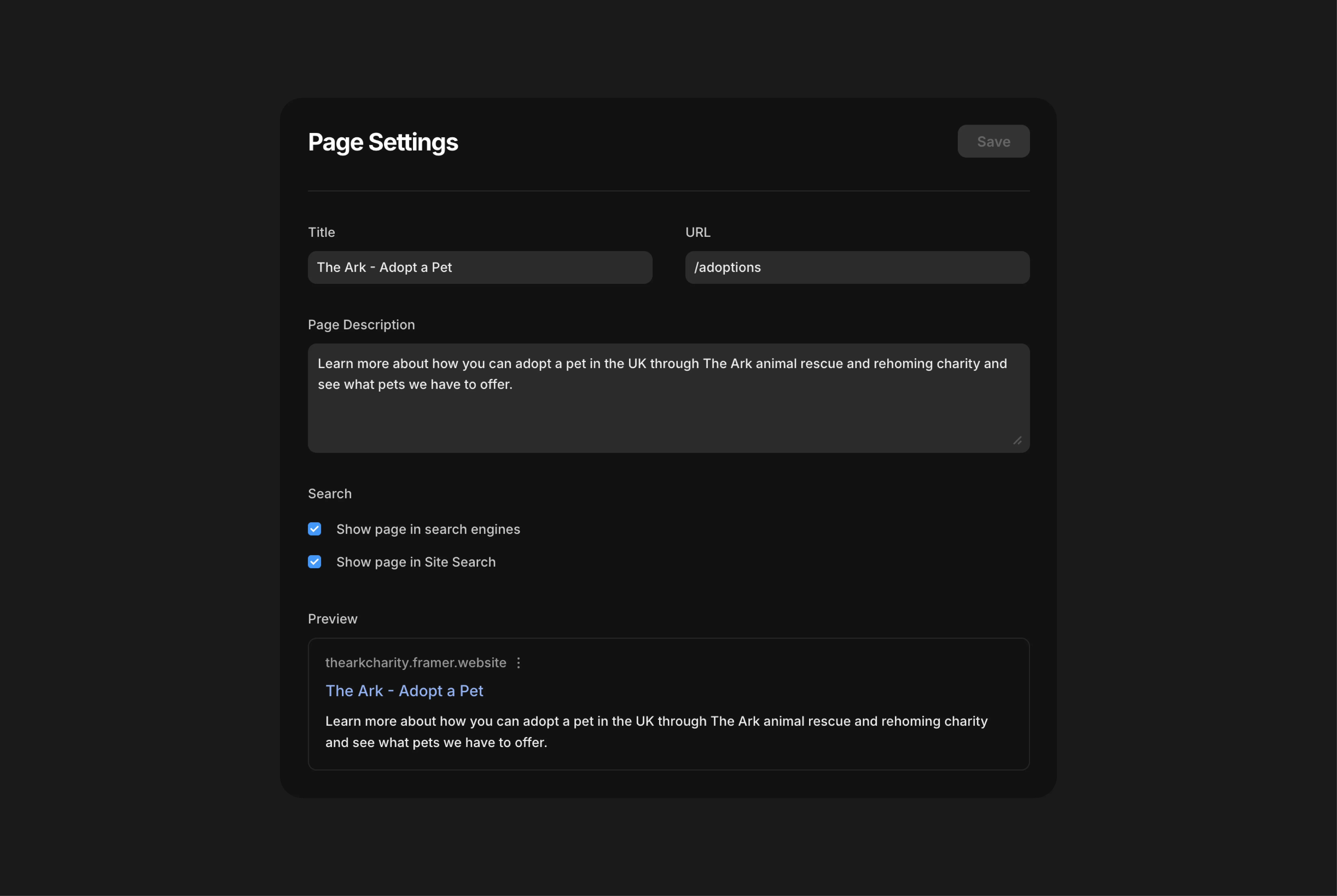
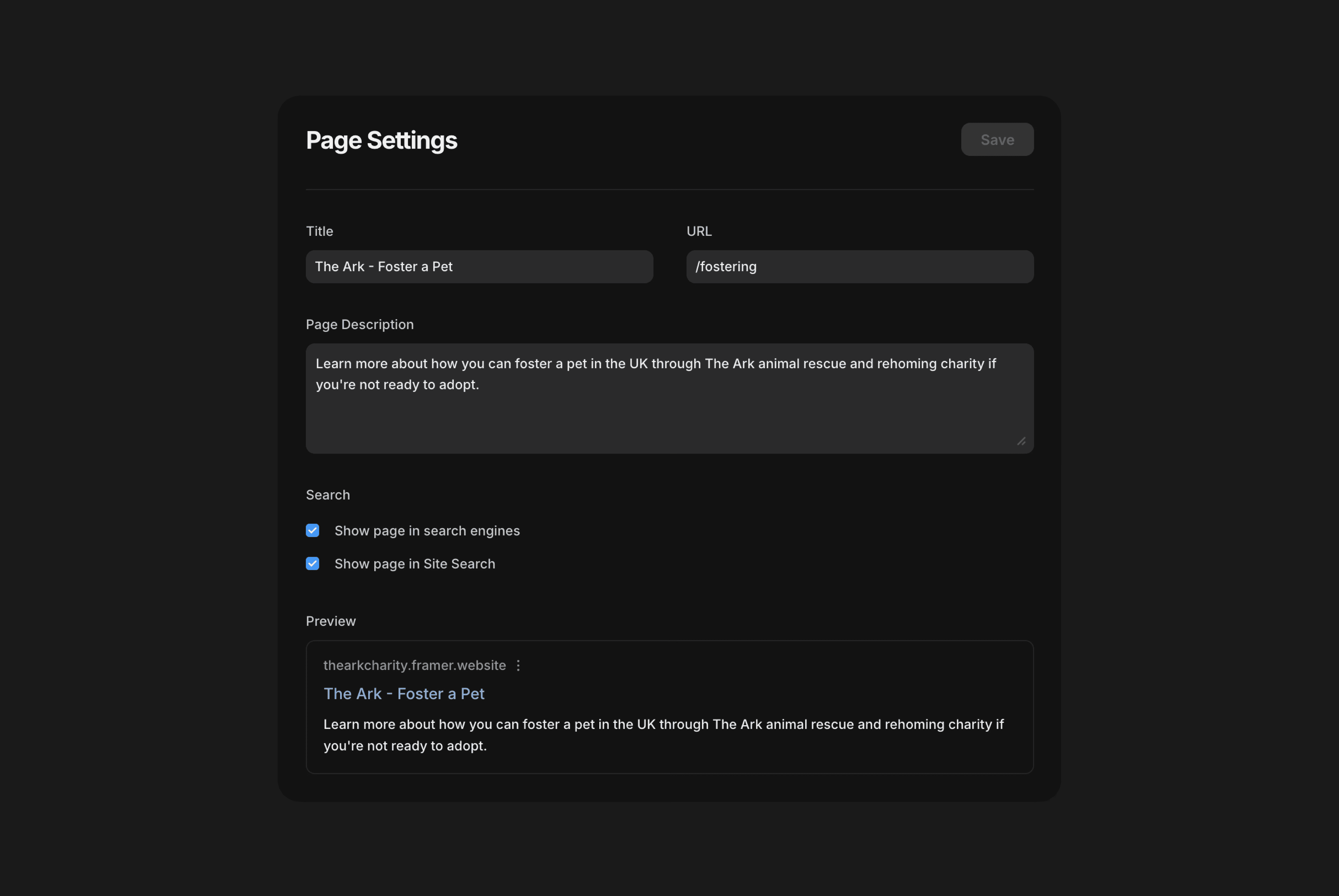
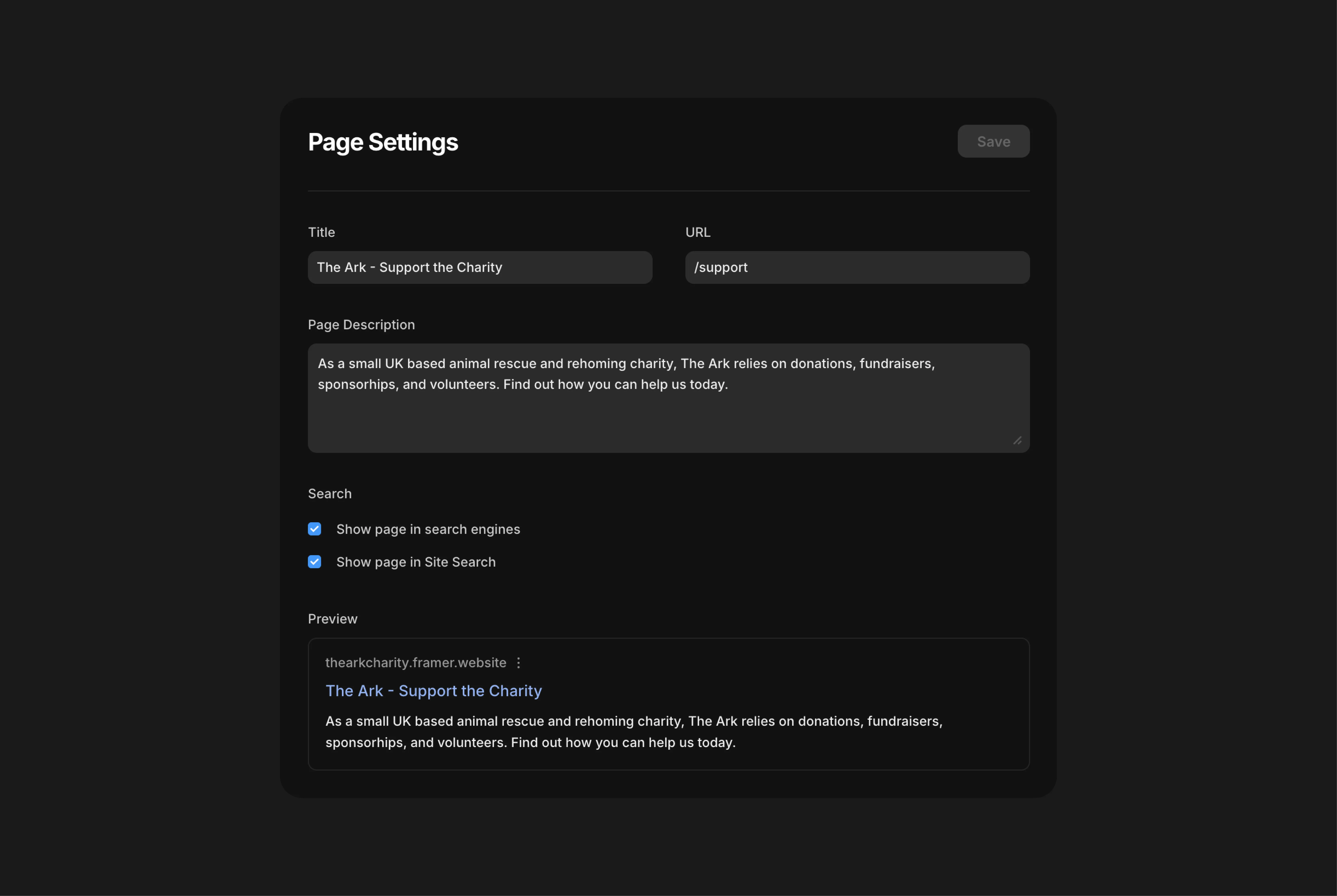
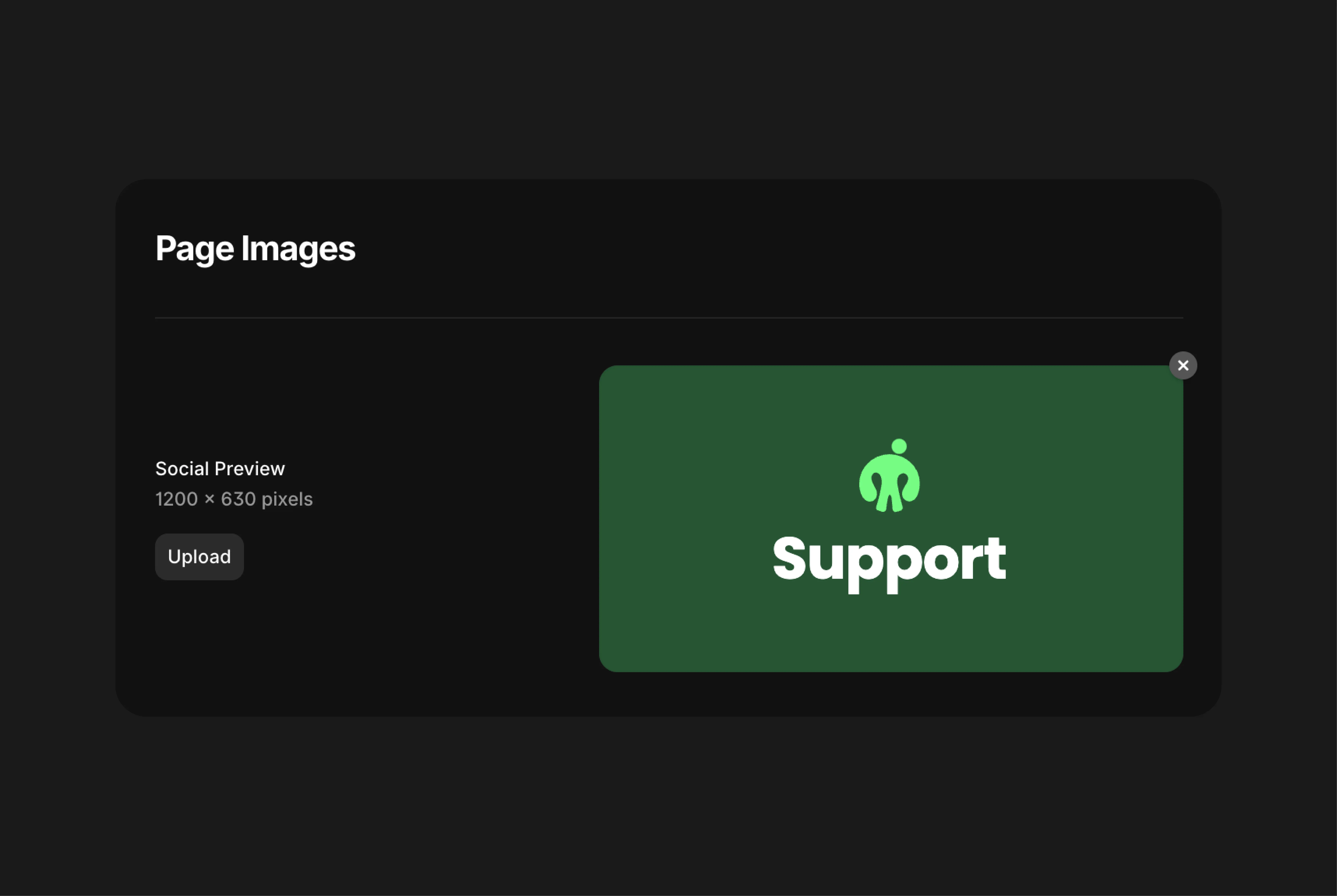
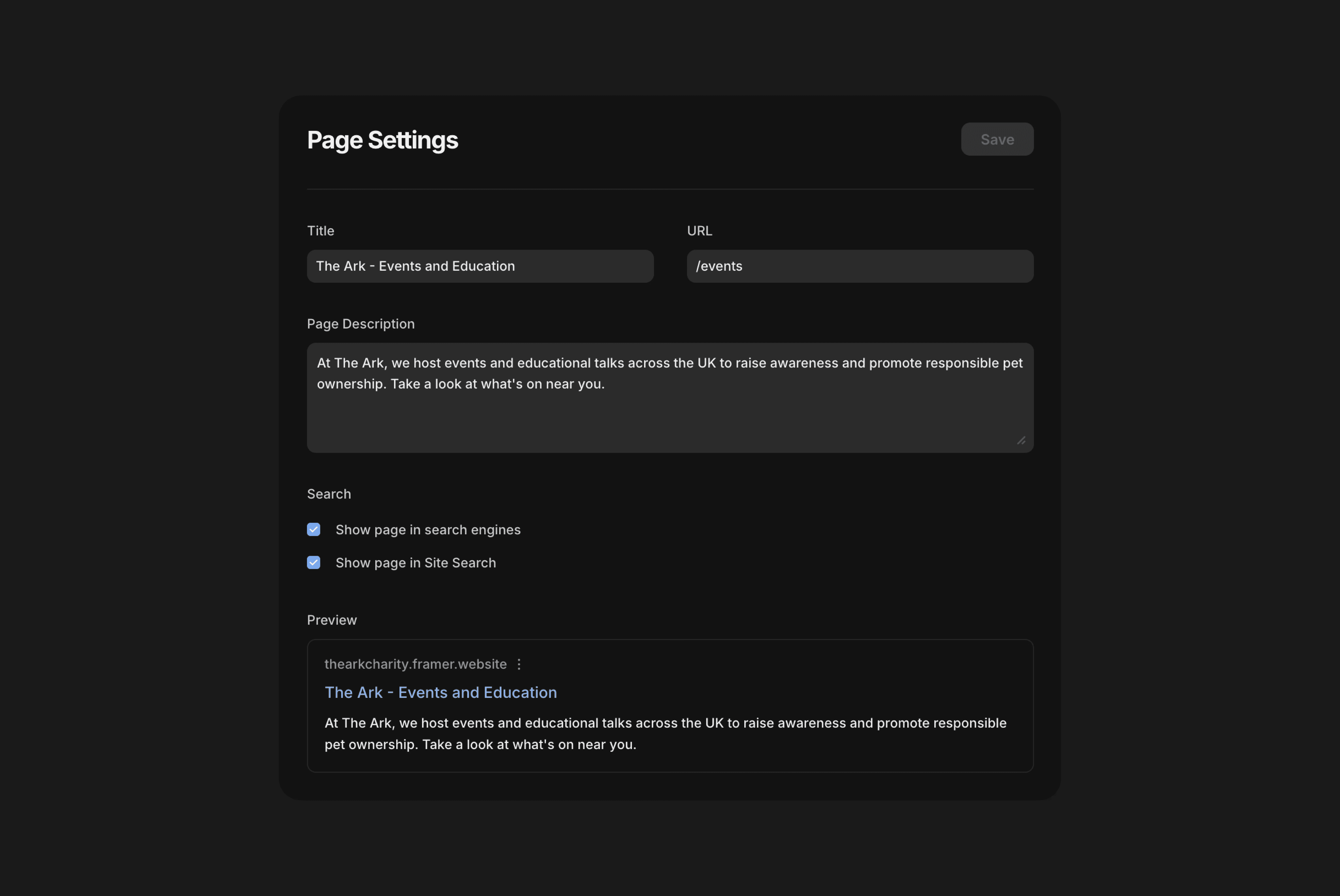
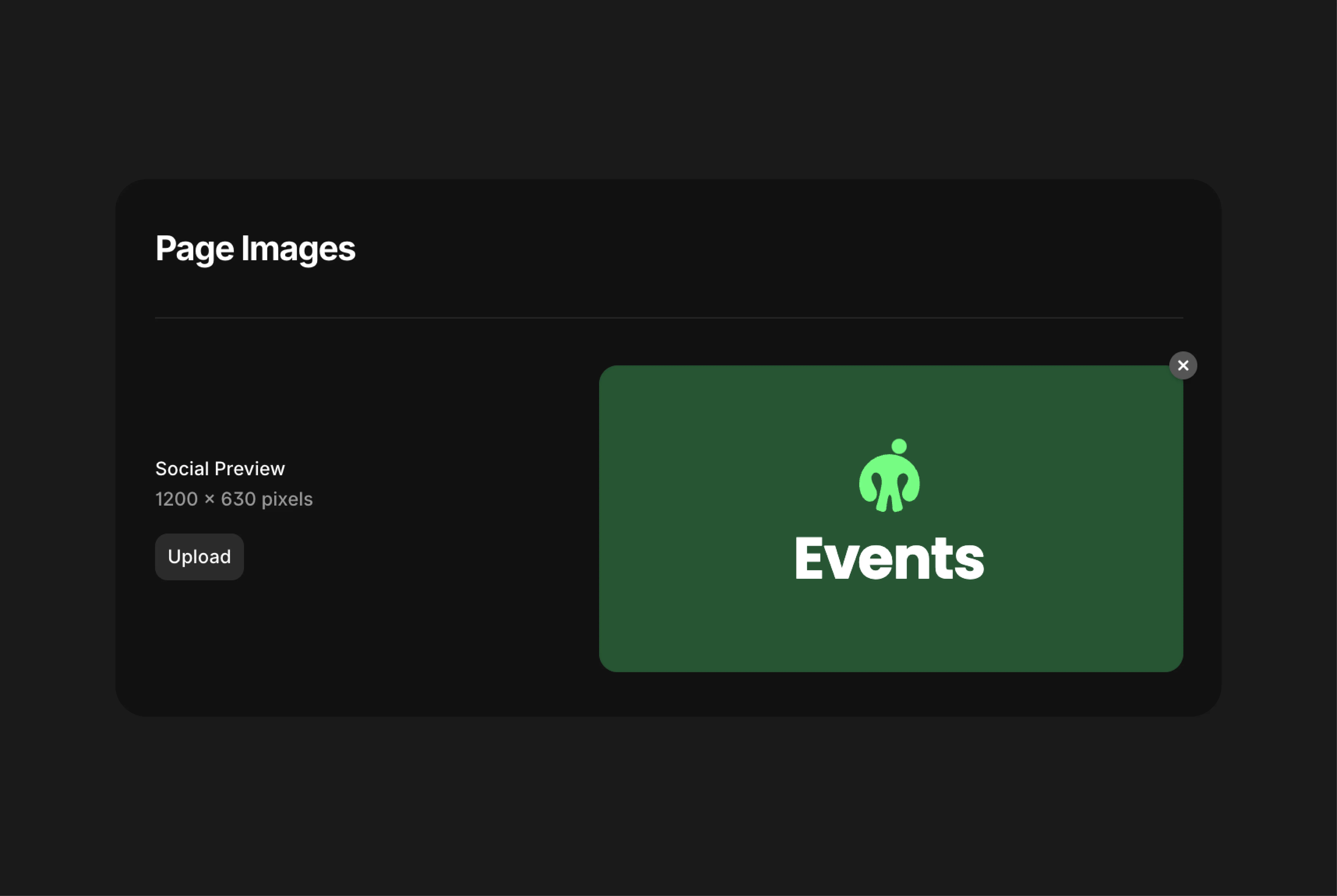
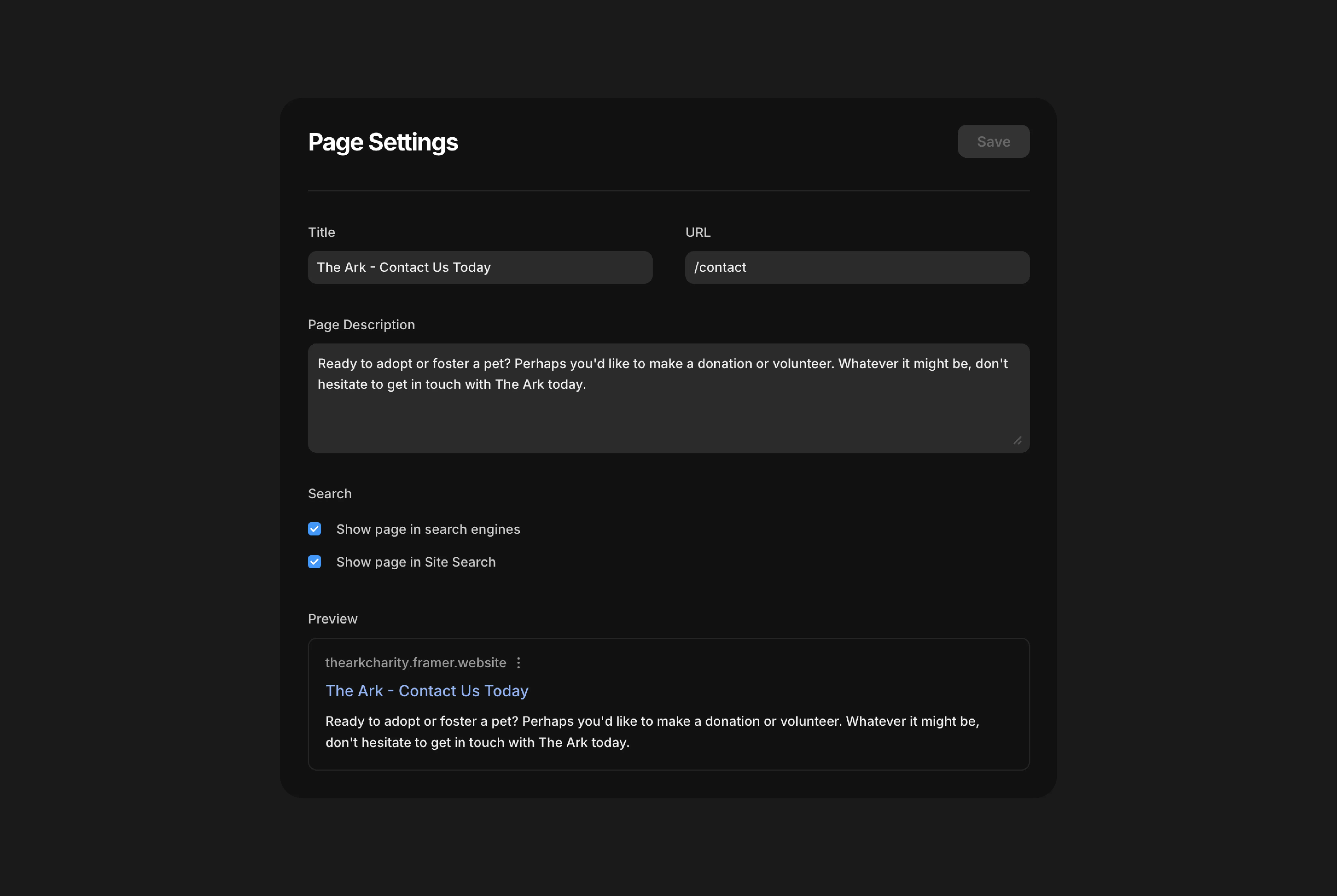
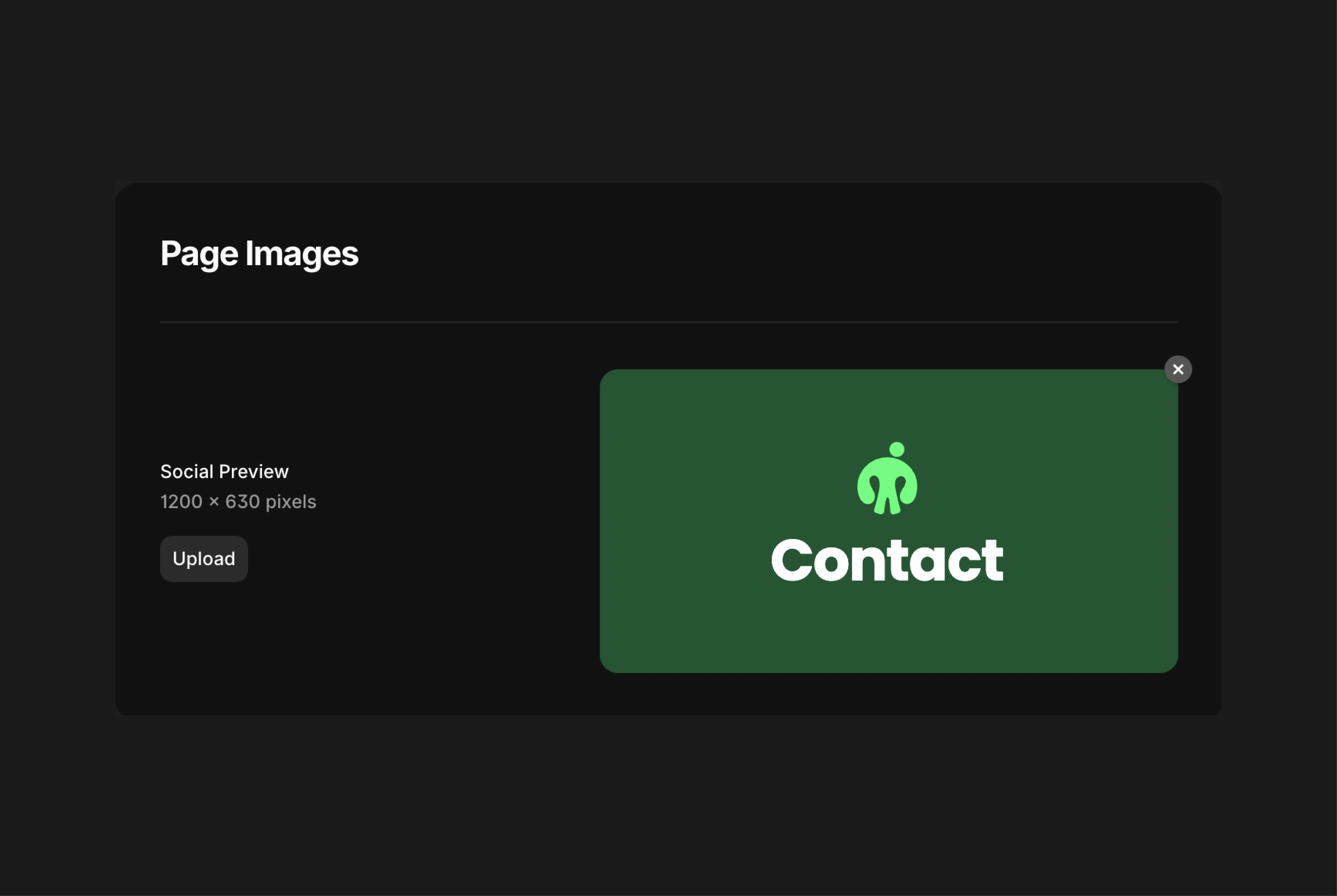
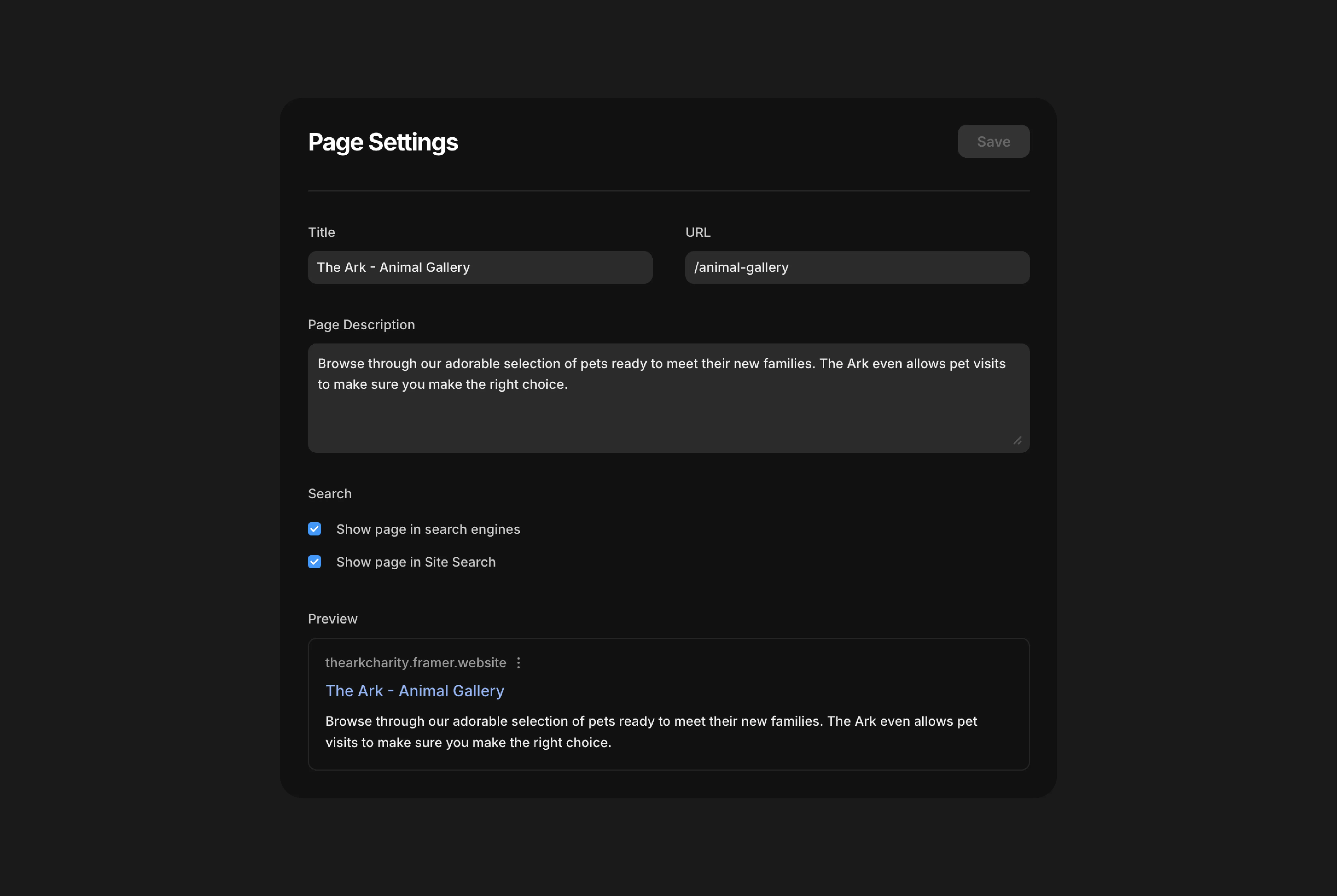
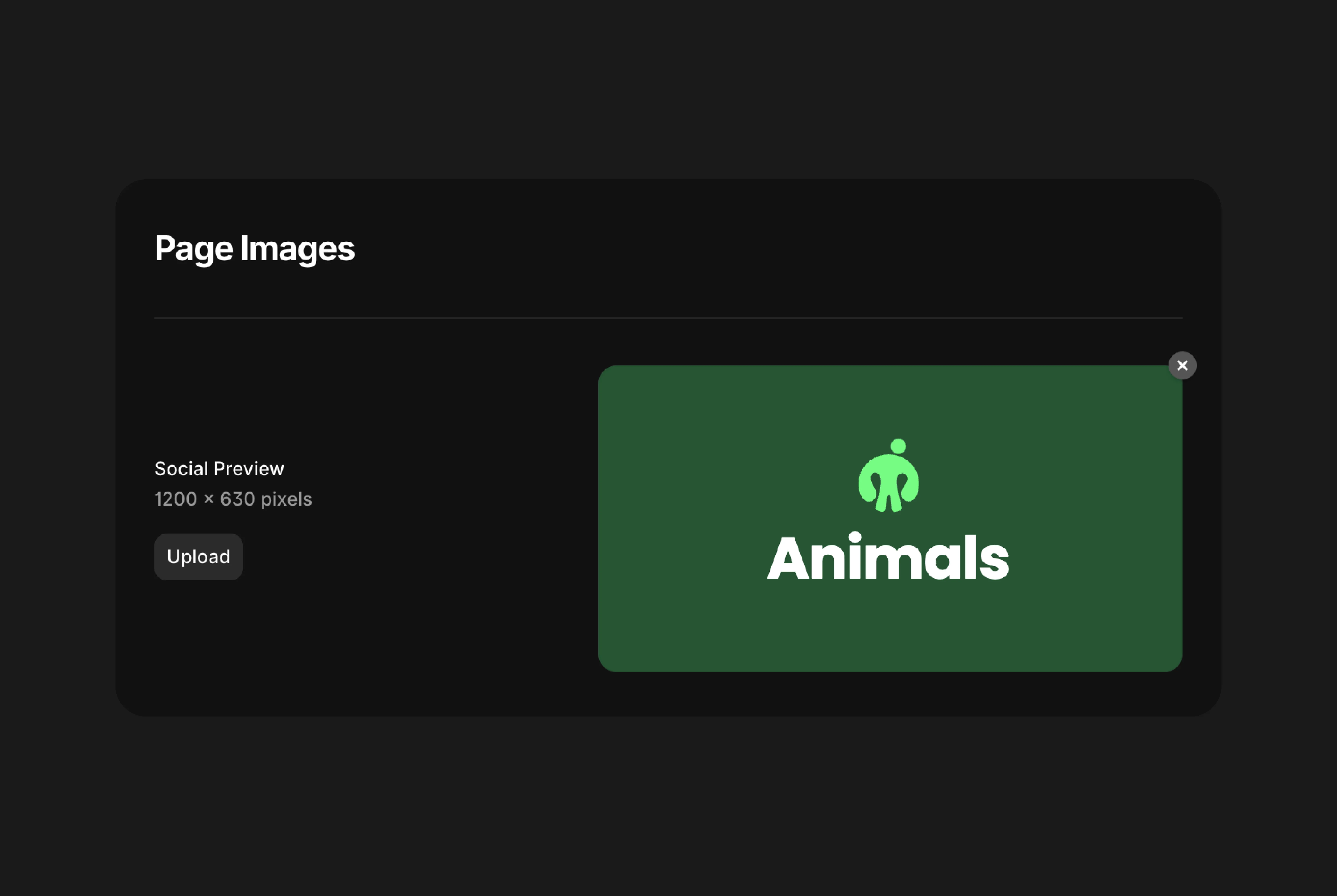
The Ark Site
Issue 1
Unfortunately, I had to do some troubleshooting as I noticed that Safari wasn't displaying the site favicon. Google Chrome was though, so I knew this was specific to Safari.
The issue lied in the lack of SVG support by safari meaning they wouldn't display.
I re-exported the files as PNGs and uploaded them, simple! Now, at this point I have dark and light site themes with a favicon for each. I use dark mode on my computer, so when I cleared my caches and cookies and reloaded the site, the dark mode favicon loaded. Perfect. What about when I switched themes? Nothing changed. Weird.
Turns out Safari cannot do this natively, you have to have specific JavaScript code to overwrite this function and force the favicons to update based on the system theme which is frustrating. This meant I had to make a favicon design that would be suitable across light and dark themes across all browsers. Chrome allows you to change the colour of your browser tabs to a range of colours too which threw another spanner in the works.
A simple solution was to add the highlight green icon on the green background so there was contrast within the favicon. This means if its displayed on a dark background, the icon still has contrast. If its on a light background, the background still has contrast. Impenetrable.
Problem solved!
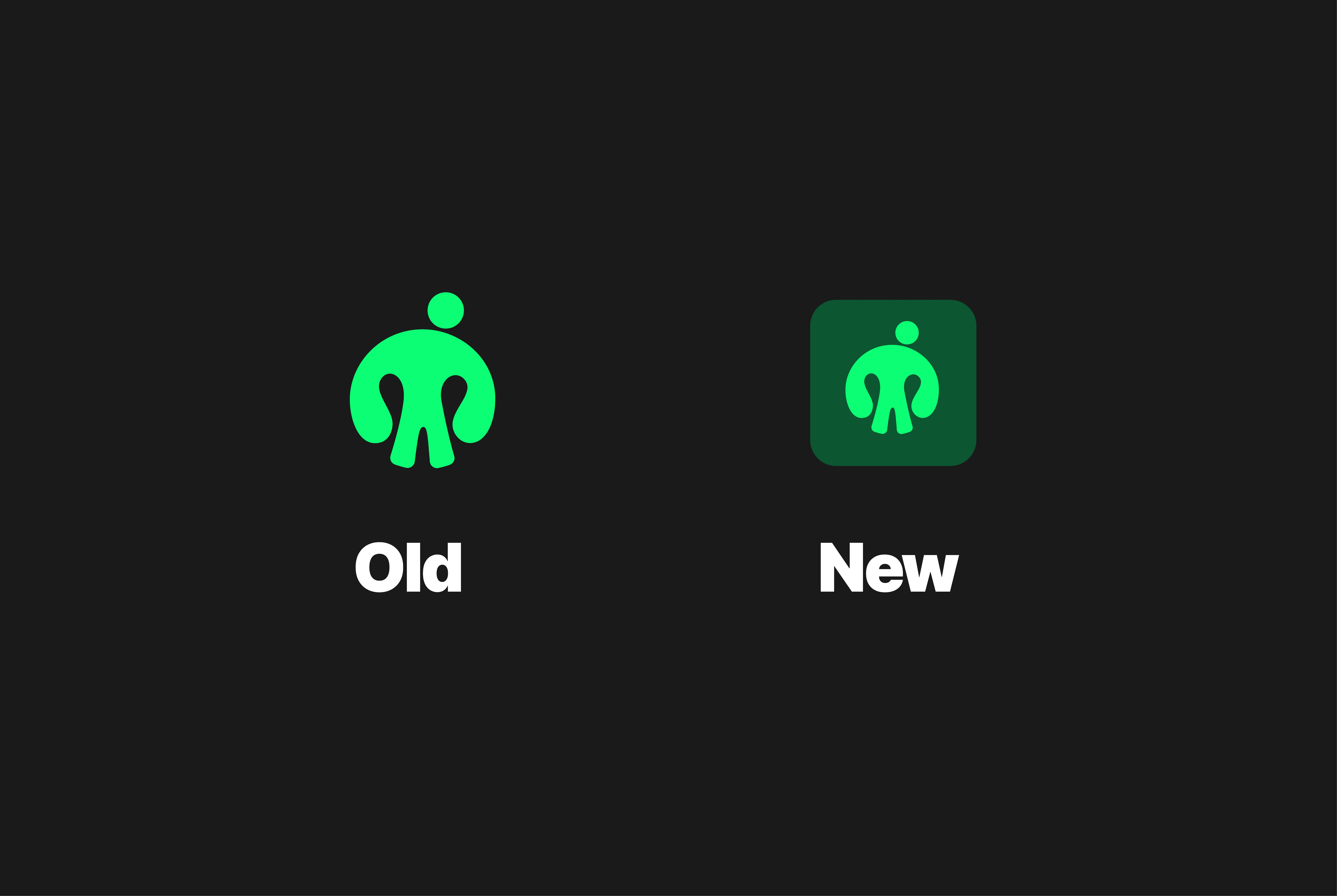
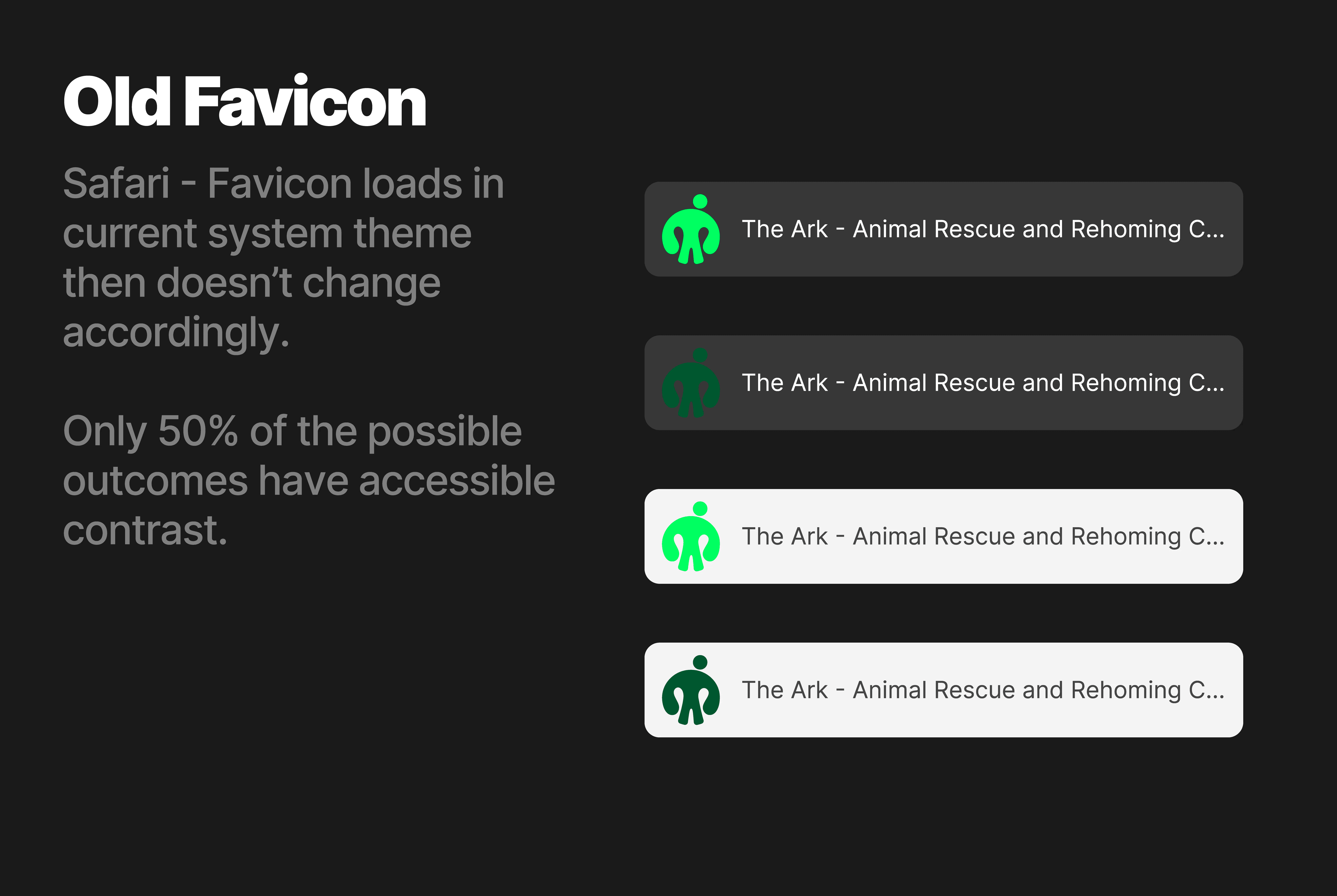
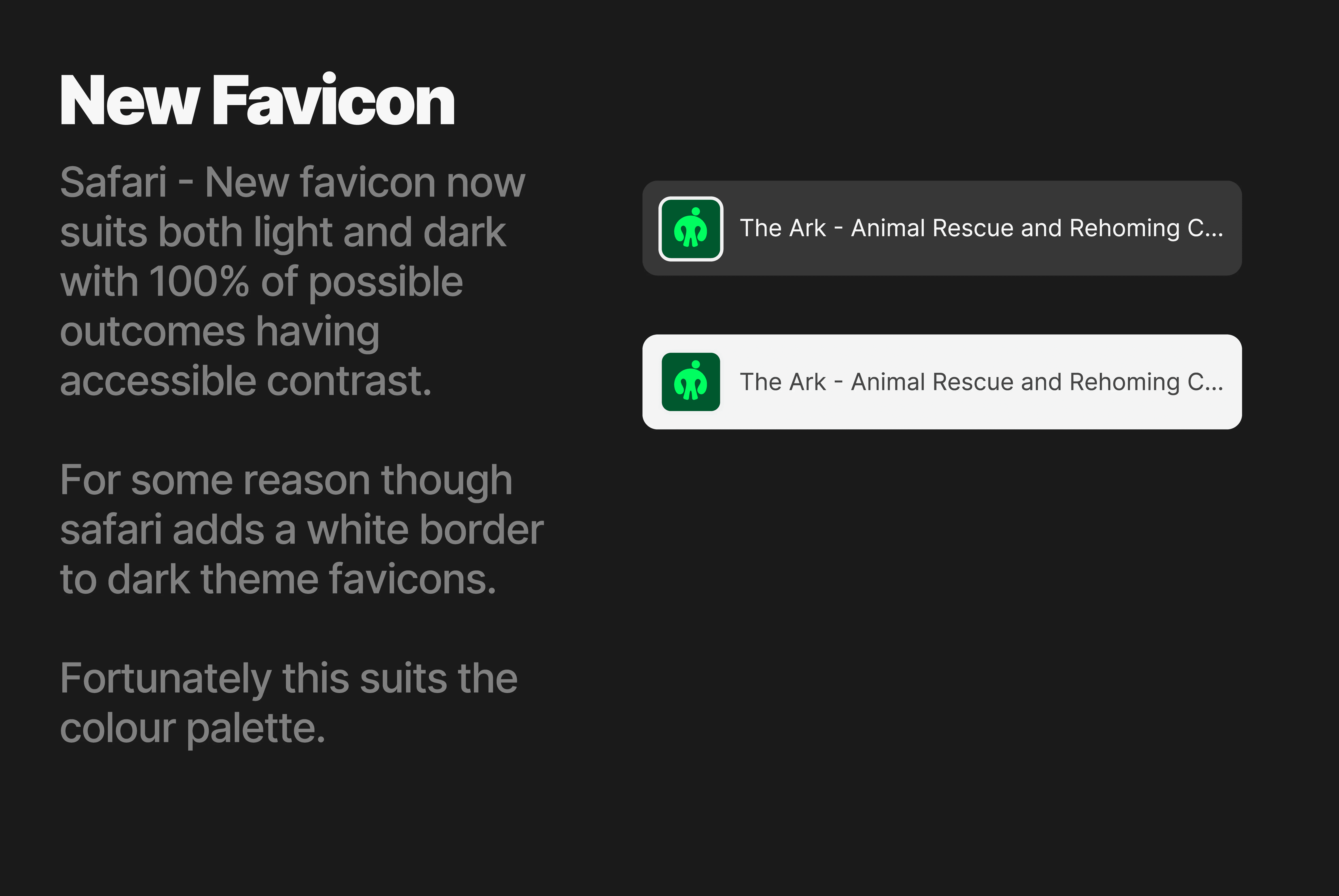
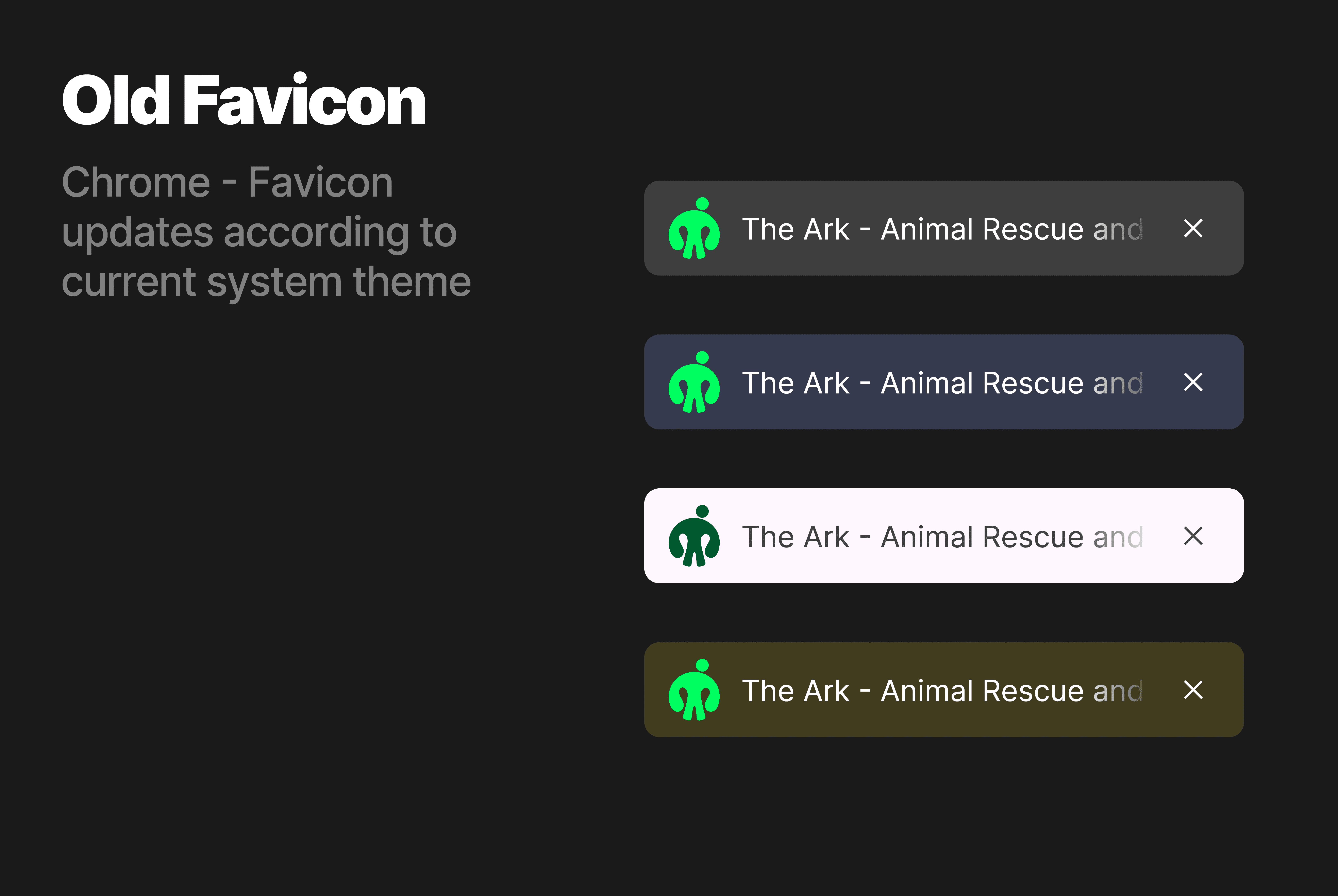
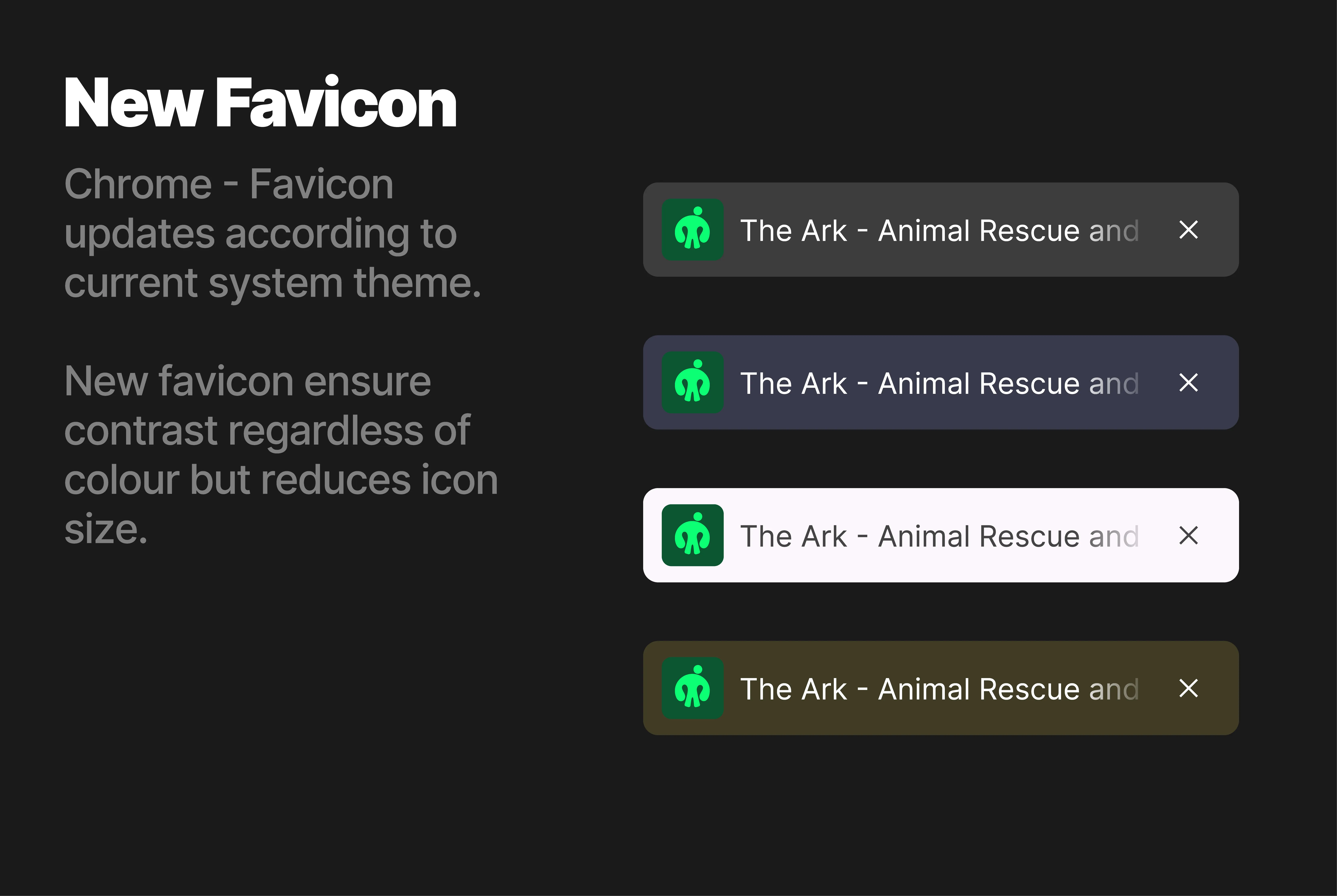
The Ark Site
Issue 2
The last issue was my Call-To-Action sections. Originally, they had a PNG image of a line of pets along the bottom of the section which overlapped the footer. This looked great but the issue was that the image would move and resize disproportionally which made it move off the line - not good.
To fix this, I removed the top padding of the footer and added a rectangle of the same height to the image and changed its position to relative meaning it would always be in the right place at the right size.
This looked great and worked well until I added the dark theme. The rectangle was now baked into a PNG which meant it was no longer responsive in colour - so I removed the image. Whilst it feels a little empty, it also puts a whole lot more emphasis on the CTA button which is beneficial.
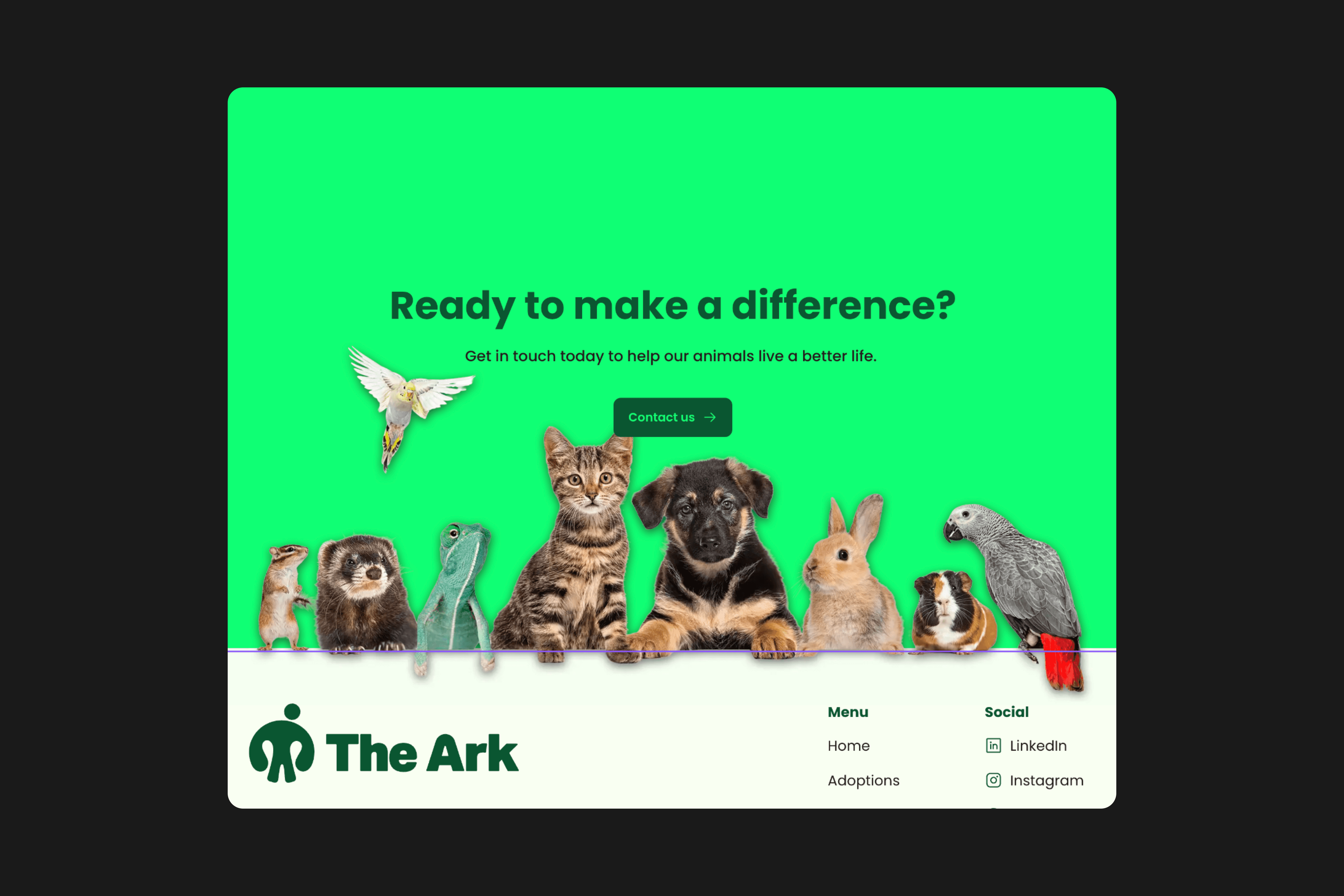
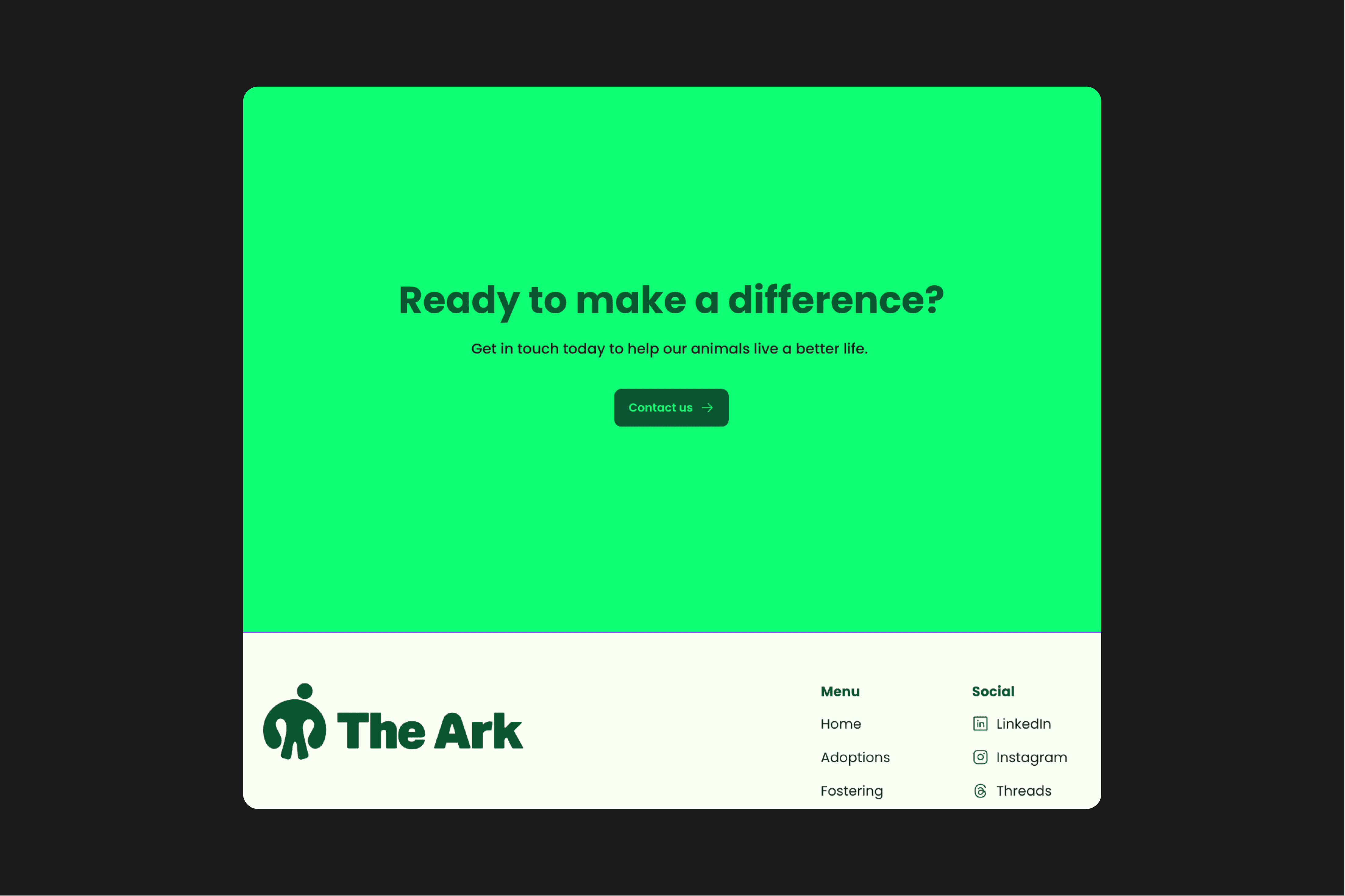
Task 10
Once finalised present to CLIENT, tutors and peers. Produce a reflective evaluation of the project.
Presentation
Client Feedback
The final task was to present the final site to the client (my tutor) and peers. I created two interactive PDF files to place in the submissions folder - one to head to my workbook and one to head to the charity site.
Annoyingly, I noticed two small errors in the site whilst I was presenting which I have since fixed. Besides this, the presentation went well.
I think I went a little fast, but I did get through all the necessary talking points. One peer immediately identified the logo-mark as a person and a nose which I was pleased with. Overall, I received positive feedback for the site which was great!
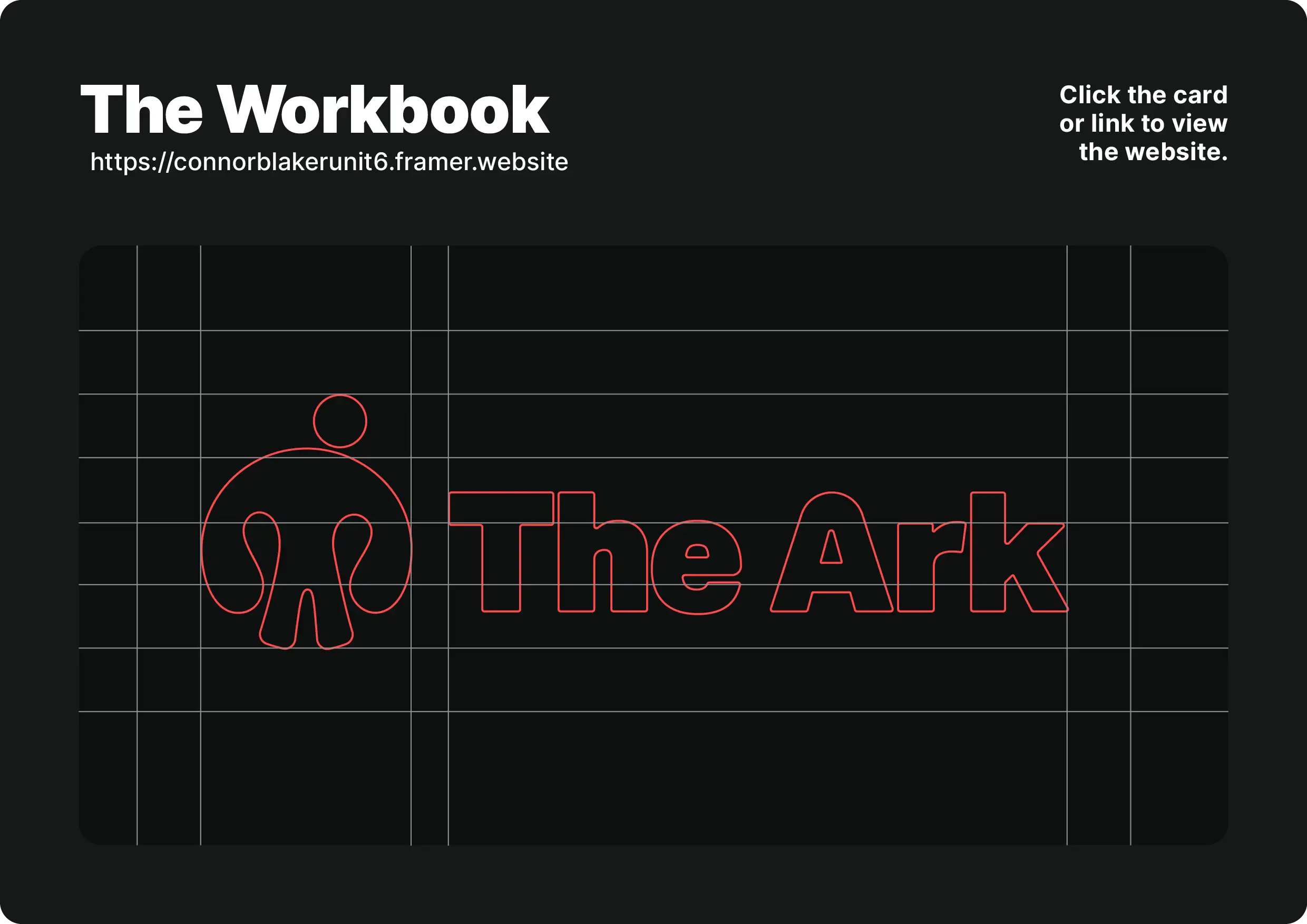
Project Overview
That was an EXCELLENT brief. Let's get straight into the evaluation shall we? Yes, more reading I'm afraid.
Wrapping Up
Evaluation
Wowzers. What a project eh? Genuinely an absolute cracker. As I've said before my goal with each unit is to properly push myself to do my absolute best.
This project was a huge success in that regard. At the beginning of the project I had only just begun using Framer and was eager to learn the ins and outs. I challenged myself to not just design the website for The Ark, but build it too. I also did the same for my workbook, it's a fully functional and responsive website.
I have been able to complete each task in a timely manner and have successfully produced all required deliverables for the project as well as the added deliverable of a functional site.
Throughout the unit, I have looked at key concepts such as web safe fonts, colour theory, accessibility, and more to produce a very well rounded outcome that included an effective logo device and visual identity as well the charity website.
I explored a number of logo concepts before finding the ideal solution that avoids industry cliches whilst perfectly symbolising the charity's ethos of connecting animals with their forever homes.
Through wire-framing and a developmental process, I have created an effective website that only slightly deviates from the original design to keep it optimised across all platforms.
I'm incredibly pleased with the process and the outcome of this project as I've put in 110% the whole way through. I have gone beyond the project requirements to ensure I challenge my abilities which has been a great success.
I've learnt a boatload about how to actually build a responsive, accessible website which I'm very pleased with. I can't wait to build more sites with Framer in the future.
If I was to do the project again however, I would like to be better organised when it comes to balancing my workload. Due to having ongoing client projects outside of my degree work, I had moments where I was focusing on one thing more than the other which led to a slight time crunch at the end of the project.
This being said, I completed my client work and then completed my work for Unit 6 two days before the deadline which left me time to check things over before submission.
Overall, this project has been hugely successful with a few minor tweaks to be made if I was tasked to do it again.
To bring the project to a close, I would love to give the website to a charity who may be in need of it. As it's a functional site, there's minimal work to do if a charity was to use the site. That's the next task, but you'll here about that next year.
The end!
Apologies for all that reading, I hope it didn't take up too much of your week. That's the entirety of the project from start to finish, I hope you enjoyed it.